Learning how to use LUTs for video opens up a world of creative possibilities in color grading and visual storytelling. Whether you’re aiming to achieve a cinematic look or simply improve the overall aesthetic of your footage, understanding the application and customization of LUTs is essential for modern video production. This guide provides a comprehensive overview to help both beginners and experienced editors harness the power of LUTs effectively.
From understanding different types of LUTs to applying them in various editing software, as well as tips for creating your own custom LUTs, this discussion covers all the key aspects. You will also gain insights into best practices and troubleshooting techniques to ensure your color grading results are visually stunning and consistent across projects.
Introduction to LUTs in Video Production
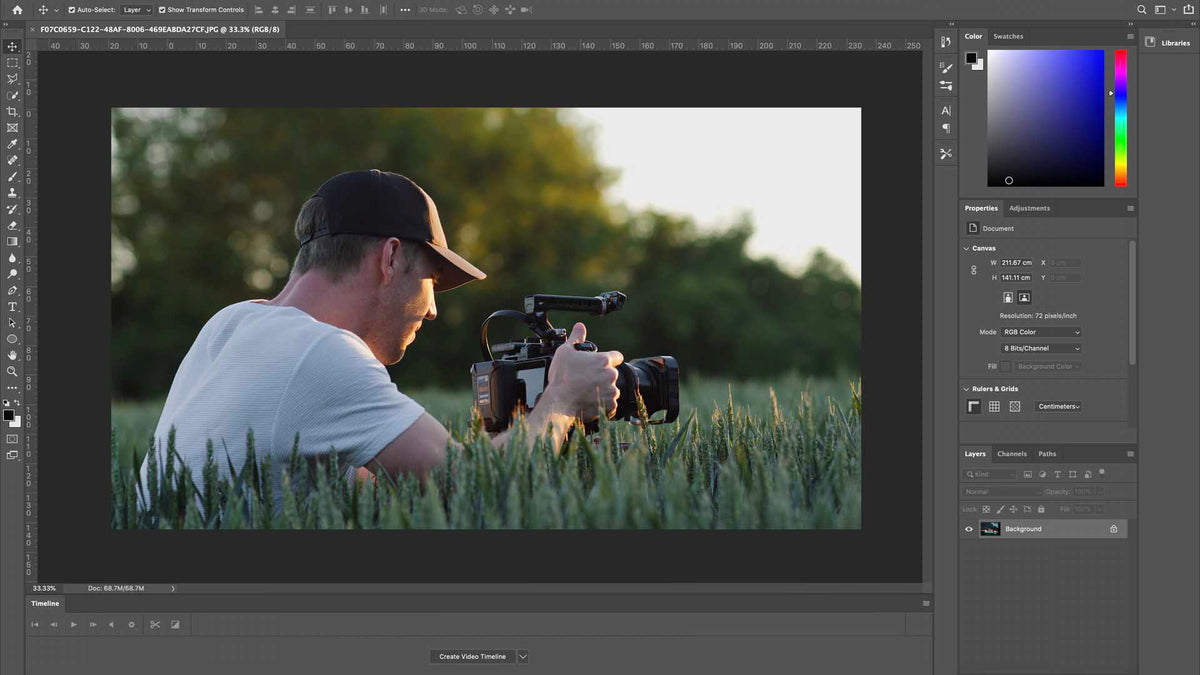
Lookup Tables, commonly known as LUTs, serve as powerful tools in the realm of video editing and color grading. They enable filmmakers and editors to transform the visual aesthetics of footage swiftly and consistently, ensuring a cohesive look across scenes and projects. By applying predefined color transformations, LUTs can significantly streamline the post-production process, allowing for creative experimentation and professional-grade results.
At their core, LUTs function as mathematical mappings that modify the color information within a video. They take input color values and remap them to new output values based on preset parameters. This process can alter various aspects of the image, including hue, saturation, contrast, and luminance, thereby shaping the overall visual style. Whether aiming for a cinematic, stylized, or natural appearance, LUTs serve as essential tools for achieving desired artistic outcomes efficiently.
Types of LUTs and Their Roles in Video Workflows
Understanding the different types of LUTs is crucial for integrating them effectively into the video production process. Each type serves specific purposes and is suited to different stages of editing or grading.
| Type of LUT | Description | Common Use Cases |
|---|---|---|
| 1D LUTs | These LUTs modify individual color channels (red, green, blue) independently, primarily adjusting contrast and tonal responses within the image. | Basic corrections, contrast adjustments, and simple color grading tasks. |
| 3D LUTs | Three-dimensional mappings that manipulate the entire color space simultaneously, enabling complex color transformations and stylized looks. | Creative grading, film emulation, and achieving specific cinematic styles. |
| Technical LUTs | Designed to convert footage from one color space or gamma profile to another, ensuring accurate color reproduction across devices and formats. | Color space conversions (e.g., Rec.709 to Rec.2020), camera profile corrections. |
| Common Types of LUTs | ||
Note: The choice of LUT depends on the specific needs of the project, whether for technical correctness or creative expression. Using the right LUT can save time and enhance the visual storytelling of a video.
Types of LUTs and Their Functions
Understanding the various types of LUTs (Lookup Tables) is fundamental for effective color grading and correction in video production. Different LUTs serve distinct purposes, ranging from technical adjustments to creative enhancements. Recognizing these categories allows videographers and colorists to select the appropriate LUTs for specific scenarios, ensuring optimal visual outcomes that align with the desired aesthetic or technical standards.
Each type of LUT is designed to address particular needs within the post-production workflow. Whether correcting for camera limitations, achieving a specific cinematic look, or applying technical color adjustments, selecting the right LUT facilitates a streamlined process and consistent visual results. Below, we explore the main categories of LUTs, their core functions, and when they are best utilized.
Technical LUTs
Technical LUTs are primarily used to convert footage from one color space to another, ensuring that color and exposure levels are accurately mapped for different devices or delivery platforms. They are essential in maintaining consistency across various cameras and ensuring compliance with broadcast standards or digital formats.
These LUTs are often applied during the editing process to correct footage for display on specific devices or to prepare the footage for further grading. Examples include converting log footage from a cinema camera to Rec.709 for standard HD viewing or adjusting raw footage from a digital cinema camera to a standardized viewing color space.
Example: Applying a Rec.709 LUT to raw cinema footage to produce a viewable version on standard monitors.
Creative LUTs
Creative LUTs are designed to establish or enhance the artistic style of a video. They provide filmmakers and colorists with a quick way to apply a specific look, mood, or visual tone, often inspired by cinematic aesthetics or branding requirements.
These LUTs can simulate film stocks, create vintage effects, or produce vibrant, stylized visuals. They are frequently used in the early stages of color grading to set the overall aesthetic, or for quick previews during filming to visualize the intended final look.
- Example of Creative LUTs: A teal-and-orange look popular in action movies, or a muted, desaturated palette for a documentary style.
- Application Scenarios: Music videos, commercials, narrative films, or social media content where a distinctive visual identity is desired.
Camera-Specific LUTs
Camera-specific LUTs are tailored to particular camera models or brands, accounting for their unique color science and sensor characteristics. These LUTs optimize footage for a more accurate representation and facilitate a smoother grading process, often serving as a starting point for further correction or creative adjustments.
Implementing camera-specific LUTs helps maintain consistency across different camera rigs in multi-camera shoots or when integrating footage from multiple sources. They are also beneficial in ensuring that the footage appears as intended before more detailed grading begins.
| LUT Type | Purpose | Typical Application | Visual Difference |
|---|---|---|---|
| Technical LUTs | Color space conversion and technical correction | Converting log footage to standard display space | Footage appears more accurate, with proper contrast and saturation matching intended display standards. |
| Creative LUTs | Establishing a visual style or mood | Adding cinematic or artistic looks | Images exhibit stylized color grading, such as teal-orange contrast, vintage tones, or high saturation effects. |
| Camera-Specific LUTs | Optimized color correction tailored to camera profiles | Pre-grading footage from specific camera models | Footage maintains color science consistency, with natural skin tones and accurate sensor response. |
Applying LUTs to Video Footage
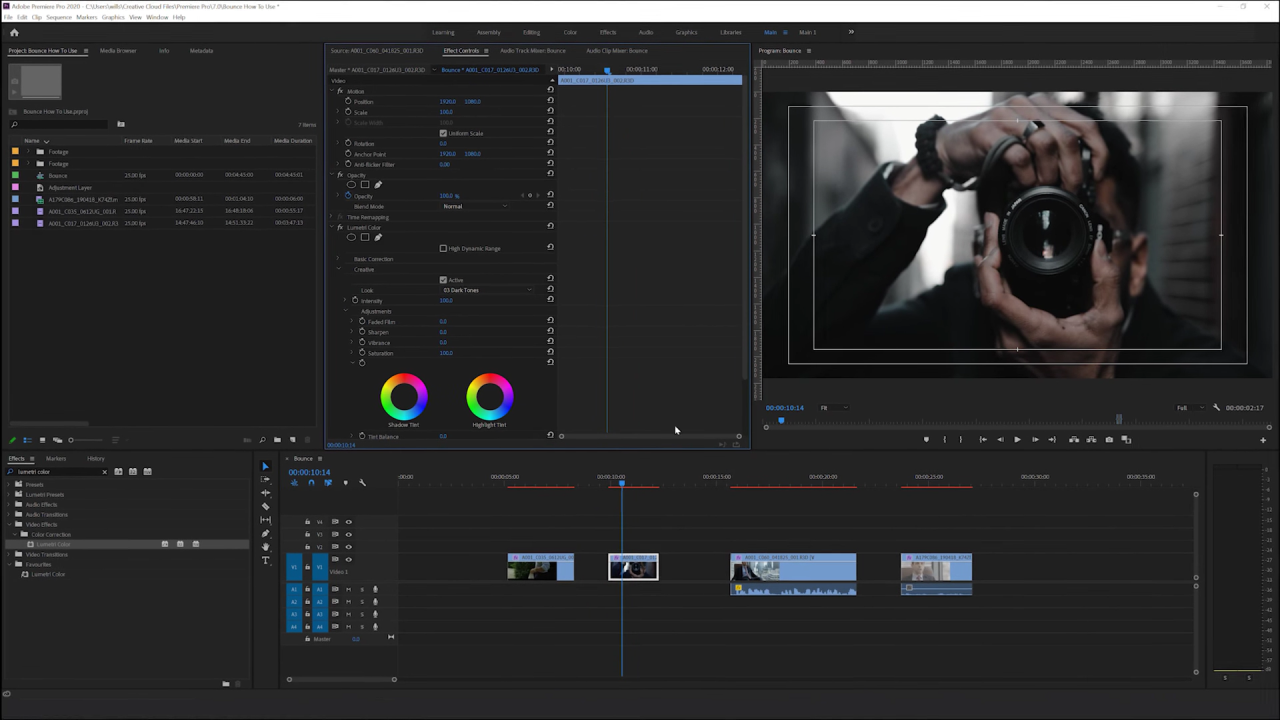
Applying Lookup Tables (LUTs) to your video footage is a fundamental step in color grading, enabling filmmakers and editors to achieve specific visual tones and moods efficiently. The process varies slightly depending on the editing software used, but the core principles remain consistent across platforms. Proper application and adjustment of LUTs can significantly enhance the storytelling and aesthetic appeal of your videos.
This section provides a comprehensive guide to applying LUTs across popular editing software, outlining step-by-step procedures, import methods, selection techniques, and how to refine the effect through blending modes and intensity adjustments.
Step-by-step Procedures for Applying LUTs in Popular Editing Software
Each editing platform has unique workflows for incorporating LUTs into your timeline. Familiarity with these procedures ensures a smooth post-production process and optimal results.
Below is a responsive table summarizing the application steps, tips, and considerations for different software environments:
| Software | Steps | Tips |
|---|---|---|
| Adobe Premiere Pro |
|
|
| DaVinci Resolve |
|
|
| Final Cut Pro |
|
|
Adjusting Intensity and Blending Modes
Once the LUT is applied, fine-tuning its intensity and blending mode allows for achieving the desired aesthetic seamlessly. These adjustments help prevent overly aggressive color shifts and enable subtle enhancements aligned with the creative vision.
Typical methods include:
- Opacity Control: Lowering the opacity of the LUT layer in software like Premiere Pro or Resolve reduces its impact, enabling more subtle color grading.
- Blending Modes: Changing the blending mode (e.g., ‘Overlay,’ ‘Soft Light,’ or ‘Screen’) can produce various effects, from subtle warmth to dramatic contrast, depending on the creative intent.
- Color Wheels and Curves: Adjust the midtones, shadows, and highlights post-LUT application to refine the overall look further.
“Combining LUT application with opacity and blending modes provides precise control, allowing for a tailored visual outcome that enhances storytelling.”
By methodically applying these adjustments, editors can ensure that the LUT enhances the footage without overpowering the original image quality, resulting in a professional and polished final product.
Customizing and Creating Your Own LUTs

Customizing and creating your own Look-Up Tables (LUTs) empowers videographers and colorists to craft unique visual styles tailored specifically to their projects. While pre-made LUTs serve as excellent starting points, developing bespoke LUTs enhances creative control and ensures a distinctive aesthetic that aligns with your artistic vision. This process involves understanding how to generate LUTs from scratch, modify existing ones, and utilize specialized software tools to bring your targeted color grading to life.
Mastering the creation and customization of LUTs streamlines your workflow, allows for consistent color grading across multiple projects, and provides a personalized touch that can set your work apart. Whether you’re aiming to replicate cinematic looks, match footage from different cameras, or develop an entirely new color palette, knowing how to craft your own LUTs is an essential skill for advanced video production.
Creating Custom LUTs from Scratch
Developing a LUT from the ground up involves defining a specific color grading intent and translating it into a mathematical model that can be applied uniformly across footage. This method is particularly useful when aiming for a highly specific aesthetic that cannot be achieved through existing LUTs or simple adjustments.
- Analyze the Desired Look: Begin with a clear vision of the color palette, contrast, and mood you want to achieve. Gather reference images or footage that exemplify this style.
- Adjust Raw Footage: Use professional grading software to tweak the color balance, contrast, exposure, and saturation until the footage matches your target aesthetic.
- Record Transformation Data: Save the color adjustments as a custom LUT within your grading software. This involves exporting the settings into a LUT format such as .cube or .3dl.
- Test and Refine: Apply your newly created LUT to different footage to evaluate its effectiveness. Make iterative adjustments and re-export the LUT until the desired look is consistently achieved.
Modifying Existing LUTs for Specific Projects
Adjusting pre-existing LUTs allows for rapid customization, enabling you to fine-tune a general style to better suit particular footage or project requirements. This process involves subtle or significant edits to match your creative goals.
- Import the LUT into your grading software and apply it to your footage.
- Adjust opacity or intensity to control the influence of the LUT on your footage.
- Make targeted color corrections such as shifts in hue, saturation, or luminance to modify the overall look.
- Use built-in controls like curves, color wheels, or secondary color correction tools to refine the image further.
- Re-export the modified LUT for consistent application in future projects or different clips within the same project.
Custom modifications enable a tailored aesthetic, ensuring the LUT aligns perfectly with your project’s mood, lighting conditions, and camera characteristics.
Tools and Software for Designing Bespoke LUTs
Creating and customizing LUTs requires specialized software that provides comprehensive control over color grading data. The choice of tools varies based on the complexity of your workflow, budget, and technical expertise.
| Software | Description | Key Features |
|---|---|---|
| DaVinci Resolve | A professional-grade color grading software with extensive LUT creation capabilities. | Node-based grading, LUT export/import, advanced color wheels, and curves. |
| Adobe Photoshop | Primarily an image editing tool, but supports LUT creation through color adjustments and export options. | Color grading adjustments, LUT import/export, integration with Adobe Premiere Pro. |
| Lattice | Specialized software dedicated to creating and editing LUTs with high precision. | Visual interface for mapping RGB transformations, support for multiple LUT formats. |
| 3D LUT Creator | Sophisticated tool designed for detailed color grading and LUT crafting. | 3D color space manipulation, real-time preview, and extensive format compatibility. |
| Color Grading Central | Offers a suite of tools for LUT creation, manipulation, and management. | Batch processing, LUT library management, and integration with grading software. |
Choosing the right software depends on your workflow requirements and familiarity with color grading tools. These options provide robust environments for designing highly customized LUTs that can elevate your video projects.
Best Practices for Using LUTs
Applying Look-Up Tables (LUTs) effectively requires an understanding of when and how to incorporate them into your video workflow. Proper usage ensures that the final footage maintains visual integrity while achieving the desired aesthetic. Adhering to best practices helps prevent common pitfalls such as overgrading or inconsistent color grading, ultimately resulting in professional-quality videos.
Effective utilization of LUTs involves a strategic approach that considers the footage’s native color profile, calibration, and the overarching creative intent. This section provides essential guidelines to optimize your use of LUTs, ensuring consistent and appealing results across your projects.
Guidelines for Effective Use of LUTs
Using LUTs thoughtfully involves several key considerations. First, always evaluate the footage’s original color accuracy before applying any LUTs. This step is critical because applying a LUT to uncalibrated or poorly exposed footage can produce undesirable color shifts or loss of detail. Additionally, it is important to layer LUTs appropriately, often starting with a technical correction LUT to achieve a neutral base, followed by creative LUTs to enhance the mood or style.
Understanding the context of your project guides the choice of LUTs. For instance, commercial videos may benefit from vibrant, punchy LUTs, whereas cinematic projects might require more subtle gradings. Regularly reviewing the footage in different lighting conditions and on various displays ensures that the LUTs contribute positively to the overall look without causing inconsistencies or color distortions.
Avoiding Overuse and Destructive Color Grading
Overapplication of LUTs can lead to unnatural, overly saturated, or flat images that compromise the quality of your footage. It is essential to treat LUTs as starting points rather than final solutions, allowing room for additional fine-tuning. Excessive reliance on LUTs without manual adjustments can also diminish the dynamic range and detail within your footage, resulting in a less professional appearance.
To maintain image integrity, use LUTs sparingly and always monitor your footage on calibrated monitors. Employ secondary color corrections to refine the look further and avoid destructive grading practices that permanently alter the original footage. Keeping adjustments subtle and incremental preserves the flexibility for future revisions and ensures a balanced, aesthetically pleasing result.
Do’s and Don’ts for Applying LUTs
Adhering to specific do’s and don’ts can significantly improve the effectiveness of your color grading process when using LUTs. Below are some essential guidelines:
- Do: Calibrate your monitor before applying LUTs to ensure color accuracy across your workflow.
- Do: Use LUTs as a starting point, then customize and fine-tune manually to achieve your desired look.
- Do: Match your footage’s technical profile with the LUT’s intended input profile for optimal results.
- Do: Apply LUTs consistently across shots to maintain visual coherence within a sequence.
- Don’t: Rely solely on LUTs without reviewing and adjusting for lighting and exposure variations.
- Don’t: Overuse LUTs by stacking multiple styles without proper evaluation—this can lead to color clashes and loss of detail.
- Don’t: Apply LUTs to ungraded or poorly exposed footage, as this can amplify color inaccuracies.
- Don’t: Ignore the importance of color grading on calibrated equipment, which is essential for accurate color assessment.
Following these best practices enhances the quality of your video projects, providing a professional and aesthetically consistent appearance. Remember that the goal of using LUTs is to streamline your workflow while maintaining artistic control, ensuring that the final product aligns with your creative vision.
Enhancing Video Style with Creative LUTs
Creative LUTs offer filmmakers and video editors a powerful tool to elevate the visual storytelling process by applying distinctive color styles and moods. These LUTs enable users to craft unique cinematic looks, add artistic flair, and evoke specific emotions, transforming ordinary footage into visually compelling narratives. Leveraging creative LUTs allows for rapid experimentation with various aesthetics, helping creators to find the perfect tone and style that aligns with their project’s vision.Utilizing creative LUTs involves more than simple application; it’s about integrating them thoughtfully into the editing workflow to unlock their full potential.
Combining creative LUTs with traditional color grading techniques, or layering multiple LUTs, opens avenues for complex, layered visuals that stand out. Moreover, blending these LUTs with other color correction tools—such as curves, hue/saturation adjustments, and masks—enables precise control over the final look. This approach fosters originality and ensures that each project maintains a distinctive visual identity, whether aiming for a vintage film aesthetic, a surreal dreamscape, or a bold, stylized tone.
Using Creative LUTs to Achieve Cinematic Looks
Creative LUTs can dramatically alter the mood and aesthetic of video footage, making them an essential resource for achieving cinematic styles. For example, a LUT designed to emulate the teal-and-orange contrast typical of Hollywood blockbusters can give footage a polished, high-end appearance. Alternatively, a desaturated, high-contrast LUT might evoke a gritty, noir atmosphere suitable for drama or thriller genres. Custom cinematic LUTs often incorporate film emulation, mimicking the color science of classic film stocks, which adds a timeless quality to the visuals.Applying stylized LUTs can be particularly effective when aiming to evoke specific eras or genres, such as the warm tones of 70s cinema or the stark black-and-white aesthetic of film noir.
Combining creative LUTs with subtle grading adjustments ensures the look is unique and tailored to the narrative, enhancing storytelling without overwhelming the footage’s natural qualities.
Combining Multiple LUTs for Layered Effects
Layering multiple LUTs allows for complex and rich visual effects, creating unique aesthetics that a single LUT alone cannot achieve. This technique involves applying one creative LUT to establish a base style and then layering additional LUTs to introduce secondary effects, such as color shifts, vignetting, or stylized contrast. For example, a filmmaker might start with a vintage film LUT and then overlay a sepia-toned LUT to deepen the nostalgic feel.When combining multiple LUTs, it’s essential to consider their compatibility and impact on the footage.
Using blending modes—such as overlay, soft light, or multiply—within the editing software helps to control the integration, preventing overly harsh or unnatural results. Additionally, applying masks or adjustment layers between LUT layers provides further refinement, allowing specific areas of the frame to be affected differently. This layered approach empowers creators to craft highly personalized looks that stand out visually.
Integration of LUTs with Other Color Grading Tools
Creative effects achieved through LUTs can be significantly enhanced when integrated with other color grading tools. Adjustments such as curves, hue/saturation, and color wheels complement LUT application by fine-tuning the overall aesthetic, balancing colors, and correcting any color shifts introduced by creative looks. For instance, after applying a stylized LUT, subtle tweaks to curves can refine contrast and brightness, or hue adjustments can correct any unwanted color casts.Using masks and tracking tools in conjunction with LUTs enables precise control over specific regions within the frame.
For example, applying a creative LUT to the entire scene while isolating the subject with masks allows for localized adjustments that maintain focus on key elements. This layered approach ensures a cohesive and polished final image, where creative expression is balanced with technical precision.
Example Workflows for Applying Creative LUTs
Implementing creative LUTs effectively involves a structured workflow that maximizes their impact while maintaining control over the final look. Here are some example steps:
- Start with a neutral color correction to balance exposure, contrast, and white balance, ensuring footage is ready for creative grading.
- Apply a base creative LUT that establishes the desired cinematic mood or style, such as vintage film, high-contrast drama, or stylized color tones.
- Layer additional LUTs or effects if needed, using blending modes and opacity adjustments to add complexity or unique visual effects.
- Refine the look with traditional color grading tools: adjust curves for contrast, tweak hue/saturation for color accuracy, and use masks or tracking for localized effects.
- Make final adjustments to exposure, highlight, and shadow details to ensure the creative look enhances but does not overpower the footage.
This workflow ensures a balanced approach, allowing creative LUTs to serve as a foundation while providing flexibility for detailed refinement, resulting in visually stunning and cohesive cinematic footage.
Closing Notes
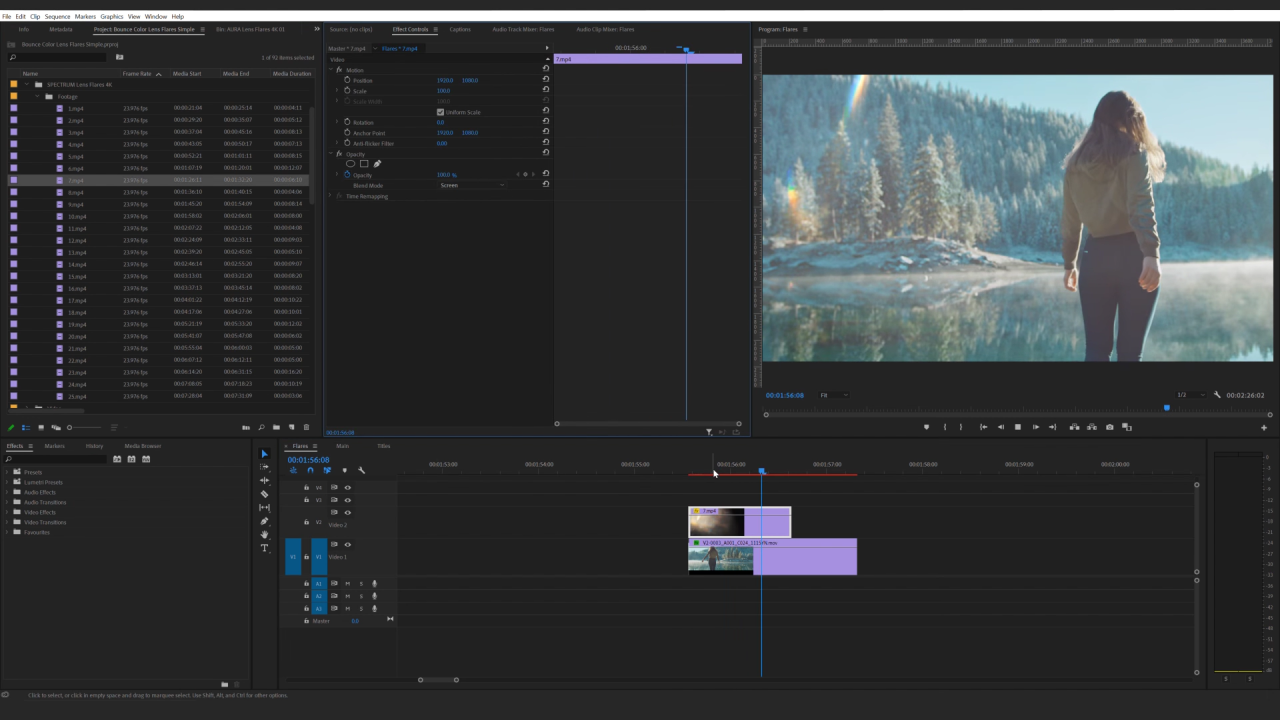
Mastering how to use LUTs for video empowers you to elevate your editing workflow and craft visually compelling stories. By selecting the right LUTs, customizing them to fit your style, and applying them thoughtfully, you can achieve professional-grade results with confidence. Remember, the creative possibilities are vast, and with practice, your videos will stand out with vibrant, polished visuals.