Learning how to use audio ducking is essential for creating balanced and professional soundtracks in multimedia projects. This technique allows audio elements to be prioritized by automatically reducing background sounds when foreground audio plays, ensuring clarity and engagement for listeners. Whether in podcast production, live streaming, or music mixing, mastering audio ducking enhances overall audio quality and viewer experience.
From its historical development to modern digital implementations, understanding the principles and setup of audio ducking empowers creators to achieve smooth audio transitions. By exploring various tools and best practices, users can effectively incorporate this technique into their workflow for optimal results across different platforms and scenarios.
Introduction to Audio Ducking
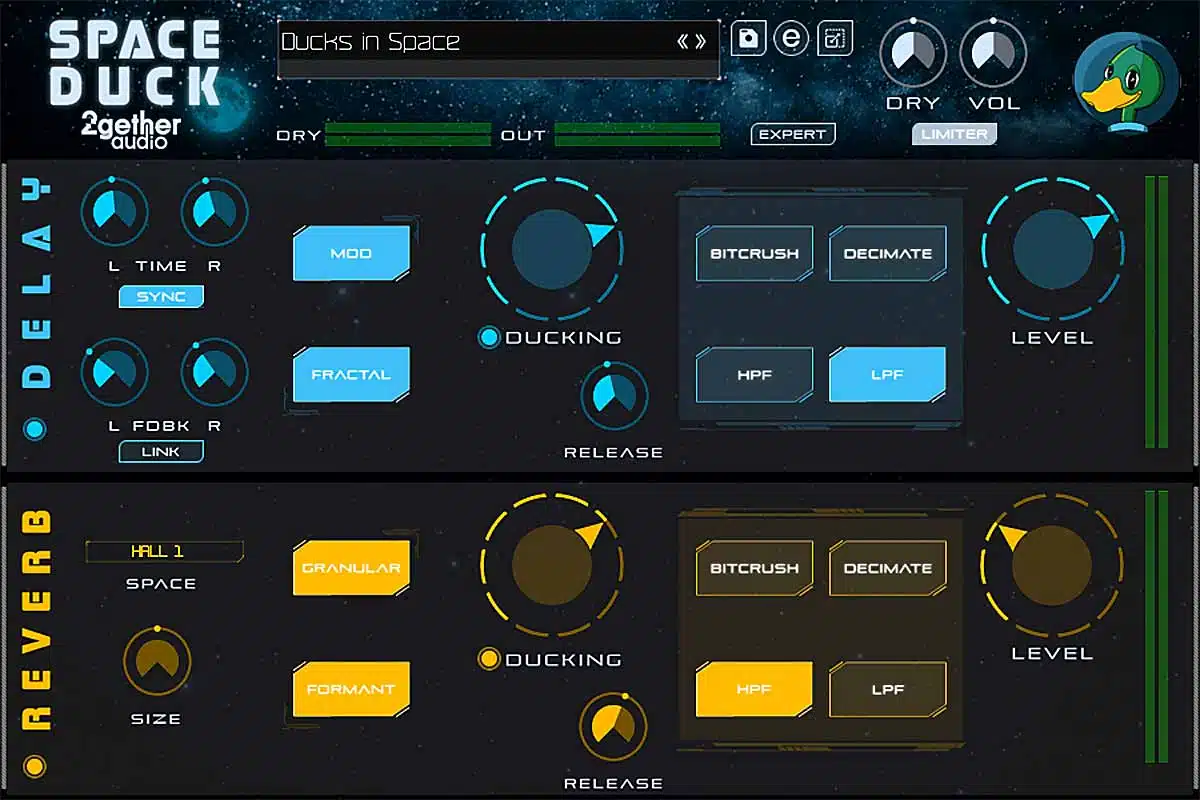
Audio ducking is a dynamic audio processing technique widely employed in multimedia production to automatically lower the volume of one audio source in response to the presence of another. This method ensures that critical audio elements, such as dialogue or narration, remain clear and intelligible, even when background sounds, music, or sound effects are active. By intelligently attenuating competing audio signals, audio ducking enhances the overall clarity and listener experience, making it a vital tool in both live broadcasting and post-production workflows.
Historically, audio ducking has its roots in radio and film production, where engineers needed to maintain intelligibility of spoken words amidst background music or ambient sounds. In the early days, manual volume adjustments were necessary, which was time-consuming and inconsistent. The advent of digital audio workstations and automation technology in the late 20th century revolutionized the process, allowing precise, automated control of audio levels.
Today, with sophisticated algorithms and real-time processing, audio ducking can be seamlessly integrated into complex production chains, offering consistent and professional results across various multimedia formats.
Common Scenarios for Effective Audio Ducking
Audio ducking proves invaluable across numerous contexts where balancing multiple audio sources is essential. Its application is especially prominent in scenarios requiring real-time audio management and clarity:
- Broadcasting Live Shows: During live radio or television broadcasts, announcers or hosts speak over background music. Ducking ensures that narration is heard clearly without manually adjusting the sound levels throughout the broadcast.
- Podcasts and Interviews: When background music or sound effects play during spoken content, ducking maintains vocal prominence, preventing audience fatigue and enhancing comprehension.
- Video Productions: In film and online videos, background scores often need to be subdued when dialogue or important sound cues occur, ensuring the message is unambiguous.
- Gaming and Virtual Events: During live streams or virtual events, system sounds or game audio can be ducked automatically when a presenter or participant speaks, maintaining clarity and engagement.
Effective use of audio ducking in these scenarios leads to a more polished, professional sound and improves audience engagement by prioritizing the most critical audio content. Its ability to adapt dynamically to varying levels of background sounds makes it an indispensable technique in modern multimedia production.
Basic Principles of Audio Ducking
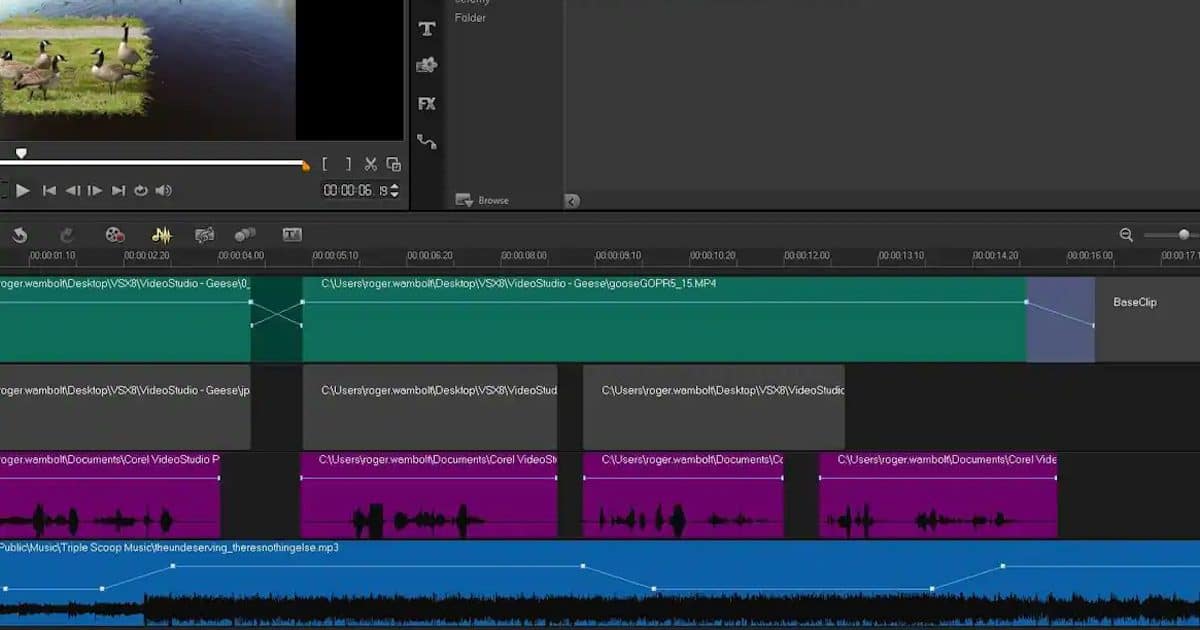
Audio ducking operates on the principle of automatically adjusting the volume levels of multiple audio sources to enhance clarity and listener experience. This technique ensures that foreground audio, such as dialogue or narration, remains prominent while background sounds or music are reduced accordingly. It is widely employed in broadcasting, podcasting, and live sound reinforcement to create a balanced audio mix without manual intervention.
The core concept behind audio ducking involves the dynamic reduction of background audio levels when a specific foreground signal is detected. This process relies on real-time signals to trigger volume adjustments, maintaining an unobstructed and professional sound quality. Properly configuring these parameters enhances intelligibility and prevents overlapping sounds from competing for listener attention.
Key Components of Audio Ducking Setups
Implementing audio ducking effectively requires a combination of hardware or software elements that facilitate signal detection and volume control. Understanding these components ensures that the ducking process is seamless and precise.
- Sidechain Input: A dedicated control pathway that monitors the foreground audio signal. When the sidechain detects signal activity—such as speech or specific sound cues—it triggers the volume reduction of the background audio. This input is vital for automated response and synchronization.
- Volume Automation or Control: The mechanism that adjusts the levels of background audio dynamically. This can be achieved through hardware faders or digital automation within software DAWs (Digital Audio Workstations). Volume automation ensures smooth transitions and prevents abrupt changes that could disrupt the listener’s experience.
In a typical setup, the foreground audio (e.g., voice-over) is fed into the sidechain input of a compressor or a dedicated ducking plugin. When the foreground signal exceeds a preset threshold, the compressor reduces the background music or noise accordingly. Once the foreground signal diminishes, the background audio gradually returns to its original level, maintaining natural sound continuity.
Comparison of Methods for Implementing Audio Ducking
Various methods exist for executing audio ducking, each with advantages suited to different applications. The choice between hardware and software solutions depends on factors such as complexity, flexibility, and budget. The following table Artikels the key differences among common implementation techniques:
| Method | Description | Hardware-Based Solutions | Software-Based Solutions |
|---|---|---|---|
| Dedicated Ducking Pedals or Mixers | Utilizes physical hardware units with built-in ducking features to control audio levels in live scenarios. | Yes, commonly used in live sound reinforcement and broadcasting environments where real-time manual control is desired. | No, relies on external equipment. |
| Compressor with Sidechain Input | Employs a compressor configured with a sidechain input that triggers volume reduction based on the foreground signal. | Hardware compressors with sidechain capabilities are available and used in professional setups. | Most digital audio workstations (DAWs) include compressor plugins with sidechain functionality. |
| Dedicated Ducking Plugins or Software | Specialized software plugins designed explicitly for ducking, offering intuitive controls and automation features. | Accessible as software plugins; some hardware units may incorporate similar features. | Yes, popular in DAWs like Adobe Audition, Pro Tools, and Ableton Live for flexible editing and automation. |
| Summary of Implementation Methods | |||
| Ease of Use | Varies from intuitive in plugins to more complex in hardware setups. | High, especially with user-friendly plugin interfaces. | High, with automation features available for precise control. |
| Flexibility | Software solutions offer extensive automation and parameter adjustments. | Hardware solutions provide reliable, real-time control with limited automation. | Most adaptable, allowing intricate control over ducking parameters. |
| Application Suitability | Ideal for post-production and studio environments with detailed editing needs. | Suitable for live sound and broadcasting where real-time response is critical. | Versatile across both live and studio settings, depending on plugin capabilities. |
Note: Proper calibration of the sidechain threshold and ratio is essential for achieving natural-sounding ducking without noticeable artifacts or abrupt level changes.
Setting Up Audio Ducking in Digital Audio Workstations (DAWs)
Implementing audio ducking within a Digital Audio Workstation (DAW) is essential for achieving balanced mixes, particularly when managing dialogues, vocals, or other prominent sound sources alongside background music or effects. Proper setup ensures that the secondary audio automatically lowers in volume when the primary source is active, creating a seamless listening experience. This section provides detailed, step-by-step instructions for enabling and configuring audio ducking in popular DAWs, along with specific menu paths, settings, and parameters.
Configuring audio ducking involves setting up a sidechain input that triggers the volume reduction of the target track based on the presence of a specific audio signal. Each DAW offers unique procedures and interface options for accomplishing this, so understanding the precise configuration steps is vital for efficient workflow and optimal results.
Ableton Live
In Ableton Live, enabling audio ducking requires the use of dynamics effects with sidechain capabilities, such as the Compressor device. The process involves routing the triggering track (e.g., dialogue or vocals) into the compressor’s sidechain input on the music or background track.
- Insert a Compressor device on the track you want to duck, such as background music or ambient sounds.
- Open the Compressor’s interface and locate the sidechain section.
- Enable the sidechain by clicking the “Sidechain” button or checkbox.
- Select the triggering track (e.g., vocal or dialogue track) from the sidechain input menu.
- Adjust the threshold, ratio, attack, and release parameters to control how aggressively the volume drops when the sidechain signal is detected.
- Test the setup by playing both tracks simultaneously and observing the volume reduction in response to the trigger.
Logic Pro
Logic Pro simplifies audio ducking through its built-in compressor with sidechain support. The setup involves routing the source signal into the compressor as a sidechain input and configuring the parameters for desired ducking behavior.
- Select the track to be ducked, such as background music, and insert a Compressor plugin from the Dynamics menu.
- Open the Compressor’s interface and locate the “Side Chain” dropdown menu.
- Choose the track with the primary signal, such as a vocal or dialogue track, to serve as the sidechain input.
- Activate the “Side Chain” option within the compressor.
- Adjust the threshold, ratio, attack, and release controls to achieve natural-sounding ducking effects.
- Monitor the audio to ensure the background volume reduces when the primary signal is active, then fine-tune as needed.
Audacity
Audacity enables audio ducking through the use of its built-in Envelope Tool or by applying plugins like the “TDR Nova” equalizer with sidechain capabilities. Although it lacks native sidechain support, users can simulate ducking with careful automation and plugin configurations.
- Import both the primary audio (e.g., speech) and the background track into separate tracks.
- Select the background track and open the Envelope Tool (found in the Track Control Panel) to manually create volume automation that dips during the primary signal’s active segments.
- Alternatively, install a third-party plugin with sidechain support, such as “TDR Nova” or similar, and set up sidechain routing following the plugin’s documentation.
- Configure the plugin or automation to reduce the volume of the background during the primary audio peaks, then listen and adjust for natural blending.
Configuration Tables for Specific DAWs
| DAW | Menu Path | Key Settings | Parameters |
|---|---|---|---|
| Ableton Live | Audio Effects > Compressor | Sidechain enabled, trigger source selected | Threshold, Ratio, Attack, Release |
| Logic Pro | Channel Strip > Dynamics > Compressor | Side Chain enabled, sidechain source selected | Threshold, Ratio, Attack, Release |
| Audacity | Tracks > Envelope Tool / Plugins | Volume automation or plugin with sidechain support | Dips in volume during primary signal, automation points or plugin parameters |
Effective audio ducking depends on proper sidechain routing and fine-tuning parameters such as threshold, ratio, and release, which determine how smoothly and transparently the background volume drops during the primary signal.
Techniques and Best Practices
Efficient use of audio ducking requires a combination of precise adjustments and attentive listening to achieve a natural and balanced sound. Fine-tuning ducking levels, synchronizing with specific audio cues, and adjusting parameters like attack, release, and threshold are critical to maintaining clarity and ensuring the ducking effect enhances rather than distracts from the overall mix. Applying these techniques with care will result in audio that sounds professional, clear, and engaging.Achieving optimal ducking involves understanding the nuances of how each parameter influences the audio dynamics.
Properly calibrated settings help prevent abrupt cuts or overly long fades, which can detract from the listener’s experience. It is essential to experiment with these controls and observe their impact on the mix in real-time, making incremental adjustments for seamless integration.
Fine-tuning Ducking Levels for Clarity
Adjusting ducking levels involves setting the appropriate reduction in volume during the ducked segment, ensuring that the background audio remains audible without overpowering the primary audio, such as speech or vocals. Overly aggressive ducking can lead to a loss of detail, while insufficient reduction may cause competing sounds to become muddled.To fine-tune, start with a moderate reduction—commonly between 6 to 12 dB—and listen carefully across different sections of the mix.
Use solo modes or reference tracks to compare how well the ducked audio supports the main content. Gradually increase or decrease the reduction until the background remains perceptible but unobtrusive, maintaining clarity without sounding unnatural.
Synchronizing Ducking with Audio Cues or Speech
Synchronization enhances the listener’s experience by ensuring ducking occurs precisely when needed. This involves aligning the ducking trigger with specific speech segments or audio cues, such as a speaker’s phrase or a musical beat, to create a cohesive flow.Practically, this can be achieved by manually adjusting the automation linet for the ducking effect or by using markers and cues within your DAW.
For speech, observe the waveform to identify key moments—such as the start or end of a sentence—and set your automation points accordingly. For music or sound effects, sync the ducking to beats, drops, or specific sound events, ensuring the effect complements the rhythm or narrative.
Adjusting Attack, Release, and Threshold Parameters
Optimal results depend on setting attack, release, and threshold parameters appropriately. These control how quickly the ducking effect responds to the input signal, how long it takes to return to normal volume, and the level at which ducking activates, respectively.
Attack Time
Should be set short enough to respond swiftly to speech or cues, typically between 10-50 milliseconds, to avoid noticeable delays. For smooth transitions, especially in musical contexts, a slightly longer attack (around 50-100 milliseconds) may be preferable.
Release Time
Determines how gradually the volume returns to normal. Longer release times (150-300 milliseconds) yield more natural fades, while shorter times can create a choppier effect. Adjust according to the tempo and style of the content, ensuring the release complements the rhythm without causing abrupt changes.
Threshold
Defines the level at which ducking activates. Setting it too low results in constant ducking, while too high may prevent ducking during important moments. Use visual waveform analysis and listen to the response to find a threshold that triggers ducking only during the intended cues.Careful adjustment of these parameters ensures the ducking effect sounds natural, responsive, and unintrusive, preserving the overall intelligibility and quality of the audio mix.
Recommended Practices for Natural-Sounding Ducking Effects
Achieving a natural and unobtrusive ducking effect involves adhering to several key practices:
- Maintain subtle volume reductions, typically between 6 and 12 dB, to preserve audio clarity without sounding overly processed.
- Use gradual attack and release times to avoid abrupt volume changes that can distract listeners.
- Align ducking triggers precisely with the relevant speech or musical cues to enhance coherence.
- Automate parameters dynamically where possible to adapt to varying audio contexts and maintain consistency.
- Regularly monitor the mix on different playback devices to ensure the ducking maintains naturalness across systems.
- Employ sidechain compression judiciously, combining it with manual automation for refined control.
- Listen critically and make incremental adjustments, avoiding excessive ducking that can undermine audio intelligibility.
Adopting these best practices will help you produce professional-quality audio with smooth, transparent ducking effects that support your content seamlessly.
Troubleshooting Common Issues
Effective audio ducking can significantly enhance your mix by smoothly balancing different sound elements. However, practitioners may encounter common challenges that hinder achieving seamless ducking. Recognizing and addressing these issues promptly ensures a professional and polished audio output. This section delves into typical problems faced during audio ducking, providing practical solutions and tips to overcome them, thereby ensuring your ducking process remains transparent and unobtrusive.Properly implementing audio ducking requires careful adjustment of parameters and settings.
When issues arise such as uneven ducking, audio artifacts, or delayed responses, troubleshooting becomes essential. These problems often stem from misconfigured thresholds, attack and release times, or processing latency. By systematically analyzing these factors, you can identify the root causes and apply targeted solutions to restore the clarity and cohesiveness of your mix.
Common Problems and Their Solutions
The following are prevalent issues faced when using audio ducking, along with detailed strategies to resolve them effectively. Addressing these challenges involves fine-tuning your settings and optimizing your workflow, ensuring a natural and distortion-free outcome.
Uneven or Inconsistent Ducking
This issue manifests as abrupt or uneven volume reductions, which can draw attention away from the intended focal point. It often results from inappropriate threshold levels or inconsistent sidechain detection.
- Solution: Adjust the threshold so that it triggers ducking only during intended segments, avoiding overly sensitive settings that cause premature or excessive reduction. Use visual meters to monitor when the compressor engages to ensure consistent behavior.
- Solution: Calibrate the sidechain input to precisely detect the trigger signal without interference from other audio sources, preventing unwanted ducking variations.
Audio Artifacts or Pumping Effects
Artifacts such as pumping or breathing sounds occur when the compressor’s attack and release times are not properly set, leading to an unnatural or jarring audio experience.
- Solution: Increase the attack time to allow transient peaks to pass through before ducking begins, reducing sudden dips. Adjust the release time to ensure the audio recovers smoothly.
- Solution: Use a ratio that is not excessively high; moderate ratios promote more natural ducking without aggressive compression artifacts.
- Tip: Enable lookahead features if available, to anticipate transients and apply compression more transparently.
Delayed or Sluggish Response
This problem results in ducking that lags behind the trigger signal, causing a disjointed listening experience. It is commonly caused by latency or overly slow attack and release settings.
- Solution: Minimize the attack time to make the compressor respond more swiftly to the trigger signal. Be cautious not to set it too low, which could introduce distortion.
- Solution: Reduce the release time to allow the audio to recover promptly after ducking, maintaining natural dynamics.
- Tip: Ensure your DAW’s buffer size is optimized for low latency processing, especially when working in real-time scenarios.
Tips for Seamless Audio Ducking
Implementing these best practices can prevent common pitfalls and improve the overall quality of your ducking process. The goal is to achieve transparent, musical ducking that supports your mix without drawing undue attention.
- Use a moderate ratio—typically between 2:1 and 4:1—to balance effective ducking with transparency.
- Set the threshold carefully to trigger only during the intended moments, avoiding over-application.
- Adjust attack and release times to match the tempo and dynamics of your project, ensuring smooth transitions.
- Utilize visual meters and gain reduction indicators to monitor compressor activity and avoid over-compression.
- Avoid excessive sidechain gain reduction, which can cause unnatural dips or pumping effects.
- Test the ducking in different sections of your track to ensure consistency and natural behavior across varying audio content.
- Apply gentle EQ adjustments if necessary, to minimize frequency masking or artifacts introduced by ducking.
“Proper parameter calibration and attentive listening are key to achieving seamless audio ducking that enhances your mix without compromising audio quality.”
Visual and Descriptive Guides for Effective Implementation
Implementing audio ducking with clarity and precision is greatly enhanced by visual representations and detailed descriptive explanations. These guides serve as essential tools for producers and engineers to accurately set up, visualize, and troubleshoot ducking parameters within their Digital Audio Workstations (DAWs). Clear diagrams and illustrative tables transform complex routing and automation concepts into accessible, actionable insights, ensuring optimal audio balance and professional-quality results.
Effective visualization not only aids in understanding the underlying signal flow but also streamlines the creative process by providing immediate visual feedback. Through carefully crafted diagrams and tables, users can better comprehend how sidechain routing influences audio dynamics, how ducking curves evolve over time, and how to tailor parameter settings for specific scenarios.
Creating Diagrams Illustrating Sidechain Routing
Diagrams serve as a visual blueprint for understanding how the sidechain input is routed within a DAW. To craft an effective diagram, start by depicting the key audio sources involved: typically, the main audio track (such as a vocal or instrumental) and the control source (like a kick drum or a specific instrument). Use directional arrows to indicate the signal flow, clearly showing how the control signal (sidechain input) is routed from its source to the compressor or ducking plugin.
In a detailed diagram, illustrate the following components:
- Source tracks (e.g., vocals, instruments)
- Sidechain input source (e.g., kick drum, bass)
- Routing paths within the DAW’s mixer or routing matrix
- Insert points of the compressor or ducking plugin
- Output tracks after processing
For enhanced clarity, differentiate signal types using color coding: for instance, use green arrows for the main audio signal and red arrows for the sidechain control signal. Labels should clearly identify each element, and supplementary notes can describe the routing specifics, such as whether the sidechain source is pre- or post-fader.
Visualizing Ducking Curves and Automation Lanes within DAWs
Visual representations of ducking curves and automation lanes provide invaluable insight into how the compressor’s gain reduction varies over time, allowing for precise adjustments. Within a DAW, automation lanes are typically displayed as envelopes aligned with the track’s waveform, illustrating parameter changes—most notably, the threshold, ratio, attack, release, and makeup gain.
To effectively visualize ducking behavior:
- Overlay an automation lane indicating gain reduction or the compressor’s threshold and ratio parameters.
- Use color coding to differentiate between static parameter settings and dynamic adjustments over time.
- Identify key moments where the ducking occurs, such as during a loud vocal phrase or a beat drop, by observing dips in the automation curve.
- Pay attention to the attack and release segments, which dictate how quickly the ducking responds and recovers, often visualized as steepness or slope of the automation curve.
Some DAWs also offer real-time visualization of the gain reduction meter, which can be displayed alongside automation lanes. This dual view helps users correlate visual dips in the curve with actual reduction levels, fostering more precise control over the ducking effect.
Crafting Illustrative Tables Demonstrating Parameter Settings for Various Scenarios
Parameter tables serve as quick reference guides, illustrating optimal settings for different audio scenarios. Constructing clear, structured tables allows users to compare and select appropriate parameters based on the context—whether ducking a vocal to background music, attenuating a bassline during a kick drum hit, or managing multiple ducking instances simultaneously.
In designing these tables, include columns such as:
- Scenario Description
- Threshold Level (dB)
- Ratio
- Attack Time (ms)
- Release Time (ms)
- Makeup Gain (dB)
- Additional Notes
For example, a scenario involving ducking vocals under background music might recommend a higher threshold (-10 dB), a ratio of 4:1, a fast attack (10 ms), and a moderate release (200 ms). Conversely, ducking for a bass during a kick drum may require a lower threshold (-20 dB) with a ratio of 6:1, very fast attack (5 ms), and a quick release (150 ms).
Example Table for Vocal Ducking
| Scenario | Threshold (dB) | Ratio | Attack (ms) | Release (ms) | Makeup Gain (dB) | Notes |
|---|---|---|---|---|---|---|
| Vocal under music bed | -10 | 4:1 | 10 | 200 | +2 | Ensure attack is fast to catch peaks; release should be musical. |
| Bass during kick drum | -20 | 6:1 | 5 | 150 | +3 | Use quick attack and release for tight rhythm control. |
By employing these detailed visual and descriptive tools, audio engineers can enhance their understanding and control of the ducking process, ensuring that the desired dynamic balance is achieved efficiently and effectively in any mixing scenario.
Concluding Remarks
In summary, mastering how to use audio ducking provides a powerful means to improve audio clarity and professionalism in multimedia projects. Whether through simple adjustments or advanced automation, applying this technique thoughtfully ensures your audio remains engaging and well-balanced. With continued practice and experimentation, you can elevate your sound design to new levels of quality and creativity.