Learning how to stabilize shaky footage is essential for creating polished and professional-looking videos. Whether you’re working with handheld recordings or footage captured with various equipment, mastering stabilization techniques can significantly enhance your final product. This guide explores effective methods using software tools, hardware solutions, and best practices to ensure your videos remain steady and visually appealing.
From pre-production tips to post-production editing, understanding how to manage and correct shaky footage allows creators to deliver high-quality content that engages viewers and maintains a cinematic quality. By applying these strategies, even challenging footage can be transformed into smooth, captivating visuals.
Techniques for Stabilizing Shaky Footage
Stabilizing shaky footage is a critical step in producing professional-quality videos. Various tools and methods are available, ranging from software solutions with advanced stabilization algorithms to hardware-based devices that prevent unwanted camera movements during filming. Understanding these techniques allows videographers and editors to choose the most effective approach tailored to their project’s needs, ensuring smooth and visually appealing results.
Effective stabilization involves selecting the appropriate software tools or hardware, applying proper procedures, and understanding the distinctions between manual, automatic, and hardware-based stabilization methods. This knowledge enhances the ability to correct shaky footage efficiently and seamlessly integrate it into polished productions.
Software Tools and Plugins for Stabilization
Multiple software applications and plugins are designed to assist in stabilizing shaky footage, each offering unique features suited to various levels of expertise and project requirements. These tools utilize complex algorithms to analyze motion and compensate for unwanted camera shake through cropping, rotation correction, or warping techniques.
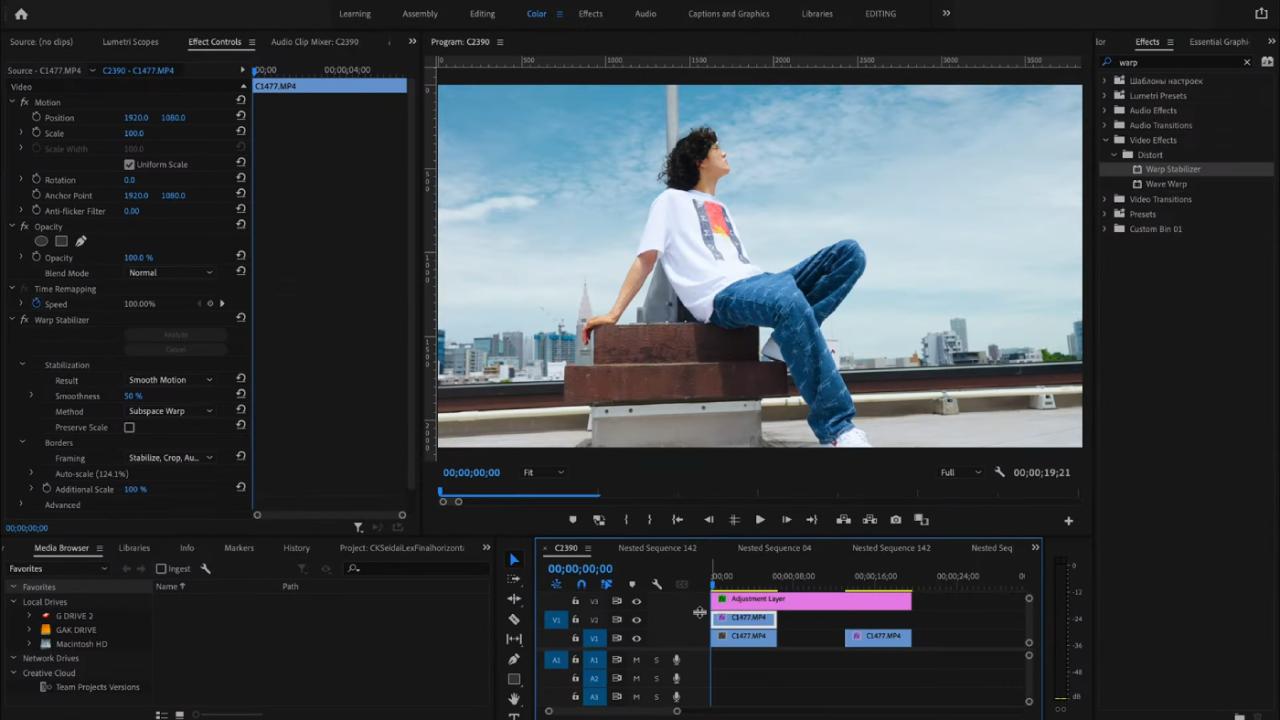
- Adobe Premiere Pro: Integrates the Warp Stabilizer effect, which automatically analyzes footage and applies stabilization with adjustable settings for smoothness and cropping.
- Final Cut Pro X: Offers the built-in Stabilization feature that provides automatic correction with options for smoothness and cropping adjustments.
- DaVinci Resolve: Includes a powerful stabilization tool within its Color or Edit page, capable of handling severe shake with detailed control over stabilization parameters.
- Mercalli by proDAD: A specialized plugin known for its advanced stabilization algorithms, supporting 2D and 3D stabilization modes for complex footage.
- Deshaker (VirtualDub plugin): An open-source option that is particularly popular among hobbyists for its flexibility and detailed manual stabilization settings.
Step-by-Step Procedures for Stabilizing Footage in Popular Editing Programs
Applying stabilization techniques effectively requires following specific workflows tailored to each editing platform. Below are detailed procedures for some of the most widely used software tools.
Adobe Premiere Pro
- Select the shaky clip within the project timeline.
- Navigate to the Effects panel and search for “Warp Stabilizer.”
- Drag the Warp Stabilizer effect onto the selected clip.
- Allow the software to analyze the footage; this process may take several minutes based on clip length and system performance.
- Adjust the Effect Controls panel settings such as “Smoothness” (default 50%), “Method” (e.g., Subspace Warp), and “Borders” to fine-tune stabilization.
- Preview the stabilized footage and make further adjustments as needed before exporting.
Final Cut Pro X
- Import your shaky footage into the project timeline.
- Select the clip and open the Video Inspector panel.
- Locate the “Stabilization” checkbox and enable it.
- Allow the system to analyze the clip; the process duration depends on clip length.
- Adjust the “Smooth Cam” slider to control stabilization strength, and choose whether to crop or preserve framing.
- Review the results and refine settings before rendering the final video.
DaVinci Resolve
- Import your clip into the Media Pool and place it on the timeline.
- Switch to the Color workspace or Edit page where stabilization tools are accessible.
- Select the clip, then open the “Stabilization” panel.
- Click “Stabilize” to analyze the movement; options for “Zoom” and “Cropping Ratio” allow customization of the stabilization effect.
- Review the analysis and apply the stabilization; preview the footage to ensure smoothness.
Categories of Stabilization Methods
Stabilization techniques can be broadly categorized into manual, automatic, and hardware-based solutions. Each category offers distinct advantages depending on the specific requirements of the project and the resources available.
Manual Stabilization
Manual stabilization involves the use of editing software to fine-tune the footage frame by frame or to apply specific transformations. This approach gives precise control over stabilization but can be time-consuming and may require advanced editing skills. It is particularly useful for correcting small jitters or when automatic tools cannot adequately handle complex shake patterns.
Automatic Stabilization
Automatic stabilization leverages sophisticated algorithms embedded within editing software or plugins to analyze motion and compensate for shake instantly. This method is fast, user-friendly, and suitable for most typical scenarios. It is highly effective for general use, especially when dealing with handheld footage or casual recordings.
Hardware-Based Stabilization
Hardware solutions involve physical devices such as gimbals, steadicams, or robotic stabilizers used during filming. These tools physically eliminate or reduce camera movement at the source, resulting in inherently stable footage. Hardware stabilization is ideal for professional production environments where maximum stability and cinematic quality are desired.
Choosing the appropriate stabilization method depends on factors such as the severity of shake, production context, and available equipment. Combining hardware stabilization with software correction can often yield the best results for high-quality video production.
Hardware Solutions to Minimize Shake During Shooting
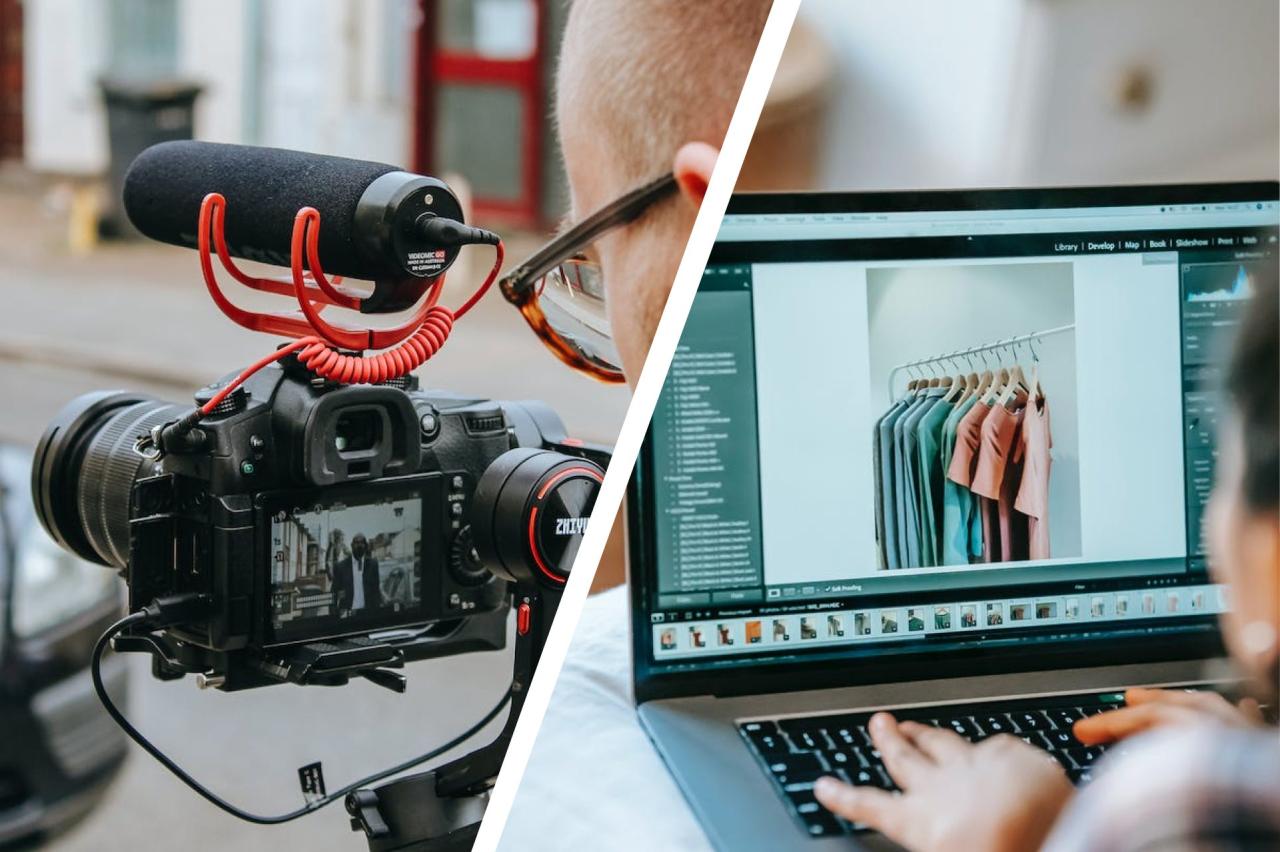
Minimizing camera shake during filming is essential for producing professional-quality footage. Utilizing appropriate stabilization equipment can significantly reduce unwanted movement, especially in dynamic shooting environments. Hardware solutions not only improve the steadiness of your shots but also allow for more creative freedom and smoother motion, regardless of the shooting conditions.
Implementing the right stabilization hardware involves understanding the various tools available, their setup procedures, and how they compare to handheld techniques. Proper equipment use can make the difference between shaky, amateurish footage and polished, cinematic results. Below, we explore the primary stabilization devices, best practices for their setup, and the comparative advantages of mounted versus handheld stabilization methods.
Stabilization Equipment and Proper Setup Procedures
Choosing the appropriate stabilization gear depends on the nature of the shoot, the camera weight, and the desired motion effects. Here is a comprehensive list of common stabilization equipment along with setup procedures:
- Gimbals: Electronic handheld devices that stabilize cameras through motors and sensors, allowing for smooth, cinematic movements. They are ideal for dynamic shots and follow sequences.
- Tripods: Tripods provide a stable, fixed platform for static shots, reducing vertical and lateral shake. They are essential for interviews, time-lapses, and static scenes.
- Steadicams: Mechanical stabilization rigs that enable smooth handheld shots while counteracting operator movement. Suitable for walking shots and moving scenes.
- Shoulder Rigs and Support Systems: These distribute camera weight across the operator’s body, reducing fatigue and improving stabilization during extended handheld filming.
Proper setup involves aligning each device to ensure optimal stabilization:
- Gimbals: Mount the camera securely, balance the payload by adjusting the counterweights and motor axes, and calibrate the device according to manufacturer instructions before shooting.
- Tripods: Extend legs to the desired height, ensure the tripod is placed on a level surface, and lock all joints securely to prevent any unintended movement.
- Steadicams: Attach the camera, balance the system by adjusting the gimbal and arm positions, and test movements to confirm stability before recording.
- Shoulder Rigs: Mount the camera onto the rig, adjust shoulder pads and grips for personal comfort, and ensure the weight distribution minimizes operator fatigue.
Regular maintenance, such as tightening screws and calibrating sensors, also plays a critical role in maintaining equipment performance during shoots.
Comparison of Handheld and Mounted Stabilization Methods
Understanding the differences between handheld and mounted stabilization techniques helps in selecting the best approach for specific filming scenarios:
Handheld Stabilization
Handheld filming involves holding the camera directly, relying on the operator’s steadiness and supplementary support tools such as shoulder rigs or grip straps. It offers high mobility and the ability to quickly adapt to changing scenes but can introduce inherent shake if not properly stabilized.
Example: Documentaries or news coverage often utilize handheld techniques to capture spontaneous moments, providing a raw, immersive feel.
Mounted Stabilization
Mounted methods involve securing the camera to a device like a tripod, gimbal, or steadicam, which actively counteracts motion. This approach produces smoother, more controlled footage, making it ideal for cinematic productions or situations requiring precise movement control.
Example: A steady aerial shot captured with a drone-mounted gimbal showcases the advantages of mounted stabilization, providing sweeping, fluid views of landscapes.
While mounted solutions generally offer superior stabilization, they also tend to be less flexible in tight or rapidly changing environments. Handheld techniques provide quick adaptability but require skill to minimize shake manually. Combining both methods, such as using a gimbal for smooth movement and handheld for dynamic shots, often yields the best results depending on the scenario.
Pre-Production Tips for Reducing Shake
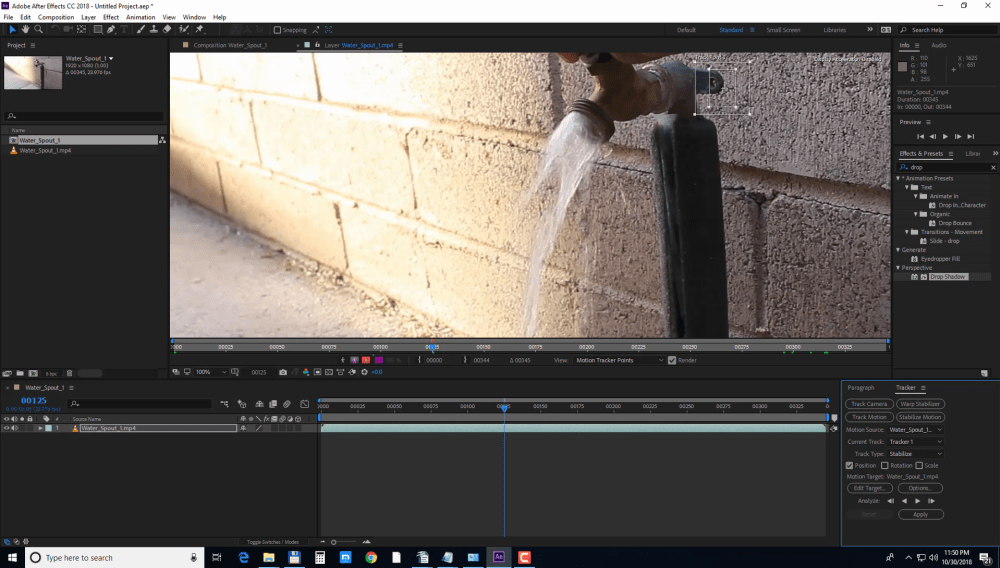
Effective stabilization of footage begins long before the camera starts rolling. Implementing strategic planning and proper handling techniques during the pre-production phase can significantly minimize unwanted camera movements, resulting in smoother footage and a more professional appearance. Proper preparation ensures that technical issues are addressed beforehand, reducing the need for extensive post-production stabilization and saving valuable editing time.Careful planning during pre-production involves selecting appropriate equipment, designing shot compositions, and establishing protocols for camera handling.
These steps create a solid foundation for capturing stable footage, especially in dynamic or challenging shooting environments. By prioritizing stabilization considerations early on, filmmakers and videographers can achieve consistent results, enhance visual storytelling, and maintain viewer engagement.
Best Practices for Camera Handling to Minimize Movement During Filming
Maintaining steady camera operation is crucial to preventing shake during filming. Proper handling techniques are fundamental, especially in handheld shooting scenarios where natural movement is often unavoidable. Adopting disciplined practices can greatly reduce unintentional camera motion, leading to cleaner and more professional footage.It is advisable to maintain a relaxed grip on the camera, allowing for natural movements without excessive tension that can introduce jitter.
Keeping the elbows close to the body provides additional stability, while adopting a stable stance with feet shoulder-width apart helps distribute weight evenly. Utilizing smooth, deliberate movements, especially during pans and tilts, minimizes abrupt shifts. Additionally, practicing controlled breathing techniques can reduce tremors caused by body tension. For handheld shots, consider using image stabilization features available in many modern cameras, but always complement this with proper handling to maximize effectiveness.
Guidelines for Choosing the Right Camera Mounts and Supports Before Shooting
Selecting appropriate camera mounts and supports is essential for achieving maximum stability, especially in situations where handheld shooting is impractical or insufficient. The choice of equipment depends on the nature of the shoot, the environment, and the desired shot quality.When evaluating support options, consider the following:
- Tripods: Opt for sturdy tripods with adjustable legs and fluid heads for smooth panning and tilting. Ensure the tripod can support the weight of your camera and accessories without wobbling.
- Gimbals and Stabilizers: Use electronic or mechanical gimbals designed for your camera size. These devices compensate for unwanted movements, providing fluid motion during dynamic shots.
- Monopods and Handheld Supports: Suitable for quick setups and mobile shooting; ensure they have dampening features or anti-shock mechanisms to reduce shake.
- Rigging and Mounting Plates: Secure cameras to rigs or shoulder mounts that distribute weight evenly, offering additional stability during extended shoots.
Assess the environment and shooting style to determine which support system best minimizes shake while maintaining flexibility and ease of movement.
Designing a Stabilization Planning Checklist
A comprehensive checklist helps ensure all stabilization considerations are addressed during the planning phase. This proactive approach streamlines production, reduces overlooked details, and fosters consistent results.Key items to include in the checklist:
- Evaluate the shooting environment for potential sources of movement or instability.
- Select support equipment suitable for the camera’s weight and shooting conditions.
- Determine the most stable shooting positions and angles in advance.
- Plan for the use of stabilizers or mounts where necessary.
- Assign roles for handling and operating support equipment.
- Schedule practice runs to familiarize the crew with stabilization techniques.
- Verify all equipment is in good working condition and correctly assembled.
- Incorporate contingency plans for unforeseen movement or environmental factors.
By systematically reviewing these points, production teams can preemptively address stabilization needs, leading to smoother footage and minimized post-production correction.
Post-Production Techniques for Enhancing Stabilization
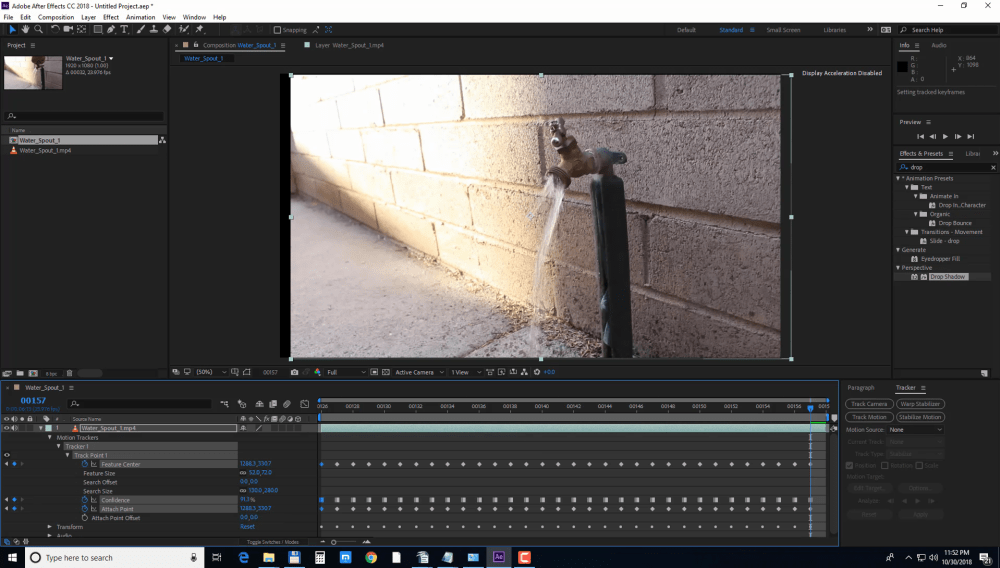
Once footage has been captured, applying effective post-production stabilization techniques can significantly improve visual quality by reducing unwanted shake and jitter. These methods complement hardware and shooting strategies, offering filmmakers and videographers enhanced control over final video output. The choice of stabilization filters and their appropriate use can make the difference between a shaky, unprofessional clip and a smooth, polished production.
In this section, we explore various digital stabilization filters, their ideal use cases, and detailed procedures for applying and fine-tuning these effects within editing software. Combining multiple stabilization methods intelligently can result in superior image stability, elevating the overall quality of your footage.
Digital Stabilization Filters and Their Optimal Use Cases
Different stabilization algorithms are designed to address specific types of camera movement and shake severity. Choosing the right filter depends on the nature of the footage, the degree of shakiness, and the desired outcome. The following table summarizes common digital stabilization filters, their functions, and best-use scenarios:
| Filter / Technique | Functionality | Optimal Use Cases | Limitations |
|---|---|---|---|
| Warp Stabilizer (Adobe Premiere / After Effects) | Analyzes motion and warps frames to smooth out camera shake by adjusting position, scale, and rotation. | General-purpose stabilization for handheld footage, post-shoot tremors, and small to moderate shakes. | Can crop edges and introduce warping artifacts if the shake is excessive or rapid. |
| Deshaker (VirtualDub plugin) | Performs detailed frame analysis to stabilize footage with complex, multi-directional movement. | Older or lower-resolution footage requiring careful correction, especially for footage shot without stabilization gear. | Requires manual setup, can be computationally intensive, and may produce cropping issues. |
| Mercalli (ProDAD) | Utilizes advanced algorithms to correct shake and rolling shutter effects, maintaining scene integrity. | Footage with rolling shutter artifacts, high-motion scenes, or scenes with significant camera movement. | Can be resource-heavy, and overly aggressive settings may cause unnatural warping. |
| OpenCV-based Stabilization | Open-source algorithms tailored for custom stabilization workflows, offering flexibility and control. | Research and experimental projects, custom workflows, and specialized stabilization needs. | Requires programming knowledge; less user-friendly for beginners. |
Applying and Fine-Tuning Stabilization Effects
Implementing stabilization filters effectively involves a series of systematic steps to achieve the desired smoothness while minimizing quality loss. The process typically includes importing footage, selecting appropriate stabilization settings, previewing results, and making iterative adjustments.
- Import and analyze footage: Load your shaky clip into the editing software and evaluate the extent and direction of movement to choose suitable stabilization parameters.
- Apply stabilization filter: Select the stabilization tool or filter (e.g., Warp Stabilizer in Adobe Premiere). Use default settings initially to observe baseline results.
- Adjust cropping and smoothing parameters: Fine-tune the ‘Smoothness’ or equivalent parameter to balance stabilization strength with image framing. Increasing smoothness reduces jitter but may crop more of the frame.
- Refine motion corrections: Use advanced options such as ‘Method’ (Position, Position, Scale, Rotation) to target specific movement types. Enable options like ‘Borders’ or ‘Crop Less’ to retain more image content.
- Preview and iterative tweaking: Review stabilization results frame-by-frame, making incremental adjustments to parameters to optimize the balance between smoothness and frame cropping.
- Render and evaluate: Export the stabilized clip and check for artifacts, warping, or residual shake. Revisit settings if necessary for further refinement.
Combining Multiple Stabilization Methods for Superior Results
Applying multiple stabilization techniques in succession can enhance overall footage stability, especially in challenging scenarios. For instance, initial stabilization with a hardware gimbal or in-camera stabilization can reduce large-scale shake, while post-production filters fine-tune residual jitter. Combining methods strategically ensures that each approach addresses different aspects of camera movement, leading to a more natural and polished final product.
Tips for effective combination:
- Begin with hardware or in-camera stabilization to minimize gross movement before post-processing.
- Use software stabilization filters with conservative settings initially to prevent over-cropping, then progressively increase smoothing as needed.
- Balance stabilization strength with image quality, avoiding excessive warping or cropping that can detract from the scene’s context.
- In complex shots with multi-directional shake, consider applying different filters sequentially, adjusting parameters after each pass for incremental improvements.
- Always review stabilized footage at full resolution to accurately assess artifacts and motion artifacts introduced by combined methods.
By thoughtfully integrating multiple stabilization techniques and carefully fine-tuning their parameters, videographers can achieve remarkably smooth footage that maintains scene integrity and visual professionalism.
Common Challenges and Troubleshooting
Stabilizing shaky footage can significantly improve the visual quality of your videos, but it often comes with its own set of challenges. Many users encounter issues such as unintended cropping, warping artifacts, or unnatural motion that can compromise the final output. Understanding these common problems and having effective strategies to address them is essential for achieving professional-looking results. This section explores the typical hurdles faced during stabilization and provides practical solutions to troubleshoot and enhance your footage effectively.When applying stabilization techniques, several issues may arise that affect the clarity and naturalness of the video.
Cropping occurs because stabilization algorithms often shift frames to compensate for motion, which can inadvertently cut out parts of the frame, reducing resolution and framing integrity. Warping artifacts—distortions or unnatural stretching—can happen when the software attempts to correct complex or extreme shakes. Additionally, residual jitter or unnatural motion might persist even after stabilization, detracting from the viewing experience. Addressing these issues requires a combination of proper settings, processing adjustments, and sometimes, manual intervention to fine-tune the results.
Managing Cropping and Resolution Loss
One of the most prevalent issues during stabilization is the reduction in frame size due to cropping. As the stabilization algorithm shifts the image to counteract shake, it often requires cropping to prevent black borders from appearing. This cropping can lead to a noticeable loss in resolution and detail. To mitigate this problem, applying some pre-stabilization techniques and choosing appropriate settings is crucial.
- Use of Scaling Options: Many stabilization tools include options to zoom slightly instead of cropping aggressively, maintaining the overall framing while reducing visible frame loss. Setting a moderate zoom percentage can balance stabilization with resolution preservation.
- High-Resolution Source Footage: Starting with high-resolution footage (e.g., 4K or higher) allows for some cropping without significantly compromising quality, making it easier to stabilize while retaining detail.
- Crop Padding: Some software allows adding padding or borders that can be cropped later, thus preserving the original resolution during stabilization.
Employing these strategies ensures that the stabilized footage maintains as much clarity as possible, even when cropping is necessary to achieve a smooth result.
Addressing Warping Artifacts and Distorted Motion
Warping artifacts or unnatural stretching often result from aggressive stabilization settings or complex motion within the footage. These distortions can make the video appear unrealistic, distracting viewers from the content. Troubleshooting involves adjusting the stabilization parameters and sometimes applying additional correction methods.
- Adjusting Smoothness and Shakiness Parameters: Softer stabilization settings that reduce the magnitude of corrections can minimize warping. Decreasing the smoothness factor allows the software to make more subtle adjustments, preventing excessive distortion.
- Utilizing Masking or Region-Based Stabilization: Isolating specific areas of the frame for stabilization rather than applying a global correction can help maintain natural motion in backgrounds or static objects, reducing artifacts.
- Applying Post-Stabilization Corrections: After initial stabilization, applying manual adjustments such as warp or liquify filters in editing software can correct residual distortions. Additionally, using motion smoothing techniques selectively can improve overall appearance.
“Achieving natural motion in stabilized footage often requires balancing correction strength with minimal distortion, emphasizing subtlety over aggressive fixes.”
Monitoring the stabilized output carefully and making incremental adjustments ensures that artifacts are minimized and the motion appears smooth and natural. When artifacts persist, reverting to earlier stages and experimenting with different stabilization presets or manual keyframing can often resolve the issue.
Creative Uses of Stabilized Footage

Stabilized footage not only improves visual clarity but also opens up a realm of artistic possibilities that can elevate storytelling and cinematic expression. When harnessed intentionally, stabilization becomes a powerful tool to craft specific moods, emphasize narrative elements, and create a unique visual style that resonates with viewers. Filmmakers and content creators increasingly explore these creative applications to produce compelling visual stories that stand out in today’s visually driven media landscape.
By understanding how to deliberately incorporate stabilization techniques into their creative processes, artists can enhance emotional impact, guide audience attention, and achieve innovative effects. Examples from acclaimed films and commercials illustrate how stabilization is used not just for technical quality but as an integral part of visual storytelling and artistic expression.
Enhancing Cinematic Effects and Storytelling
Stabilized footage can significantly contribute to the cinematic language by establishing tone, mood, and focus. For instance, smooth, sweeping shots foster a sense of grandeur and stability, often used in epic landscapes or dramatic scenes to evoke awe. Conversely, subtle stabilization can be employed to create a dreamlike quality or surreal atmosphere, blurring the line between reality and fantasy. Narrative pacing also benefits from stabilization, allowing for seamless transitions that keep viewers immersed and emotionally connected.
Intentionally Incorporating Stabilization for Artistic Purposes
Creative stabilization involves using advanced techniques and equipment to produce specific visual effects. Techniques such as deliberate over-smoothing or controlled jitter can generate stylized looks that complement the story’s tone. Directional stabilization can also be used to emphasize particular objects or characters, guiding viewers’ focus intentionally. Artists may also manipulate stabilization parameters in post-production to introduce a sense of disorientation or movement that aligns with thematic elements of the project.
Furthermore, combining stabilized footage with other visual effects, like color grading or compositing, enhances artistic expression. For example, a filmmaker might stabilize a shot to create a serene landscape but introduce slight intentional shakes during tense moments to increase immediacy and intensity. This strategic use of stabilization allows creators to craft visually distinctive narratives that communicate subtle emotional nuances.
Examples of Successful Projects Leveraging Stabilization
Several high-profile productions exemplify the impactful use of stabilization techniques to amplify visual storytelling. The movie Gravity (2013) utilized advanced stabilization rigs to create smooth, floating space sequences, immersing viewers in the vastness of space while maintaining visual clarity. Similarly, the documentary Planet Earth II employed stabilization gimbals to produce breathtaking, steady shots of wildlife and landscapes, heightening viewers’ sense of presence and connection to nature.
Commercial campaigns also benefit from stabilization for visual impact. For example, car commercials often use stabilization rigs to produce sleek, fluid motion shots that accentuate vehicle design and performance, creating a sense of reliability and sophistication. In music videos, artists experiment with stabilized yet stylized footage to evoke moods ranging from tranquility to chaos, demonstrating how stabilization can be a creative storytelling tool beyond mere technical correction.
Last Point
In conclusion, mastering how to stabilize shaky footage involves a combination of proper shooting techniques, suitable hardware, and advanced editing tools. By integrating these approaches, you can overcome common challenges and produce visually stable videos that resonate with your audience. Whether for professional projects or personal content, effective stabilization elevates the overall quality and storytelling impact of your videos.