Understanding how to overlay videos is essential for creating dynamic and engaging multimedia content. Whether you aim to add visual effects, combine multiple video streams, or enhance storytelling, mastering overlay techniques opens up a wide array of creative possibilities. This guide provides a comprehensive overview of various methods and tools to help you achieve professional-quality video overlays with ease.
From preparing source videos to utilizing advanced editing techniques, you’ll learn how to effectively overlay videos across different software platforms. Practical tips and step-by-step procedures are included to ensure smooth workflow and optimal results, regardless of your experience level. Explore how these techniques can elevate your video projects and captivate your audience.
Introduction to Video Overlay Techniques
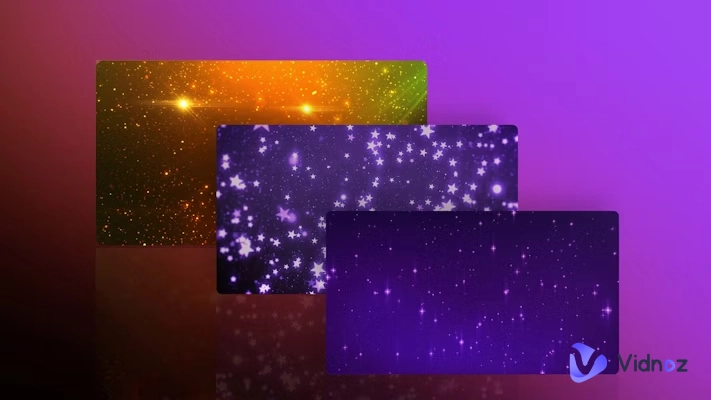
Video overlay techniques are fundamental tools in modern multimedia production, enabling creators to superimpose one video or image over another to produce dynamic and engaging visual content. This process is widely used across various fields, including film editing, advertising, social media content creation, and educational videos. Overlays can serve multiple purposes—from adding informational graphics and branding elements to creating special effects or composite scenes that would be impossible to film in real life.
Implementing effective video overlays requires an understanding of the basic tools and software options available to professionals and amateurs alike. These tools range from simple mobile apps to sophisticated desktop programs that offer extensive editing capabilities. The choice of software often depends on the complexity of the overlay desired, the user’s skill level, and budget considerations.
Popular Software Options for Video Overlays
Many widely-used video editing programs support overlay features, each offering different functionalities tailored to various user needs. Below is a comparison table highlighting some of the most popular options, illustrating their capabilities, ease of use, and suitability for different levels of expertise.
| Software | Platform | Overlay Capabilities | Ease of Use | Cost |
|---|---|---|---|---|
| Adobe Premiere Pro | Windows, macOS | Advanced overlay features including chroma key, masking, layered effects | Moderate to advanced; requires some experience | Subscription-based (annual/monthly) |
| Final Cut Pro | macOS | Robust overlay options with real-time preview, keying, and compositing | Moderate; optimized for Mac users | One-time purchase |
| DaVinci Resolve | Windows, macOS, Linux | Professional-grade overlay tools with Fusion page for compositing | Advanced; suitable for professional editors | Free version available; paid Studio version for additional features |
| iMovie | macOS, iOS | Basic overlay features suitable for simple projects | Beginner-friendly | Free |
| HitFilm Express | Windows, macOS | Comprehensive overlay and visual effects capabilities including chroma keying | Intermediate to advanced; free with optional paid upgrades |
Choosing the right software depends on specific project requirements, technical skill level, and budget constraints. For beginners, tools like iMovie or HitFilm Express offer user-friendly interfaces with sufficient overlay functions. For professional-grade projects, Adobe Premiere Pro and DaVinci Resolve provide extensive features for detailed compositing and overlay work.
Preparing Videos for Overlay
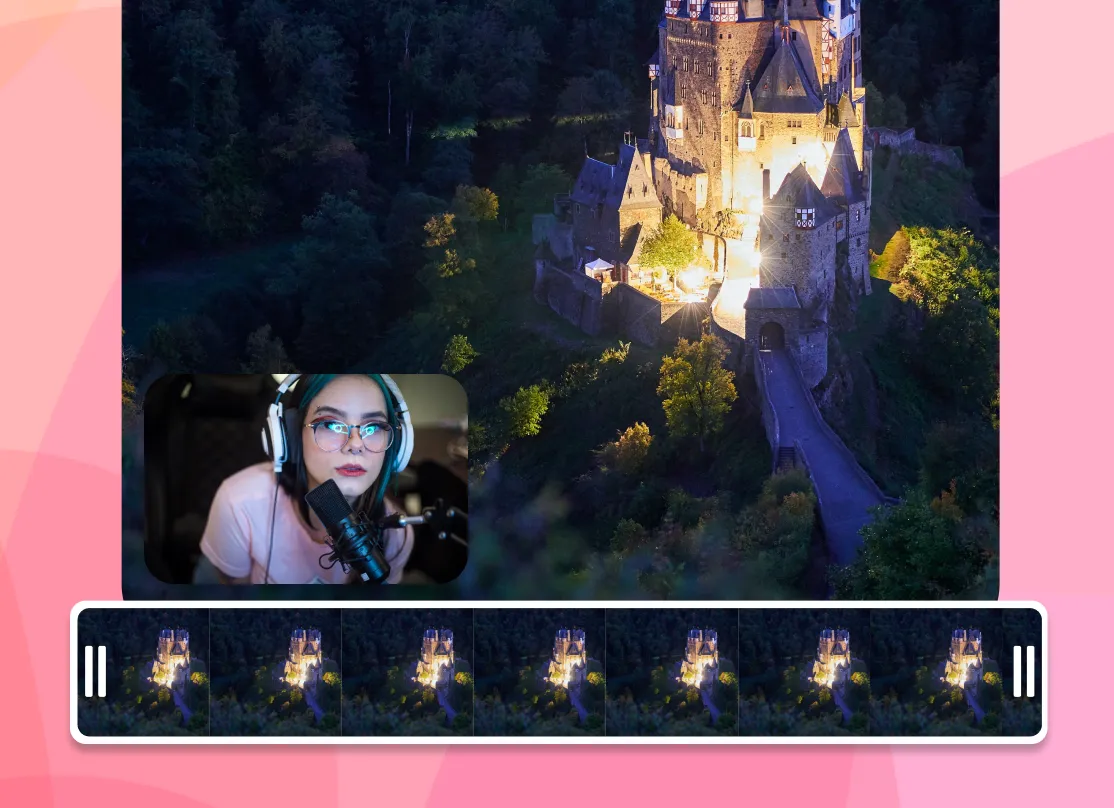
Ensuring that source videos are properly prepared is a vital step in achieving seamless and professional overlay effects. Proper preparation involves selecting suitable videos and optimizing their technical properties to ensure compatibility with overlay editing tools. This process minimizes issues such as mismatched resolutions, frame rates, or aspect ratios, which can compromise the quality of the final output. By carefully preparing your videos beforehand, you set a solid foundation for efficient editing and high-quality results.Preparing videos for overlay involves several key steps, including choosing the right source materials, adjusting technical settings, and verifying compatibility.
These efforts help streamline the overlay process, reduce editing errors, and enhance the overall visual coherence of your project.
Selecting and Preparing Source Videos for Overlay
The first step in video preparation is selecting source videos that match the intended overlay style. Consider the content, visual quality, and original resolution of each clip. High-definition videos (such as 1080p or 4K) generally provide better clarity and flexibility during editing, but also require more processing power and storage space. When choosing videos, prioritize those with consistent lighting and minimal compression artifacts to ensure clarity in the overlay.Once selected, prepare the videos by trimming unnecessary segments, removing unwanted backgrounds, or enhancing visual elements as needed.
This cleanup ensures the overlay focuses on relevant content, improving both aesthetics and performance.
Setting Up Video Resolution, Aspect Ratio, and Frame Rate
Compatibility between overlay videos and the base footage hinges on aligning resolution, aspect ratio, and frame rate. Mismatched settings can lead to visual artifacts, frame skipping, or distorted images, detracting from the professionalism of the final product. Therefore, aligning these parameters before overlaying is essential.Video resolution should match the target output resolution or be scaled proportionally to prevent quality loss.
For instance, overlay videos intended for a 1920×1080 project should ideally be prepared in the same resolution or scaled accordingly during editing. Aspect ratio consistency maintains the visual proportion, avoiding stretching or black bars. Frame rate alignment ensures smooth motion; typical standards like 24 fps, 30 fps, or 60 fps should be matched between overlays and base footage to achieve seamless animation.
Ensure that the frame rate of your overlay video matches the main video to prevent synchronization issues and visual disruptions.
Optimizing Videos Before Overlay Processing
Optimizing videos beforehand guarantees smoother overlay operations and higher output quality. This process involves verifying technical specifications, compressing files without quality loss, and converting videos into compatible formats.Use the following checklist to confirm videos are optimized:
- Match the resolution of overlay videos with the target project resolution.
- Set the aspect ratio to match the intended display format, such as 16:9 for widescreen projects.
- Ensure frame rates are consistent with the main footage, typically 24, 30, or 60 fps.
- Convert videos to widely supported formats such as MP4 (H.264 codec) to ensure compatibility across editing platforms.
- Compress videos to reduce file size while retaining acceptable visual quality, facilitating smoother editing and rendering.
- Check for color consistency and correct any color grading issues to maintain visual harmony in overlays.
By meticulously following these steps and employing this checklist, you enhance the efficiency of your overlay workflow and achieve professional-grade video composites.
Basic Methods of Overlaying Videos
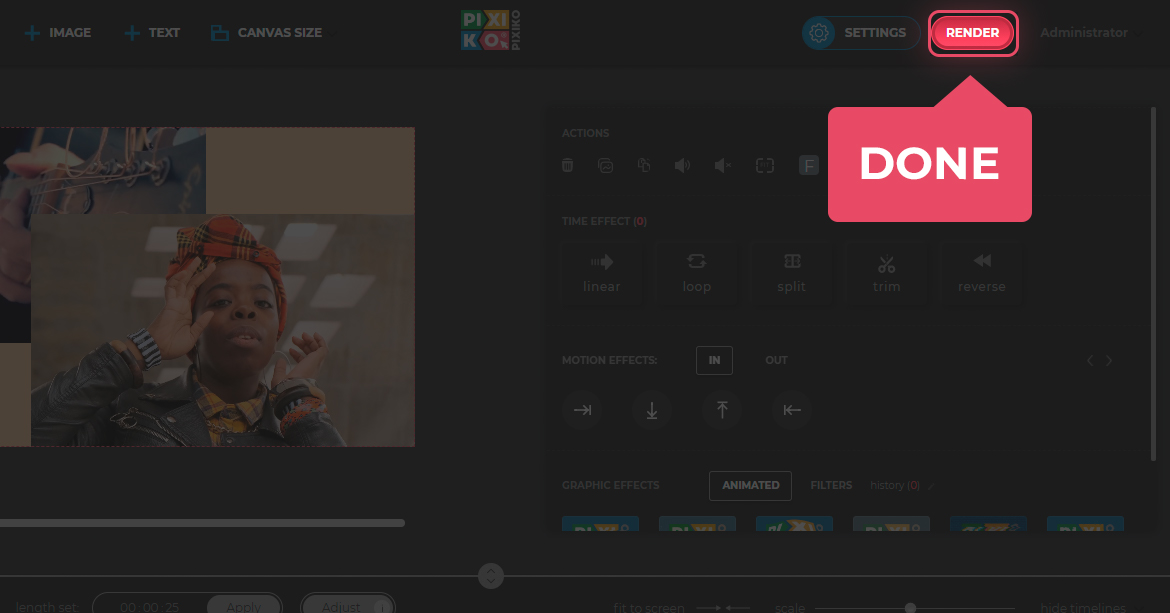
Overlaying videos is a fundamental technique in video editing that allows the combination of multiple video streams into a cohesive visual presentation. Mastering these methods enables creators to add multiple layers of information, special effects, or background elements to enhance storytelling and visual appeal. Among the various approaches, keying and masking are the most commonly employed and versatile techniques, each suited to different types of overlaying tasks.
Keying involves removing a specific color or chroma background, typically green or blue, from a video clip to make it transparent and overlay it onto another video. Masking, on the other hand, uses a shape or matte to define which parts of a video are visible or hidden, allowing for more precise compositing and creative effects. Both techniques are integral to professional video production, advertising, and digital content creation, offering a range of possibilities depending on the complexity and nature of the overlay required.
Procedures for Overlaying Videos Using Keying and Masking Techniques
Applying keying and masking involves a series of systematic steps to achieve seamless overlays. The following procedures Artikel how to effectively implement these methods in typical video editing workflows:
- Import Videos: Load both the primary background video and the secondary overlay video into your editing software. Ensure that the overlay video has a suitable background (usually green or blue) for chroma keying if using keying techniques.
- Apply Chroma Keying: Select the overlay video clip and access the chroma key effect or tool. Use the color picker to select the background color (e.g., green). Adjust tolerance, similarity, and edge feathering settings to refine transparency and remove unwanted background areas.
- Create Masks: For masking, add a mask layer or shape to the overlay video. Draw or define the shape that represents the visible area of the overlay. Adjust mask parameters for smoothness and feathering to blend the overlay with the background seamlessly.
- Position and Scale: Move, resize, and rotate the overlay video to fit the desired composition. This step ensures the overlay aligns correctly with the background scene.
- Refine Edges and Blending: Use edge softness, spill suppression, and blending options to make the overlay appear natural and integrated within the primary video.
- Preview and Export: Play back the composite video to verify the overlay quality. Make necessary adjustments before exporting the final video in the preferred format.
Overlay Methods Comparison Table
This table summarizes the key overlay techniques, highlighting their primary advantages and limitations to help select the appropriate method based on project requirements.
| Overlay Method | Advantages | Limitations |
|---|---|---|
| Chroma Keying |
|
|
| Masking |
|
|
| Picture-in-Picture (PiP) |
|
|
| Alpha Channel Masking |
|
|
Advanced Techniques in Video Overlay
Building upon foundational overlay methods, advanced techniques enable creators to produce more dynamic, professional, and visually compelling videos. Mastering these methods involves understanding specialized tools and nuanced adjustments that significantly enhance the visual storytelling process. These techniques are essential for producing high-quality content suitable for commercial, cinematic, or broadcast purposes, where precision and creativity intersect.
In this section, we explore key advanced video overlay methods such as chroma keying, picture-in-picture, and motion tracking. Additionally, we examine how layering, opacity, and blending modes can be leveraged to create seamless and engaging overlays. Synchronizing audio and video streams during overlay processes ensures a polished and cohesive final product, elevating the overall production quality.
Chroma Keying and Its Application in Video Overlay
Chroma keying is a widely used technique that allows the removal of a specific color—usually a vibrant green or blue background—to replace it with another video or image. This method is instrumental in creating immersive environments, weather forecasts, or special effects without needing complex set designs. The key to effective chroma keying lies in careful lighting, consistent background color, and precise color spill removal.
To achieve optimal results, professionals employ software tools that facilitate fine-tuning of keying parameters, such as similarity, edge softness, and spill suppression. Advanced chroma keying also involves combining multiple layers with different keying parameters to handle complex backgrounds and minimize artifacts. Properly executed, this technique enables seamless integration of foreground subjects into diverse digital environments.
Picture-in-Picture (PiP) and Motion Tracking
Picture-in-picture (PiP) overlays allow multiple video streams to be displayed simultaneously within a single frame, often used in tutorials, interviews, or product showcases. Implementing PiP requires precise positioning, scaling, and timing to ensure clarity and viewer focus. Motion tracking further enhances PiP by dynamically following moving objects or subjects within the primary video, adding a layer of interactivity and professionalism.
Motion tracking involves analyzing movement within a video to generate data points that guide the position of overlay elements. This technique is particularly useful in sports analysis, film post-production, or virtual presentations where overlays need to stay synchronized with moving subjects. Combining motion tracking with PiP creates adaptive overlays that respond naturally to scene dynamics, avoiding distractions or misalignments.
Layering, Opacity, and Blending Modes for Enhanced Overlays
Effective use of layering, opacity adjustments, and blending modes allows creators to craft overlays that integrate seamlessly into the primary video. Layering involves stacking multiple video or image elements in a specific hierarchy, controlling which elements appear in front or behind others. Opacity controls transparency levels, creating subtle overlays or ghosting effects that do not overpower the main content.
Blending modes determine how overlay layers interact visually with underlying footage. Common modes such as “Overlay,” “Soft Light,” or “Multiply” can produce various artistic effects, from enhancing contrast to creating textured overlays. Adjusting these settings requires a nuanced understanding to achieve the desired aesthetic without compromising clarity or color fidelity.
Experimentation with these tools allows for creative control over the overlay’s visual impact, enabling tailored effects that suit the narrative or branding requirements.
Synchronizing Audio and Video Streams During Overlay Processes
Precise synchronization between audio and video streams during overlay processes is crucial to maintaining the coherence and professionalism of the final product. Discrepancies in timing can lead to confusion or diminish viewer engagement. Implementing synchronization involves aligning audio tracks with corresponding video cues, ensuring lip movements, sound effects, or background music match the visual actions accurately.
Advanced editing software provides timeline controls, markers, and keyframe adjustments to facilitate synchronization. When overlaying multiple streams, it is essential to consider latency differences, sample rates, and frame rates to prevent drift over time. Techniques such as audio scrubbing, waveform analysis, and real-time previewing assist editors in achieving tight synchronization.
In complex projects, utilizing synchronization markers or reference points within the footage can streamline the process, ensuring that audio cues align perfectly with visual events, thus producing a polished, professional outcome.
Using Editing Software for Video Overlay
Leveraging professional and free editing software enhances the precision, flexibility, and creative possibilities when overlaying videos. Mastering the procedures within these tools ensures seamless integration of multiple video layers, effects, and adjustments, ultimately producing polished and engaging final content. This section offers a comprehensive guide for utilizing popular editing platforms to achieve high-quality video overlays efficiently and effectively.
Understanding the distinct workflows, interface navigation, and features of different editing software is essential for optimizing the overlay process. Whether working with industry-standard programs like Adobe Premiere Pro and Final Cut Pro or free alternatives such as DaVinci Resolve and Shotcut, familiarizing oneself with their capabilities enables smoother editing, better effect application, and streamlined exporting processes. Below, detailed procedures, tips, and a comparative overview guide users in selecting and mastering the appropriate editing environment for their video overlay projects.
Overlay Procedures in Popular Editing Software
Each editing platform offers unique features and workflows to facilitate overlay creation. The following overview highlights the key steps involved in overlaying videos within Adobe Premiere Pro, Final Cut Pro, DaVinci Resolve, and free alternatives like Shotcut. Familiarity with these procedures helps ensure efficient editing regardless of the software chosen.
Adobe Premiere Pro
- Import the background and overlay videos into the project panel by dragging files or using the ‘Import’ option.
- Drag the background video onto the timeline’s Video Track 1 and place the overlay video on Video Track 2 above it.
- Select the overlay clip and navigate to the ‘Effect Controls’ panel; apply the ‘Opacity’ effect and adjust the ‘Blend Mode’ (such as ‘Screen’ or ‘Overlay’) to blend videos seamlessly.
- Resize or reposition the overlay video directly in the Program Monitor using the ‘Motion’ controls.
- Apply any desired effects or color corrections to enhance visual integration.
- Export the final video by choosing ‘File’ > ‘Export’ > ‘Media’, selecting the appropriate format and quality settings.
Final Cut Pro
- Import media files into the event browser and add them to the timeline, placing the main footage on the primary track and overlay on a higher track.
- Select the overlay clip, open the ‘Transform’ tool to resize or reposition, and adjust composite modes from the ‘Video Inspector’.
- Apply effects such as ‘Blend Modes’ to create overlays like chroma key or transparency effects.
- Use keyframes for dynamic positioning or effects adjustments over time.
- Finalize by exporting the project via ‘Share’ options, choosing the appropriate format and resolution.
DaVinci Resolve
- Import videos into the media pool and add them to the timeline, with the background layer on the lower video track and overlay on a higher track.
- Switch to the ‘Color’ workspace or use the ‘Fusion’ tab for advanced compositing; apply keying or blending nodes as needed.
- Adjust the overlay’s position, size, and opacity within the inspector panel or fusion nodes.
- Utilize effects like ‘Chroma Key’ or ‘Luma Key’ for transparent overlays or special effects.
- Render the project with desired export settings for optimal quality.
Free Alternatives (e.g., Shotcut)
- Import videos and add them to the timeline, with the overlay video placed above the background layer.
- Open the ‘Filters’ tab, select the overlay clip, and apply ‘Size and Position’ or ‘Opacity’ filters to customize appearance.
- Use blend modes available within filters to achieve different overlay effects.
- Adjust timeline and filters iteratively to refine the overlay effect.
- Export via the ‘Export’ menu, selecting formats such as MP4 or MOV for high compatibility.
Tips for Navigating Interfaces, Applying Effects, and Exporting Final Videos
Proficiency in navigating the user interfaces of different editing tools is vital for efficient workflow. Familiarize yourself with key panels such as project bins, timeline, effects/filters, and export settings. Applying effects thoughtfully enhances overlay quality; experiment with blend modes, opacity levels, and keyframing to create dynamic compositions. When exporting, choose settings that balance quality and file size, such as selecting appropriate codecs and resolution parameters, to ensure professional results suitable for various distribution channels.
Comparative Table of Features and Ease of Use
| Software | Ease of Use | Key Features | Supported Formats | Cost |
|---|---|---|---|---|
| Adobe Premiere Pro | Intermediate to Advanced | Advanced blending modes, extensive effects, seamless integration with Adobe Suite | All major formats, including 4K and higher | Subscription-based (monthly/yearly) |
| Final Cut Pro | Intermediate | Magnetic timeline, powerful effects, optimized for Mac | All standard formats, optimized for Apple hardware | One-time purchase |
| DaVinci Resolve | Intermediate to Advanced | Comprehensive color grading, Fusion compositing, multi-layer editing | Wide format support, including high dynamic range (HDR) | Free basic version; paid Studio version available |
| Shotcut (Free) | Beginner to Intermediate | Multiple filters, basic blending modes, cross-platform support | Major formats supported, including MP4, MOV, AVI | Free |
Troubleshooting Common Overlay Issues
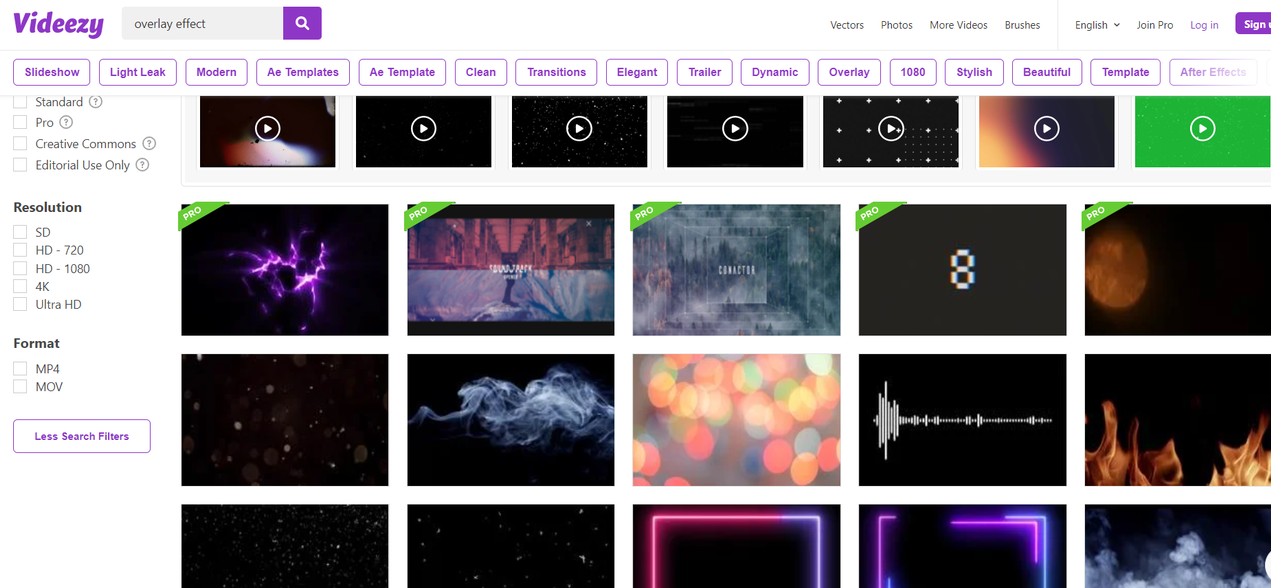
Overlaying videos often enhances visual storytelling but can introduce a range of issues that compromise the final quality. Recognizing and addressing these problems is essential for producing seamless and professional results. This section discusses common overlay challenges, such as color spill, ghosting, and alignment errors, and provides practical, step-by-step solutions to rectify them.Understanding these issues helps editors to maintain high standards and ensures the overlay integrates smoothly with the background video.
It is important to systematically analyze each problem to identify the root cause before applying corrective measures. The following subsections detail the most frequent overlay artifacts and effective methods to fix them.
Color Spill and Chroma Key Artifacts
Color spill, often encountered during chroma keying, occurs when the green or blue screen edges bleed into the foreground object, creating an unnatural halo. Ghosting refers to semi-transparent remnants of the overlay that appear faintly on the background, while alignment errors cause components to appear misplaced or skewed.To resolve color spill issues:
- Adjust the chroma key settings in your editing software by increasing the similarity threshold to better isolate the background color. This helps eliminate residual green or blue edges.
- Use spill suppression tools within the software, which often include sliders to reduce unwanted color reflections around the subject.
- Refine the edge matte by softening or feathering the edges to blend the overlay more seamlessly with the background.
- Employ color correction filters to neutralize any remaining color cast on the overlay, restoring natural skin tones or object colors.
- For persistent spill, consider re-shooting with improved lighting and background setup to minimize reflections and color contamination.
Effective spill suppression combines threshold adjustments with edge feathering and color correction to achieve a clean overlay.
Ghosting and Semi-Transparency Issues
Ghosting manifests as semi-transparent artifacts where the overlay appears faint or duplicated, disrupting visual clarity. This often results from improper keying or insufficient contrast between the foreground and background during capture.Solutions include:
- Increase the contrast between the keyed color and the foreground elements during the chroma key process, ensuring only the background is removed.
- Adjust the matte generation settings to refine the transparency levels, removing semi-transparent remnants.
- Apply a garbage matte to eliminate extraneous areas that contribute to ghosting, focusing the keying process on the main subject.
- Utilize edge refinement tools such as choke and shift edge parameters to tighten the matte around the subject and eliminate semi-transparent fringes.
- If ghosting persists, consider re-shooting with improved lighting conditions to minimize semi-transparency caused by shadows or uneven lighting.
Proper contrast adjustment and matte refinement are critical in eliminating ghosting artifacts and enhancing overlay sharpness.
Alignment and Positioning Errors
Misalignment occurs when the overlay does not match the background frame accurately, resulting in jittering, skewed positions, or incorrect scaling. Such errors often stem from inconsistent anchor points, improper scaling, or tracking issues.To correct alignment problems:
- Verify and reset anchor points or pivot points in your editing software to ensure the overlay scales and rotates around the intended position.
- Use grid overlays or guides to precisely position the overlay layer in relation to the background elements.
- Apply motion tracking features to follow moving objects, ensuring the overlay remains correctly aligned throughout the sequence.
- Check and adjust scale and rotation settings to match the perspective and size of background objects.
- Review keyframe placements and ensure smooth transitions; adding or fine-tuning keyframes can eliminate jitter or drift.
- In cases of persistent misalignment, re-evaluate the initial placement during the overlay setup or re-shoot with reference markers for easier tracking.
Accurate anchoring, tracking, and guided positioning are vital for maintaining overlay alignment across complex scenes.
Creative Applications of Video Overlays
Video overlays are powerful tools that extend beyond basic editing, enabling creators to imbue their videos with innovative visual elements and artistic flair. These applications enhance storytelling, brand identity, and viewer engagement by integrating graphic elements seamlessly into the visual narrative. The creative potential of overlays is vast, allowing for dynamic presentations, enhanced clarity, and aesthetic appeal tailored to diverse project requirements.Incorporating overlays creatively involves strategic design choices and technical execution that ensure overlays complement rather than distract from the main content.
When executed thoughtfully, overlays can transform ordinary footage into compelling visual experiences, fostering emotional connection and reinforcing key messages. This section explores the imaginative possibilities and foundational principles that guide effective and visually appealing overlay designs.
Overlaying Text, Animations, and Graphics for Visual Impact
The creative use of overlays often involves embedding text, animations, and graphics into video content to communicate information, add branding, or enhance visual interest. These elements, when thoughtfully integrated, serve as storytelling devices and visual cues that guide viewer perception.To maximize visual impact, overlay design should consider readability, contrast, and placement, ensuring that the overlay complements the background without overwhelming it.
For instance, animated text can highlight key points dynamically, while graphics such as icons or illustrative elements can clarify complex ideas or emphasize branding. Combining these elements with motion effects creates a lively, engaging viewer experience.
“Seamless integration of overlays requires balancing visual appeal with clarity, ensuring that overlays enhance the narrative without distracting from the primary footage.”
Design Principles for Seamless Overlay Integration
Successful creative overlays adhere to fundamental design principles that promote harmony and viewer engagement. These principles include consistency, contrast, hierarchy, and minimalism. Consistency ensures that overlays align with the overall aesthetic and branding, while contrast improves visibility and readability against varied backgrounds.Establishing visual hierarchy directs attention to the most critical overlay elements, such as titles or calls-to-action, by adjusting size, color, and positioning.
Minimalism avoids clutter, allowing each overlay component to stand out meaningfully without overwhelming the viewer. Additionally, smooth animations and transitions contribute to a polished, professional appearance, fostering a sense of cohesion throughout the video.
Innovative Overlay Techniques with Descriptive Examples
Introduce innovative overlay techniques that set projects apart by leveraging advanced visual effects and creative concepts. For example, using motion tracking to attach graphics to moving objects within the video creates a dynamic and immersive experience. This technique is particularly effective in product showcases or sports footage, where overlays follow the motion of subjects or products.Another example involves integrating augmented reality (AR) overlays, which can add interactive 3D models or informational graphics directly onto the footage.
This approach enhances educational videos or product demonstrations by offering viewers an engaging, interactive perspective that blends real-world footage with virtual elements.Additionally, creative overlays can include animated infographic layers that visualize data trends in real-time, making complex information accessible and visually appealing. For instance, during a documentary about climate change, animated overlays of temperature graphs or ecological maps can provide context and depth, enriching the viewer’s understanding.By exploring these innovative techniques and maintaining core design principles, creators can produce visually compelling videos that captivate audiences and elevate their storytelling capabilities.
Exporting and Sharing Overlaid Videos
Efficiently exporting and sharing videos with overlays is a crucial step in the video creation process, ensuring that your final product maintains high quality and is optimized for various platforms. This stage involves selecting appropriate formats, resolutions, and settings to facilitate seamless playback, minimal file size, and compatibility across different devices and media channels. Proper export practices ensure that your creative overlays are preserved effectively and that your videos reach your target audience without degradation in visual or audio quality.Exporting overlaid videos requires careful consideration of the intended platform, whether it’s social media, professional presentations, or broadcast distribution.
Each platform has specific technical requirements and best practices that influence the choice of resolution, format, compression levels, and aspect ratio. Adhering to these standards helps prevent issues such as playback errors, excessive buffering, or quality loss, creating a more engaging and professional viewing experience.
Export Formats and Resolutions
Choosing the right export format and resolution is fundamental to maintaining video quality and ensuring compatibility with various playback devices and platforms. Modern editing software offers a wide range of options, but the most common formats include MP4 (H.264 codec), MOV, AVI, and WMV. Among these, MP4 with H.264 compression is widely preferred due to its balance of quality and file size, along with broad support across web and mobile platforms.When selecting a resolution, consider the purpose of the video.
For high-definition content intended for HD screens, exporting in 1080p (1920×1080 pixels) provides clarity and sharpness. For social media platforms like Instagram or TikTok, vertical videos in 720×1280 or 1080×1920 are recommended. For professional presentations or broadcast, 4K (3840×2160 pixels) can be used, though it results in larger files and requires more processing power.
“Choosing the correct export settings aligns your video’s technical specifications with the expectations and limitations of your distribution channels.”
Optimizing Videos for Different Platforms
Each platform has unique requirements that influence how videos should be exported and shared. For instance, social media platforms often favor shorter videos with specific aspect ratios and lower bitrates to facilitate quick loading and smooth streaming. YouTube recommends MP4 format with H.264 codec, a resolution of 1080p for standard uploads, and an aspect ratio of 16:9.For professional use, such as presentations or archiving, higher bitrates and less compression preserve detail, while ensuring the quality is maintained over time.
When sharing via email or cloud storage, optimizing for smaller file sizes without significant quality loss enhances accessibility and reduces upload/download times.It is also vital to consider the intended playback device—mobile devices require smaller resolutions and optimized file sizes, whereas large screens or projectors benefit from higher resolutions like 4K.
Export Settings and Best Practices Summary
| Export Setting | Description | Best Practice |
|---|---|---|
| Format | File container type (e.g., MP4, MOV, AVI) | Use MP4 with H.264 codec for most platforms; MOV for professional editing; AVI for lossless quality |
| Resolution | Pixel dimensions of the exported video | Match platform requirements; 1080p for standard HD; 720p for quick sharing; 4K for high-end content |
| Bitrate | Data rate influencing quality and file size | Adjust according to needs; higher for quality preservation, lower for faster sharing |
| Frame Rate | Number of frames per second | Maintain original footage frame rate (usually 24, 30, or 60 fps) for consistency |
| Aspect Ratio | Width-to-height ratio | Use 16:9 for most screens; 1:1 or vertical ratios (9:16) for specific social media platforms |
| Audio Settings | Audio codec, sample rate, and bit depth | Export with AAC codec, 44.1 kHz or 48 kHz, and appropriate bit depth for clear sound |
Last Point
By exploring the various methods and tools for overlaying videos, you now have the foundation to enhance your multimedia projects creatively and professionally. With practice and experimentation, you can achieve impressive overlay effects that add depth and visual interest to your videos. Keep exploring new techniques and software options to continually improve your editing skills and produce captivating content.