Discover effective strategies to enhance your video editing skills and elevate the quality of your projects. Whether you’re a beginner or looking to refine your abilities, understanding foundational techniques and exploring advanced methods can significantly impact your creative output.
This guide covers essential editing principles, recommended software tools, creative techniques, learning routines, and ways to analyze professional works, all aimed at helping you become a more proficient and innovative video editor.
Fundamental Techniques to Enhance Video Editing Skills
Improving video editing skills begins with mastering core principles and establishing efficient workflows. A solid foundation in essential editing techniques allows creators to produce polished, engaging content consistently. Whether you’re a beginner or seeking to refine your abilities, focusing on these fundamental practices helps streamline your editing process and elevates the overall quality of your videos.
By understanding the key principles of editing, familiarizing yourself with foundational workflows, and systematically practicing essential tools, you build confidence and develop a more intuitive editing process. Structured methods not only improve efficiency but also ensure that your output maintains a professional standard, essential for personal projects, social media content, or commercial productions.
Essential Editing Principles and Foundational Workflows
Establishing effective workflows involves integrating core editing principles into every project, from organizing raw footage to final export. These principles serve as the backbone for creating cohesive and compelling videos. Consistent application of these techniques enhances both your speed and the quality of your output.
- Organize Your Assets: Begin by categorizing footage, audio, graphics, and other assets into clearly labeled folders. Use consistent naming conventions to facilitate quick access and minimize confusion during editing sessions.
- Create a Rough Cut: Assemble a basic sequence by placing clips in chronological order, focusing on the story or message you want to convey. Avoid obsessing over details at this stage; prioritize structure and flow.
- Refine the Timeline: Trim unnecessary portions, adjust clip placement, and synchronize audio with video. Use ripple and slip edits to maintain timing consistency without disrupting the overall sequence.
- Add Transitions and Effects Judiciously: Integrate transitions like fades or wipes to ensure smooth scene changes, but avoid overusing them. Employ effects to enhance storytelling, such as color correction to set mood or highlight specific elements.
- Implement Color Grading and Audio Mixing: Balance audio levels for clarity and consistency. Apply color grading to unify the visual tone across scenes, creating a polished and professional appearance.
- Review and Export: Conduct thorough reviews of the edited video, checking for continuity, pacing, and technical issues. Export in appropriate formats and resolutions suited to your platform or audience.
Step-by-Step Procedures for Mastering Basic Editing Tools and Features
Proficiency with editing tools forms the core of enhancing your skills. Learning to navigate and utilize features efficiently reduces editing time and improves outcomes. The following step-by-step approach guides you through mastering fundamental tools commonly found in professional editing software.
- Importing Assets: Use the media browser or import function to bring raw footage, audio, and graphics into your project. Organize assets within your workspace for easy access.
- Cutting and Trimming Clips: Utilize the razor or cut tool to divide clips at specific points. Apply trimming functions to shorten or lengthen clips, focusing on removing unwanted sections and maintaining narrative flow.
- Applying Transitions: Drag and drop transition effects between clips in the timeline. Adjust duration and properties to create seamless scene changes that support storytelling.
- Using Effects and Filters: Explore the effects panel to add visual enhancements such as blurs, color corrections, or stylized filters. Use keyframes to animate effects over time for dynamic visuals.
- Audio Editing and Mixing: Detach audio from video clips when necessary, adjust volume levels, and add background music or sound effects. Use audio filters for noise reduction or equalization to improve sound quality.
- Adding Titles and Graphics: Use titles, lower thirds, and overlays to provide context or emphasize information. Customize fonts, colors, and animations to match your video’s style.
- Rendering and Exporting: Select appropriate export settings based on the intended platform, whether for YouTube, broadcast, or social media. Ensure resolution, format, and bitrate are optimized for quality and file size.
Organizing Common Editing Tasks into Structured Methods for Efficiency
Breaking down typical editing tasks into repeatable, structured methods allows for increased efficiency and consistency across projects. Adopting these structured approaches minimizes errors and saves valuable time during the editing process.
- Scene Assembly: Follow a standardized workflow for assembling scenes, starting with importing footage, creating a rough cut, then refining each segment before moving to the next. Use presets or templates for common sequences such as intros or outros.
- Color Correction Workflow: Establish a step-by-step color grading pipeline, beginning with correction (white balance, exposure), followed by creative grading to set mood or style. Save color presets for repetitive use.
- Audio Mixing Routine: Implement a consistent procedure for balancing dialogue, music, and sound effects. Use audio tracks with designated roles, and apply normalization or compression uniformly.
- Effect and Transition Application: Develop a checklist for when and how to apply effects, ensuring each addition serves a purpose. Save custom effects and transition presets for future projects.
- Final Review and Quality Control: Create a standard checklist for reviewing videos before export—checking continuity, technical quality, and overall pacing. Use markers or annotations to note areas for improvement or revision.
“Establishing a structured workflow enables you to approach each project methodically, reducing errors and increasing productivity.” – Video Editing Expert
Best Software and Tools for Improving Editing Proficiency
Enhancing your video editing skills significantly depends on the choice of software and tools that align with your workflow and creative goals. The right platform can streamline your editing process, introduce innovative effects, and expand your capabilities through plugins and add-ons. Exploring a variety of editing platforms allows creators to find the most suitable environment for their projects, whether they prioritize ease of use, advanced features, or community support.
In this section, we will compare popular editing software options, recommend effective plugins and add-ons, and provide a curated resource list to help you improve your proficiency efficiently.
Comparison of Popular Video Editing Platforms
Understanding the unique features and strengths of leading editing software can guide you in selecting the best tool for your needs. The following comparison table highlights key aspects such as interface, supported formats, advanced features, pricing, and target user base for each platform.
| Software | Interface & Usability | Key Features | Supported Formats | Pricing Model | Ideal For |
|---|---|---|---|---|---|
| Adobe Premiere Pro | Professional, customizable workspace with a steep learning curve; suitable for advanced users | Multi-cam editing, Lumetri Color, advanced audio editing, VR editing | Wide range, including 4K, HDR, VR formats | Subscription-based (monthly/yearly) | Professional editors, studios, content creators |
| Final Cut Pro | Intuitive interface optimized for Mac; fast performance with magnetic timeline | Magnetic timeline, advanced color grading, 360-degree editing | Supports most formats, optimized for Apple ecosystem | One-time purchase | Mac users seeking professional-grade editing |
| DaVinci Resolve | Complex interface but highly customizable; steep learning curve for beginners | Color correction, visual effects, audio post-production integrated | Supports diverse formats including RAW and HDR | Free version available; Studio version with added features | Colorists, post-production professionals, budget-conscious creators |
| HitFilm Express | Friendly for beginners; intuitive interface with modular layout | Compositing, visual effects, tutorials integrated | Standard formats, compatible with various codecs | Free with optional paid add-ons | Indie filmmakers, learners, hobbyists |
| Adobe Premiere Elements | Simple, beginner-friendly interface | Smart tools, guided edits, automatic options | Common formats, including 4K | One-time purchase | Beginners and casual editors |
Recommended Plugins and Add-Ons to Enhance Editing Capabilities
Plugins and add-ons serve as powerful extensions that augment your software’s native capabilities. They can facilitate faster workflows, introduce new effects, improve color grading, and automate routine tasks. Selecting the right plugins can dramatically improve your editing proficiency and creative output.
- Twixtor: Specializes in smooth slow-motion effects without quality loss, ideal for high-impact sequences.
- Magic Bullet Looks: Provides comprehensive color grading tools and cinematic filters for polished visuals.
- Neat Video: Noise reduction plugin that improves footage clarity, especially useful for low-light shots or older footage.
- Red Giant Universe: Offers a broad library of visual effects, transitions, and tools for stylized editing.
- BCC (Boris Continuum Complete): Provides extensive VFX and compositing effects, suitable for high-end productions.
- FilmConvert: Adds film stock emulation and grain to give digital footage a cinematic look.
Resource List for Tutorials and Community Support
Access to quality tutorials and active community forums accelerates learning and problem-solving. These resources offer step-by-step guides, creative inspiration, and peer support tailored to each editing platform and plugin.
- Adobe Premiere Pro:
- Adobe Tutorials : Official tutorials covering fundamentals to advanced techniques.
- Adobe Community Forums : Engage with other users, seek advice, and share projects.
- Motion Design School : Creative tutorials focusing on motion graphics and editing.
- Final Cut Pro:
- Apple Support & Tutorials : Official guides and troubleshooting tips.
- FCPX Free : Community-driven tutorials, tips, and resources for all skill levels.
- FCP.co : News, plugins, and forums dedicated to Final Cut Pro users.
- DaVinci Resolve:
- Blackmagic Design Training : Official training videos for all levels.
- Blackmagic Forum : Community support for troubleshooting and sharing techniques.
- Mixing Light : In-depth tutorials focusing on color grading and post-production workflows.
- HitFilm Express:
- FXhome Learning Center : Tutorials for beginners and intermediate users.
- HitFilm Community Forums : Peer support, project sharing, and plugin suggestions.
- Tuts+ HitFilm Tutorials : Creative effects, compositing, and editing techniques.
- General Resources:
- YouTube : Channels like Video Copilot, Surfaced Studio, and Justin Odisho offer extensive tutorials across platforms.
- LinkedIn Learning : Structured courses on various editing software and techniques.
- Reddit r/editors : Active community sharing tips, feedback, and resources.
Creative Editing Methods to Elevate Video Quality
Enhancing video content through creative editing techniques can significantly improve visual appeal and viewer engagement. Moving beyond basic cuts and transitions, innovative methods such as advanced color grading, dynamic motion graphics, and seamless transitions enable editors to craft distinctive and compelling videos. Developing a keen eye for these techniques allows for the creation of a unique style that resonates with audiences and elevates overall production quality.
Employing these creative strategies involves understanding how to manipulate visual elements intentionally. This not only improves aesthetic appeal but also helps in storytelling, establishing mood, and emphasizing key moments within your videos. By integrating these methods thoughtfully, editors can transform simple footage into a polished, professional piece that stands out in a crowded digital space.
Color Grading and Correction
Color grading is a powerful tool that sets the tone and mood of a video. It involves adjusting color properties such as hue, saturation, and luminance to create a specific visual style or atmosphere. For example, a cool blue tone can evoke feelings of calmness or melancholy, while warm hues generate warmth and intimacy. Advanced color grading techniques involve using LUTs (Look-Up Tables) and color wheels to fine-tune the color palette.
This process transforms raw footage into a cohesive visual narrative, aligning the color scheme with the story’s emotional context.
Motion Graphics and Visual Effects
Motion graphics add a dynamic layer to video content, making information more engaging and visually appealing. They include animated text, icons, and other graphical elements that can be integrated seamlessly into scenes. Incorporating motion graphics can help emphasize key points, explain complex ideas, or add a creative flair. For example, animated lower thirds and titles can introduce speakers or sections with style, while kinetic typography can animate quotes or messages for added impact.
Transitions and Layer Manipulation
Transitions are more than simple fades; they can be creatively designed to enhance storytelling. Techniques such as whip pans, zoom cuts, or custom shape transitions provide fluidity and visual interest. Layers and masking are essential tools for creating complex effects, allowing editors to combine multiple visual elements and control their visibility precisely. By stacking layers, applying masks, and using compositing techniques, editors can craft illusions like split screens, picture-in-picture effects, or complex subject isolations.
These methods elevate the production value and provide a more immersive viewer experience.
Style Experimentation and Personal Signature Development
Developing a distinctive editing style involves experimenting with different visual elements and techniques. Stylization can include unique color palettes, consistent transition choices, or signature motion graphics. For example, a filmmaker might favor a high-contrast color scheme combined with glitch effects to establish a cyberpunk aesthetic. Trial and error in editing software allows creators to discover what resonates with their personal artistic voice.
Over time, this experimentation leads to a recognizable editing signature that sets their work apart and fosters brand recognition among audiences.
Troubleshooting Common Editing Challenges
Navigating the editing process often presents various technical and workflow challenges that can hinder project efficiency and quality. Recognizing these common issues and implementing effective troubleshooting strategies is essential for maintaining productivity and achieving professional results. This section aims to address typical editing hurdles and provide systematic approaches to resolve them, ensuring a smoother editing experience.Editing workflows can be complex, involving numerous software tools and hardware components.
When issues arise, a structured troubleshooting approach allows editors to quickly identify root causes and apply targeted solutions. From performance hiccups to software glitches and workflow bottlenecks, understanding how to diagnose and fix these problems is vital. Additionally, optimizing hardware and software setups plays a crucial role in preventing many common issues, leading to enhanced editing efficiency and a more seamless creative process.
Performance Issues and Workflow Bottlenecks
Performance degradation and workflow delays are among the most frequent challenges faced during video editing. These issues often manifest as slow rendering times, laggy playback, or unresponsive software, which can significantly extend project timelines.
- Monitor system resource usage: Use task managers or system monitors to check CPU, RAM, GPU, and disk activity during editing sessions. If any component is consistently maxed out, consider upgrading hardware or closing unnecessary applications.
- Optimize media and project files: Use proxy workflows or lower-resolution previews for editing to reduce processing load. Transcoding high-resolution footage into more manageable formats can also improve performance.
- Adjust software settings: Allocate more RAM to editing software, increase cache sizes, and disable unneeded plugins or effects that may be consuming excessive resources.
- Implement workflow best practices: Organize media efficiently, avoid unnecessary effects during initial edits, and regularly save and back up projects to prevent data loss during crashes.
Software Glitches and Crashes
Software instability can disrupt editing sessions, leading to loss of work and increased frustration. Identifying and resolving these issues requires a combination of troubleshooting and preventive measures.
- Keep software updated: Regularly update editing programs to access bug fixes, security patches, and performance improvements introduced by developers.
- Check system compatibility: Verify that your hardware meets or exceeds the software’s recommended specifications, including operating system version, GPU capabilities, and storage requirements.
- Corrupted files management: Avoid importing corrupted footage or project files. Use media repair tools or re-import media if issues persist.
- Disable problematic plugins: Temporarily deactivate third-party plugins or extensions to identify if they cause crashes, then seek updates or alternatives if needed.
Hardware Optimization Tips
Ensuring that your hardware environment is optimized is fundamental for achieving optimal editing performance. Proper hardware setup reduces the likelihood of technical issues and accelerates the editing workflow.
- Upgrade essential components: Invest in a high-performance GPU, ample RAM (at least 16GB or more for 4K editing), and fast SSD storage to facilitate quick data access and processing.
- Maintain hardware health: Regularly clean hardware components, check for overheating, and ensure proper cooling systems are in place to prevent throttling and crashes.
- Utilize external peripherals: Use high-quality external monitors with accurate color calibration, reliable external drives for media storage, and ergonomic peripherals to improve workflow comfort and efficiency.
- Configure hardware settings: Enable hardware acceleration features within editing software, and adjust BIOS settings to prioritize performance, such as enabling XMP profiles for RAM or configuring PCIe slots for optimal bandwidth.
Software Optimization Tips
Beyond hardware, effective software configuration plays a pivotal role in troubleshooting and enhancing editing productivity.
- Configure cache and scratch disks: Designate fast drives for cache and media scratch disks to speed up rendering and playback.
- Use optimized media: Create proxy files or lower-resolution copies for editing, switching to full-resolution media for final exports.
- Disable background processes: Close unnecessary applications and background processes that compete for system resources during editing sessions.
- Regular backups and version control: Save incremental versions and use auto-save features to prevent data loss and facilitate recovery from errors.
Effective troubleshooting combines systematic diagnosis with proactive hardware and software management, creating a resilient editing environment that minimizes disruptions and maximizes creative output.
Last Recap
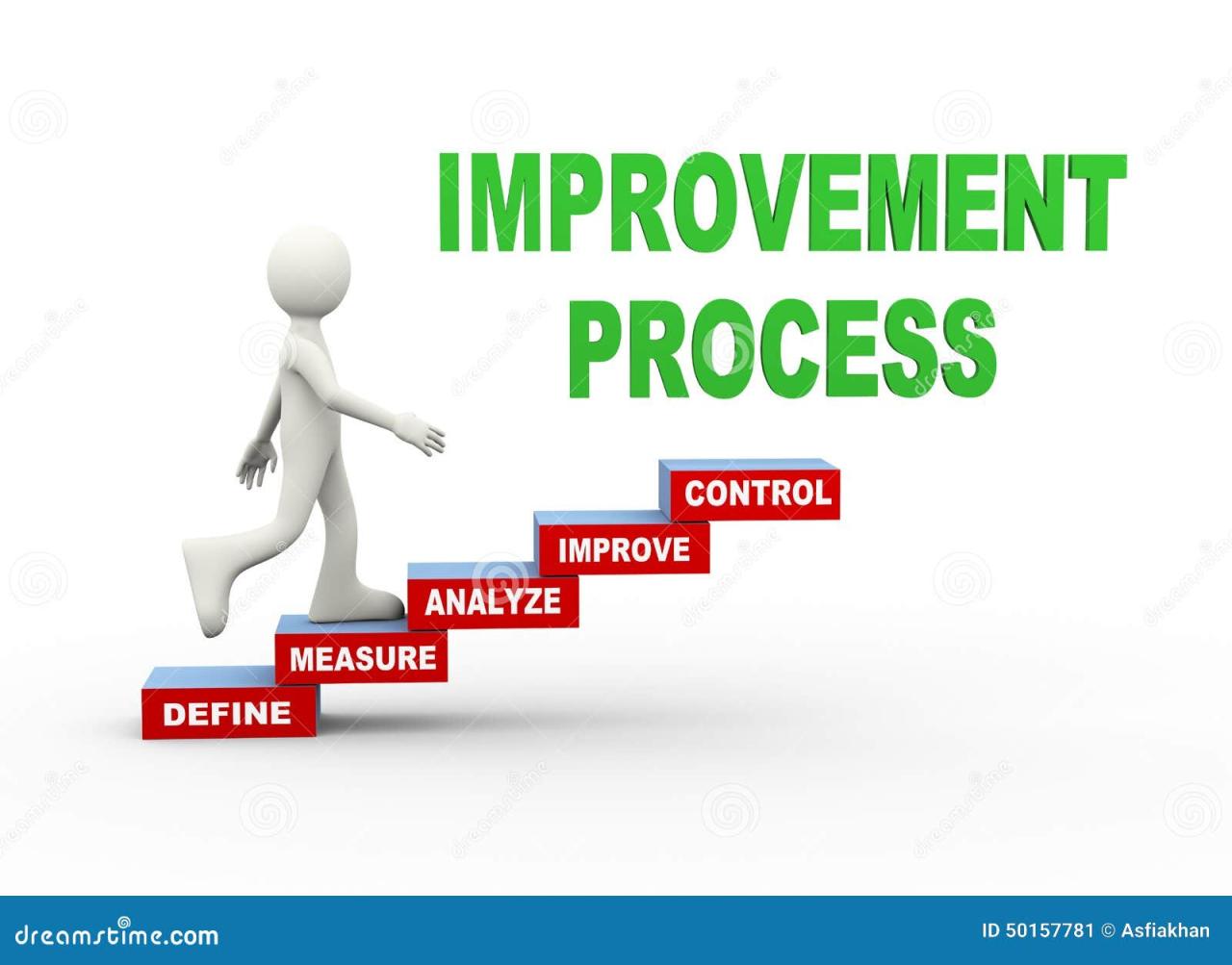
By implementing these practical tips and exploring various resources, you can steadily improve your video editing proficiency and develop a distinctive style. Consistent practice and continuous learning are key to transforming your editing projects into captivating visual stories.