Learning how to edit videos for beginners opens the door to transforming raw footage into engaging visual stories. Whether you’re starting a YouTube channel, creating personal projects, or enhancing presentations, understanding the fundamentals of video editing is essential. This guide provides a comprehensive overview of easy-to-follow steps and tools designed specifically for newcomers, ensuring a smooth and enjoyable editing journey.
From setting up editing software to incorporating effects and sharing your final product, this tutorial covers everything you need to know. With clear explanations and practical tips, beginners can confidently start editing videos and improve their skills with each project, making the process both accessible and rewarding.
Basic Concepts of Video Editing for Beginners
Embarking on the journey of video editing can be both exciting and overwhelming for newcomers. Understanding the foundational concepts and terminology is essential to navigate the editing process smoothly. This knowledge not only facilitates effective use of editing tools but also ensures the creation of polished and professional-looking videos.
At its core, video editing involves manipulating raw footage to craft a coherent and engaging final product. It encompasses a range of components such as timelines, clips, transitions, effects, and audio synchronization. Familiarity with these elements helps beginners organize their projects efficiently and achieve desired artistic outcomes.
Fundamental Video Editing Terminology and Components
Grasping key terminology is crucial for effective communication and operation within editing software. These terms form the building blocks of the editing process:
- Timeline: The workspace where video and audio clips are arranged sequentially. It allows precise editing and sequencing of scenes.
- Clips: Segments of video or audio extracted from raw footage, which are inserted into the timeline for editing.
- Transitions: Effects such as fades, wipes, or dissolves that smoothly shift from one clip to another, enhancing visual flow.
- Effects: Visual or audio enhancements applied to clips, including color correction, filters, or overlays, to improve aesthetics or mood.
- Cut: The basic editing action of splitting or removing parts of a clip to refine the sequence.
- Render: The process of generating the final video output after editing, encoding all elements into a playable file.
Setting Up Editing Software for New Users
Properly configuring your editing software is vital for a smooth editing experience. The setup process involves installing, customizing preferences, and understanding the workspace interface. For beginners, selecting user-friendly tools with intuitive interfaces reduces the learning curve.
- Download and Install the Software: Choose reputable editing programs compatible with your operating system, such as Windows or macOS. Follow the installation prompts to complete the process.
- Create a New Project: Open the software and start a new project, specifying parameters like resolution, frame rate, and aspect ratio, tailored to your video’s purpose.
- Familiarize with the Interface: Take time to explore the layout, including the timeline, preview window, media library, and toolbar. Most beginner-friendly editors offer guided tutorials.
- Import Media Files: Load your footage, audio, and images into the project library, organizing files into folders if necessary for efficient access.
- Adjust Settings: Customize preferences such as autosave intervals, display options, and keyboard shortcuts to enhance workflow.
Comparison of Popular Beginner-Friendly Video Editing Tools
For newcomers, selecting the right editing software depends on usability, features, cost, and compatibility. The following table summarizes three widely used beginner-friendly video editors:
| Software | Features | Price | Compatibility |
|---|---|---|---|
| iMovie | Intuitive interface, drag-and-drop editing, basic transitions, built-in music and effects, 4K support | Free for macOS and iOS users | Mac, iPhone, iPad |
| Shotcut | Open-source, multi-format support, wide range of filters and effects, timeline editing, basic color correction | Free | Windows, macOS, Linux |
| Filmora | User-friendly interface, extensive transitions and effects, built-in music library, export presets, simple interface | Subscription from $39.99/year or one-time purchase of $69.99 | Windows, macOS |
“Choosing software aligned with your skill level and project needs simplifies the learning curve and accelerates your editing proficiency.”
Essential tools and features in video editing software
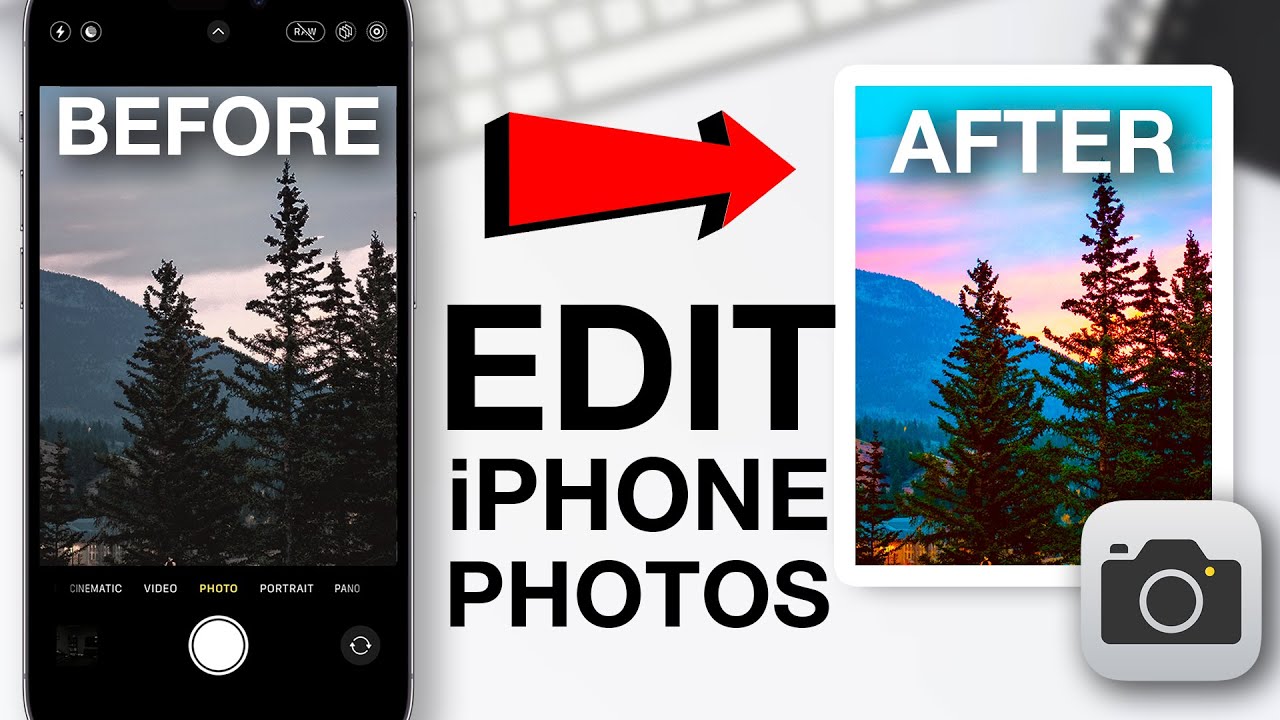
Understanding the core tools and features available in video editing software is fundamental for beginners aiming to create professional-looking videos. These features enable editors to manipulate footage effectively, add visual appeal, and fine-tune audio, facilitating a seamless storytelling process.
Most beginner-friendly video editing programs come equipped with a suite of essential tools that help users perform basic editing tasks efficiently. Mastering these features can significantly improve the quality and clarity of the final product, making it more engaging for viewers.
Core editing functions: cutting, trimming, and splitting clips
These fundamental editing operations form the backbone of any video editing project. They allow for precise control over the footage, enabling editors to remove unwanted sections, shorten clips, or divide sequences into manageable parts. Proper use of these tools ensures the narrative flows smoothly and maintains viewer interest.
- Cutting: Removing specific parts of a clip to eliminate errors or unnecessary content, often used to remove mistakes or awkward pauses.
- Trimming: Adjusting the start or end points of a clip to refine timing, helping to tighten scenes or synchronize audio and video more effectively.
- Splitting: Dividing a clip into two or more segments, which allows for inserting effects, transitions, or rearranging sections within the timeline.
Common visual effects and transitions for beginners
Visual effects and transitions add professionalism and polish to videos, making scenes flow smoothly and maintaining viewer engagement. For beginners, selecting simple yet effective effects can significantly enhance storytelling without overwhelming the viewer.
- Fade In and Fade Out: Gradually increasing or decreasing opacity at the beginning or end of clips to create smooth transitions.
- Cross Dissolve: Blending two scenes together with a gradual transition, ideal for indicating a change in time or location.
- Wipe Transitions: A transition where one scene replaces another through a wipe effect in various directions, useful for dynamic scene changes.
- Zoom Effects: Slight enlargements or reductions within a clip to emphasize specific details or create a sense of movement.
- Color Correction: Adjusting brightness, contrast, and saturation to achieve a consistent look or evoke mood.
Audio editing options and their application
Audio plays a critical role in video production, enhancing storytelling and emotional impact. Editing options for audio help balance sound levels, add effects, and ensure clarity, contributing to a more professional final product.
| Audio Editing Option | Description | Application |
|---|---|---|
| Volume Adjustment | Changing the loudness of audio tracks | Balancing background music with dialogue; increasing or decreasing sound levels for clarity |
| Noise Reduction | Removing background noise or hum from audio clips | Enhancing speech clarity in recordings with ambient noise |
| Audio Fade | Gradually increasing or decreasing audio volume at clip start or end | Smoothing transitions between scenes or audio clips |
| Equalization (EQ) | Adjusting frequency components for tonal balance | Enhancing voice clarity or compensating for recording deficiencies |
| Adding Sound Effects | Inserting predefined sounds to enhance scenes | Creating ambient environments, emphasizing actions, or adding comedic effects |
Note: Combining these audio editing techniques allows for a polished and emotionally resonant video, improving overall viewer engagement and professionalism.
Planning and Preparing Your Video Project
Effective planning and preparation are foundational steps in creating a compelling and cohesive video. By organizing your ideas, assets, and workflow before diving into editing, you set yourself up for a smoother production process. Proper groundwork ensures that the editing phase is efficient, reduces the likelihood of missing important elements, and results in a polished final product that aligns with your initial vision.A well-structured plan acts as a roadmap, guiding you through the editing process with clarity and purpose.
It helps in managing time effectively, avoiding unnecessary revisions, and maintaining a consistent narrative flow. For beginners, establishing a clear plan mitigates overwhelm and enhances creativity by providing a solid framework to build upon.
Storyboarding and Scripting
Storyboarding and scripting serve as visual and textual blueprints for your video project. They are essential tools that translate ideas into concrete plans, aiding in visualization and ensuring coherence throughout the editing process. Storyboarding involves creating a sequence of sketches or images that depict each scene or shot. This visual plan helps you determine camera angles, scene transitions, and shot compositions.
For beginners, simple sketches or digital tools like Canva or dedicated storyboard apps can suffice to map out key scenes, facilitating better shot planning and reducing filming errors.Scripting, on the other hand, involves writing the narration, dialogues, or voiceovers along with timing cues. It ensures that the narrative flows logically and that all necessary information is included. Scripts help in measuring the length of each segment, aligning audio with visuals, and maintaining consistency in tone and message.
Both tools serve to streamline communication, especially if multiple people are involved, and minimize the need for extensive editing corrections later. Combining storyboarding with scripting results in a comprehensive plan that guides filming and editing, saving time and enhancing overall quality.
Media Asset Collection Checklist
Having all media assets organized and readily accessible is crucial to maintain workflow efficiency. Collecting and verifying your media assets before editing prevents disruptions caused by missing files or incompatible formats.A comprehensive checklist should include:
- Video Footage: Ensure all recorded clips are backed up, properly named, and stored in designated folders.
- Images and Graphics: Gather relevant still images, logos, overlays, and visual effects required for your project.
- Audio Files: Compile background music, sound effects, voice recordings, and other audio assets, confirming formats compatible with your editing software.
- Fonts and Text Templates: If using custom fonts or animated text templates, have them organized and ready for use.
- Metadata and Captions: Prepare any subtitles, captions, or descriptive text that will enhance accessibility.
A best practice is to create subfolders for each asset type within your project directory, such as “Videos,” “Images,” “Audio,” and “Graphics.” This structure simplifies asset retrieval during editing and helps keep your workspace organized.
Organized Project Template in Editing Software
Maintaining an organized project within your editing software is pivotal for efficient workflow management, especially as projects grow in complexity. A standardized project template enables you to quickly set up new projects with consistent folder structures, timeline settings, and preset configurations.A recommended template includes:
| Folder Structure | Description |
|---|---|
| Footage | Contains all raw video clips, sorted by scenes or shoot days. |
| Audio | Stores background music, sound effects, voice recordings, and audio effects. |
| Graphics | Holds overlays, animations, titles, and visual assets. |
| Exports | Final rendered videos, in different resolutions or formats. |
| Projects | Includes project files, autosave backups, and version control documents. |
Within your editing software, creating a template that predefines sequence settings, default transitions, and effect presets can accelerate project setup. Additionally, standardized naming conventions for clips and assets—like date-based or scene-based labels—facilitate quick identification and reduce confusion during editing sessions.This organized approach ensures that every component of your project is easily accessible, well-maintained, and ready for seamless editing, ultimately leading to a more professional and efficient workflow.
Importing and Organizing Media Assets
Efficiently importing and systematically organizing media assets are foundational steps in the video editing process. Proper management of media files facilitates a smoother editing workflow, minimizes errors, and saves time, especially as project complexity increases. By establishing a clear method for importing and categorizing assets, beginner editors can maintain a tidy workspace that enhances productivity and ensures quick access to required media during editing sessions.Effective media management begins with understanding the various formats that video editing software can accept and recognizing best practices for file organization.
This process involves carefully choosing storage locations and labeling assets in a manner that aligns with the project’s structure. Well-organized assets allow editors to focus on creative tasks rather than searching for misplaced files, thereby promoting a more efficient editing environment.
Importing Media Files into Editing Software
Importing media involves bringing external files into the editing project so they can be used within the software’s timeline and workspace. Most editing software supports a wide range of media formats, including videos, images, audio, and graphics. The process typically involves the following steps:
- Open the project workspace and locate the ‘Import’ or ‘Media’ menu option.
- Navigate through your computer’s directories to select the desired files or folders.
- Select the files to import. Many programs allow multiple selections for batch importing.
- Confirm the import, which then adds the files to the software’s media bin or library.
Common media formats supported include MP4, MOV, AVI for videos; JPEG, PNG, TIFF for images; MP3, WAV for audio. It is important to note that some formats may require codecs or additional plugins for proper playback within the software. When importing, ensure the files are not corrupted and are compatible with the editing environment to prevent issues during editing.
Best Practices for Labeling and Categorizing Media Files
Proper labeling and categorization of assets are crucial for maintaining an organized workflow, particularly in projects involving large volumes of media. Clear, consistent naming conventions enable quick identification and reduce confusion during editing. Categorizing assets further streamlines the editing process, allowing editors to locate and use media efficiently.Adopt a systematic approach to naming files, such as including descriptive s, dates, or version numbers.
For example, a filename like “Interview_JohnDoe_2024-04-15_V1.mp4” immediately communicates the content, date, and version, facilitating easier updates or revisions. Additionally, creating dedicated folders for different media types, scenes, or project sections helps in keeping assets compartmentalized.Organize media into categories such as:
- Raw footage
- B-Roll
- Audio files
- Graphics and overlays
- Project files and exports
This structure minimizes the risk of accidental deletions and simplifies backup procedures. Regular maintenance of the media library, such as removing unused files and consolidating assets, contributes further to an efficient editing environment.
Sample Media Storage Table
Below is an example table illustrating common media types, their typical formats, and recommended storage locations within a project directory:
| Media Type | Supported Formats | Recommended Storage Location |
|---|---|---|
| Video Clips | MP4, MOV, AVI | /Media/Video/Footage |
| Images | JPEG, PNG, TIFF | /Media/Images/Assets |
| Audio Files | MP3, WAV, AAC | /Media/Audio/Tracks |
| Graphics & Overlays | PNG, PSD, AI | /Media/Graphics/Overlays |
| Project Files & Exports | Project-specific formats (e.g., .prproj, .veg) | /Projects/YourProjectName |
Proper organization of media assets enables seamless editing, reduces time spent searching for files, and supports efficient project management, especially as complexity grows.
Basic Editing Techniques for Beginners
Effective video editing begins with mastering foundational techniques that allow you to craft coherent and engaging stories. These techniques serve as the building blocks for creating polished videos, whether you’re producing content for social media, personal projects, or professional presentations. Understanding how to cut, trim, arrange clips, and add transitions will significantly enhance the quality and flow of your videos, making your storytelling more compelling and seamless.Editing is the process of selecting, refining, and organizing footage to produce a final version that communicates your intended message clearly.
For beginners, focusing on simple yet effective techniques ensures a smooth learning curve while laying a strong foundation for more advanced skills in the future. The following steps will guide you through essential editing practices to elevate your video projects.
Step-by-step Guide to Cutting and Trimming Clips Effectively
Properly cutting and trimming your clips is crucial for removing unwanted portions and emphasizing key moments within your footage. These techniques help maintain viewer engagement and ensure your story flows naturally.
1. Identify the segments to keep
Watch your footage carefully and mark the beginning and end points of the scenes or shots you want to retain. Use markers or in-and-out points within your editing software for precision.
2. Use the razor or cut tool
Most editing software features a razor or scissors tool that allows you to cut clips at specific points. Select this tool and click on your timeline where cuts are needed to segment longer clips into manageable parts.
3. Trim excess footage
After splitting clips, remove unwanted sections by selecting the segment and deleting it. Use the trimming handles to fine-tune the start and end points, ensuring smooth transitions and eliminating unnecessary frames.
4. Refine your cuts
Play back the edited segments to check for abrupt jumps or awkward pauses. Make incremental adjustments to ensure a natural flow between clips, maintaining continuity and rhythm.
5. Apply ripple edits
When trimming, take advantage of ripple editing features that automatically close gaps created by cuts, keeping your timeline organized and efficient.
“Effective trimming and cutting are about precision and timing, ensuring each scene contributes meaningfully to your story.”
Arranging Clips on the Timeline to Tell a Story
Arranging your clips thoughtfully on the timeline transforms raw footage into a coherent narrative. Proper sequencing ensures your story progresses logically and maintains the viewer’s interest from start to finish.
Create a storyboard or plan
Before editing, Artikel the order of scenes based on your script or storyline. This preparation helps you visualize the final product and organize clips accordingly.
Drag and drop clips
Import your trimmed clips onto the timeline in the sequence that aligns with your narrative structure. Place clips sequentially, making sure they transition smoothly from one to the next.
Adjust clip timing
Use the timeline to extend or shorten clips so that each scene flows naturally. Pay attention to pacing; faster cuts may add excitement, while longer shots can emphasize important moments.
Maintain continuity
Ensure that visual elements like lighting, color, and audio levels remain consistent throughout scenes to preserve continuity and avoid jarring transitions.
Use markers for key points
Mark significant moments or scene changes to help organize your editing process and facilitate quick navigation within the timeline.
Procedures for Adding Simple Transitions Between Scenes
Transitions serve as visual cues that guide viewers from one scene to another, enhancing the overall flow of your video. For beginners, simple transitions like cuts, fades, and dissolves are effective tools to improve narrative continuity.
Select transition effects
Most editing software offers a library of transitions. For fundamental editing, choose basic options such as ‘Fade In,’ ‘Fade Out,’ or ‘Dissolve.’ These are unobtrusive and easy to implement.
Position transitions correctly
Drag the chosen transition effect to the junction point between two clips on the timeline. Adjust the duration by resizing the transition to control how quickly or slowly the scene change occurs.
Preview transitions
Play back the sequence to assess the smoothness and appropriateness of the transition. Fine-tune timing as necessary to match the pace of your story.
Use transitions sparingly
While transitions can enhance storytelling, overusing them can distract viewers. Reserve transitions for significant scene changes or to emphasize emotional shifts.
Combine transitions with audio cues
Enhance scene changes by aligning transitions with changes in music or sound effects, reinforcing the mood and narrative flow.
Adding Audio and Music
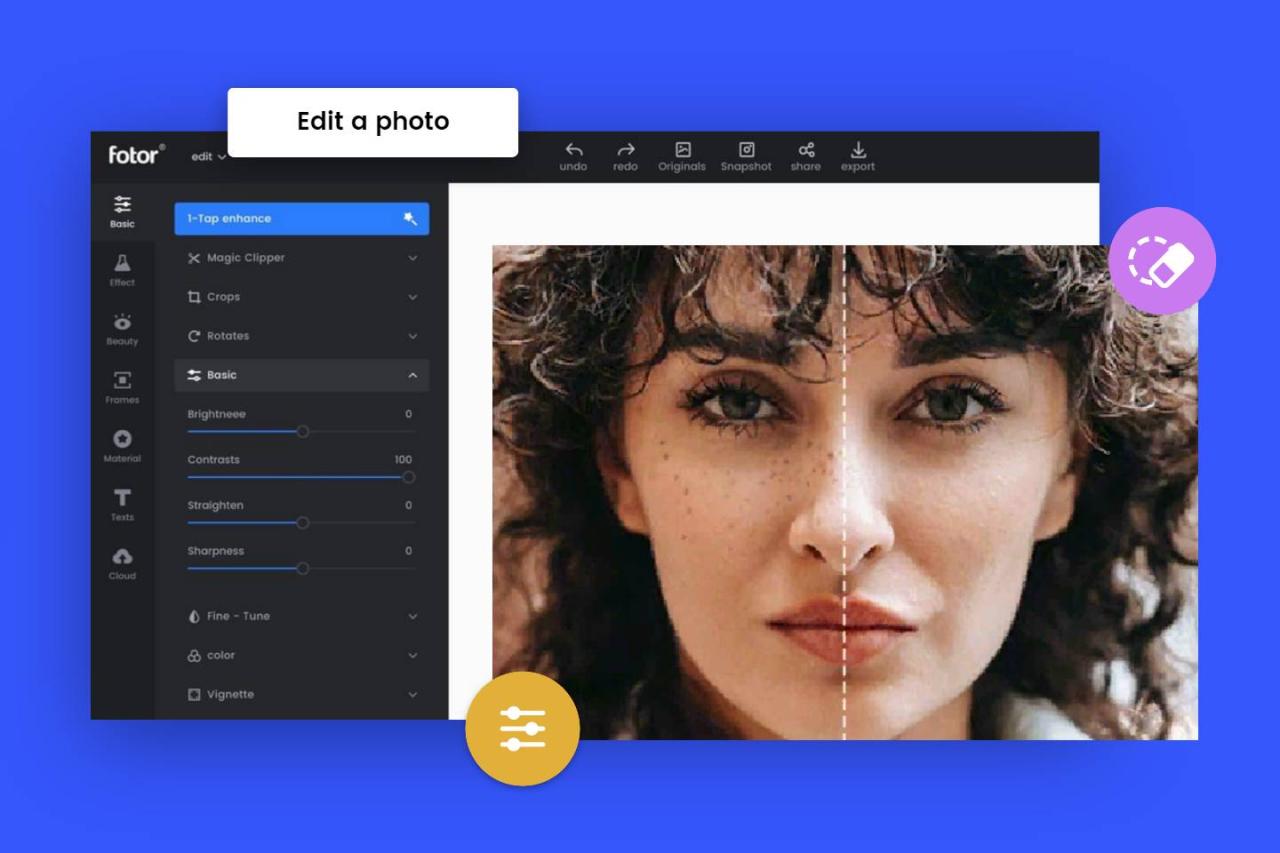
Incorporating audio and music into your video projects enhances the overall storytelling, sets the mood, and engages viewers more effectively. Learning to import, synchronize, and adjust audio tracks is essential for creating polished and professional-looking videos. Proper audio management ensures that sound complements visual content seamlessly, improving the viewer’s experience and conveying your message clearly.Audio integration involves multiple key steps, beginning with importing audio files into your editing software.
Once imported, audio tracks can be aligned precisely with your video clips, either manually or using synchronization tools. Adjusting the timing ensures that dialogue, sound effects, or music cues match the visual actions effectively. Balancing sound levels is crucial to prevent any audio from overpowering other elements, such as dialogue or background music, which can be distracting for viewers. Applying basic audio effects, such as fade-in, fade-out, equalization, or noise reduction, further refines the audio quality and ensures clarity.
Importing, Synchronizing, and Adjusting Audio Tracks
Understanding the process of importing, synchronizing, and adjusting audio tracks allows for a seamless integration of sound into your videos. Begin by importing audio files—such as music, voiceovers, or sound effects—using the media import feature available in most editing software. Once imported, position the audio tracks on the timeline corresponding to the visual cues in your video. Synchronization can be achieved through visual markers, waveforms, or by using automatic synchronization tools available in more advanced editing programs.
To accurately align audio with video, use the waveform display to match peaks with specific visual events, such as a person speaking or a door closing. Fine-tune the timing by dragging the audio clips along the timeline until they match perfectly. Adjustments might include trimming excess parts or extending audio clips to fit the video duration, ensuring the sound appears natural and synchronized.
Balancing Sound Levels and Applying Basic Effects
Achieving a well-balanced audio mix is vital for professional-quality videos. Use your editing software’s audio mixer to control the volume levels of individual tracks, ensuring dialogue remains clear while background music or effects do not dominate. It’s advisable to keep dialogue or voiceovers at a higher volume than background music, which can be achieved by lowering the music track’s volume or applying ducking effects that automatically reduce music volume during speech segments.Applying basic audio effects helps to enhance sound quality and create a cohesive listening experience.
For instance, a fade-in or fade-out effect can smooth the beginning or end of an audio clip, preventing abrupt starts or stops. Equalization (EQ) adjustments can improve clarity by emphasizing or reducing certain frequency ranges, such as enhancing vocal frequencies or minimizing background hum. Noise reduction tools help eliminate unwanted background sounds, especially in voice recordings made in less controlled environments.
Comparison Table of Audio Editing Tools and Their Functionalities
Understanding the capabilities of various audio editing tools allows beginners to select the most suitable options for their projects. Below is a comparison of commonly used audio editing features across popular video editing software:
| Software | Import and Export Options | Waveform Editing | Volume and Panning Controls | Basic Effects (Fade, EQ, Compression) | Synchronization Tools | Noise Reduction Capabilities |
|---|---|---|---|---|---|---|
| Adobe Premiere Pro | Supports various formats including WAV, MP3, AIFF | Yes, detailed waveform editing | Yes, precise volume and panning controls | Yes, extensive effects including fade, EQ, noise reduction | Automatic and manual synchronization features | Advanced noise reduction options available |
| Final Cut Pro | Supports essential audio formats and seamless import/export | Yes, with visual waveform representation | Yes, integrated audio mixer for level adjustments | Yes, basic to advanced effects included | Synchronization via timeline snapping and waveform matching | Built-in noise removal tools |
| Davinci Resolve | Supports multiple audio formats; flexible import/export | Yes, detailed waveform editing capabilities | Yes, comprehensive control over levels and panning | Yes, including fade, EQ, compression, and more | Synchronization tools for multi-camera and multi-track editing | Effective noise reduction and restoration features |
| iMovie | Limited to common formats like MP3, WAV | Basic waveform visibility for editing | Simple volume and balance controls | Basic fade effects; limited audio effects | Manual alignment using timeline markers | Minimal noise reduction options |
Effective audio editing is not only about adding sound but about ensuring clarity, balance, and synchronization that together enhance the storytelling experience.
Applying Visual Effects and Titles

Enhancing your video projects with visual effects and titles can significantly improve their overall appeal and professionalism. This step allows creators to add flair, emphasize key points, and create a more engaging viewer experience. Proper application of these elements not only beautifies the content but also communicates information more effectively, making your videos stand out.Visual effects and titles are fundamental tools in storytelling and branding within video editing.
They help capture attention, convey emotion, and clarify content, which is especially important for beginner editors aiming to produce polished videos. Learning how to effectively add and adjust these elements is crucial in elevating your editing skills.
Adding Text Overlays and Titles
Text overlays and titles serve as essential communication tools within a video, providing context, names, subtitles, or highlights. To add these, start by selecting the text tool within your editing software. This tool often appears as a “T” icon and can be dragged onto the timeline or directly onto the video preview window.Once placed, customize the text by choosing appropriate fonts, sizes, colors, and styles that match the video’s tone.
Position the text carefully to ensure it does not obstruct important visual elements. Use the timeline to set the duration of the text display, ensuring it appears at the right moments.A practical tip is to utilize built-in templates or presets, which can streamline the process and give your titles a professional look. For example, a movie intro might use bold, animated titles, while a corporate video may prefer clean, understated text overlays.
Applying Beginner-Level Visual Effects
Applying visual effects like filters and color correction can dramatically change the mood and visual quality of your videos. These effects help create a consistent style, correct lighting issues, or add artistic touches to your footage.Begin by exploring the effects panel in your editing software. Filters such as black-and-white, sepia, or vignette are easy to apply and instantly change the scene’s atmosphere.
Color correction tools enable you to adjust brightness, contrast, saturation, and hue to improve footage that may be overexposed or underexposed.When applying these effects, it’s important to preview their impact in real-time. Most editing programs offer a preview window where you can see changes immediately. Adjust the intensity of effects to avoid overdoing it—subtlety often yields a more professional appearance.For example, if footage shot on a cloudy day appears dull, increasing the contrast and saturation slightly can make the colors pop without looking unnatural.
Applying a gentle color correction can also help match different clips, ensuring a seamless visual flow.
Previewing and Adjusting Effects for a Polished Look
The final step in applying visual effects and titles involves previewing the edits and refining them for a cohesive, polished appearance. This process ensures that effects enhance rather than distract from the main content.Begin by playing back your edited video in the software’s preview window, paying close attention to how effects and titles interact with the footage. Look for issues such as abrupt transitions, misaligned text, or overly intense filters.
Adjust the parameters—such as opacity, duration, or effect strength—until the visual elements blend naturally with the video.Utilizing the software’s scope or histogram tools can help you assess color balance and exposure, guiding precise corrections. Additionally, consider seeking feedback from others or taking a break before viewing again, as fresh eyes often catch issues missed initially.Remember, subtle adjustments often produce the most professional results.
For example, slight feathering of text edges or gentle color grading can add a refined finish to your project, making it appear more cohesive and visually appealing.
Exporting and Sharing Your Video
Exporting your video correctly and sharing it effectively are crucial steps in the editing process. Proper export settings ensure your video maintains quality while being compatible with various platforms. Sharing your content with the right optimizations allows it to reach a broader audience and look professional across different devices and social media channels. Understanding the options available and the best practices for exporting and sharing can significantly impact your video’s success.Exporting involves converting your edited project into a final file format suitable for distribution.
Different platforms and purposes require specific formats, resolutions, and quality settings. Recognizing these needs helps you create videos optimized for social media, professional presentations, or high-definition viewing. Additionally, choosing appropriate export settings can prevent issues such as long upload times, poor quality, or playback problems.
Export Formats and Resolutions
Choosing the right format and resolution is essential to ensure your video appears clear and functions well on target platforms. Common video formats include MP4, MOV, AVI, and WMV. Among these, MP4 (using H.264 codec) is widely compatible and offers a good balance between quality and file size, making it suitable for most purposes.Key resolutions to consider include:
- Full HD (1920×1080): Standard for YouTube, social media, and professional presentations.
- 4K (3840×2160): Higher quality for cinematic projects or high-end displays, but results in larger file sizes.
- 720p (1280×720): Suitable for quick sharing on social media or where bandwidth is limited.
Choosing the appropriate resolution depends on your target platform and the intended viewing device. For example, social media platforms like Instagram or TikTok favor vertical videos in smaller resolutions, whereas YouTube favors larger, high-quality videos.
Sharing Best Practices for Different Platforms
Optimizing videos for specific platforms ensures your content looks professional and engages viewers effectively. Each platform has unique requirements and audience preferences, impacting your export settings and presentation style.
- YouTube: Use MP4 format with H.264 codec, 1080p resolution or higher for HD quality. Keep the file size manageable to facilitate uploads and streaming. Use a 16:9 aspect ratio, and include relevant titles, descriptions, and tags to improve discoverability.
- Instagram: Export in MP4 format, with vertical aspect ratios like 9:16 for Stories or Reels, or square 1:1 for posts. Keep videos under 60 seconds for Reels, and ensure the resolution is at least 1080×1920 pixels for vertical formats.
- Facebook: Similar to YouTube, MP4 with H.264 is recommended. Optimize for mobile by considering lower resolutions, but maintain clarity and quality.
Always review platform-specific guidelines for maximum resolution, preferred formats, and file size limits to ensure optimal playback and user experience.
Recommended Export Settings Table for Beginners
Below is a simple table summarizing key export settings based on the purpose of your video. These settings serve as a starting point and can be adapted based on your specific needs.
| Purpose | Format | Codec | Resolution | Frame Rate | Bitrate |
|---|---|---|---|---|---|
| Social Media Post (Short Reels, Stories) | MP4 | H.264 | 1080×1920 px (vertical) or 1080×1080 px (square) | 30 fps | 8-12 Mbps |
| YouTube Video | MP4 | H.264 | 1920×1080 px (Full HD) or 3840×2160 px (4K) | 30 fps (or 24 fps for cinematic) | 10-15 Mbps (Full HD), 35-45 Mbps (4K) |
| Professional Presentation or Archiving | MOV or MP4 | ProRes or H.264 | 1920×1080 px or higher | 30 fps | High bitrate (e.g., 20+ Mbps for MOV) |
Tips and Common Mistakes to Avoid
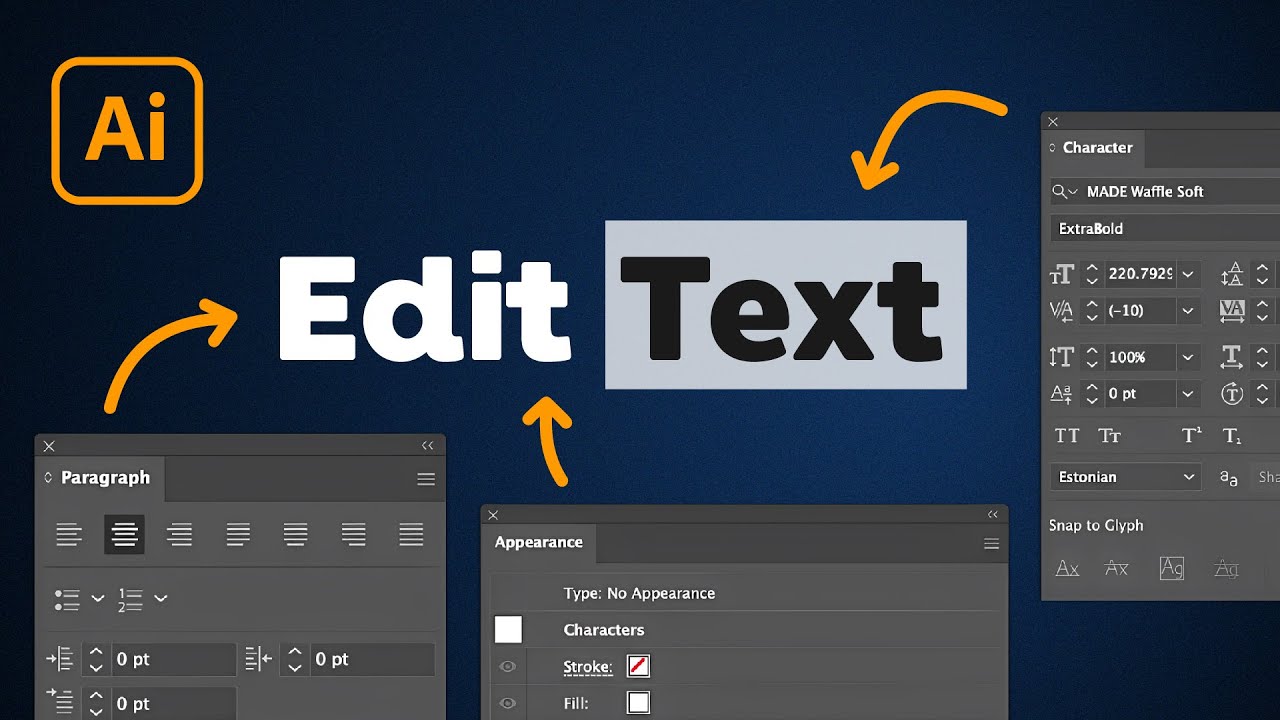
Creating a polished and professional-looking video requires not only technical skills but also awareness of common pitfalls that can compromise quality or efficiency. Understanding these tips and mistakes helps beginners develop good habits early on, ensuring smoother editing processes and better final results. This section highlights practical advice to maintain quality and efficiency while also identifying frequent errors and offering strategies to prevent or troubleshoot them.
Additionally, recommended resources are provided to support ongoing learning and skill improvement.Editing videos effectively involves attention to detail and a proactive approach to problem-solving. Being aware of typical mistakes enables editors to troubleshoot issues quickly, saving time and avoiding frustration. Likewise, applying strategic tips fosters consistency, preserves media quality, and streamlines workflow, making the editing process more enjoyable and productive.
For beginners, mastering these insights lays a robust foundation for continuous growth in video editing skills.
Practical Tips for Maintaining Quality and Efficiency
To ensure a smooth editing experience and high-quality output, beginners should adopt some core best practices that enhance both efficiency and the final product. These include:
- Organize media assets systematically by creating dedicated folders for video clips, audio files, images, and effects. Clear organization reduces confusion and speeds up the editing process.
- Regularly save your project and enable auto-save features within your editing software to prevent data loss due to crashes or power failures.
- Use proxies or lower-resolution versions of high-definition media during editing. This speeds up rendering and playback, especially on less powerful computers.
- Maintain a consistent workflow by establishing a template or preset project settings, which saves time on repetitive tasks like color grading or transitions.
- Review your edits frequently by previewing sections regularly, ensuring continuity and catching errors early before they become more difficult to correct.
- Keep your software updated. Developers often release updates with bug fixes, new features, and performance improvements that benefit your editing process.
Common Beginner Errors and How to Troubleshoot or Prevent Them
Beginners often encounter specific mistakes that can hinder workflow or diminish video quality. Recognizing these issues early allows for effective troubleshooting and prevention strategies.
- Overuse of transitions and effects: Excessive effects can distract viewers and make the video appear unprofessional. Use transitions sparingly and purposefully to enhance flow.
- Ignoring audio levels: Poorly balanced audio can make dialogue inaudible or cause clipping. Always monitor audio levels with meters and aim for consistent volume throughout the video.
- Neglecting aspect ratios and resolutions: Inconsistent aspect ratios or exporting at incorrect resolutions can result in black bars or pixelation. Verify project settings align with the intended output format and monitor resolution.
- Forgetting to back up projects: Failing to save backups can lead to losing hours of work. Regularly create copies of your project files, especially before major changes.
- Failure to preview the final render: Rushing the export process without reviewing can lead to unnoticed errors or quality issues. Always preview the exported video to ensure everything appears as intended.
- Skipping organization and labeling: Disorganized media makes editing cumbersome and increases the risk of errors. Label files clearly and keep media assets in logically structured folders.
Recommended Resources for Further Learning and Practice
Continuous improvement in video editing requires access to quality tutorials, courses, and community support. Reliable resources include:
- Online Courses: Platforms like Udemy, Skillshare, and Coursera offer comprehensive courses tailored for beginners, covering both technical skills and creative techniques.
- Official Software Tutorials: Many editing software providers, such as Adobe Premiere Pro, DaVinci Resolve, and Final Cut Pro, provide free tutorials and user guides that help deepen understanding of features and best practices.
- YouTube Channels: Channels dedicated to video editing, like Justin Odisho, Cinecom.net, and Premiere Gal, regularly publish tips, tutorials, and project walkthroughs suitable for all skill levels.
- Community Forums and Groups: Joining forums like Creative COW, Reddit’s r/editors, or Facebook groups allows beginners to ask questions, share work, and receive constructive feedback from experienced editors.
- Practice Projects: Engage in small, themed projects or challenges to apply learned skills. Recreating scenes from favorite movies or editing footage from public domain sources are effective ways to practice and improve.
Consistent practice and continuous learning are key to developing proficiency in video editing. Leveraging available resources and avoiding common mistakes lead to more efficient workflows and higher-quality results.
Last Recap
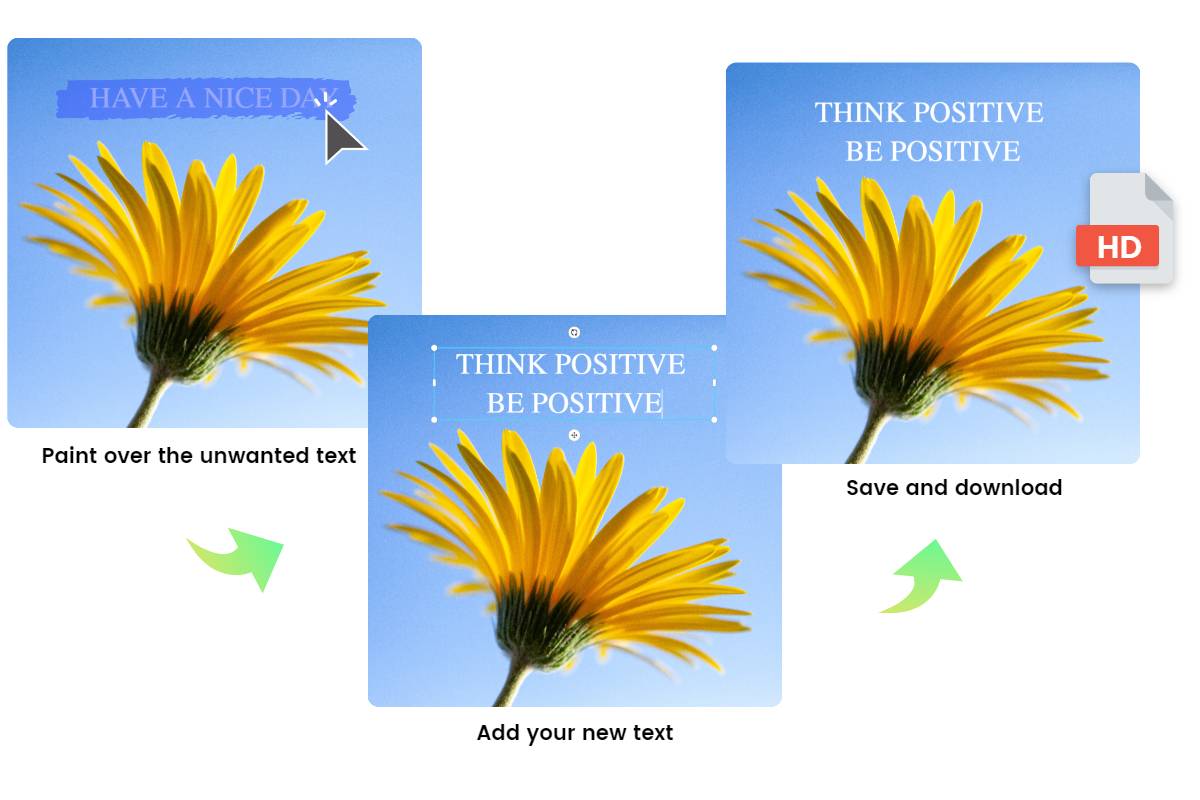
Mastering how to edit videos for beginners empowers you to create professional-looking content with confidence. By understanding essential tools, techniques, and best practices, you’ll be able to produce polished videos that captivate your audience. Remember, practice and patience are key—each project builds your skills and brings you closer to editing mastery. Embrace the learning process and enjoy bringing your creative visions to life.