Learning how to create picture in picture enhances your multimedia presentations by allowing multiple videos or images to coexist seamlessly within a single frame. This technique is widely supported across various devices and platforms, making it a valuable skill for content creators and professionals alike.
Implementing PiP not only enriches visual storytelling but also improves viewer engagement by offering dynamic and informative layouts. Whether you’re editing videos or embedding interactive content on websites, mastering PiP effects can significantly elevate your multimedia projects.
Introduction to Picture-in-Picture (PiP) Technology
Picture-in-Picture (PiP) technology is an innovative feature that enhances multimedia experiences by allowing users to view multiple video streams simultaneously within a single interface. This functionality enables a smaller video window to overlay a main screen, providing a seamless multitasking environment that is particularly useful in streaming, video conferencing, and interactive applications. PiP has become an integral part of modern digital media, offering a flexible and efficient way to manage multiple content sources without disrupting the primary viewing experience.
Supported across a wide range of devices and platforms, PiP has gained popularity due to its user-friendly and productivity-enhancing capabilities. Major operating systems such as Android, iOS, Windows, and macOS have integrated PiP support, allowing users to continue watching videos or engaging with apps while performing other tasks. Popular streaming services like YouTube and streaming browsers like Chrome and Safari have incorporated PiP functionality, making it accessible to millions of users worldwide.
This broad compatibility underscores the importance of PiP in contemporary multimedia consumption and multitasking environments.
Benefits of Implementing PiP in Videos and Applications
Implementing PiP offers numerous advantages that significantly improve user engagement and convenience. First and foremost, PiP allows for multitasking without interrupting the primary activity, enabling viewers to monitor videos while browsing, working, or communicating online. This is especially beneficial in professional settings where real-time video monitoring is necessary, such as during virtual meetings or live broadcasts.
Furthermore, PiP enhances user experience by providing flexibility and control. Users can resize the PiP window, move it across the screen, or minimize it according to their preferences, tailoring their interaction with multimedia content. This adaptability is crucial in scenarios such as cooking tutorials, where viewers might want to keep the instructional video visible while exploring recipe details or ingredient lists on the main screen.
From a developer perspective, incorporating PiP can increase app engagement metrics and improve content monetization opportunities. For example, content creators can retain viewers’ attention longer by allowing them to watch videos in a minimized window while performing other tasks, thus increasing the likelihood of ad exposure and interaction with supplementary features.
Tools and Software for Creating PiP Effects
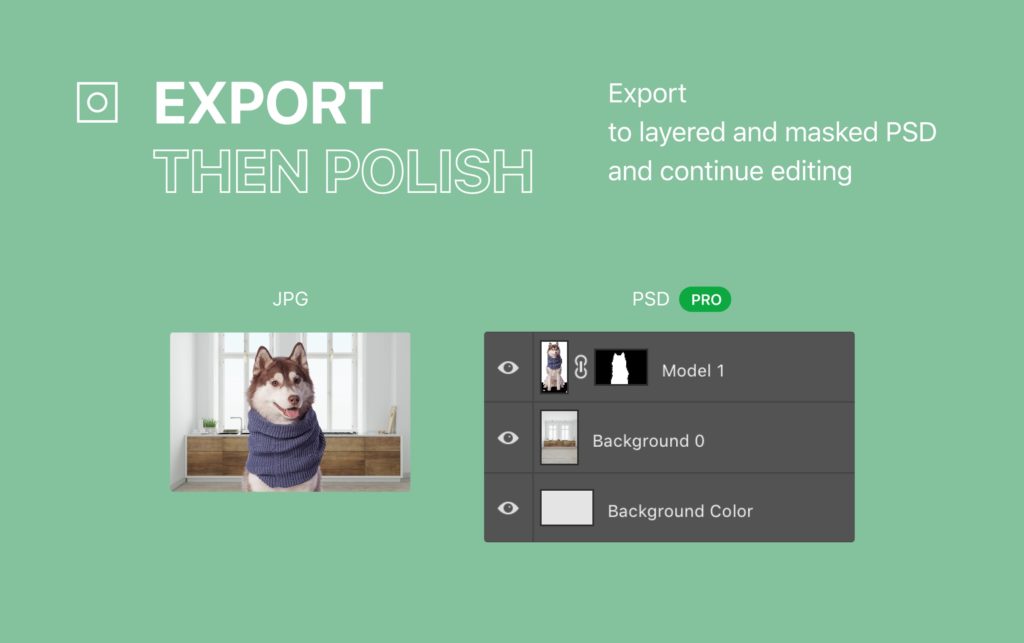
Creating effective Picture-in-Picture (PiP) effects requires the use of specialized editing tools that support overlaying videos or images within a primary video. With a variety of software options available, both professional and beginner-friendly, selecting the right tool depends on your experience level, platform preferences, and specific project requirements. Understanding the capabilities and features of popular editing software can help streamline the production process and achieve high-quality PiP effects.
Below, we examine some of the most widely used tools for PiP creation, comparing their platform compatibility, features, and costs. Additionally, for beginners or those seeking free alternatives, there are online and open-source options that facilitate PiP effects without a steep learning curve or financial investment.
Popular Editing Software for Creating PiP Effects
| Tool Name | Platform | Features | Cost |
|---|---|---|---|
| Adobe Premiere Pro | Windows, macOS | Advanced editing, multi-layer support, extensive effects, keyframing, and motion controls | Subscription-based, approximately $20.99/month (Adobe Creative Cloud) |
| Final Cut Pro | macOS | Magnetic timeline, multi-cam editing, built-in motion graphics, sophisticated PiP controls | One-time purchase, around $299.99 |
| DaVinci Resolve | Windows, macOS, Linux | High-end color grading, multi-layer editing, Fusion visual effects, free version available with extensive features | Free; Studio version costs $295 one-time fee |
These tools are industry standards, widely adopted for professional video editing workflows. Adobe Premiere offers a comprehensive suite suitable for complex projects, while Final Cut Pro is optimized for macOS users seeking high performance. DaVinci Resolve, on the other hand, provides powerful editing capabilities at no cost, with a paid Studio version for advanced features.
Alternative Free or Online Tools for Beginners
For those new to video editing or seeking cost-effective solutions, several free or online tools can help create PiP effects with minimal learning effort. These options are particularly suitable for quick edits, social media content, or hobby projects.
- Shotcut: An open-source, cross-platform video editor that supports PiP overlays through its filter system. It is user-friendly and suitable for beginners.
- HitFilm Express: A free editing software offering numerous visual effects and compositing tools necessary for PiP creation. It requires registration but provides extensive tutorials.
- WeVideo: An online, cloud-based editor that simplifies PiP editing with drag-and-drop functionality. It offers free plans with limitations and affordable subscription options for additional features.
- Clipchamp: An online video editor owned by Microsoft, providing straightforward PiP features along with basic editing tools. Its free tier includes limited export quality and storage.
Choosing the right tools depends on project complexity, platform compatibility, and your familiarity with video editing software. Beginners benefit from intuitive interfaces and online solutions, while professionals may prefer the advanced features of Adobe Premiere, Final Cut Pro, or DaVinci Resolve.
Step-by-Step Procedures to Insert PiP in Videos
Integrating a Picture-in-Picture (PiP) effect into your videos enhances visual engagement by overlaying a secondary video or image within the main frame. This technique is widely used in tutorials, reaction videos, and presentations to highlight additional content without disrupting the primary footage. Mastering the step-by-step procedures ensures a seamless and professional appearance of the PiP element, allowing creators to produce compelling visual narratives.
The following organized tutorial provides a comprehensive guide to overlaying a secondary media element within your main video. From importing your files to fine-tuning positioning, resizing, animating, and setting precise timings, these steps are essential for achieving an effective PiP effect that aligns with your creative vision.
Importing Media Files into Editing Software
Effective PiP creation begins with importing the required media files into your editing environment. Ensuring all media is correctly imported preserves quality and simplifies workflow. This process involves selecting your primary video, secondary video or image, and any additional assets needed for your project.
- Launch your chosen video editing software and create a new project or open an existing one.
- Use the import or media upload function, typically found in the media bin or project panel.
- Select your primary video file, the secondary video clip, or image that will serve as the PiP element, and import them into the project library.
- Organize your imported assets for easy access, labeling folders if necessary for different media types.
- Drag and drop the main video into the timeline, ensuring it forms the base of your editing sequence.
- Import the secondary media file, which will be overlaid as the PiP window.
Positioning, Resizing, and Animating the PiP Window
Precise positioning, resizing, and animation of the PiP window are crucial for visual clarity and aesthetic appeal. This stage involves manipulating the overlay to fit seamlessly within the main video frame while maintaining viewer focus and balance.
- Select the secondary media clip in the timeline and add it to a new video track above your main footage if not automatically placed.
- Use the software’s transform controls—such as position, scale, and rotation—to move the PiP window to the desired location on the screen. Common placements include the top-right or bottom-left corners.
- Resize the PiP window to a suitable size that complements the main content without obstructing important visuals. Use numerical input or drag handles for precision.
- Apply keyframes if you want the PiP window to move or change size dynamically during playback, creating an animated effect. For example, gradually enlarging the window to draw attention.
- Ensure the PiP maintains clarity and proportion throughout the animation by previewing the changes regularly.
Setting Timing and Transitions for PiP Appearance
Timing and transition settings dictate when the PiP appears, how long it stays visible, and how it transitions in and out of the main video. Properly timed effects contribute to a polished and engaging final product.
- Identify the segment in your main timeline where the PiP should appear. Adjust the clip’s position to match your intended timing.
- Use opacity or fade-in/out effects to smoothly introduce or remove the PiP window. Set keyframes at the start and end points of the transition for gradual changes.
- Configure duration and delay settings to control how long the PiP remains visible and when transitions occur, ensuring synchronization with audio cues or on-screen actions.
- Incorporate motion effects, such as slide-ins or zoom-ins, by applying transition presets or manually keyframing movement paths.
- Preview the entire sequence multiple times to verify that the PiP effect appears natural, timely, and enhances the overall viewing experience.
Designing Effective PiP Layouts and Effects
Creating a visually appealing and functional Picture-in-Picture (PiP) layout requires careful consideration of design principles that ensure clarity without disrupting the viewer’s focus. An effectively designed PiP window enhances the overall video experience by balancing visibility, aesthetic appeal, and coherence with the primary content. This section explores key guidelines and creative strategies to craft PiP layouts that are both engaging and unobtrusive.
Applying thoughtful design principles and creative effects can significantly improve the viewer’s engagement and comprehension. By selecting appropriate framing, borders, shadows, and harmonizing color schemes and opacity levels, designers can produce PiP effects that complement the main content while maintaining clarity. The following table summarizes various layout options, their descriptions, suitable content types, and visual examples to inspire effective PiP design.
Design Principles for Clear and Non-Intrusive PiP Windows
Achieving a balance between visibility and unobtrusiveness involves adherence to fundamental design principles:
- Clarity and Readability: PiP windows should be easily distinguishable without overpowering the main content. Use contrasting colors and clear borders to delineate the PiP from the background.
- Minimal Distraction: Avoid overly complex effects or excessive animations that can divert viewer attention from the primary video.
- Consistent Positioning: Place PiP windows in areas less likely to interfere with essential visual information, such as corners or sides of the frame.
- Responsive Scaling: Ensure PiP size adapts to different screen sizes and device types without losing clarity.
Creative Framing, Borders, and Shadows
Enhancing PiP visibility through creative framing involves adding borders or shadows that make the window stand out while complementing the overall video design. For example:
- Borders: Using solid or gradient borders in contrasting colors can define the PiP window clearly. A subtle 2-4 pixel border in a complementary color enhances visibility without overwhelming the scene.
- Shadows: Drop shadows add depth, making the PiP window appear elevated from the background. A soft, semi-transparent shadow with a gentle blur effect creates a natural separation.
- Effects: Rounded corners or semi-transparent overlays can soften the appearance, creating a modern and polished look. For instance, a semi-transparent black overlay with white borders can improve contrast in bright scenes.
Matching Color Schemes and Opacity Levels for Visual Harmony
Achieving visual harmony involves selecting color schemes and opacity levels that complement both the primary content and the overall aesthetic. Consider the following:
- Color Harmony: Use colors from the video’s palette or neutral tones that do not clash with the background. For example, a blue-themed video may benefit from a PiP window with a light gray or blue tint.
- Opacity Settings: Adjust opacity to ensure the PiP window is visible yet non-intrusive. Typically, 70-90% opacity allows the main content to remain prominent while keeping the PiP discernible.
- Contrast and Visibility: Ensure sufficient contrast between the PiP window and the background to maintain readability, especially when text or vital visual elements are involved.
Layout Options for PiP Windows
Organizing layout options involves selecting positions and sizes that align with content type and viewer preferences. The following table summarizes common PiP layout styles:
| Layout Style | Description | Suitable Content | Visual Example |
|---|---|---|---|
| Corner Overlay | PiP window placed in one of the four corners, often top-right or bottom-left, to maximize unobtrusiveness. | Live streams, webinars, tutorials where the presenter’s face or additional info is secondary. | Imagine a small video of a speaker’s face comfortably sitting in the top-left corner of a cooking tutorial, leaving the main view unobstructed. |
| Side Bar | PiP is positioned vertically along one side of the video, either left or right, occupying a narrow band. | Gaming streams, educational content with supplementary notes or chat windows. | Visualize a thin vertical PiP bar on the right side, showing a mini gameplay view while main gameplay remains central. |
| Floating Window | Center or semi-centered PiP with flexible size, often draggable, to emphasize specific content like reactions or highlights. | Highlights, reactions, or commentary overlays. | Picture a semi-transparent PiP in the bottom-center, highlighting a reaction video while the main content plays behind. |
| Embedded in Main Content | PiP integrated into the main scene, often as a picture-in-picture overlay that blends with the background using transparency effects. | Product demos, tutorials where the PiP shows a close-up or additional angle. | Envision a product demo with a small PiP window showing a zoomed-in view, seamlessly integrated into the main shot. |
Coding and Embedding PiP in Web Applications
Implementing Picture-in-Picture (PiP) functionality within web applications enhances user experience by allowing videos to play in a separate, floating window that users can move and resize independently of the main content. Leveraging HTML5, CSS, and JavaScript provides a flexible and efficient way to integrate this feature seamlessly into websites, enabling developers to customize controls, appearance, and manage multiple PiP instances effectively.
This section explores practical methods and code techniques for embedding PiP in web pages. It covers how to toggle PiP mode programmatically, customize the appearance and controls, and organize code to handle multiple PiP instances smoothly, ensuring a professional and user-friendly implementation.
Implementing PiP Mode Using HTML5, CSS, and JavaScript
HTML5 introduces native support for PiP through the <video> element and the relevant JavaScript APIs. Combining these with CSS styling allows developers to create intuitive, interactive controls for users to activate or deactivate PiP mode. JavaScript functions listen for user actions and utilize the requestPictureInPicture() and exitPictureInPicture() methods to manage PiP states.
Example: Initiating PiP with JavaScript
videoElement.requestPictureInPicture();to activate PiP
document.exitPictureInPicture();to deactivate PiP
Code Snippets for Toggling PiP Mode
Embedding PiP controls within a web page requires concise, user-friendly scripts. Below are simplified snippets demonstrating how to toggle PiP mode through button clicks, ensuring users can easily control their viewing experience.
// Select the video element and control button
const video = document.querySelector('video');
const pipButton = document.querySelector('#pipToggle');

pipButton.addEventListener('click', async () =>
  try
    if (document.pictureInPictureElement)
      // Exit PiP if already active
      await document.exitPictureInPicture();
     else
      // Enter PiP mode
      await video.requestPictureInPicture();

   catch (error)
    console.error('Error toggling PiP:', error);

);
In this script, the button with ID pipToggle manages the PiP state. When clicked, it checks if any element is currently in PiP; if so, it exits PiP mode; otherwise, it requests PiP for the specified video element.
Customizing PiP Appearance and Controls
While the native PiP window’s appearance is controlled by the browser, developers can enhance user interaction by customizing the embedded controls and overlay elements within the main web page. This involves overlaying custom buttons, indicators, or notifications to inform users about PiP status, and optionally, styling the video container to match site aesthetics.
Tip: To improve usability, implement visual cues such as changing button text or icons based on PiP state, and disable controls when PiP is active to prevent confusion.
Managing Multiple PiP Instances with Organized Code
Handling multiple videos that may require PiP simultaneously or sequentially necessitates structured code. Using separate variables or data structures to track each video element ensures proper management and prevents conflicts. Additionally, event listeners can be bound dynamically to handle various video instances individually.
// Array of video elements
const videos = document.querySelectorAll('video');
const pipButtons = document.querySelectorAll('.pipButton');

// Function to toggle PiP for specific video
async function togglePiP(video)
  try
    if (document.pictureInPictureElement === video)
      await document.exitPictureInPicture();
     else
      await video.requestPictureInPicture();

   catch (error)
    console.error('Error managing PiP for video:', error);


// Assign event listeners to all PiP buttons
pipButtons.forEach((button, index) =>
  button.addEventListener('click', () =>
    togglePiP(videos[index]);
  );
);
This approach maintains clarity and control, especially when dealing with multiple videos on a page. It ensures each PiP toggle affects only the intended video element, facilitating organized and scalable code management.
Troubleshooting Common PiP Issues
Implementing Picture-in-Picture (PiP) functionality can enhance user engagement and provide a more interactive experience. However, users and developers may encounter various technical challenges that hinder seamless PiP playback. Understanding and addressing these common issues is essential to ensure a smooth and professional implementation across different platforms and devices.
This section provides a detailed overview of frequent problems such as lag, misalignment, or unresponsive controls, along with step-by-step solutions. Additionally, it offers guidance on testing PiP features across various browsers and devices to guarantee consistent performance and user satisfaction.
Common PiP Problems and Resolutions
PiP issues often stem from synchronization errors, incorrect positioning, or compatibility limitations. Addressing these problems systematically helps maintain a high-quality user experience. The following list organizes practical resolutions for the most typical challenges encountered during PiP implementation.
- Lag or Stuttering Playback: This can occur due to insufficient system resources, network latency, or high CPU usage. To resolve:
- Optimize the video encoding settings to reduce bitrate without sacrificing quality.
- Ensure hardware acceleration is enabled in the browser or application settings.
- Close other resource-intensive applications during playback to free system resources.
- Test the video on different network conditions to identify bandwidth limitations.
- Misalignment or Incorrect Positioning: When the PiP window appears off-screen or overlaps undesirably:
- Verify the CSS or styling code used for positioning the PiP container, ensuring values like top, left, right, and bottom are correctly set.
- Use relative or fixed positioning with explicit pixel or percentage values to maintain consistent placement across devices.
- Test responsiveness by resizing the browser window or viewing on different screen sizes.
- Implement media queries to adjust PiP layout dynamically based on device viewport.
- Controls Not Responding or Interacting: When playback controls or resize buttons become unresponsive:
- Ensure that event listeners are correctly attached to the PiP controls and are not blocked by overlaying elements.
- Check for script errors or conflicts with other JavaScript code that may interfere with control functions.
- Test the controls across multiple browsers to identify compatibility issues, especially with older versions.
- Maintain focus on the PiP window during interaction to prevent focus loss issues.
Synchronization and Positioning Error Fixes
Precise synchronization between the main video and PiP window is critical for a cohesive viewing experience. Positioning errors often result from miscalculations in coordinate settings or CSS conflicts. To correct these errors:
- Use debugging tools such as browser developer consoles to inspect the computed styles and positioning of the PiP element.
- Implement JavaScript functions to dynamically adjust position based on viewport or user interactions, ensuring real-time correction.
- Set explicit z-index values to ensure the PiP window overlays correctly without being hidden behind other elements.
- Utilize CSS transform properties like translate() for smooth and accurate movement of the PiP container.
Cross-Browser and Device Testing Procedures
Since PiP support varies across browsers and devices, thorough testing is vital for compatibility assurance. Consider the following approaches:
- Test on multiple browsers such as Chrome, Firefox, Edge, Safari, and Opera to identify browser-specific issues.
- Use emulators and real devices to evaluate performance on desktops, tablets, and smartphones.
- Check for consistent behavior of controls, positioning, and playback quality across platforms.
- Leverage browser developer tools to simulate different device viewports and network conditions.
- Document discrepancies and adjust code or styling accordingly to achieve uniform functionality.
Consistent testing across multiple environments ensures that your PiP implementation provides a reliable and engaging user experience regardless of the platform used.
Best Practices for User Experience with PiP
Implementing Picture-in-Picture (PiP) effectively requires a focus on user experience to ensure that viewers can interact with the feature seamlessly and comfortably. Thoughtful design choices in controls, accessibility, and engagement strategies contribute significantly to the success of PiP integrations. Prioritizing these best practices enhances usability, reduces frustration, and encourages ongoing user interaction with your multimedia content.
In this section, we explore essential guidelines and strategies to optimize PiP for diverse audiences, ensuring that the feature remains intuitive, accessible, and minimally distracting.
Designing Intuitive Controls for PiP Toggling and Resizing
Clear and responsive controls are crucial for empowering users to manage PiP windows effortlessly. Controls should be prominently placed, easily recognizable, and consistent across platforms to minimize the learning curve. Implementing visual cues such as hover effects or animations can guide users intuitively, indicating available actions like toggling or resizing.
For resizing, consider providing drag handles that allow users to adjust dimensions naturally, mimicking familiar interactions from common window management interfaces. Toggling controls should include simple icons, such as a minimize/maximize or close button, with tooltips that clarify their functions. Incorporating keyboard shortcuts or gesture support can further enhance accessibility for power users and those with mobility challenges.
Guidelines for Accessible and User-Friendly PiP Implementations
Accessibility must be a core component in PiP design to accommodate users with diverse needs. Ensuring compatibility with screen readers, keyboard navigation, and high-contrast modes improves inclusivity. Use semantic HTML elements where applicable, such as buttons with descriptive labels, to facilitate assistive technologies in identifying control functions.
Color contrast should adhere to WCAG standards, making controls distinguishable for users with visual impairments. Providing alternative text descriptions for icons or controls ensures clarity. Additionally, offering adjustable settings for PiP appearance, such as transparency levels or default sizes, allows users to customize their experience to their preferences.
Methods to Ensure Minimal Distraction and Maximum Engagement
Balancing the visibility of PiP with the overall content experience prevents distraction and maintains viewer focus. Strategies include allowing users to easily dismiss or hide the PiP window when desired, without disrupting the main content. Smooth animations and transitions when opening or resizing the PiP can reduce abrupt visual changes that may distract viewers.
Designing the PiP to be unobtrusive—such as placing it in a corner and limiting its size—helps viewers stay engaged with the primary content while still benefiting from supplementary video or information. Implementing auto-hide features that temporarily conceal controls or the PiP window during periods of inactivity can also minimize unnecessary distraction while providing quick access when needed.
Usability Considerations Checklist for Effective PiP Deployment
| Aspect | Considerations |
|---|---|
| Control Placement | Position controls where they are easily reachable, typically in the top or bottom corners of the PiP window. |
| Control Clarity | Use universally recognized icons and ensure labels or tooltips are descriptive and concise. |
| Accessibility | Implement keyboard navigation, screen reader support, and high-contrast themes. |
| Resize Functionality | Provide drag handles or preset size options that are easy to activate and adjust. |
| Dismissal Options | Allow users to quickly close or hide the PiP without navigating away from the main content. |
| Responsiveness | Ensure PiP controls and window behavior adapt smoothly across different devices and screen sizes. |
| Minimal Intrusion | Design PiP to be unobtrusive, with options to auto-hide or minimize when not in use. |
| Engagement | Encourage interaction through subtle prompts or customizable features, maintaining viewer interest. |
Adhering to these best practices ensures that the PiP feature enhances user experience by being intuitive, accessible, and unobtrusive, ultimately fostering higher engagement and satisfaction with your multimedia content.
Outcome Summary
Exploring the methods to create picture in picture reveals a versatile array of tools and techniques that cater to both beginners and advanced users. With proper design principles and technical know-how, you can produce professional and captivating multimedia content that effectively communicates your message.