Understanding how to compress video files is essential for optimizing storage space and ensuring efficient sharing across various platforms. Whether you’re preparing videos for upload, archiving, or streaming, effective compression helps balance quality with manageable file sizes. This guide explores key methods, tools, and best practices to achieve optimal results in video compression.
From comparing different compression techniques to practical step-by-step procedures, you’ll gain comprehensive insights into reducing video sizes without compromising too much on quality. Leveraging the right software and settings can make the process straightforward and highly effective for various use cases.
Introduction to Video File Compression
Video file compression is a vital process that enables users to reduce the size of video files without significantly compromising their quality. This technique is essential in managing storage efficiently and facilitating easier sharing over various platforms, especially when dealing with large multimedia content.
Many scenarios demand effective video compression, such as uploading videos to social media, sharing via email, or storing extensive video libraries on limited disk space. With the rapid increase in video content consumption, optimizing file sizes has become a necessity for individuals and organizations alike.
Importance of Compressing Video Files for Storage and Sharing
Compressing video files allows for significant reductions in file size, which directly impacts storage requirements and transfer speeds. Smaller files consume less disk space, making it easier to archive numerous videos without the need for extensive storage infrastructure. Additionally, compressed videos are more suitable for uploading and streaming, reducing bandwidth usage and ensuring smoother playback, especially in environments with limited internet speeds.
For content creators and marketers, efficient compression ensures that high-quality videos can be delivered promptly to audiences across various devices and platforms. This not only enhances user experience but also minimizes costs associated with data transfer and storage management.
Common Scenarios Requiring Video Compression
Video compression is often employed in situations where bandwidth, storage, or both are constrained. These include:
- Uploading videos to social media platforms like YouTube, Facebook, or Instagram, where file size limits are in place.
- Sharing videos via email or messaging apps that enforce size restrictions to facilitate quick downloads and minimal data usage.
- Archiving extensive collections of videos, such as surveillance footage, educational content, or media libraries, where storage efficiency is crucial.
- Streaming live or pre-recorded videos over the internet, where reduced data load enhances streaming quality and reduces buffering issues.
Impact of Compression on Video Quality and File Size
While compression effectively reduces file size, it can also influence the visual quality of the video. Properly balanced compression techniques aim to minimize quality loss, preserving essential details and clarity. However, excessive compression may introduce artifacts, such as pixelation, blurring, or color distortions, which can detract from the viewer’s experience.
The degree of quality degradation depends on the compression algorithm used, the original video quality, and the compression settings. Typically, a trade-off exists between file size and quality, necessitating careful selection of compression parameters to achieve an optimal balance that meets specific needs.
Up to 50-60% reduction in file size can usually be achieved with minimal perceptible loss in quality, especially when modern codecs like H.264 or H.265 are employed.
Understanding the nuances of compression allows users to produce videos that are both manageable in size and of acceptable visual quality, ensuring their content remains accessible and engaging across different platforms and devices.
Types of Video Compression Methods
Video compression is essential in reducing file sizes to facilitate efficient storage and transmission without significantly compromising quality. Understanding the different methods of compression helps in selecting the appropriate technique based on the use case, such as streaming, archiving, or editing. Broadly, video compression techniques are categorized into lossy and lossless methods, each with distinct characteristics, advantages, and disadvantages that influence their application.
Lossy and lossless compression techniques serve as the two primary approaches to shrinking video file sizes. They vary significantly in how they balance quality retention and compression efficiency. Recognizing their differences enables content creators, broadcasters, and consumers to make informed decisions tailored to their specific needs, whether prioritizing minimal quality loss or ensuring complete data preservation.
Lossy vs. Lossless Compression Techniques
Lossy and lossless compression methods differ fundamentally in how they reduce video data. Lossless compression reduces size without any loss of original information, allowing perfect reconstruction of the original video upon decompression. Conversely, lossy compression sacrifices some data, resulting in a slight quality degradation but often achieving much higher compression ratios. This distinction impacts their suitability for various applications, from professional editing to streaming.
In lossless compression, algorithms analyze redundancies within the video data and encode it more efficiently, ensuring every bit of original information can be recovered exactly. Techniques such as Huffman coding and Run-Length Encoding are common in this category. Lossless methods are essential when exact data reproduction is critical, such as in medical imaging or archival storage.
Lossy compression, on the other hand, employs perceptual models to discard data that is less noticeable to human eyes and ears. This approach leverages the limitations of human perception to eliminate redundancies, allowing for significantly smaller file sizes. Common lossy algorithms include those based on Discrete Cosine Transform (DCT) and Wavelet transforms, which form the backbone of many video codecs.
| Aspect | Lossless Compression | Lossy Compression |
|---|---|---|
| Data Preservation | Exact original data recovered | Original data approximated; some loss |
| Compression Ratio | Moderate; typically 2:1 to 3:1 | High; can exceed 50:1 |
| Quality | Unaltered, perfect quality | Potential quality degradation |
| Application | Archiving, medical imaging, professional editing | Streaming, broadcasting, consumer videos |
| Processing Time | Generally slower due to complex encoding | Faster encoding and decoding |
| Advantages | Preserves original quality; ideal for sensitive data | Significantly reduces file size; suitable for bandwidth-limited scenarios |
| Disadvantages | Less effective at reducing size; larger files | Possible visible artifacts; quality loss |
Popular Compression Algorithms and Standards: Modern video codecs utilize advanced algorithms to optimize compression efficiency. The most widely adopted standards include H.264, H.265, VP9, and AV1, each offering unique benefits and technological advancements aimed at balancing quality, compression ratio, and computational complexity.
Popular Video Compression Algorithms and Standards
Video codecs are algorithms designed to encode and decode digital video data efficiently. Over the years, several standards have emerged, each improving upon previous versions in terms of compression efficiency, support for high resolutions, and computational requirements. Understanding these standards helps in choosing the best compression method for specific applications, whether for streaming, broadcasting, or storage.
H.264 (AVC) is one of the most prevalent video codecs, offering a good balance between compression efficiency and computational complexity. It is widely supported across devices and platforms, making it a default choice for streaming services like YouTube, Blu-ray discs, and online video conferencing.
H.265 (HEVC) builds upon H.264 by providing approximately double the compression efficiency at the same quality level. It is ideal for 4K and higher-resolution videos, although it requires more processing power for encoding and decoding. Many streaming services and 4K broadcasting standards rely on HEVC for delivering high-quality video with reduced bandwidth usage.
VP9 is an open-source codec developed by Google, offering comparable efficiency to H.265 without licensing fees. It is extensively used in platforms like YouTube for streaming high-definition videos, especially where licensing costs are a concern.
AV1 is a relatively new open-source codec designed to surpass H.265 and VP9 in compression efficiency. Backed by industry consortia such as the Alliance for Open Media, AV1 aims to provide high-quality streaming at lower bitrates, facilitating better video delivery over constrained network environments. Its adoption is gradually increasing in streaming services, web browsers, and content distribution platforms.
Tools and software for compressing videos
Choosing the appropriate software for video compression is crucial for achieving optimal balance between file size reduction and quality preservation. There exists a variety of tools tailored to different user needs, ranging from free open-source options to professional-grade paid applications. Understanding the capabilities, setup processes, and key features of these tools empowers users to select the most suitable solution for their projects.
This section introduces some of the most widely used video compression tools, discussing their installation procedures, core features, and comparative advantages. Whether you are a beginner seeking a user-friendly interface or a professional requiring advanced functionalities, this overview provides essential insights to help guide your decision-making process.
Widely Used Video Compression Tools
Here is a detailed look at some of the most popular video compression software options, their installation requirements, and core functionalities:
| Tool Name | Type | Description | Key Features | Setup & Installation |
|---|---|---|---|---|
| HandBrake | Free, Open-source | A versatile video transcoder widely appreciated for its ease of use and extensive format support. Suitable for beginners and advanced users alike. |
|
Download from the official website; compatible with Windows, Mac, and Linux. Installation involves standard setup procedures, with a straightforward interface for initial configuration. |
| Shotcut | Free, Open-source | A professional video editor that also offers strong compression features, making it ideal for editing and compressing videos without requiring multiple software tools. |
|
Available for download from the official site; installation is simple, with minimal system requirements. It offers a user-friendly interface suitable for both editing and compression tasks. |
| Adobe Premiere Pro | Paid, Professional | A leading video editing software used by professionals, offering sophisticated tools for editing, encoding, and compressing videos with high precision and customization. |
|
Requires a subscription; installation involves downloading from Adobe Creative Cloud Desktop App. It offers extensive settings for fine-tuning compression parameters aligning with professional standards. |
| FFmpeg | Free, Open-source | A command-line based tool renowned for its powerful and flexible capabilities in processing videos, including compression, conversion, and streaming. |
|
Download from the official website; setup involves installing the binary files and configuring environment variables. Requires familiarity with command-line operations but offers extensive control over encoding parameters. |
Comparative Features of the Software Options
Each tool offers unique advantages tailored to different user needs. HandBrake provides an accessible interface with preset profiles, making it suitable for quick yet effective compression tasks. Shotcut combines editing and compression, ideal for users needing an all-in-one solution without additional software. Adobe Premiere Pro delivers professional-grade features with extensive customization options, perfect for content creators requiring high precision. FFmpeg stands out for its flexibility and scripting capabilities, favored by technical users and automation workflows.
Tip: When selecting compression tools, consider your familiarity with technical operations, required output quality, and specific workflow needs. For quick, user-friendly compression, HandBrake or Shotcut are excellent choices, while professionals may prefer Adobe Premiere Pro or FFmpeg for advanced control and automation.
Step-by-step procedures for compressing videos
Compressing video files effectively requires a clear understanding of the processes involved, whether using graphical tools or command-line interfaces. This section provides detailed, easy-to-follow instructions to help users achieve optimal compression while maintaining acceptable quality.
Implementing these procedures ensures reduced file sizes, faster uploads and downloads, and more efficient storage without significantly compromising the viewing experience. The methods Artikeld cater to both beginner and advanced users, offering practical guidance for diverse needs.
Compressing videos using a graphical user interface tool
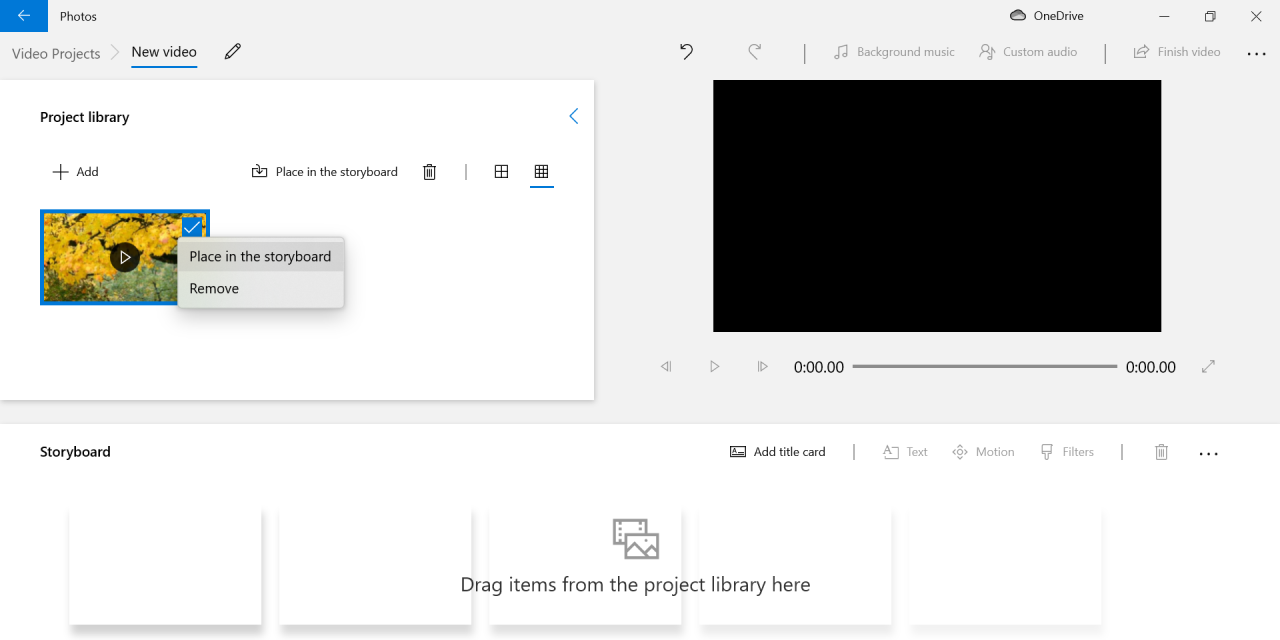
Graphical user interface (GUI) tools simplify the video compression process through intuitive menus and settings. The following steps demonstrate how to compress a video using popular GUI software, such as HandBrake:
- Download and install the software: Download HandBrake from the official website and complete the installation process by following on-screen instructions.
- Open the software and load the video: Launch HandBrake, then click on the “Open Source” button to browse and select the video file you wish to compress.
- Select a preset or customize settings: Choose from predefined presets like “Fast 1080p30” for quick compression or manually adjust settings for tailored results.
- Adjust video settings: Set the desired output format (e.g., MP4), resolution, codec (preferably H.264 or H.265 for better compression), and quality parameter. Typically, using a Constant Quality setting around RF 20 balances quality and size.
- Configure audio and subtitle options: Decide whether to include, omit, or compress audio tracks and subtitles based on your needs.
- Choose output destination: Specify the folder and filename for the compressed file.
- Start compression: Click the “Start Encode” button to begin processing. Monitor progress via the progress bar; the duration depends on video length and system performance.
- Review the output: Once completed, review the compressed video to ensure quality meets expectations.
Using GUI tools like HandBrake streamlines the process, making it accessible to users with limited technical experience while still providing control over compression parameters.
Line-based compression with examples
Command-line tools, such as FFmpeg, offer powerful and flexible options for video compression. This approach is ideal for automation, scripting, or when GUI tools are unavailable. Below is a step-by-step guide with examples:
- Install FFmpeg: Download FFmpeg from the official website and follow installation instructions suitable for your operating system.
- Basic compression command: Use the following syntax to compress a video:
- -i input.mp4: Specifies the input file.
- -vcodec libx264: Uses H.264 codec for video encoding.
- -crf 23: Sets the quality level (lower values mean better quality and larger size).
- -preset medium: Balances encoding speed and compression efficiency.
- -acodec aac: Sets audio codec to AAC.
- -b:a 128k: Sets audio bitrate to 128 kbps.
- output.mp4: Defines the output filename.
- Choose the right codec: H.265 (HEVC) offers approximately 50% better compression than H.264 but may require more processing power for encoding and decoding.
- Set an appropriate CRF value: For general use, a CRF between 18 and 23 provides a good compromise. Lower values produce higher quality but larger files; higher values reduce size at the expense of quality.
- Use presets wisely: Faster presets (e.g., ultrafast, superfast) reduce encoding time but may produce larger files, whereas slower presets (e.g., slow, veryslow) optimize compression at the cost of longer processing times.
- Adjust resolution if necessary: Reducing resolution (e.g., from 4K to 1080p) significantly decreases file size while maintaining acceptable quality for most viewing devices.
- Limit audio bitrate: Using lower audio bitrates (e.g., 128 kbps) can reduce size without notably impacting sound quality for most audiences.
- Preview settings before final compression: Test with small clips to evaluate the impact of parameter adjustments, ensuring optimal balance before processing entire videos.
- Identify the primary purpose of the video: Determine whether the focus is on high-definition playback, quick sharing, or streaming, which influences the compression parameters.
- Establish target file size or bandwidth constraints: Set clear limits based on storage capacity or streaming bandwidth requirements to guide compression settings.
- Adjust resolution: Reduce the resolution (e.g., from 4K to 1080p or 720p) where appropriate, as lower resolutions significantly decrease file size while maintaining acceptable visual quality for online viewing.
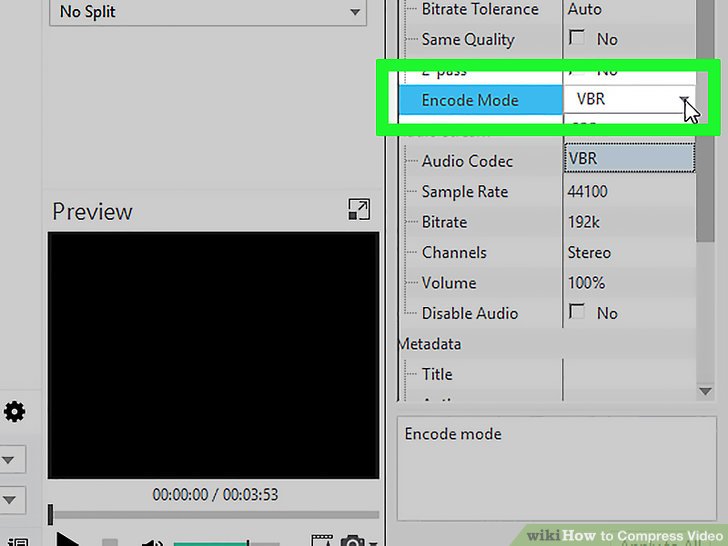
- Set bitrate carefully: Use variable bitrate (VBR) encoding when possible, which allocates data dynamically to scenes based on complexity, preserving quality in detailed sections and saving space in simpler scenes.
- Select an appropriate codec: Modern codecs like H.264 or H.265 (HEVC) offer high compression efficiency, reducing file sizes without markedly degrading quality.
- Utilize quality presets: Many tools offer presets ranging from ‘fast’ to ‘slow’ or ‘high quality’; selecting a balanced preset can optimize compression time and quality.
- Use software preview features: Many compression tools provide real-time previews or low-resolution playback options that allow quick assessment of the output quality.
- Compare side-by-side: Employ side-by-side viewing of the original and compressed videos to evaluate visual differences, paying attention to motion clarity, color fidelity, and detail preservation.
- Check key scenes: Focus on scenes with high motion, complex backgrounds, or fine details to gauge how well the compression preserves critical visual elements.
- Assess audio quality: Ensure that audio remains synchronized and clear, as compression can affect sound quality alongside video.
- Measure technical metrics: Utilize analysis tools to review compression parameters such as PSNR (Peak Signal-to-Noise Ratio), SSIM (Structural Similarity Index), and bitrate to quantify quality.
- Resolution: Lowering resolution reduces file size significantly but may impact visual clarity. For web streaming or mobile viewing, 720p or 1080p often strikes a good balance; for archival or high-quality needs, maintaining higher resolutions might be necessary.
- Bitrate: The bitrate controls the amount of data transmitted per second. Using a variable bitrate (VBR) mode adapts data allocation dynamically, maintaining quality in detailed scenes while saving space in simple ones. For instance, streaming platforms recommend specific bitrate ranges for different resolutions to optimize user experience.
- Codec selection: Modern codecs like H.265 (HEVC) provide better compression efficiency than H.264, reducing file sizes by approximately 50% at similar quality levels. Choosing the appropriate codec based on compatibility and target devices is essential.
- Encoding presets: Many tools offer presets that balance speed and quality, such as ‘medium’ or ‘slow.’ Slower presets often produce better compression results but require more processing time.
- Two-pass encoding: This method analyzes the video in the first pass and encodes it in the second, optimizing bitrate distribution and enhancing overall quality at a given file size.
- Adjust Compression Settings: Use moderate bitrate and quality settings to balance compression and clarity. Avoid extreme compression ratios that significantly degrade visual quality.
- Re-encode with Optimized Parameters: Experiment with different codecs (like H.264 or HEVC) and preset options that prioritize visual fidelity, such as slower encoding profiles that optimize compression efficiency.
- Improve Resolution and Bitrate: Increase resolution or bitrate if pixelation persists, especially for videos where detail is crucial. This can be particularly helpful in high-motion scenes or videos with fine details.
- Apply Post-Processing Tools: Use video editing software to sharpen images, reduce noise, or correct color distortions caused by artifacting.
- Sync Audio and Video: Ensure that audio and video streams are encoded with compatible frame rates and use synchronization tools available in editing or encoding software to align audio tracks precisely.
- Re-encode with Higher Bitrate: Import the over-compressed video into a professional encoding tool and re-encode it with a higher bitrate, which can help restore some lost details.
- Use Upscaling and Enhancement Software: Utilize AI-driven upscaling tools that enhance resolution and restore details, making the video appear clearer and more natural.
- Apply Noise Reduction and Sharpening: Use dedicated post-processing filters to reduce compression artifacts and sharpen the overall image, improving visual clarity.
- Balance Compression Settings for Future Use: When re-encoding, choose settings that prevent future over-compression while maintaining manageable file sizes.
- Visual Inspection: Play the video on different devices and screens to check for pixelation, artifacts, color accuracy, and overall clarity. Pay special attention to motion scenes and detailed areas.
- Audio Assessment: Listen to the audio track for synchronization issues, clarity, background noise, or distortions. Confirm that audio levels are consistent throughout.
- Use Quality Metrics Tools: Employ software that measures Peak Signal-to-Noise Ratio (PSNR) or Structural Similarity Index (SSIM) to quantify the quality relative to the original file.
- File Integrity Checks: Perform checksum or hash verification to confirm that the file has not been corrupted during processing, transfer, or storage.
- Playback Testing on Multiple Devices: Test the video on various platforms like smartphones, desktops, and media players to ensure compatibility and consistent quality.
ffmpeg -i input.mp4 -vcodec libx264 -crf 23 -preset medium -acodec aac -b:a 128k output.mp4
This command performs the following:
Adjustments can be made to these parameters based on specific requirements. For example, lowering the CRF value to 20 will increase quality but also file size, suitable for high-quality preservation.
Tips for selecting optimal settings for quality preservation and size reduction
Achieving a balance between video quality and file size involves careful selection of compression parameters. Consider the following tips:
Optimal compression settings depend on the intended use, device compatibility, and quality expectations. Customizing these parameters based on specific scenarios ensures the best outcome for each case.
Best practices for effective video compression
Optimizing video compression involves balancing multiple factors to achieve the best possible quality while minimizing file size. Employing best practices ensures that videos are efficiently compressed without compromising essential visual details, making them suitable for storage, streaming, or sharing across various platforms. Implementing these strategies helps maintain viewer engagement and prevents issues such as buffering or reduced visual clarity.
Effectively compressing videos requires a systematic approach that considers the specific needs of the content, target audience, and intended use. By following proven procedures, users can significantly enhance the efficiency of their compression efforts, resulting in high-quality videos that are manageable in size and compatible with multiple devices and networks.
Procedures for balancing video quality and file size
Achieving an optimal balance between video quality and file size is crucial for effective compression. The following procedures help in maintaining this equilibrium:
Regularly reviewing the compressed output against the original helps identify if adjustments are necessary to meet the desired quality and size benchmarks.
Methods to analyze and preview compressed videos before finalizing
Preliminary analysis and previewing are essential steps to ensure the compressed video meets quality expectations before completing the process. These methods help detect issues such as artifacts, blurriness, or unintended quality loss:
Implementing these analysis methods allows for iterative adjustments, leading to an optimal balance before finalizing the compressed file.
Adjusting parameters like resolution, bitrate, and codec for optimal results
Fine-tuning key compression parameters is vital for achieving desired video quality and file size. Each parameter influences the output differently, and understanding their interplay allows for precise control:
Adjustments should be tested incrementally, with periodic previews to confirm that the final output aligns with quality expectations and file size limits. Proper calibration of these parameters ensures the compressed video is both visually appealing and efficiently sized for its intended use.
Troubleshooting Common Issues
Effective video compression often involves dealing with various technical issues that can affect the final quality and playback. Understanding how to identify and resolve common problems such as pixelation, artifacting, or audio sync issues is essential for maintaining optimal video quality. Additionally, knowing how to recover over-compressed videos and verify their integrity ensures your content remains professional and viewer-friendly.When videos are compressed improperly, several issues may arise that compromise their visual and auditory fidelity.
These problems can be frustrating but are often resolvable with systematic troubleshooting strategies. Proper diagnosis and application of targeted solutions help in restoring or improving video quality without starting the compression process from scratch. Furthermore, verifying that the compressed videos meet quality standards is a crucial step to prevent distribution of subpar content.
Resolving Pixelation, Artifacting, and Audio Sync Problems
Pixelation, artifacting, and audio synchronization errors are among the most common issues encountered post-compression. Pixelation appears when the video resolution is too low, or compression settings are overly aggressive, causing individual pixels to become visible during playback. Artifacting manifests as visual distortions, blockiness, or color banding resulting from excessive compression or incompatible encoding parameters. Audio sync issues typically happen when audio and video streams are processed with mismatched frame rates or bitrates, leading to lip-sync problems or delayed audio.Strategies to address these issues include:
Recovering Over-Compressed Videos
Over-compression leads to significant loss of quality, making videos appear blurry, blocky, or with reduced color accuracy. Recovering or optimizing these videos involves both preventive and corrective measures.Steps for recovery include:
Verifying Video Quality and Integrity
Ensuring that the compressed video maintains its intended quality and remains error-free is vital before distribution or archiving. The verification process involves multiple methods to assess both visual and audio aspects, as well as data integrity.Key methods include:
Regular quality verification helps prevent the distribution of faulty videos and ensures viewers receive high-quality content that meets professional standards.
Examples of Optimized Video Compression Settings
Effective video compression requires tailoring settings to specific use cases, ensuring optimal balance between quality and file size. Different scenarios such as streaming, archival, or sharing on social media demand distinct configurations that prioritize either visual fidelity, bandwidth efficiency, or compatibility. Providing sample parameter configurations helps users apply best practices suited to their goals, leading to better user experiences and resource management.
Below are detailed examples of optimized video compression settings organized by common use cases. Each configuration includes the recommended codec, resolution, bitrate, and comments explaining the rationale behind these choices, facilitating practical application in various scenarios.
Configurations for Streaming, Archival, and Social Media
| Use Case | Recommended Codec | Resolution | Bitrate | Comments |
|---|---|---|---|---|
| Streaming (e.g., YouTube, Vimeo) | H.264 (AVC) or H.265 (HEVC) | 1920×1080 (Full HD) | 5-10 Mbps | Balances high quality with manageable bandwidth; H.265 offers better compression but may require more processing power. |
| Archival (Long-term Storage) | H.264 (AVC) or H.265 (HEVC) | 3840×2160 (4K) or original resolution | 10-15 Mbps (for 4K) | Prioritizes preservation of original quality; higher bitrate to reduce loss over time while maintaining file compatibility. |
| Social Media (Facebook, Instagram, TikTok) | H.264 (AVC) | 1280×720 (HD) or 1080p | 3-6 Mbps | Optimized for quick upload and viewing; smaller file sizes with acceptable quality for mobile devices. |
Note: The choice between H.264 and H.265 depends on compatibility requirements and hardware capabilities. H.265 offers better compression efficiency but may not be supported on all devices.
Each configuration aims to optimize the balance between file size, quality, and compatibility for its intended purpose. Streaming settings focus on efficient delivery over networks, archival settings preserve maximum quality for future use, and social media configurations prioritize quick uploads and smooth playback on mobile devices.
Advanced Topics in Video Compression
Building upon fundamental compression techniques, advanced methods significantly enhance efficiency, quality, and processing speed. These techniques are essential for professional workflows, streaming services, and content creation where optimizing performance without compromising quality is paramount. Understanding these sophisticated approaches allows for customized solutions tailored to specific requirements, making high-quality video delivery more feasible and cost-effective.
Implementing these advanced techniques involves a deeper understanding of encoding processes, hardware capabilities, and customization options. They enable content creators and engineers to achieve optimal balance between file size and visual fidelity, especially in high-resolution applications such as 4K and 8K video streaming, live broadcasting, and professional editing workflows.
Variable Bitrate Encoding and Two-Pass Encoding
Variable Bitrate (VBR) encoding and two-pass encoding are two critical techniques that improve compression efficiency by adapting to the complexity of video content and optimizing output quality. These methods are widely adopted in professional video workflows to ensure that the resulting files are both high-quality and manageable in size.
Variable Bitrate Encoding dynamically adjusts the bitrate throughout the video based on the complexity of each segment. Complex scenes with high motion or detail receive higher bitrates, while simpler scenes are compressed with lower bitrates. This approach maintains consistent visual quality and reduces unnecessary data usage in less detailed scenes.
Two-pass encoding involves analyzing the entire video during an initial pass to gather data on its complexity. In the subsequent pass, the encoder uses this information to allocate bitrate more precisely across different segments, achieving optimal quality and file size balance. This method is especially beneficial in scenarios requiring strict file size constraints or high visual fidelity, such as streaming platforms or archival storage.
“Two-pass encoding ensures that every frame receives the appropriate amount of data, leading to superior quality compared to single-pass methods.”
Hardware Acceleration for Faster Compression
Leveraging hardware acceleration has become a vital component in expediting video compression processes. Modern GPUs, specialized encoding hardware, and multi-core CPUs significantly reduce encoding times, enabling real-time processing and efficient workflow management.
Hardware acceleration offloads computationally intensive tasks from the CPU to dedicated hardware components like Graphics Processing Units (GPUs) or Video Processing Units (VPUs). These components are designed to handle parallel processing efficiently, which accelerates encoding tasks without compromising quality. For example, Nvidia’s NVENC and AMD’s VCE are hardware encoders that enable rapid compression suitable for live streaming and high-volume batching.
In professional environments, utilizing hardware acceleration allows for higher throughput and shorter turnaround times, especially when working with large, high-resolution files. This is critical for live broadcasts, content streaming services, and any scenario demanding quick delivery of high-quality videos.
Customization Options for Professional-Grade Workflows
Professional video compression workflows require meticulous customization to meet specific standards, formats, and quality benchmarks. These options include fine-tuning encoding parameters, selecting optimal codecs, and integrating automation tools for consistency and efficiency.
Key customization options encompass adjusting bitrate settings, selecting precise encoding profiles, and configuring advanced parameters such as motion estimation, GOP structure, and chroma subsampling. Many professional tools also provide scripting capabilities and API integrations, facilitating automated batch processing and quality control.
Additionally, professionals often utilize multi-pass encoding with tailored target qualities, apply custom filters or color grading prior to compression, and incorporate error resilience settings for streaming applications. The flexibility offered by professional-grade software and hardware setups ensures that the final output aligns perfectly with project specifications, regulatory standards, and distribution channels.
Conclusion
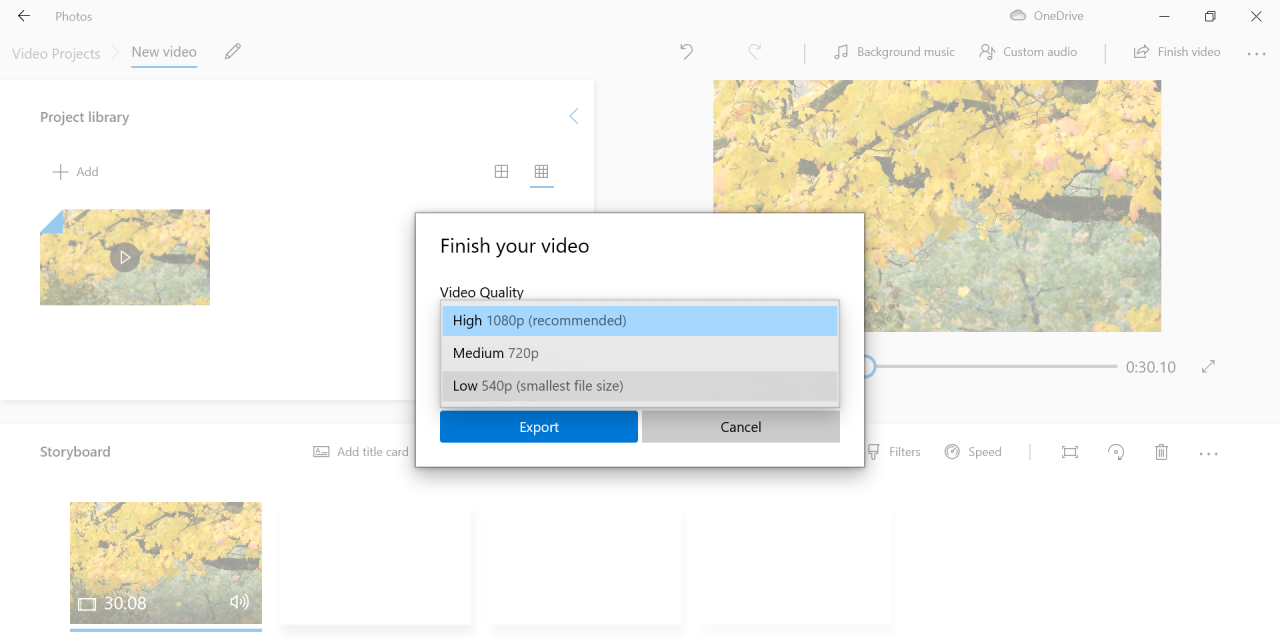
Mastering how to compress video files empowers you to manage large video content with ease, enhancing your workflow and sharing capabilities. By applying the right methods and tools, you can achieve a perfect balance between quality and file size, ensuring your videos are ready for any platform or purpose. With continued practice and attention to detail, your video compression skills will significantly improve, leading to more efficient content management.