Learning how to blend video layers opens up a world of creative possibilities in video editing, allowing creators to craft visually compelling narratives with depth and artistry. This technique enhances storytelling by seamlessly merging different video elements to produce captivating effects that elevate the overall production quality.
Understanding the fundamentals of video layer blending, including various blending modes, tools, and creative techniques, provides a solid foundation for achieving professional results. From importing multiple layers to troubleshooting common issues, mastering this skill is essential for anyone looking to enhance their video projects effectively.
Understanding the Basics of Video Layer Blending
Video layer blending is a fundamental technique in digital video editing that allows creators to combine multiple visual elements seamlessly. This process enhances storytelling by creating visually compelling scenes, adding depth, and achieving special effects that were previously difficult or impossible to realize with single layers. Grasping the core principles of blending modes and their applications is essential for producing professional-quality videos that engage and communicate effectively.
At its core, video layer blending involves overlaying one video or image layer atop another, using specific modes to determine how the pixels from each layer interact. These interactions influence the final appearance of the composite, facilitating effects such as transparency, shadowing, color correction, or artistic effects. Understanding the different blending modes and key terminology enables editors to select appropriate techniques for distinct creative goals, thereby elevating the visual storytelling process.
Fundamental Concepts of Video Layer Blending
Video layer blending operates on the principle of pixel interaction, where the color data from overlapping layers is combined based on predefined rules. The primary goal is to control how foreground and background layers merge, affecting aspects like transparency, color intensity, and contrast. This process is vital in adding visual effects, compositing multiple shots, or creating surreal scenes that enhance narrative impact.
Blending modes, also known as transfer modes, define the mathematical algorithm used to combine pixel data. When applied, they influence the luminosity, hue, saturation, and transparency of the final image. Effective use of these modes allows for subtle adjustments or dramatic transformations, depending on the desired artistic outcome. Consequently, mastering blending techniques contributes significantly to achieving professional-grade visual effects in video projects.
Types of Blending Modes and Their Effects
Blending modes can be categorized into various types, each producing distinct visual effects. The selection of a mode depends on the creative intent, whether to blend colors smoothly, emphasize contrast, or create artistic distortions. Common blending modes include Normal, Multiply, Screen, Overlay, and Soft Light, each offering unique ways to manipulate how layers interact.
For instance, the ‘Multiply’ mode darkens the image by multiplying pixel values, often used for shadows or darkening backgrounds. Conversely, the ‘Screen’ mode lightens the image, making it suitable for effects like glows or highlights. The ‘Overlay’ mode combines Multiply and Screen, enhancing contrast and color vibrancy. Understanding these modes allows editors to craft complex visual effects that contribute significantly to the storytelling process.
Key Terminology in Video Layer Blending
To effectively utilize video layer blending, familiarity with essential terminology is crucial. The following table summarizes critical terms, their definitions, examples, and typical use cases in the context of video editing:
| Term | Definition | Example | Use Case |
|---|---|---|---|
| Opacity | The transparency level of a layer, expressed as a percentage. | Setting opacity to 50% for semi-transparent overlay | Creating fade effects or blending for subtle transitions |
| Blend Mode | The algorithm that determines how two layers are combined visually. | Applying ‘Overlay’ mode to enhance contrast | Achieving specific visual styles or effects in compositing |
| Alpha Channel | A component of an image or video that contains transparency information. | Using an alpha channel to mask background in green screen footage | Compositing scenes with complex transparency |
| Layer | An individual visual element in a composition that can be manipulated independently. | Foreground video layer overlaid on a background | Building complex scenes with multiple visual components |
| Composite | The final image or video created by combining multiple layers. | Combining background and overlay layers to form a complete scene | Finalizing visual effects in editing projects |
| Mask | A shape or path that reveals or conceals parts of a layer. | Using a mask to isolate a subject from the background | Selective blending or focus in a scene |
| Color Blending | Combining colors from different layers to produce desired hues and saturation. | Blending a color gradient overlay with footage | Color correction and artistic effects |
Understanding these key terms empowers video editors to communicate effectively and execute precise blending techniques, resulting in more polished and impactful visual storytelling.
Tools and Software for Blending Video Layers
Choosing the appropriate software for blending video layers is crucial for achieving professional-quality results in video editing projects. Various programs offer diverse features, blending modes, and user interfaces tailored to different skill levels and project requirements. Understanding the capabilities of these tools enables editors to select the most suitable platform to enhance their creative work effectively.
These software options range from industry-standard professional tools to more accessible programs designed for beginners. Each supports a variety of blending modes, allowing users to combine layers in complex ways to produce desired visual effects. Comparing these options helps in identifying the best fit based on factors such as ease of use, advanced features, and compatibility with other editing workflows.
Popular Video Editing Software Supporting Layer Blending
The following software programs are widely recognized for their robust support of video layer blending features. They cater to a spectrum of user expertise—from novices to seasoned professionals—making them essential tools in modern video production.
| Software Name | Supported Blending Modes | User Skill Level |
|---|---|---|
| Adobe After Effects | Normal, Add, Screen, Multiply, Overlay, Soft Light, Hard Light, Color Dodge, Color Burn, Difference, Exclusion, and more. | Advanced; suitable for professional motion graphics and visual effects artists. |
| DaVinci Resolve | Normal, Add, Screen, Multiply, Overlay, Soft Light, Hard Light, Difference, Lighten, Darken, and custom blending options within Fusion. | Intermediate to advanced; ideal for color grading and integrated editing workflows. |
| Final Cut Pro | Normal, Add, Subtract, Multiply, Screen, Overlay, Soft Light, Hard Light, Color Dodge, Color Burn, and custom modes through compositing tools. | Intermediate; favored by professional editors on Mac systems. |
| Adobe Premiere Pro | Normal, Add, Screen, Multiply, Overlay, Soft Light, Hard Light, Difference, Lighten, Darken, and more. | Beginner to professional; widely used for comprehensive editing projects. |
| HitFilm Express | Normal, Add, Screen, Multiply, Overlay, Soft Light, Hard Light, and other blending modes. | Beginners to intermediate; suitable for indie filmmakers and hobbyists. |
Note: The availability of blending modes may vary depending on software versions and updates. Advanced software often allows for user-defined blending modes or scripting capabilities to customize effects further.
While all these programs support layer blending, their interfaces, ease of use, and integration with other editing tools differ significantly. Adobe After Effects and DaVinci Resolve are renowned for their extensive blending options and flexibility, making them preferred choices for complex projects. Final Cut Pro offers seamless performance on Mac, with intuitive blending features suited for professional and semi-professional work.
Premiere Pro provides a balanced environment suitable for a wide range of editing needs, from simple projects to intricate compositions. HitFilm Express is a cost-effective alternative for those starting out or working on small-scale productions, with a solid set of blending features.
Step-by-Step Procedures for Blending Video Layers
Blending multiple video layers effectively requires a systematic approach to ensure seamless integration and visually appealing results. Mastering this process involves importing your video assets correctly, applying appropriate blending modes, and fine-tuning settings to achieve the desired effects. This section provides a clear, step-by-step guide to help you navigate through these essential procedures within your editing software.
Following these structured steps allows for precise control over how layers interact, resulting in professional-looking composites suitable for various creative projects such as music videos, commercials, and cinematic sequences.
Importing Multiple Video Layers
Properly importing your video files forms the foundation for successful layer blending. The process varies slightly depending on the editing software but generally follows a straightforward sequence. Accurate importation ensures all layers are synchronized and ready for editing.
- Open your editing software and create a new project or open an existing one where you intend to blend video layers.
- Navigate to the import menu. This is typically found under File > Import or via a dedicated import icon in the toolbar.
- Select your video files from your storage location. For multi-layer projects, choose all videos you plan to overlay.
- Import and organize the layers. Drag each video onto separate tracks in the timeline or workspace panel. Ensure they are aligned properly for synchronization.
- Adjust sequence settings if needed, such as frame rate and resolution, to match all imported videos for consistency.
Applying Blending Modes
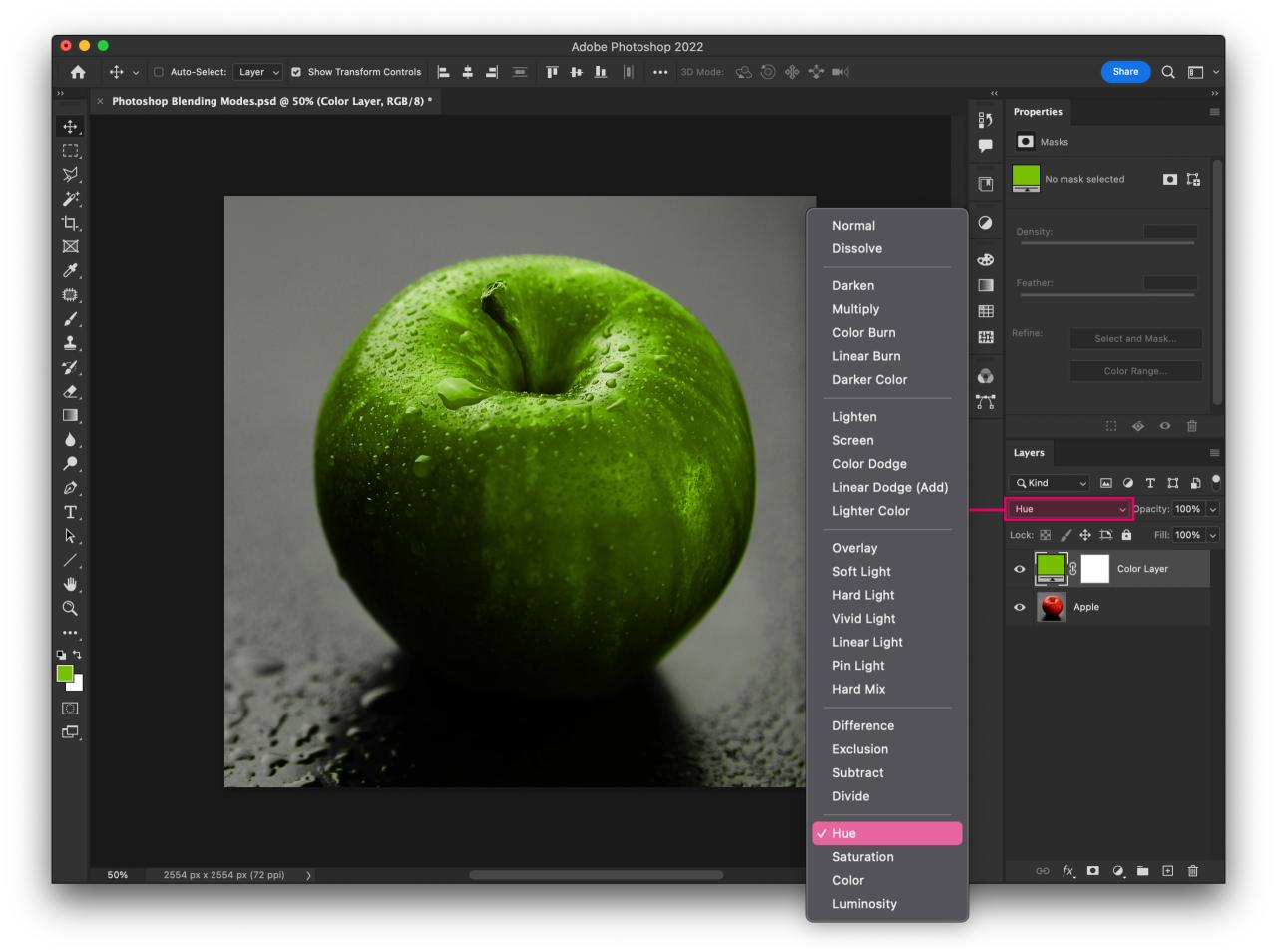
Blending modes determine how each video layer interacts visually with layers beneath it. Utilizing different modes can create effects like transparency, ghosting, or complex color interactions. Familiarity with these modes allows you to experiment and find the best effect for your project.
- Select the layer you wish to blend in the timeline or layer panel.
- Locate the blending mode menu, often found in the layer or properties panel. It may be labeled as Mode or Blend Mode.
- Choose a blending mode from the drop-down list. Common modes include Normal, Overlay, Screen, Multiply, and Soft Light. Each mode offers unique visual interactions.
- Preview the effect by playing back the sequence. Adjust the mode as necessary to refine the visual outcome.
- Fine-tune opacity or transparency if available, to control the intensity of the blending effect.
Step-by-Step Operator for Layer Blending
Executing the blending process systematically ensures clarity and control. The following table illustrates each step with menu paths, settings, and tips for achieving optimal results:
| Step | Action | Menu/Setting | Tips |
|---|---|---|---|
| 1 | Import videos | File > Import | Select all layers to be blended at once for efficiency. |
| 2 | Add videos to timeline | Drag and drop onto separate tracks | Align videos temporally for synchronized effects. |
| 3 | Select a layer to modify blending mode | Layer properties panel > Mode | Experiment with modes such as Overlay or Screen for different effects. |
| 4 | Apply blending mode | Drop-down menu under Layer properties | Preview changes in real-time to assess visual impact. |
| 5 | Adjust layer opacity | Opacity slider in Layer properties | Use lower opacity for subtle blending or higher for more pronounced effects. |
| 6 | Render and review | Export menu or playback window | Make further adjustments if necessary for the desired aesthetic. |
Consistent alignment and appropriate blending mode selection are vital for achieving professional results when blending multiple video layers.
Creative Techniques in Video Layer Blending
Creative blending of video layers expands the visual storytelling potential, enabling filmmakers and editors to craft mesmerizing and innovative effects. These techniques go beyond basic overlays, offering a range of artistic methods to merge multiple layers for complex and captivating visuals. Mastering these methods empowers creators to produce seamless transitions, surreal imagery, and dynamic visual compositions that elevate the overall production quality.
Implementing advanced blending techniques requires a good understanding of how different methods interact with visual content. Whether designing double exposure effects, integrating chroma key backgrounds, or creating compelling overlay effects, these techniques enable the transformation of simple footage into extraordinary visual narratives. The following overview highlights some of the most effective and popular methods used in professional video editing workflows.
Methods for Combining Multiple Layers for Complex Visual Effects
Combining multiple video layers involves strategic use of blending modes, masking, and keying techniques to achieve sophisticated effects. These methods allow for the manipulation of transparency, color interactions, and spatial relationships between layers, resulting in visually rich compositions. Below are key techniques frequently employed in advanced video editing projects:
| Technique | Description | Steps | Tips |
|---|---|---|---|
| Double Exposure | Creates a surreal, layered image by blending two videos or images, often to evoke emotion or artistic expression. |
|
Use high-contrast images or videos for striking double exposure effects. Experiment with different blending modes for unique results. |
| Chroma Keying | Removes a specific background color, typically green or blue, to overlay subjects onto different backgrounds or scenes. |
|
Lighting consistency during shooting enhances keying quality. Use fine-tuning tools to eliminate green spill or halos. |
| Overlay Effects with Masking | Allows selective overlaying of video content onto specific areas of another layer using masks for creative compositions. |
|
Use motion tracking to animate masks for moving objects or scenes requiring dynamic overlays. |
Examples of Seamless Transitions Created with Blending Techniques
Blending techniques facilitate the creation of seamless scene transitions that maintain visual continuity and engage viewers. Examples include fading into new scenes with overlapping layers, morphing effects achieved through masking and keyframes, and cross dissolves enhanced by creative blending modes. Such transitions can evoke emotion, signify passage of time, or shift narrative focus smoothly, enriching the storytelling process.
For instance, a scene transition from a daytime cityscape to a nighttime skyline can be executed by gradually blending two layers with an overlay mode and animated masks that reveal the new scene progressively. Similarly, a fade-in effect from one scene to another can incorporate color grading and blending modes to produce a more polished and cinematic appearance.
Troubleshooting Common Issues in Video Layer Blending
Effective video layer blending can significantly enhance visual storytelling, but practitioners often encounter common issues that compromise the final output. Understanding and addressing these problems promptly ensures a seamless and professional appearance in your videos. This section provides a comprehensive overview of typical challenges faced during video layer blending, along with detailed solutions to resolve them efficiently.
Common blending issues can arise from a variety of causes, including incompatible settings, software limitations, or user errors. By systematically troubleshooting each problem, creators can identify the root cause and implement precise adjustments. The following guide Artikels typical problems such as unwanted artifacts, color inconsistencies, or conflicts between blending modes, along with practical solutions tailored for different scenarios.
Unwanted Artifacts and Visual Distortions
Artifacts such as halos, jagged edges, or flickering are frequent in video layer blending, especially when using complex transitions or high contrast layers. These distortions diminish the visual quality and can distract viewers from the content. Understanding their causes helps in applying targeted fixes.
- Possible Cause: Inadequate matte or alpha channel settings may result in residual backgrounds or transparency issues.
- Solution: Ensure the alpha channel is correctly defined and pre-multiplied if necessary. Adjust the matte or keying settings to eliminate residual backgrounds. Using the ‘Refine Matte’ tool can help smooth edges and remove artifacts.
- Possible Cause: Low-quality compression or interlacing artifacts when exporting or importing video layers.
- Solution: Use lossless or high-bitrate formats during editing. Disable interlacing options if not required or convert interlaced footage to progressive scan before blending.
Color Inconsistencies
Discrepancies in color balance, hue, or saturation between layers can make compositions appear unnatural or mismatched. These issues often arise from mismatched color profiles or improper blending mode settings.
- Possible Cause: Different color profiles assigned to individual clips, leading to inconsistent color rendering.
- Solution: Convert all clips to a common color profile before blending. Use software features like ‘Color Management’ to synchronize profiles across layers.
- Possible Cause: Improper use of blending modes that alter color properties unexpectedly.
- Solution: Experiment with blending modes such as ‘Normal’ or ‘Overlay’ and adjust opacity levels to achieve desired color harmony. Utilize color correction tools post-blending to balance any remaining inconsistencies.
Blending Mode Conflicts and Unexpected Transparency
Choosing inappropriate blending modes can lead to unintended transparency effects or loss of detail, especially when layers with conflicting modes are combined. Recognizing mode conflicts is vital for predictable results.
- Possible Cause: Overlapping layers with incompatible blending modes, such as ‘Difference’ and ‘Multiply,’ causing unexpected darkening or lightening effects.
- Solution: Select blending modes compatible with your visual goals. Test small sections of your project to observe how modes interact before applying globally.
- Possible Cause: Opacity levels set too low or high, resulting in over- or under-blending.
- Solution: Adjust opacity sliders incrementally while previewing to find a natural balance. Use keyframes to vary opacity dynamically if needed.
General Troubleshooting Tips
In addition to specific issues, it is beneficial to adopt overarching troubleshooting strategies to streamline the blending process:
- Always preview your composite frequently during editing to catch issues early.
- Maintain consistent project settings, including frame rate, resolution, and color profiles.
- Use high-quality footage and render settings to prevent compression artifacts.
- Apply layer order carefully; stacking layers incorrectly can cause unintended visual effects.
- Utilize software-specific tools like noise reduction, edge smoothers, or color grading adjustments to refine problematic areas.
Careful attention to each setting and a systematic approach to troubleshooting can transform common blending issues into opportunities for creative enhancement. Precision in adjustments and an understanding of underlying causes are essential for achieving professional-quality results.
Best Practices for Effective Video Layer Blending
Achieving seamless and visually appealing results in video layer blending requires deliberate attention to organization, timing, and adjustment of key parameters. Implementing best practices ensures that the final composition looks professional, balanced, and creatively compelling. These guidelines serve as a foundation for both beginners and experienced editors aiming to elevate their video projects through refined blending techniques.
Effective blending hinges on meticulous layer management, precise timing, and thoughtful color and opacity adjustments. By adhering to established best practices, editors can minimize issues such as unnatural transitions, visual inconsistencies, or technical glitches, thereby crafting cohesive and polished video content that resonates with viewers.
Optimal Layer Organization and Timing
Proper layer arrangement and synchronized timing are critical for achieving realistic and harmonious blends. Organizing layers logically—such as stacking foreground elements above backgrounds—facilitates smoother editing workflows and easier adjustments. Ensuring that layers appear and transition at appropriate moments enhances narrative flow and visual coherence. For instance, aligning a subject’s movement with background changes or effects improves immersion and reduces jarring visual discrepancies.
Balancing Opacity, Contrast, and Color Correction
Maintaining a balanced visual appearance in blended videos involves fine-tuning opacity levels, contrast, and color settings. Adjusting opacity allows overlays without overpowering underlying layers, creating depth and dimension. Proper contrast ensures clarity between blended layers, preventing muddiness or loss of detail. Color correction harmonizes hues across layers, eliminating mismatched tones that can distract viewers. Using subtle adjustments instead of drastic changes preserves the natural look and feel of the composition.
Best Practice Recommendations
- Organize Layers Logically: Label and group related layers to streamline the editing process and facilitate quick adjustments.
- Maintain Consistent Timing: Synchronize layer appearances, transitions, and effects with the video’s rhythm and narrative cues for a cohesive flow.
- Use Gradual Opacity Changes: Apply keyframes to fade layers in and out smoothly, avoiding abrupt transitions that can seem unnatural.
- Adjust Contrast and Brightness Thoughtfully: Balance contrast settings to enhance details without creating harsh differences that disturb visual harmony.
- Employ Color Correction Judiciously: Use color grading tools to match tones across layers, ensuring they blend seamlessly and maintain visual consistency.
- Preview Regularly: Continuously review your work through playback to identify and correct blending issues before finalizing.
- Utilize Masks and Feathering: Employ masks for precise blending and soft feathering to create smooth edges, especially when integrating complex or detailed layers.
- Limit Excessive Effects: Avoid overusing blending modes and effects, which can introduce visual noise or detract from the core content.
- Document and Save Versions: Keep organized versions of your project to compare different blending techniques and revert if needed.
Implementing these best practices enhances the overall quality of video layer blending, making your projects look more professional and engaging. Attention to detail in organization, timing, and visual adjustments ensures that blended videos achieve their intended aesthetic and storytelling goals effectively.
Ultimate Conclusion

In conclusion, mastering how to blend video layers empowers creators to produce visually dynamic and polished videos. By applying best practices, exploring creative techniques, and utilizing the right tools, you can elevate your editing projects to professional standards and captivate your audience with stunning visual effects.