Mastering how to animate video elements is essential for creating compelling and dynamic visual content that captures audience attention. This process involves understanding fundamental concepts, selecting suitable tools, and thoughtfully designing each element to enhance overall engagement.
In this guide, you will explore the key steps involved in planning, designing, implementing, and optimizing animated video elements. From initial sketching to final export, each phase is crucial for producing professional and visually appealing videos that resonate with viewers across various platforms.
Introduction to Animating Video Elements
Animating video elements involves applying motion and visual effects to various components within a video to create dynamic and engaging content. This process enhances storytelling by emphasizing key messages, guiding viewer attention, and adding a professional polish to the final output. Whether it is animated text, graphics, or transitions, mastery of video element animation can significantly elevate the quality and impact of video productions.
Understanding the fundamental concepts behind animation, including timing, easing, and synchronization, is essential for producing smooth and compelling motion. The importance of animation extends beyond aesthetics; it also improves viewer engagement by making content more memorable and easier to comprehend. In today’s digital landscape, a variety of tools and software are available to facilitate high-quality animation, each catering to different skill levels and project requirements, from beginner-friendly applications to advanced professional platforms.
Fundamental Concepts of Video Element Animation
Animations are driven by core principles such as timing, motion paths, easing, and keyframes. Timing determines how long an animation lasts and influences the pacing of movement, making it feel natural or stylized. Motion paths define the trajectory a visual element follows during animation, allowing for complex movements to be choreographed precisely. Easing functions control the acceleration and deceleration of motion, creating more realistic and engaging effects.
Keyframes act as markers that specify critical points in the animation timeline, enabling precise control over how elements transition from one state to another.
This combination of principles ensures animations are fluid, natural, and aligned with the overall narrative tone of the video.
Importance of Animation in Enhancing Video Engagement
Animations serve as a powerful tool to capture and retain viewer attention by adding movement and interactivity to static elements. They help highlight important information, such as calls-to-action, key messages, or data points, thereby increasing comprehension and recall. Well-animated videos can evoke emotional responses, reinforce branding, and create a more immersive experience, making content stand out in a crowded digital environment.
Additionally, animation can simplify complex concepts, transforming technical data or abstract ideas into visually accessible formats, which is particularly valuable in educational or corporate videos.
Common Tools and Software for Video Element Animation
A wide spectrum of tools exists to assist creators in animating video elements, ranging from beginner-friendly platforms to professional-grade software. These tools typically offer features such as timeline-based editing, keyframe animation, motion presets, and visual effects, facilitating both simple and advanced animations.
- Adobe After Effects: Industry-standard for motion graphics and compositing, offering extensive control over animations, effects, and integration with Adobe Creative Cloud.
- Blender: Open-source 3D animation software that also supports 2D animation, ideal for creating complex animated scenes and visual effects.
- Adobe Animate: Focused on 2D vector animations, suitable for web animations and interactive media.
- Final Cut Pro: Offers built-in motion graphics tools, suitable for Mac users working on video editing and animation.
- DaVinci Resolve: Combines professional editing, color correction, and visual effects, with robust animation capabilities.
In addition to these, several online tools like Canva and Vyond provide accessible options for quick, template-based animations that do not require extensive technical skills. Selecting the appropriate software depends on the project scope, desired complexity, and user expertise, ensuring the creation of compelling animated video elements.
Planning and Designing Video Elements for Animation
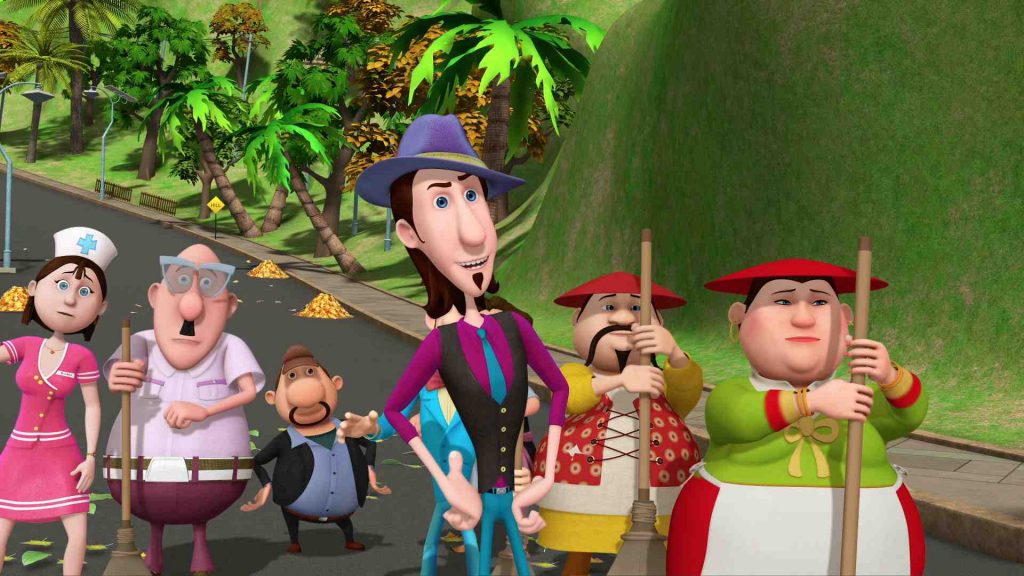
Effective animation begins with meticulous planning and thoughtful design of video elements. This phase ensures that each component not only aligns with the overall narrative but also functions seamlessly during the animation process. Proper preparation enhances visual appeal, facilitates smoother animation workflows, and contributes to a more engaging final product.
Designing animated video elements involves a combination of creative sketching, strategic storyboarding, and adherence to core design principles. By systematically organizing these steps, creators can develop visually compelling and technically sound assets suited for animation workflows. Preparation of assets, including layering and formatting, further ensures compatibility with animation software and efficiency during production.
Sketching and Storyboarding Animated Video Elements
Creating initial sketches and storyboards serves as the foundational step in visualizing animated elements. These sketches help define the shape, movement, and interaction of individual components, allowing for early evaluation and refinement before detailed design begins. Storyboarding extends this concept by outlining the sequence of movements and transitions, ensuring narrative coherence and timing accuracy.
Methods such as thumbnail sketching enable quick exploration of ideas, fostering creative experimentation. Digital tools like graphic tablets and animation-specific software facilitate precise sketches and revisions. The storyboard should include key poses, transitions, and expressions, providing a clear roadmap for animators to follow during production. This process minimizes revisions later, saving time and resources while maintaining a focus on visual storytelling.
Organizing Design Principles for Visually Appealing Elements
Applying fundamental design principles enhances the aesthetic quality and clarity of animated elements. These principles include balance, contrast, alignment, hierarchy, and consistency. A well-organized design ensures that each element draws attention appropriately and contributes to a cohesive visual experience.
To achieve this, designers should consider the color palette, shapes, and spacing that align with the overall style and tone of the project. For example, bright colors and bold shapes can evoke excitement, while muted tones and simple forms convey professionalism or calmness. Maintaining consistency in style, line weight, and color schemes fosters a harmonious look across all animated components.
Additionally, simplicity often leads to more effective communication. Overly complex designs can distract or confuse viewers, especially in fast-paced animations. Striking a balance between detail and clarity is key to creating elements that are both attractive and functional.
Preparing Assets for Animation: Layering and Formatting
Preparing assets involves organizing each component systematically to enable smooth animation workflows. Proper layering is essential, as it allows animators to manipulate individual elements independently without affecting others. This approach simplifies the process of applying transformations, effects, and motion paths.
The process begins with creating separate layers for each moving part, such as eyes, mouth, limbs, or accessories. For example, a character’s arm and hand should be on different layers to facilitate natural movement and complex gestures. Software like Adobe Photoshop or Illustrator supports layered files, which can be exported in formats compatible with animation software such as After Effects or Toon Boom Harmony.
Formatting assets involves ensuring consistent resolution, naming conventions, and file organization. Using high-resolution images prevents pixelation during zoom or scaling, while clear, descriptive filenames make asset management more efficient. It is also beneficial to group related assets into folders, such as backgrounds, characters, and props, to streamline the animation process and avoid confusion during editing.
Moreover, preparing assets with transparency (e.g., PNG or PSD files with transparent backgrounds) enables seamless integration into various backgrounds or scenes. Properly formatted assets reduce technical issues and enable animators to focus on creative aspects, ultimately leading to a polished and professional animation.
Techniques for Animating Video Elements
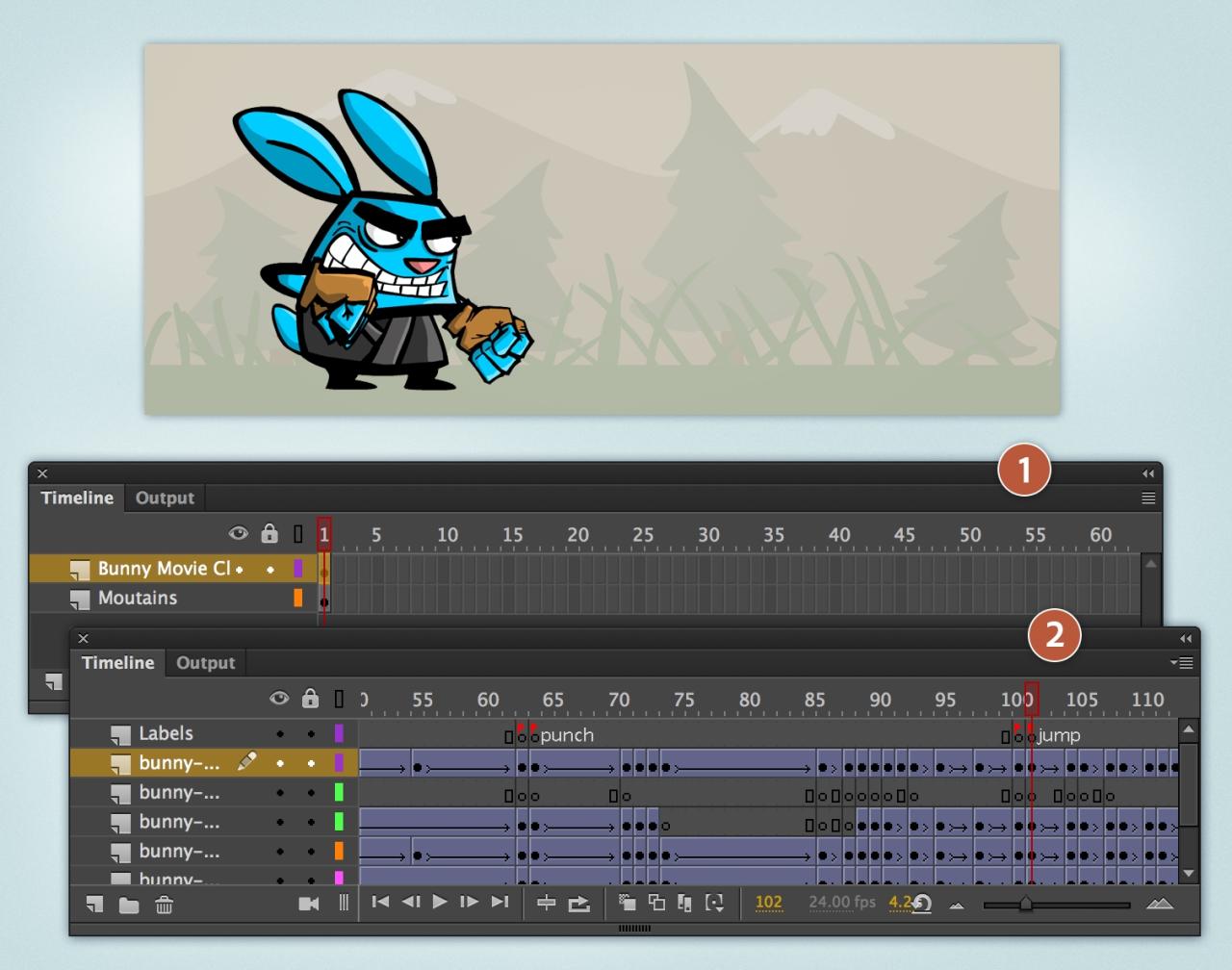
Animation of video elements is a vital step in bringing static designs to life, adding dynamism, and enhancing viewer engagement. Mastering effective techniques such as motion paths and keyframes enables creators to craft smooth, compelling animations that align seamlessly with the overall vision of the project. By leveraging these methods proficiently, animators can produce professional-quality motion that elevates the storytelling aspect of any video production.Applying motion paths and keyframes in animation software is fundamental to precise control over animated elements.
Motion paths define the trajectory that an element follows during the animation timeline, allowing for complex movements like curves or custom routes. Keyframes act as specific points in time where particular properties—such as position, rotation, or scale—are set. Transitioning between these keyframes enables smooth interpolation of motion.To demonstrate, consider an animation software like Adobe After Effects. Animators set a starting keyframe at the beginning of a timeline for an element’s position.
Moving the playhead forward, they adjust the element along a pre-defined or custom motion path, then set an ending keyframe. The software calculates the in-between frames, creating fluid movement along the specified path. Manipulating the handles of motion paths allows for fine-tuning of curves and easing, resulting in more natural motion.Creating a comparative table of 2D versus 3D animation techniques clarifies their distinct approaches and practical applications:
| Aspect | 2D Animation Techniques | 3D Animation Techniques |
|---|---|---|
| Design Approach | Flat, two-dimensional visuals with emphasis on drawing and frame-by-frame or vector-based animation. | Three-dimensional models with depth, allowing for realistic rendering and complex camera movements. |
| Software Examples | Adobe Animate, Toon Boom Harmony, Synfig Studio | |
| Complexity | Less resource-intensive; suitable for simpler animations and quick productions. | |
| Realism and Depth | Limited by 2D perspective; depth achieved through shading and layering. | |
| Application Focus | Cartoons, explainer videos, infographics | |
| Modeling Capabilities | Limited; mainly drawing and frame manipulation | |
| Realistic Motion | Achieved through careful timing, easing, and frame control | |
| Workflow | Drawing or vector animation, frame-by-frame adjustments | |
| 3D Animation Techniques | Modeling, rigging, keyframe animation, motion capture, rendering | |
| Software Examples | Blender, Autodesk Maya, Cinema 4D | |
| Complexity | Higher resource requirements; suitable for detailed, realistic modeling | |
| Realism and Depth | Achievable through realistic texturing, lighting, and camera effects | |
| Application Focus | Visual effects, character animations, product visualization | |
| Modeling Capabilities | Advanced modeling with precise control over surfaces and structures | |
| Workflow | Modeling, rigging, animating, rendering, post-processing |
Easing, timing, and spacing are crucial elements that influence the perception of realism and fluidity in animation. Easing involves adjusting the acceleration or deceleration of animated properties, making movements appear more natural rather than mechanical. For example, an object falling under gravity accelerates as it gains speed, which can be simulated through easing curves.Timing refers to the precise duration of each movement, dictating how fast or slow an element transitions from one state to another.
Proper timing ensures that animations match the intended mood or message—quick movements convey urgency, while slower transitions evoke calmness.Spacing describes the distribution of in-between frames, affecting how motion appears during the animation. Even spacing produces uniform motion, whereas varied spacing creates acceleration or deceleration. For instance, spacing frames closer together at the start and end of a movement, with wider gaps in the middle, simulates easing-in and easing-out effects.Using these principles in tandem allows for highly realistic animations.
For example, when animating a bouncing ball, applying easing with appropriate timing and spacing creates a believable bounce with natural acceleration and deceleration. Adjusting the velocity curves through easing functions like “ease-in” or “ease-out” further refines the motion, making it resemble real-world physics.
Implementing Animation Effects

Applying animation effects is a crucial step in bringing video elements to life, enhancing visual engagement, and guiding viewer attention effectively. Mastering the implementation of various effects allows creators to craft seamless and captivating animated sequences that elevate the overall production quality.
This section explores the systematic approach to adding effects such as fades, slides, and rotations, as well as integrating transitions for smooth visual continuity. Additionally, it discusses how to utilize custom effects to achieve unique visual styles that align with creative goals.
Designing and Applying Animation Effects
Implementing effects involves a strategic process that enhances the visual storytelling without overwhelming the viewer. Understanding the step-by-step application of effects ensures consistency and control over the animation outcome.
- Select the appropriate effect for the element: Determine whether a fade, slide, rotation, or a combination best suits the scene’s purpose and visual narrative.
- Configure effect parameters: Adjust duration, delay, direction, and intensity to match the desired visual impact. For example, a slow fade over two seconds can create a gentle transition, whereas a quick slide can energize the scene.
- Apply the effect to the element: Use your animation software or scripting environment to add the effect, ensuring correct timing and layering with other elements.
- Preview and refine: Continually preview the animation to observe the effect’s flow and make necessary adjustments for smoothness and natural movement.
Common tools and techniques for implementing these effects include keyframe-based animation, easing functions, and timeline adjustments. For example, CSS animations or JavaScript libraries like GSAP (GreenSock Animation Platform) facilitate precise control and complex effects.
Integrating Transitions for Seamless Sequences
Transitions serve as the connective tissue between different animated elements or scenes, ensuring that movement from one to another appears fluid and cohesive. Proper integration of transitions enhances viewer experience by preventing abrupt changes and maintaining visual continuity.
Effective transition implementation involves selecting suitable transition types, such as crossfades, wipes, or morphs, based on the narrative context and stylistic preferences. The timing and duration of transitions should be carefully calibrated to match the pace of the overall animation.
| Transition Type | Description | Use Case |
|---|---|---|
| Fade | Gradual change in opacity from one element to another | Soft scene changes or emphasizing a shift in focus |
| Slide | Element moves in or out from a specified direction | Introducing new scenes or highlighting movement |
| Wipe | One scene replaces another via a moving edge | Transitioning between settings or perspectives |
| Morph | Transforming one shape into another seamlessly | Creative transformations or shape animations |
Using easing functions during transitions, such as ease-in or ease-out, can significantly improve perceived smoothness by mimicking natural acceleration and deceleration patterns, making animations feel more organic.
Utilizing Custom Effects for Unique Visual Styles
Creating custom effects involves designing specific animation behaviors that are tailored to the project’s aesthetic and storytelling needs. These effects can be achieved through scripting, keyframing, or combining multiple basic effects to develop distinctive visual styles.
For example, a creator might develop a shimmering glow that pulses rhythmically around a text element, or a glitch effect that introduces brief distortions to evoke a digital aesthetic. Such effects often employ layered animations, masks, and blending modes to produce visually engaging results.
“Custom effects enable designers to differentiate their work and craft a signature style that aligns with brand identity or thematic requirements.”
Tools like Adobe After Effects, Blender, or CSS with custom keyframes allow for extensive customization. Utilizing non-linear animation techniques and scripting languages facilitates the creation of complex, dynamic effects that can be reused or modified across different projects for consistency and efficiency.
Enhancing Video Elements with Interactivity
Incorporating interactivity into animated video elements significantly elevates viewer engagement and creates a more immersive experience. By embedding interactive features, creators can transform passive viewing into active participation, encouraging users to explore content dynamically. This approach is especially beneficial in educational, marketing, and training videos, where user involvement can reinforce learning and retention.
Implementing interactivity requires a thoughtful integration of technological tools and design principles. Embedding clickable hotspots, quizzes, and navigation controls allows viewers to influence the flow of the video. Synchronizing these interactive components with animation sequences and audio cues ensures a seamless and intuitive user experience. Properly coordinated interactions can highlight key information, facilitate decision-making, or personalize content based on user input, making the video more effective and memorable.
Embedding Interactive Features within Animated Videos
Embedding interactive features involves using specialized software and scripting languages, such as HTML5, JavaScript, or dedicated animation platforms like Adobe Animate or H5P. These tools enable the addition of clickable areas, buttons, or hotspots over animated elements. For example, a product demonstration video can include clickable product labels that reveal specifications or purchase options when selected. Interactive overlays can also incorporate quizzes or surveys that appear at strategic points, prompting viewers to respond before proceeding.
Synchronizing Animations with Audio and User Input
Synchronization ensures that animations respond accurately to both audio cues and user interactions, creating a cohesive experience. Techniques such as timeline control in animation software allow precise timing of visual effects relative to audio narration. When integrating user input, event-driven scripting captures actions like clicks or keystrokes, triggering specific animations or content changes. For instance, a language learning video can animate mouth movements synchronized with spoken words, while user selections can direct the flow of additional information or exercises.
Interactive Elements and Their Applications
Table 1 illustrates various interactive elements, their typical applications, and the advantages they offer in enhancing viewer engagement and content delivery.
| Interactive Element | Application | Advantages |
|---|---|---|
| Clickable Hotspots | Product demos, infographics, educational diagrams | Allows viewers to explore content in detail, improving understanding |
| Embedded Quizzes/Surveys | Training videos, marketing campaigns, e-learning modules | Reinforces learning, gathers feedback, increases engagement |
| Navigation Menus | Interactive tutorials, multi-path storytelling | Enables viewers to choose their own path, increasing interactivity |
| Interactive Annotations | Explainer videos, technical demonstrations | Highlights key points, clarifies complex concepts effectively |
| User-Triggered Animations | Storytelling videos, interactive presentations | Adds dynamism, personalizes content experience |
Exporting and Optimizing Animated Video Elements
Providing high-quality animated video elements for various platforms requires careful export procedures and optimization strategies. Proper exporting ensures compatibility across devices and media, while optimization balances quality with file size, facilitating efficient sharing and playback. This section explores effective techniques to export animations effectively and optimize them for diverse distribution channels.Optimizing animated video elements involves reducing file sizes without compromising visual fidelity.
This balance is crucial for ensuring smooth playback, quick loading times, and minimized storage requirements. Implementing the right techniques can significantly enhance user experience and operational efficiency, especially when distributing across multiple platforms with differing specifications.
Export Procedures for Various Platforms and Formats
Effective export procedures depend on understanding the specific requirements of target platforms, such as social media, websites, or broadcast media. Different platforms support different formats, codecs, and resolutions. For instance, social media platforms like Instagram and Facebook favor MP4 files with H.264 encoding due to their wide compatibility and efficient compression. In contrast, professional broadcast applications might require MOV files with higher bitrates and uncompressed or less compressed codecs to preserve quality.When exporting animations, it is essential to consider resolution, aspect ratio, and frame rate, aligning these parameters with platform standards.
For example, 1080p resolution at 30 fps is suitable for most online videos, while higher resolutions like 4K may be necessary for high-end digital presentations. Export settings should also include choosing optimal compression parameters and ensuring the color profile maintains visual consistency across devices.
Techniques for Optimizing File Size Without Sacrificing Quality
Optimizing file size while maintaining quality is a critical aspect of preparing animated video elements for distribution. Several techniques can be employed to achieve this balance:
- Compression Settings: Use efficient codecs such as H.264 or H.265 (HEVC), which offer high compression ratios with minimal quality loss. Adjust bitrate settings to find an optimal balance; lower bitrates reduce size but may impact quality.
- Resolution and Frame Rate Adjustment: Scale down resolution or frame rate where appropriate, especially for platforms that do not require 4K quality or high frame rates. For instance, reducing from 4K to 1080p can significantly cut file size.
- Bitrate Management: Use Variable Bitrate (VBR) encoding, which allocates bits dynamically based on scene complexity, ensuring detailed scenes retain quality while simpler scenes are compressed more heavily.
- Removing Unnecessary Data: Eliminate unused layers, hidden objects, or extraneous metadata within the animation project before exporting, preventing unnecessary data from inflating file size.
- Color Profile and Depth Optimization: Limit color depth to 8-bit where possible, as higher bit depths increase file size without noticeable visual gains for most applications.
“Optimizing video files involves a strategic balance between compression and quality, tailored to the intended use and platform specifications.”
Best Practices for Maintaining Animation Quality Across Devices
Maintaining consistent animation quality across diverse devices requires adherence to best practices during the export and optimization process:
- Use Standardized Resolutions and Aspect Ratios: Export animations in resolutions and aspect ratios that are widely supported, such as 16:9 for landscape content, to ensure compatibility across screens.
- Test Across Multiple Devices: Conduct playback tests on various devices and browsers to identify any quality degradation or playback issues, adjusting export settings as needed.
- Employ Adaptive Streaming Techniques: For web or application deployment, utilize adaptive streaming protocols like HLS or DASH that automatically adjust quality based on device capabilities and network conditions.
- Maintain Consistent Frame Rates: Keep a standard frame rate, such as 30 fps, to ensure smooth motion regardless of device performance variations.
- Implement Color Management: Use color profiles compatible across devices to ensure colors appear consistent and vibrant, considering device-specific color rendering capabilities.
Adhering to these best practices ensures that animated video elements retain their intended visual quality and viewer engagement across all platforms and devices, delivering a seamless experience regardless of the end-user’s hardware or network environment.
Troubleshooting Common Animation Challenges
Creating animated video elements often involves navigating various technical and creative hurdles. Identifying and resolving these issues promptly ensures a smoother production process and a polished final product. Troubleshooting is a vital skill that enables animators to efficiently address problems related to timing, rendering, and asset management, ultimately saving time and resources during production.Understanding the typical challenges faced during animation workflows can help prevent setbacks and facilitate effective solutions.
This section provides practical tips and a comprehensive troubleshooting checklist to help animateurs and production teams identify issues early and implement corrective measures confidently.
Common Issues in Animation Production and Solutions
Animation workflows frequently encounter issues such as synchronization errors, rendering delays, and asset inconsistencies. Addressing these problems systematically is essential for maintaining productivity and output quality.
- Timing and Synchronization Problems: Animations may appear out of sync with audio or other visual elements, disrupting the flow and viewer engagement. This often stems from misaligned keyframes, improper frame rates, or ineffective timeline management.
- Rendering Errors and Delays: Rendering can sometimes be slow or produce artifacts, which might be due to insufficient hardware resources, incorrect render settings, or complex effects that challenge the software’s capabilities.
- Asset Management and Compatibility Issues: Missing, corrupted, or incompatible assets such as images, videos, or fonts can cause interruptions or visual inconsistencies in the animation sequence.
Solutions and Tips for Resolving Animation Challenges
Effective troubleshooting involves understanding the root cause of issues and applying targeted solutions. Here are methods to address common problems encountered during animation production:
- Ensuring Accurate Timing: Regularly review and adjust keyframes, utilize snapping tools for precise placement, and verify frame rate settings that match project specifications. Using timecode or markers helps maintain synchronization with audio tracks.
- Optimizing Rendering Processes: Simplify complex scenes by reducing effects or resolution, update graphic drivers, and allocate sufficient RAM and processing power. Rendering in segments or using batch processing can prevent system overloads.
- Managing Assets Effectively: Maintain an organized asset library with consistent naming conventions. Use version control and verify asset compatibility before importing into the project to avoid missing or corrupted files.
Animation Workflow Troubleshooting Checklist
A structured checklist aids in diagnosing and resolving issues systematically. Implementing this checklist during production ensures that common pitfalls are addressed promptly, minimizing delays.
- Confirm that all assets are properly imported and compatible with the project specifications.
- Verify frame rate consistency across all elements, including audio and video clips.
- Check timeline alignment and keyframe placement for synchronization accuracy.
- Monitor system resource usage during rendering; optimize scene complexity accordingly.
- Review render settings for completeness and correctness, including output format and quality parameters.
- Conduct regular previews of the animation to detect and correct issues early in the process.
- Save and back up project files frequently to prevent data loss and facilitate recovery from errors.
- Maintain updated software versions and graphics drivers to avoid compatibility problems.
- Document encountered issues and solutions to build a reference library for future projects.
Practical Examples and Case Studies
Examining real-world instances of animated video elements provides valuable insights into their effective application across diverse contexts. These case studies highlight the creative strategies, technical techniques, and visual effects that have successfully engaged audiences and achieved specific communication goals. Analyzing these examples allows practitioners to draw inspiration and adapt proven methods to their own projects, ensuring impactful and professionally executed animations.
Below are detailed descriptions of successful animated video elements categorized into marketing, educational, and entertainment sectors. Each example demonstrates how strategic planning, innovative techniques, and aesthetic considerations culminate in compelling visual presentations that resonate with viewers and enhance the message delivery.
Marketing Campaigns
In the realm of marketing, animated video elements are instrumental in capturing attention and conveying brand messages efficiently. One notable example is a well-known global coffee brand that utilized animated logo reveals integrated with dynamic backgrounds. The animation employed smooth morphing techniques, where the logo seamlessly transitioned from a coffee bean shape into the brand’s emblem, emphasizing freshness and authenticity.
The visual effects achieved this through keyframe interpolation combined with gradient overlays to create a shiny, inviting appearance.
Another successful case involved a tech company’s product launch video that used animated infographics to illustrate complex features. The animations employed motion paths and easing effects to demonstrate product functionalities in an engaging and easy-to-understand manner. The use of color transitions and subtle shadows added depth, making the elements appear more lively and tangible. This approach enhanced viewer comprehension and retention, contributing significantly to campaign effectiveness.
Educational Content
Educational videos benefit greatly from animated elements that clarify abstract concepts and retain viewer interest. A prominent example includes an online science platform that produced animated tutorials explaining climate change. These videos used animated charts and diagrams with interactive highlighting to draw attention to key data points. The techniques involved layering semi-transparent overlays and animated callouts, which emphasized important information without overwhelming the viewer.
Another case involved a university’s chemistry lecture series, where animated molecular models were used to depict chemical reactions. These animations employed rotation, scaling, and transparency effects to demonstrate the dynamic interactions of atoms and molecules. By combining 3D modeling with smooth transitions, the videos made complex scientific processes more accessible and engaging for students, facilitating better understanding and retention.
Entertainment and Media
The entertainment industry leverages animated video elements to create immersive storytelling experiences. A notable example is an animated series that integrates character animations with seamless background movements. The use of frame-by-frame animation coupled with motion blur effects enhanced the fluidity and realism of character actions, immersing viewers into the narrative. Techniques such as parallax scrolling provided depth to scene transitions and background layers.
Additionally, a music video by a popular artist incorporated rhythmic animated visual effects synchronized with the beat of the song. These included pulsating shapes, color shifts, and animated light trails that responded to audio cues. The synchronization was achieved through timeline-based animation and audio wave analysis, resulting in a visually stimulating experience that amplified the song’s emotional impact and audience engagement.
Concluding Remarks
In conclusion, learning how to animate video elements empowers creators to elevate their visual storytelling, making videos more captivating and interactive. By applying the techniques and principles discussed, you can produce high-quality animations that effectively communicate your message and leave a lasting impression.