Learning how to animate text in video opens up a world of creative possibilities for enhancing your visual storytelling. Animated text can captivate viewers, emphasize key messages, and add professional polish to your content.
This guide provides an overview of essential techniques, tools, and best practices to create compelling animated text, whether you are a beginner or seeking to refine your skills for more sophisticated projects.
Introduction to text animation in videos
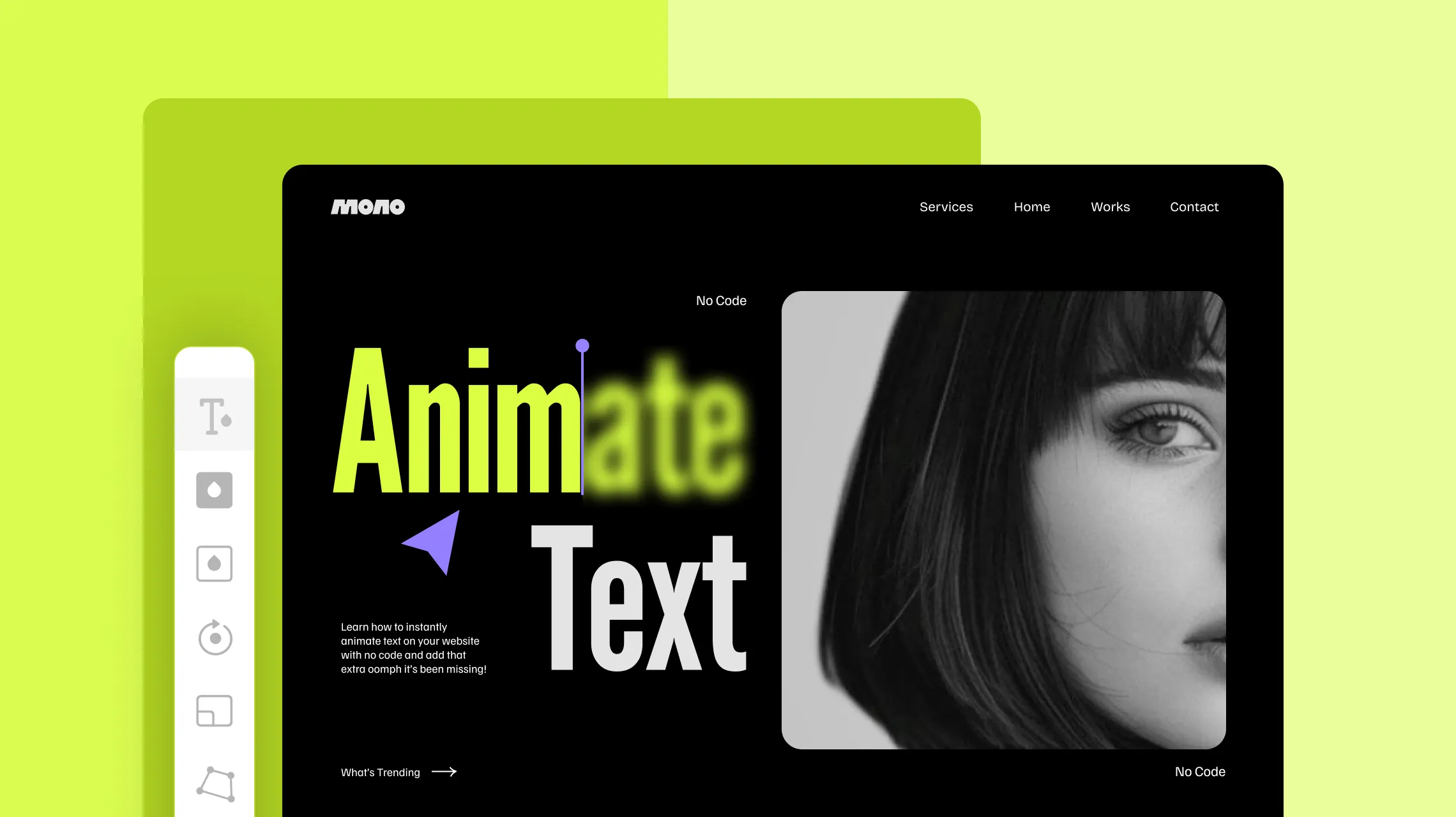
Text animation in videos plays a vital role in enhancing the visual appeal and communicative effectiveness of digital content. It involves applying motion effects to textual elements, transforming static words into dynamic components that capture viewer attention and reinforce the message. As video content increasingly dominates social media, marketing, education, and entertainment platforms, the significance of animated text continues to grow.
Animated text contributes to creating engaging narratives, emphasizing key points, and improving overall viewer retention. It can be used creatively to introduce topics, display quotes, or highlight important data points, making the content more memorable. With the advancement of various tools and software, creators now have access to intuitive options that facilitate professional-quality text animations suitable for different skill levels.
Common use cases for animated text in videos
Animated text finds application across numerous video genres and formats, each aiming to boost viewer engagement through visual interest and clarity. Here are some typical scenarios:
- Marketing videos: Using animated headlines and calls-to-action to attract attention and drive viewer interaction.
- Educational content: Highlighting key concepts, definitions, or steps within tutorials to enhance understanding and retention.
- Social media clips: Creating eye-catching captions or quote animations that increase shareability and reach.
- Presentations and corporate videos: Adding animated titles and bullet points to maintain audience focus and convey professionalism.
- Entertainment and storytelling: Incorporating animated credits or stylized text effects to complement the narrative and artistic vision.
In each case, animated text serves to direct viewer attention, emphasize important information, and improve overall engagement by making the visual experience more dynamic.
Tools and software suitable for text animation
The selection of appropriate tools is crucial for achieving desired text animation effects, whether for beginners or professional creators. The landscape offers a variety of software options tailored to different needs and skill levels:
| Tool/Software | Features | Suitable For |
|---|---|---|
| Adobe After Effects | Advanced motion graphics, customizable animations, extensive plugin support | Professional editors, motion graphic designers |
| Adobe Premiere Pro | Integrated text animation presets, keyframe control, seamless editing workflow | Video editors seeking streamlined integration |
| Final Cut Pro | Built-in titles with animation options, user-friendly timeline-based editing | Mac users, professional editors |
| Davinci Resolve | Advanced color grading combined with text effects, free version available | Creative professionals on a budget |
| Canva | Intuitive interface, pre-designed animated text templates, suitable for quick projects | Beginners, social media content creators |
| Powtoon and Animaker | Web-based platforms with drag-and-drop interfaces, animated text templates | Educators, marketers, non-professional users |
“Choosing the right tool depends on the project’s complexity, desired effects, and user proficiency, ensuring the creation of compelling animated text that aligns with the overall video goal.”
Basic Concepts of Text Animation
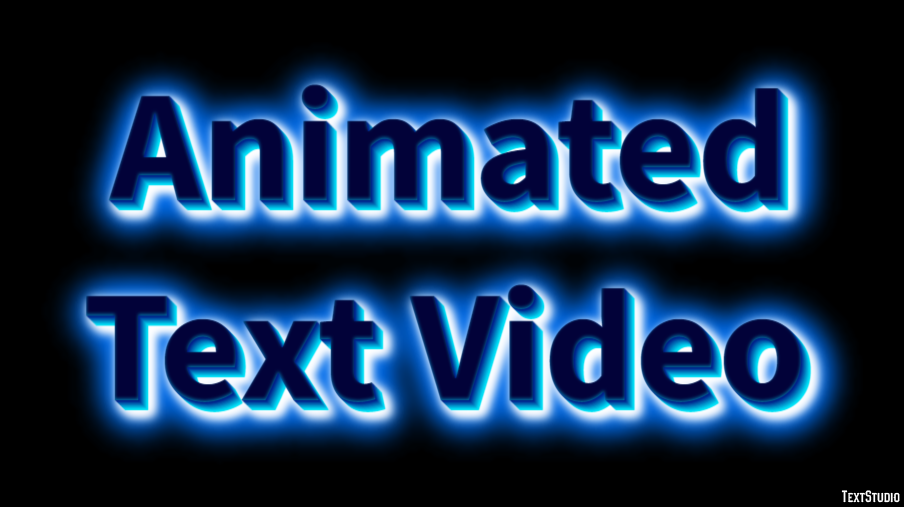
Understanding the fundamental elements of text animation is essential for creating engaging and visually appealing videos. These core concepts form the foundation upon which more complex animations are built, enabling creators to effectively communicate messages and enhance viewer experience.
Key terms such as keyframes, easing, and motion paths are integral to the animation process. They define how text elements transition from one state to another, the pacing of these transitions, and the movement trajectory. Familiarity with these concepts allows for precise control and customization of animation effects, fostering creativity and technical proficiency.
Key Terms in Text Animation
Comprehending essential animation terminology helps in understanding the mechanics behind animated effects and their implementation within editing software. These terms serve as the building blocks for designing smooth, natural, and compelling text animations.
Keyframes: Specific points in time that mark the beginning, intermediate, or end of an animation, dictating the change in properties such as position, opacity, or size. Easing: The adjustment of the animation speed over time, creating more natural movement. Easing functions determine how the animation accelerates or decelerates between keyframes. Motion Paths: Defined trajectories that dictate how a text element moves across the screen during an animation, allowing for complex and dynamic motion effects.
Types of Text Animations
Different animation effects serve various aesthetic and communicative purposes, each capable of emphasizing text or creating a specific visual tone. Recognizing the characteristics of each type allows creators to select the most suitable animation style for their project.
- Fade: Gradually changing the opacity of text from transparent to opaque or vice versa, often used for smooth entrances or exits.
- Slide: Moving text horizontally or vertically across the screen, giving the impression of movement or transition between scenes.
- Bounce: Creating a bouncing effect where the text appears to spring into view or bounce on impact, adding energy and playfulness.
- Rotate: Spinning or tilting text around a pivot point, which can emphasize emphasis or add dynamic motion.
- Scale: Increasing or decreasing the size of text to create zoom effects, often used for highlighting or emphasizing key points.
Comparison of Animation Effects
Understanding the visual and functional differences between various text animation effects aids in selecting the most appropriate style for specific contexts. Below is a comparison chart describing each effect’s visual style, typical use cases, and impact on viewer engagement.
| Effect | Description | Visual Description | Common Use Cases |
|---|---|---|---|
| Fade | Transitions text from transparent to visible or vice versa. | The text gradually appears or disappears, creating a smooth, seamless transition. | Introductory titles, hiding information, subtle emphasis. |
| Slide | Moves text along a straight path across the screen. | Text slides in from off-screen, moves horizontally or vertically, often with a smooth motion. | Scene transitions, emphasizing movement, dynamic headlines. |
| Bounce | Simulates a bouncing motion as text appears or exits. | Text drops or springs into view, with a slight overshoot and rebound effect. | Energetic titles, playful branding, attention-grabbing captions. |
| Rotate | Spins or tilts text around a pivot point. | Text rotates around its center or edge, can be a full spin or partial tilt. | Highlighting, visual interest during transitions, logo reveal effects. |
| Scale | Changes the size of text, creating zoom effects. | Text enlarges or shrinks, often combined with other effects for emphasis. | Key points emphasis, animated titles, attention cues. |
Choosing the appropriate text animation involves considering the message’s tone, the desired visual impact, and the overall style of the video. Combining multiple effects can also create complex and engaging animations that captivate viewers.
Choosing the Right Software or Tools for Text Animation
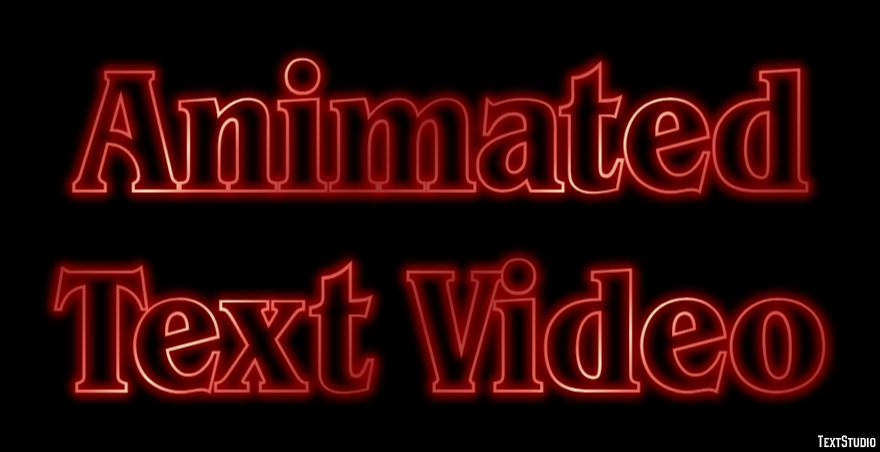
Selecting appropriate software for text animation plays a crucial role in achieving professional and engaging video content. The choice of tools depends on various factors, including the user’s skill level, project complexity, budget constraints, and the specific features required to bring creative ideas to life. Understanding the strengths and limitations of available options ensures that creators can work efficiently and produce high-quality animations tailored to their needs.
In this section, we explore some of the most popular video editing and motion graphics programs suitable for text animation. Additionally, we will Artikel key criteria to consider when choosing the right tools, helping users make informed decisions that align with their project goals and expertise level.
Popular Video Editing and Motion Graphics Programs
There are numerous software options available for text animation, ranging from beginner-friendly tools to professional-grade applications. Here are some of the most widely used programs in the industry:
- Adobe After Effects: Industry-standard for motion graphics and visual effects, offering extensive features for advanced text animations and creative effects.
- Adobe Premiere Pro: Professional video editing software with integrated basic text animation capabilities suitable for editors familiar with Adobe ecosystem.
- Canva: An accessible online tool ideal for beginners, providing pre-designed templates and simple animation options for quick projects.
- CapCut: A mobile-friendly video editing app with user-friendly interface and basic text animation features, popular among content creators on social media platforms.
Criteria for Selecting Appropriate Tools
Choosing the optimal software involves evaluating various factors aligned with the user’s skill level and project requirements. The following criteria serve as a guide for making an informed selection:
- Skill Level: Beginners should opt for intuitive, user-friendly programs with templates and guided features, such as Canva or CapCut. Experienced users may prefer more advanced tools like After Effects or Premiere Pro for greater customization and control.
- Project Complexity: Simple text animations for social media can be achieved with basic tools, while complex, multi-layered animations necessitate professional software with advanced capabilities.
- Budget Constraints: Free or affordable options like Canva and CapCut are suitable for small-scale projects or learners, whereas subscription-based professional software may be necessary for high-end productions.
- Platform Compatibility: Consider whether the software runs on your operating system (Windows, macOS, mobile devices) and supports collaborative workflows if needed.
- Available Resources and Support: Evaluate the availability of tutorials, community support, and documentation to facilitate learning and troubleshooting.
Comparison Table of Text Animation Tools
Below is a comparative overview of popular software options, highlighting their key features, costs, and usability aspects. This table aims to assist users in selecting tools that best match their project scope and skill set.
| Software | Features | Cost | Usability |
|---|---|---|---|
| Adobe After Effects | Advanced motion graphics, extensive animation controls, plugin support, professional templates | Subscription-based (approx. $20.99/month as part of Adobe Creative Cloud) | Steep learning curve, suitable for experienced users and professionals |
| Adobe Premiere Pro | Comprehensive video editing, basic to moderate text animations, seamless Adobe ecosystem integration | Subscription-based (approx. $20.99/month) | Moderate; suitable for users with prior editing experience |
| Canva | Pre-designed templates, simple drag-and-drop interface, basic animation effects | Free version available; Pro plans start at $12.99/month | Highly user-friendly; ideal for beginners and quick projects |
| CapCut | Mobile app with basic text effects, transitions, and filters, easy sharing options | Free | Very accessible; best for social media content creators with limited editing experience |
Careful assessment of software features, costs, and usability ensures efficient workflows and high-quality outputs tailored to project needs.
Step-by-step procedure for animating text
Creating animated text in videos involves a systematic approach that ensures professional and visually appealing results. By following a structured process, you can effectively bring your text elements to life, enhancing the overall impact of your video projects. This section provides a detailed guide to animate text using industry-standard software, such as Adobe After Effects, including setting keyframes, adjusting timing, and applying effects to achieve desired animations.
Understanding each step in the animation workflow allows for greater precision and creativity, whether you aim for simple fade-ins or complex motion graphics. The following process is designed to help both beginners and experienced editors produce compelling animated text sequences that align with their creative vision.
Preparing the Composition and Text Layer
Begin by creating or opening your existing video project within your chosen software. Set the composition parameters such as resolution, frame rate, and duration to match your final output requirements. Insert a new text layer into the composition and type the desired text, ensuring it is positioned correctly within the frame. Adjust font style, size, color, and alignment to suit your design aesthetic.
Setting Initial Keyframes and Animation Path
Animation starts with defining the starting point of your text. Select the text layer and access the transform properties, including Position, Scale, Rotation, and Opacity. For instance, to animate a fade-in effect, set the Opacity to 0% at the starting point in the timeline and create a keyframe. Move the timeline cursor forward to the desired time when the effect should complete, then increase Opacity to 100%, automatically creating a second keyframe.
Repeat this process for other properties to craft complex motion paths, such as moving text from one side of the screen to another.
Adjusting Timing and Easing
Precise timing is crucial for natural and professional animations. Fine-tune the placement of keyframes along the timeline to control the speed of the animation. Utilize easing options like Easy Ease (or similar) to smooth out the motion transitions, making movements appear more fluid and organic. Easing adjusts the acceleration and deceleration of the animation, avoiding abrupt changes that can detract from visual quality.
For example, a text fade-in with easing can appear more gradual and less mechanical.
Applying Effects and Enhancements
Enhance your text animation by applying preset effects or customizing your own. Effects such as shadows, glows, or 3D rotations can add depth and emphasis. Use the effects panel to modify parameters and incorporate additional keyframes to animate these effects over time. For example, adding a glow can make text stand out, while a subtle Rotate animation can introduce dynamic movement.
Combining multiple effects and animations can produce sophisticated and captivating text sequences.
Previewing and Fine-tuning the Animation
Regularly preview your animation by playing back the timeline to evaluate the flow and timing. Make necessary adjustments to keyframe positions, easing, and effect parameters to improve the overall appearance. Use RAM preview features to get an accurate depiction of the final output. Refining the timing and effects ensures that the animated text aligns perfectly with your project’s rhythm and style.
Rendering the Final Animation
Once satisfied with the animated text, proceed to render the composition. Choose appropriate output settings such as format, codec, and resolution to preserve quality. Render the project and review the final video to verify that the animation plays smoothly and meets your expectations. Proper rendering guarantees high-quality delivery for your video presentations or social media content.
Creating animated text involves careful planning and precise execution of keyframes, timing, and effects to produce professional and engaging visuals.
| Step | Description | Key Actions |
|---|---|---|
| 1. Prepare Composition | Set up project parameters and insert text layer | Create composition, add text, style text |
| 2. Set Initial Keyframes | Define start state for animation properties | Position, Opacity, Scale, Rotation |
| 3. Animate Properties | Adjust keyframes to create motion and effects | Move timeline, set keyframes, modify values |
| 4. Fine-tune Timing and Easing | Refine animation flow for smoothness | Use easing options, adjust keyframe placement |
| 5. Apply Effects | Add visual enhancements to the text | Shadow, glow, 3D effects, custom effects |
| 6. Preview and Adjust | Review animation and make improvements | RAM preview, tweak keyframes and effects |
| 7. Render Final Output | Export the animated text video | Set output format, render, review |
Techniques for Advanced Text Animations
Implementing advanced text animation techniques enhances the visual appeal of videos by creating dynamic and engaging effects that capture viewer attention. Mastering these techniques allows for more creative freedom and professional-quality results, especially when multiple effects are combined or when workflow efficiency is prioritized through templates and presets.
Advanced text animations go beyond basic movements and transitions, enabling the creation of complex sequences that can evoke emotion, emphasize key points, or seamlessly integrate with other visual elements. These techniques involve combining effects like fades, slides, rotations, scaling, and motion presets, which can be customized and layered to produce unique animations tailored to specific project needs.
Combining Multiple Effects for Richer Animations
Combining effects such as fade-ins with slide transitions or scaling with rotations can produce more compelling and sophisticated animations. When effects are layered thoughtfully, they can create fluid motion that captures attention and guides the viewer’s focus effectively. For example, an animated headline might fade in gradually while sliding from the side, giving a sense of emergence and prominence.
The key to successful effect combination lies in understanding the timing and easing options available within your animation software. Synchronizing effects ensures smooth transitions and prevents visual clutter. Experimenting with different durations and easing curves can produce natural and engaging motion sequences.
Utilizing Motion Presets and Templates
Motion presets and templates are valuable tools for accelerating workflow and maintaining consistency across projects. Many professional animation and video editing software packages provide a library of pre-designed motion effects that can be applied instantly to text elements. These presets often include combinations of transforms, opacity changes, and timing adjustments, allowing users to implement complex animations without starting from scratch.
Templates serve as comprehensive frameworks that can be customized to match branding or stylistic preferences. By leveraging these resources, editors can save time, ensure visual coherence, and focus more on creative refinement rather than technical setup. For example, a template might include a sequence where text dynamically appears with a bounce effect, then transitions into a fade-out, which can be reused and adapted for multiple projects.
Example Sequences with Descriptions
| Sequence Name | Description |
|---|---|
| Fade-In with Slide | The text gradually appears while sliding in from the left, creating a smooth entrance that attracts attention without abruptness. |
| Zoom and Rotate | The text scales up from a smaller size while rotating slightly, emphasizing importance or transition within the video. |
| Typewriter Effect with Fade | Letters are revealed sequentially as if typed out, with each letter fading in, ideal for introductions or dramatic reveals. |
| Pop-up and Dissolve | The text quickly pops onto the screen with a bounce or scale effect, then dissolves or fades out, suitable for quick updates or highlights. |
| Continuous Loop Effect | Text loops through effects such as color change, movement, or scaling, creating a dynamic, animated background or emphasis element. |
By combining these effects thoughtfully, creators can craft engaging sequences that elevate the overall production quality and viewer experience, making advanced text animations an invaluable component of professional video editing.
Customizing Animated Text for Branding and Style
Effective text animation not only enhances visual appeal but also reinforces brand identity and stylistic consistency across videos. Customization plays a vital role in ensuring that animated text aligns seamlessly with your overall branding strategy. By tailoring animations to reflect your unique visual identity, you create a cohesive viewer experience that strengthens brand recognition and credibility.When customizing animated text for branding and style, it is essential to incorporate your brand’s core visual elements—such as colors, fonts, and stylistic motifs—into every aspect of the animation process.
This integration ensures that your content remains consistent and professional, regardless of the platform or project. Proper customization also allows you to evoke the right emotional response from your audience, whether it’s excitement, trust, or professionalism.
Incorporating Brand Colors, Fonts, and Styles into Animations
Achieving a unified brand presence in animated text begins with the deliberate selection and application of visual elements that represent your brand identity. Start by defining your brand’s primary and secondary color palettes, ensuring these colors are used consistently in your text animations. For example, if your brand’s signature color is navy blue, use it for all headline or emphasis animations to maintain cohesion.Choosing the right fonts is equally important.
Opt for typography that aligns with your brand’s tone—whether it’s modern and minimalistic or classic and elegant. When animating text, apply your chosen fonts in a way that highlights their personality, such as subtle fade-ins for a professional look or bold slide-ins for energetic branding. Incorporate stylistic effects like shadows, Artikels, or textures that match your brand’s aesthetic to create a cohesive visual experience.To effectively embed these elements into animations, use the software’s style settings or create custom presets that can be applied across multiple projects.
This method saves time and ensures consistent application of your brand’s visual language.
Creating Reusable Animated Text Templates
Developing reusable templates is a strategic approach to streamline your workflow and maintain consistency across various videos. Begin by designing a core animated text layout that includes your selected fonts, colors, and style effects. Save this as a template within your animation software, enabling quick replication and customization for future projects.When creating templates, consider including placeholder text, so you can easily swap out messaging while preserving the animation style.
Define key animation parameters—such as entrance and exit effects, timing, and easing—once, and apply them uniformly across all templates. This approach ensures brand consistency and reduces repetitive setup time.Additionally, maintain a library of templates tailored for specific content types—such as intros, outros, or call-to-action segments—so that your team can efficiently produce cohesive videos with minimal adjustments. Regularly update and refine these templates to reflect evolving brand guidelines and aesthetic preferences.
Best Practices for Maintaining Consistency Across Videos
Consistency in animated text enhances brand recognition and provides a professional appearance. Implementing best practices ensures your visual messaging remains uniform across diverse video projects. Consider the following guidelines:
- Establish and adhere to a comprehensive brand style guide that details color schemes, fonts, animation styles, and effects.
- Create and utilize a set of standardized templates and presets aligned with your brand identity.
- Apply the same animation timing and transition effects across all videos to maintain a cohesive flow.
- Use a consistent placement and sizing for key textual elements, such as titles and credits, to unify visual structure.
- Regularly review and update your branding assets and templates to incorporate new branding developments or aesthetic trends.
- Train content creators and editors on brand guidelines and software best practices to ensure uniform application.
Maintaining brand consistency in animated texts not only improves viewer experience but also reinforces your brand’s professional image, making your content more memorable and impactful.
Exporting and Integrating Animated Text into Videos
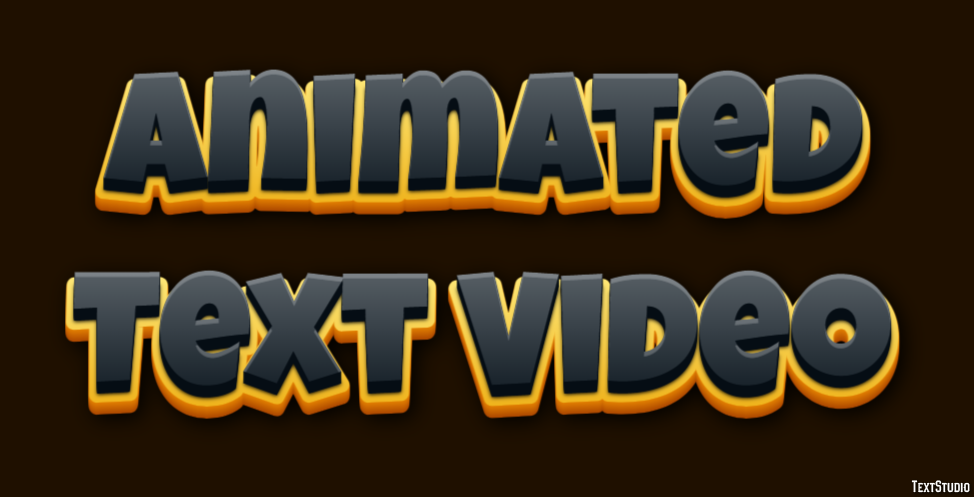
Effective exporting and seamless integration of animated text into video projects are essential steps to ensure that your creative efforts translate into polished, professional content. Properly exporting your animated text as overlays or standalone clips allows for greater flexibility during editing and ensures compatibility across various platforms. The process involves selecting appropriate file formats, resolutions, and export settings tailored to your distribution channels to maintain visual quality and performance.
This segment guides you through the critical steps to optimize your animated text assets for flawless integration into your final videos.Exporting animated text involves converting your project into formats suitable for overlaying onto video footage or combining as separate clips. Once the animation is complete, it’s crucial to choose export settings that preserve the quality and transparency of your animated text.
Common formats include PNG sequences, MOV with alpha channel, or WebM, depending on the software and target platform. Exporting as a separate clip is especially beneficial when you need to layer animated text over diverse backgrounds or when you plan to reuse animations across multiple projects.
Steps for Exporting Animated Text as Overlays or Separate Clips
To ensure a high-quality export suitable for various editing workflows, follow these detailed steps:
- Finalize your animated text within your editing or motion graphics software, ensuring all keyframes and effects are correctly applied.
- Choose the export option that allows for transparency, such as MOV with Alpha channel or PNG image sequences. Transparency preserves the animated text overlay without a background, enabling seamless compositing.
- Set the resolution and frame rate to match your project’s specifications. For example, if your main video is 1080p at 30fps, export your text animation accordingly to ensure consistency.
- Select the appropriate file format based on your needs and platform compatibility. MOV or WebM formats are common for overlays, while MP4 may be used if transparency is not required.
- Configure the export settings to optimize quality versus file size. Use lossless compression if maintaining maximum quality is essential, especially for professional projects.
- Initiate the export process and save your files in an organized manner, labeling them clearly for easy identification during the editing phase.
Tips for Seamless Integration into Video Projects
Integrating animated text smoothly into your videos requires attention to detail and compatibility considerations. Here are key tips to achieve professional results:
- Maintain consistency in resolution and aspect ratio between your animated text files and your main video footage to prevent scaling artifacts or black bars.
- Use editing software that supports alpha channels and layered compositing, such as Adobe Premiere Pro, Final Cut Pro, or DaVinci Resolve, to overlay transparent animated text clips effectively.
- Place your animated text clips on a dedicated track above your video layer to ensure proper visibility and control during editing.
- Adjust timing and positioning precisely within your editing timeline to synchronize with other visual elements or audio cues.
- Apply color grading or blending modes if necessary to match the animated text with the overall aesthetic or branding style of your video.
Optimizing File Formats and Resolutions for Different Platforms
Choosing the right file format and resolution is vital for ensuring your animated text appears crisp and loads efficiently across various platforms such as social media, television, or web streaming. Different platforms have specific requirements and best practices:
| Platform | Recommended Format | Resolution | Additional Considerations |
|---|---|---|---|
| YouTube and Web Videos | MP4 (H.264), MOV | 1920×1080 (Full HD) or 1280×720 (HD) | Balance quality and file size; prioritize standard aspect ratios like 16:9 |
| Social Media (Instagram, TikTok) | MP4 (H.264), WebM | Resolution varies; common sizes include 1080×1080 for square posts or 1080×1920 for stories | Optimize for vertical or square formats; keep file size under platform limits |
| Broadcast and Professional Displays | MOV with alpha or ProRes formats | 1920×1080 or higher for 4K content | Ensure colors are broadcast-compliant; use high-quality codecs |
“Properly optimized files ensure your animated text remains visually appealing and loads quickly, regardless of the platform.”
By carefully selecting formats and resolutions tailored to your distribution channels, you can guarantee that your animated text enhances your overall video quality and viewer engagement effectively.
Troubleshooting Common Issues in Text Animation
Animating text within videos can significantly enhance visual appeal and viewer engagement. However, various issues may arise during the process that can hinder the quality and effectiveness of the final product. Identifying and resolving these common problems ensures a seamless animation experience and professional-looking results. This section provides practical solutions and best practices to troubleshoot frequent text animation issues efficiently.Text animation problems can stem from software limitations, hardware performance, or incorrect settings.
Being aware of these issues and implementing targeted solutions can save time and improve output quality. Whether experiencing lag, misalignment, or quality loss, understanding their causes allows for more effective troubleshooting and smoother workflows.
Frequent Problems and Their Solutions
Below are some of the most common issues encountered during text animation, along with recommended strategies for resolution:
- Lag or Slow Rendering: When animations lag or render slowly, it often results from high computational demands or insufficient hardware resources. To address this, consider lowering the resolution of the project, reducing the number of effects applied simultaneously, or upgrading hardware components such as RAM and GPU. Additionally, optimizing project files by removing unused assets can improve performance.
- Misalignment or Inconsistent Positioning: Misaligned text can detract from the professional appearance of animations.
Ensuring consistent anchor points and using grid or snap tools within the software helps maintain accurate positioning. Regularly preview animations at different stages to catch misalignments early. Applying guides and rulers can also assist in precise placement.
- Loss of Quality or Pixelation: Text may become pixelated or lose clarity when exported at lower resolutions or improper settings. To prevent this, always work at a high resolution suitable for your output medium (e.g., 1080p or higher for HD videos).
When exporting, select lossless or high-quality codecs and formats. Avoid compressing the video excessively, which can compromise text clarity.
- Text Not Displaying or Vanishing Unexpectedly: Sometimes, text may disappear during animation due to incorrect keyframe settings or layer visibility toggles. Verify that keyframes are properly set for opacity, position, and other properties. Ensure that layer visibility is enabled throughout the timeline segment where the text should appear.
Using pre-compositions or nested sequences can help manage complex animations effectively.
- Timing and Synchronization Issues: Text animations may be out of sync with audio or other visual elements. Use the timeline’s snapping feature and carefully align keyframes to beat markers or audio cues. Utilizing markers on the timeline can also facilitate precise synchronization. Testing animations repeatedly and adjusting keyframe placement ensures cohesive timing.
“Inconsistent settings, insufficient hardware, or overlooked keyframes are typical sources of animation glitches. Regularly previewing your project and maintaining organized timelines are essential for troubleshooting.”
Applying these troubleshooting tips consistently will help you identify and resolve common issues efficiently, resulting in smoother, more polished text animations that enhance your overall video presentation.
Ultimate Conclusion
Mastering how to animate text in video empowers you to produce dynamic and engaging content that resonates with your audience. By applying the right techniques and tools, you can elevate your videos with seamless, impactful animations that leave a lasting impression.