Understanding how to add subtitles to a video is essential for enhancing viewer engagement and accessibility. Subtitles improve comprehension for a diverse audience, including those with hearing impairments or language barriers. Incorporating subtitles can also boost your video’s reach across various platforms by ensuring consistent viewing experiences.
This guide explores different methods, formats, and best practices for adding subtitles to videos. Whether you are editing your videos with professional software or uploading subtitle files online, you’ll find comprehensive information to help you achieve clear and synchronized subtitles effectively.
Overview of Adding Subtitles to Videos
Implementing subtitles in videos has become an essential aspect of modern content creation and distribution. Subtitles serve multiple functions, from enhancing accessibility for viewers with hearing impairments to improving comprehension in noisy environments or when watching content in a foreign language. They also play a vital role in expanding the reach of videos across diverse audiences and platforms. Whether for entertainment, educational purposes, or corporate communication, subtitles significantly contribute to a more inclusive and engaging viewing experience.
Adding subtitles involves various methods that cater to different needs and technical skill levels. Common approaches include manually creating subtitle files using dedicated software, generating automatic subtitles through speech recognition technology, or embedding subtitles directly into the video during editing. Each method offers unique advantages, such as ease of use, accuracy, or permanence, and can be selected based on the video’s purpose and the creator’s resources.
Understanding these options enables content creators to choose the most suitable approach for their specific context.
Benefits of Adding Subtitles
Subtitles improve accessibility by allowing viewers with hearing impairments to understand the content, thereby promoting inclusivity. They also aid comprehension for non-native speakers who may struggle with spoken language, making videos more understandable across linguistic barriers. Additionally, subtitles enhance the viewer’s experience by providing context during noisy environments, such as public transport or busy workplaces, where audio may be difficult to hear.
They can also improve user engagement and retention, as viewers are more likely to stay engaged with content that is clear and easy to follow.
Scenarios Where Subtitles Enhance Viewer Experience
Various contexts demonstrate the importance of subtitles. Educational videos and tutorials benefit from subtitles by ensuring learners grasp information accurately, including complex terminology or fast speech. Marketing videos and advertisements reach wider audiences with subtitles, especially on social media platforms, where viewers often watch videos without sound. Films and television shows are increasingly adopting subtitles to appeal to international audiences and comply with accessibility standards.
Moreover, in environments where sound is restricted or unavailable, subtitles ensure that critical information is not lost, maintaining the video’s effectiveness.
Common Methods for Subtitle Integration
Several techniques are widely used to incorporate subtitles into videos, each suited for different needs and technical expertise. These include:
| Method | Description | Advantages |
|---|---|---|
| Manual Subtitle Creation | Using dedicated software like Subtitle Edit or Aegisub to create subtitle files (e.g., SRT, ASS) manually, synchronizing text with audio. | High accuracy and control over timing and formatting. |
| Automatic Subtitle Generation | Utilizing speech recognition tools integrated into platforms like YouTube or dedicated software to generate subtitles automatically. | Rapid production; useful for initial drafts or large volumes of content. |
| Embedded Subtitles | During video editing, subtitles are permanently integrated into the video stream using editing software like Adobe Premiere Pro or Final Cut Pro. | Ensures subtitles are always displayed; suitable for distribution where editing is possible. |
| Hybrid Approaches | Combining automatic transcription with manual correction for improved accuracy, then embedding subtitles into the video. | Balances efficiency and precision, ideal for professional content. |
Each method offers distinct benefits and can be selected based on factors such as project scope, desired quality, and available resources. By understanding these options, content creators can effectively enhance their videos with subtitles, thereby expanding accessibility and viewer engagement.
Preparing Subtitle Files
Creating accurate and well-structured subtitle files is essential for ensuring that viewers can easily follow the content of a video. Proper preparation involves understanding the formats, synchronization techniques, and editing practices that contribute to seamless subtitle integration. Whether starting from scratch or refining existing files, a systematic approach enhances readability and viewer engagement.
In this section, we explore the step-by-step process of manually creating subtitle files using text editors, methods to synchronize subtitles with video timing, guidelines for editing existing subtitle data, and a comprehensive overview of common features and issues faced in subtitle file management.
Creating Subtitle Files Manually
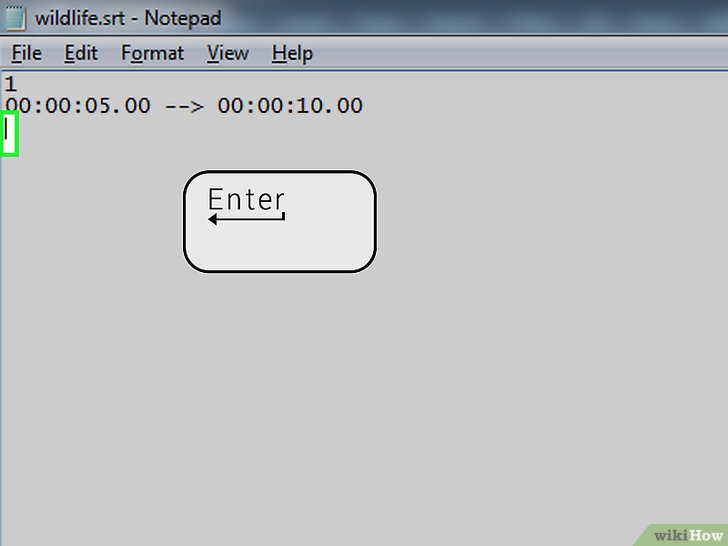
Manually creating subtitle files requires careful attention to timing, formatting, and content accuracy. Text editors such as Notepad++ or Sublime Text are commonly used because they provide a simple interface for editing plain text files. Here are the primary steps involved:
- Open a text editor and create a new document.
- Choose the appropriate subtitle format, such as SubRip Subtitle (SRT) or WebVTT, which are widely supported across media players.
- Begin by numbering each subtitle entry sequentially, starting from 1.
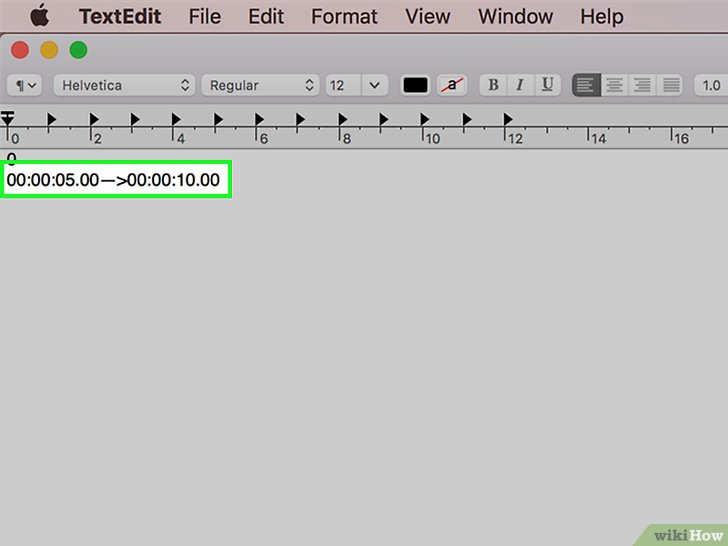
- Input the time codes for each subtitle, indicating the exact moments when the text appears and disappears. Use the format
hours:minutes:seconds,milliseconds
.
- Write the subtitle text, keeping sentences clear and concise for readability.
- Repeat the process for all video segments, ensuring proper sequencing and timing.
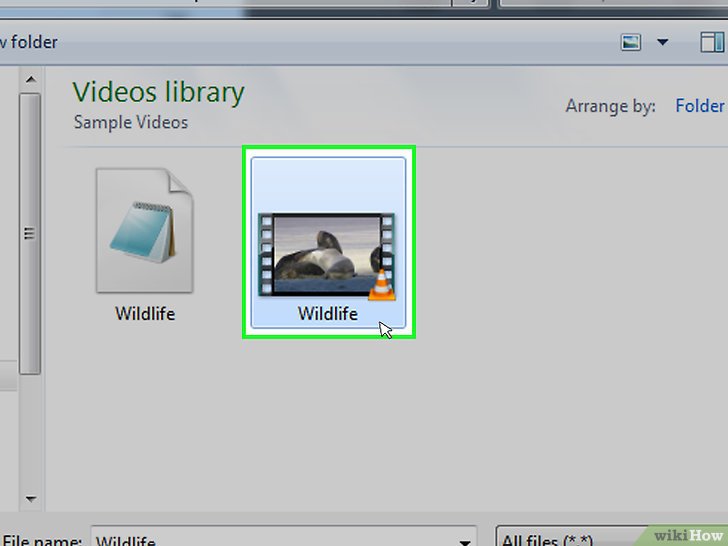
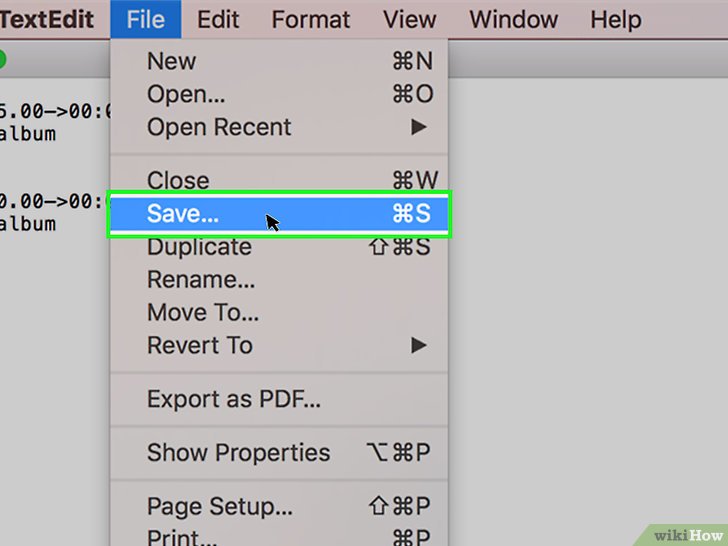
- Save the file with the correct extension (.srt or .vtt).
For example, a sample subtitle entry in an SRT file looks like this:
- :00:05,000 –> 00:00:07,000
Welcome to the tutorial on adding subtitles.
Synchronizing Subtitles with Video Timing
Accurate synchronization ensures that subtitles appear precisely when the spoken words are delivered, enhancing comprehension and viewer experience. To achieve this, consider the following practices:
- Use media players with timeline controls to identify exact start and end points for each dialogue segment.
- Adjust the timing in the subtitle file accordingly, paying close attention to milliseconds for precision.
- Leverage subtitle editing tools like Subtitle Edit or Aegisub that allow real-time preview and fine-tuning of timings with the video.
- Verify synchronization by playing the video and reviewing whether subtitles align correctly with audio cues.
- Iterate adjustments to minimize lag or early appearances, aiming for natural reading flow.
Consistent synchronization involves meticulous checking, especially in videos with rapid dialogue or background noise. Employing visual markers and key audio moments can facilitate more precise alignment.
Editing Existing Subtitle Files for Accuracy
Refining existing subtitle files enhances clarity, corrects errors, and ensures compatibility across devices. To effectively edit subtitles:
- Review the entire subtitle file for typos, grammatical errors, and misalignments.
- Update timing if the subtitles are out of sync due to video edits or playback issues.
- Use specialized editing software that highlights timing discrepancies and offers easy navigation between subtitle segments.
- Maintain consistent formatting and style, such as capitalization, punctuation, and line length.
- Test the edited subtitles with the corresponding video to confirm improvements in accuracy and synchronization.
| Subtitle Format Features | Editing Tools | Common Issues | Solutions |
|---|---|---|---|
| SubRip Subtitle (.srt) | Subtitle Edit, Aegisub, Notepad++ | Timing errors, formatting inconsistencies | Use preview functions, validate with media players |
| WebVTT (.vtt) | VTT Editor, Subtitle Workshop | Incorrect syntax, non-standard tags | Validate with online validators, follow syntax rules |
| Advanced features (e.g., styling, positioning) | Final Subtitler, Jubler | Display issues on some players | Test across platforms, adhere to format specifications |
| Plain text (.txt) | Any text editor | Loss of timing, formatting issues | Convert to proper subtitle format, maintain structure |
Methods to Add Subtitles to Videos
Adding subtitles to videos enhances accessibility and viewer engagement. There are multiple ways to incorporate subtitles, each suited to different needs such as permanence, flexibility, or platform requirements. This section explores the primary methods for embedding or overlaying subtitles using software tools and online platforms, providing detailed procedures and considerations for each approach.Subtitles can be integrated into video content either through permanent embedding, which becomes part of the video file, or via overlay methods that allow for easier editing and customization.
The choice depends on the intended use, distribution method, and whether future edits are expected.
Embedding Subtitles Directly into Video Files
Embedding subtitles directly involves permanently burning subtitle data into the video stream, making them an inseparable part of the video file. Popular tools like HandBrake, FFmpeg, and VLC facilitate this process with straightforward procedures.
- Using HandBrake: Open HandBrake and load your video file. Navigate to the “Subtitles” tab. Click “Add Track” and select your subtitle file (usually .srt). Choose “Burn In” to embed the subtitles directly. Select the output format and click “Start Encode” to produce a video with embedded subtitles.
This method ensures subtitles are always visible and synchronized, but the process is irreversible.
- Using FFmpeg: FFmpeg is a command-line tool that offers powerful options for embedding subtitles. A typical command might look like:
ffmpeg -i input.mp4 -vf “subtitles=subtitle.srt” output.mp4
This command overlays the subtitles onto the video, creating a new file where subtitles are part of the video stream. It provides precise control over the embedding process but requires familiarity with command-line operations.
- Using VLC Media Player: VLC allows for embedding subtitles by converting videos with added subtitle tracks. Open VLC, go to “Media” > “Convert/Save,” add the video file, select “Add Subtitle File,” and then choose “Convert.” In the conversion options, select the profile that includes subtitles, and start the process. This method is suitable for quick embedding without specialized software.
Overlaying Subtitles Without Permanent Embedding
Overlay methods involve adding subtitles during playback without altering the original video file. This approach offers flexibility, as subtitles can be toggled on or off, and different subtitle tracks can be used interchangeably.
- Using VLC Media Player: Load your video, then go to “Subtitle” > “Add Subtitle File” and select your .srt file. The subtitles will appear during playback. This method allows easy switching between different subtitle tracks or removing them without modifying the video file.
- Utilizing Media Players Supporting External Subtitles: Many screens or media players (like PotPlayer or MX Player) support loading external subtitle files dynamically. This flexibility is ideal for multilingual audiences or when subtitles need to be updated frequently.
- Online Streaming Platforms: Platforms like YouTube or Vimeo support uploading separate subtitle files, which users can toggle on or off during viewing. This method preserves the original video quality and allows for easy updates or translations without re-uploading the entire video.
Uploading Subtitle Files to Online Platforms
Many online video platforms support separate subtitle or caption files, making it easier to manage multiple languages or update subtitles independently of the video content.
- YouTube: After uploading your video, access the YouTube Studio dashboard. Navigate to “Subtitles,” select your video, and click “Add Language” or “Add Subtitles.” You can upload subtitle files in formats like .srt or .txt. YouTube also provides an automatic captioning feature, which can be edited for accuracy. This method ensures subtitles are synchronized and accessible across devices.
- Vimeo: Upload your video, then open the video settings. Under the “Advanced” or “Distribution” sections, locate the subtitle options. Upload your subtitle files in supported formats, and specify the language. Vimeo allows viewers to toggle subtitles during playback, offering a user-friendly experience.
Uploading subtitle files to online platforms offers the advantage of flexibility; subtitles can be added, edited, or removed without altering the original video. However, it requires proper synchronization and formatting to ensure compatibility and seamless viewing experience.
Summary of Methods with Advantages and Limitations
Understanding the distinct advantages and limitations of each method helps in choosing the most appropriate approach based on project requirements.
| Method | Advantages | Limitations |
|---|---|---|
| Embedding via HandBrake/FFmpeg/VLC |
|
|
| Overlay via Players and Online Platforms |
|
|
Using Video Editing Software for Subtitles
Adding subtitles directly within professional video editing software offers precise control over the appearance and timing of your subtitles, ensuring a polished final product. Popular editing tools like Adobe Premiere Pro, Final Cut Pro, and DaVinci Resolve are widely used for their robust features that facilitate seamless subtitle integration. Utilizing these platforms not only improves the visual quality but also streamlines the workflow for creators aiming for high-quality, accessible videos.
In this section, we explore how to efficiently import, customize, and export subtitles using these leading editing tools, along with key features to consider when selecting software for subtitle management.
Importing Subtitle Files and Adjusting Subtitle Appearance
Importing subtitle files into video editing software is a fundamental step to synchronize text with your video content. Typically, these programs support various subtitle formats such as SRT, VTT, or SSA. Once imported, you can adjust the appearance of your subtitles to match your video’s aesthetic and ensure readability across different backgrounds and screen sizes.
In Adobe Premiere Pro, for instance, the process begins by importing your subtitle file via the Media Browser. You then add the subtitle track to your timeline, where you can move and synchronize it with your video clips. The appearance can be customized through the essential graphics panel, allowing adjustments to font style, size, color, background opacity, and positioning.
Similarly, Final Cut Pro allows you to import subtitle files through the import menu, with options to modify text attributes directly within the timeline. DaVinci Resolve offers a dedicated Subtitle Track, where you can import and fine-tune subtitles with precise control over their style and placement, leveraging its powerful color grading and text tools to match your overall visual aesthetic.
Exporting Videos with Embedded Subtitles
Once subtitles are added and customized, exporting your video with embedded subtitles ensures that the captions remain synchronized and visible across all viewing platforms. The export process varies slightly among editing software but generally involves selecting the appropriate output format and enabling the option to burn-in or embed subtitles directly into the video stream.
In Adobe Premiere Pro, you can choose to export your project with burned-in subtitles via the Export Settings dialog by selecting the “Caption” tab and choosing the “Burn Captions into Video” option. This creates a permanent overlay, ensuring subtitles are always visible, regardless of player compatibility.
Final Cut Pro allows you to embed subtitles during the export process by selecting the appropriate subtitle track and choosing the “Embed in Video” option. DaVinci Resolve’s deliver page provides options for both hard coding subtitles into the video or exporting them as a separate file, such as a sidecar SRT, for flexibility in distribution.
Features to Look for in Editing Software for Subtitle Integration
Choosing the right editing software for subtitle integration hinges on several critical features that enhance workflow efficiency and final output quality. The following attributes are essential:
| Feature | Description | Importance |
|---|---|---|
| Format Support | Ability to import and export various subtitle formats like SRT, VTT, SSA, and ASS. | Ensures compatibility with different subtitle sources and distribution platforms. |
| Styling and Customization | Tools to modify font, size, color, background, positioning, and animation of subtitles. | Allows for branding consistency and improved accessibility. |
| Synchronization Tools | Precise control over timing adjustments, including drag-and-drop synchronization and frame-by-frame fine-tuning. | Guarantees accurate timing aligning with audio cues. |
| Burn-in and Embedding Options | Ability to permanently embed subtitles into the video or export as separate subtitle files. | Provides flexibility for different distribution and playback needs. |
| User Interface | Intuitive and streamlined interface for efficient editing and styling. | Reduces learning curve and speeds up the workflow. |
| Export Quality | Support for high-resolution outputs without losing subtitle clarity. | Maintains professional presentation standards. |
| Batch Processing | Ability to process multiple videos and subtitle files simultaneously. | Increases productivity for large projects. |
“Selecting editing software with robust subtitle features ensures a seamless workflow, precise styling, and high-quality final videos that are accessible to a wider audience.”
Best Practices for Subtitles Creation
Creating effective subtitles is essential to ensure viewers can easily comprehend the content without distraction. Quality subtitle creation involves careful attention to readability, timing, and visual presentation. Implementing these best practices enhances the viewer experience, making your videos more accessible and professional.Accurate and well-timed subtitles not only improve viewer engagement but also ensure the message is communicated effectively. Proper stylistic choices contribute to visibility across different devices and viewing environments.
Adhering to established standards for transcription accuracy and visual clarity helps maintain consistency and enhances overall accessibility.
Ensuring Readability and Proper Timing
The clarity of subtitles hinges on their readability and synchronization with the video’s audio. Subtitles should be easy to read within a brief viewing window, avoiding long blocks of text that can overwhelm viewers. Timing should match the spoken words precisely, providing enough time for viewers to read without lingering excessively, which can cause distraction.To achieve this, it is recommended to:
- Limit each subtitle line to 2 lines of text, preferably not exceeding 42 characters per line.
- Display each subtitle for a duration of approximately 1 to 6 seconds, depending on the length of the text and complexity.
- Ensure smooth transitions, avoiding abrupt changes that may confuse viewers.
- Use visual cues, such as pauses in speech, to determine subtitle timing.
Choosing Fonts, Size, Color, and Positioning
Visual styling significantly impacts subtitle visibility and readability across various screens and lighting conditions. Consistent font choices, appropriate sizing, and strategic positioning help viewers focus on the subtitles without obstructing important visual elements.Key considerations include:
- Font Style: Use simple, sans-serif fonts like Arial, Helvetica, or Open Sans for clarity.
- Font Size: Ensure the font size is large enough to read comfortably on small screens, typically between 24-36 pixels depending on resolution.
- Color: Use high-contrast colors such as white or yellow on dark backgrounds. Avoid overly bright or complex colors that reduce readability.
- Positioning: Place subtitles at the bottom of the screen, centered horizontally, but avoid overlapping essential visual content or on-screen indicators.
Proper stylistic choices enhance accessibility, especially for viewers with visual impairments or those watching in challenging lighting conditions.
Accuracy in Transcription and Timing Synchronization
The foundation of effective subtitles lies in precise transcription and synchronization. Errors in transcription can lead to misinterpretations, while poor timing disrupts comprehension and engagement.To maintain accuracy:
- Transcribe spoken content verbatim, paying attention to nuances, slang, and accents.
- Review transcripts to correct grammatical inaccuracies and ensure consistency.
- Synchronize subtitles with audio cues, ensuring they appear and disappear in tandem with speech.
- Utilize professional subtitling tools or software features like waveform displays for precise timing adjustments.
Real-life cases demonstrate that even minor timing errors can cause confusion or frustration, especially in interviews or educational content. Ensuring high transcription quality and tight synchronization significantly enhances viewer experience.
Subtitle Style and Use Cases
Below is a sample HTML table illustrating different subtitle styles and their recommended applications, helping creators select appropriate styles for specific content types:
| Style | Description | Recommended Use Case | Notes |
|---|---|---|---|
| Standard White Text | White font with black Artikel for high contrast | General videos, YouTube content, tutorials | Most common style; ensures readability across backgrounds |
| Yellow Text | Bright yellow font with black shadow | Content with dark backgrounds, fast-paced dialogues | Enhances visibility in dynamic scenes |
| Colored Subtitles | Different colors for speakers or emphasis | Conversations, multi-character dialogues | Helps distinguish speakers and contextual cues |
| Closed Captioning Style | Includes background box, semi-transparent | Accessibility for hearing-impaired viewers | Contains speaker identification, sound descriptions |
Troubleshooting Common Issues
Adding subtitles to videos can significantly enhance viewer understanding and accessibility. However, during the implementation process, various issues may arise that affect the quality and synchronization of subtitles. Identifying and resolving these problems promptly is essential for delivering a professional viewing experience. This section provides guidance on common subtitle issues, step-by-step solutions for fixing synchronization problems, methods for validating subtitle files, and essential tools for troubleshooting.
Common Problems in Subtitles
Subtitle integration can encounter several typical challenges that compromise the viewing experience. Recognizing these issues early allows for efficient resolution. Common problems include misaligned timing, formatting errors, and compatibility issues with playback devices or platforms.Misaligned timing occurs when subtitles appear either too early or too late relative to the spoken dialogue. Formatting errors involve incorrect display styles, such as font, size, or color inconsistencies, which can reduce readability.
Compatibility issues may arise if subtitle files are not supported by the media player or if they are improperly encoded, leading to missing or garbled subtitles.
Step-by-Step Solutions to Fix Synchronization Problems
Synchronization issues are among the most frequent problems faced when adding subtitles. Correcting timing discrepancies ensures that subtitles align precisely with audio cues. Follow these structured steps:
- Use a Subtitle Editor: Open the subtitle file in a reliable subtitle editing software such as Subtitle Edit, Aegisub, or Jubler.
- Identify Sync Issues: Play the video within the editor and locate segments where subtitles are out of sync.
- Adjust Timing: Select the affected subtitle lines and modify their start and end times. Many editors allow you to shift multiple lines simultaneously for efficiency.
- Use Waveform or Audio Cues: Leverage waveform displays or audio cues within the software to obtain precise synchronization points, ensuring subtitles match speech patterns accurately.
- Preview Changes: Play back the video with adjusted subtitles repeatedly to confirm proper synchronization before finalizing.
- Save and Export: Once satisfied, save the corrected subtitle file in the appropriate format, typically SRT or SUB.
Validating Subtitle Files Before Final Application
Before deploying subtitles to the final video, validation ensures that the files are correctly formatted and free of errors. This step prevents playback issues and guarantees compatibility across different platforms.
- Check Formatting Consistency: Confirm that subtitle timestamps follow the correct sequence and that no overlaps or gaps exist unexpectedly.
- Use Validation Tools: Employ dedicated software such as Subtitle Edit’s validation feature or online validators like Subtitle Validator or Amara’s Subtitle Validator to scan for syntax errors, missing timestamps, or unsupported characters.
- Test Across Players: Play the subtitle files with the target video in multiple media players to verify consistent display and timing accuracy.
- Review Encoding Standards: Ensure the subtitle file encoding is UTF-8 to support all characters, especially for languages requiring special characters or symbols.
Tools for Troubleshooting Subtitle Issues
A variety of tools facilitate efficient troubleshooting by providing detailed analysis and editing capabilities for subtitle files. Utilizing these tools can simplify the identification and correction of common problems:
| Tool Name | Description |
|---|---|
| Subtitle Edit | An open-source software that offers comprehensive functionalities for creating, editing, and validating subtitle files. Features include waveform display, synchronization, and error detection. |
| Aegisub | A cross-platform subtitle editor with advanced timing and styling options, ideal for precise synchronization and formatting adjustments. |
| Jubler | A free subtitle editing tool that supports multiple formats and allows for quick editing, timing corrections, and validation. |
| Online Validators | Web-based services like Subtitle Validator or Amara enable quick validation of subtitle syntax and formatting without installing software. |
| Media Players with Subtitle Support | Players such as VLC or MPC-HC offer real-time subtitle synchronization adjustments and testing, useful for troubleshooting playback issues. |
Proper troubleshooting combines the use of robust tools with careful analysis. Validating subtitle files before final application ensures compatibility and a seamless viewing experience, while addressing synchronization ensures subtitles enhance rather than hinder understanding.
Exporting and Sharing Videos with Subtitles
After adding subtitles to a video, the next crucial step involves exporting and sharing the content effectively across various platforms. Proper exporting ensures that the subtitles are preserved, whether embedded directly into the video or kept as separate files. Sharing strategies also involve understanding platform-specific requirements and optimizing the video to maintain quality while minimizing file size. This section explores the best practices for exporting videos with subtitles and ensures seamless viewing experiences across all devices and platforms.
Exporting and sharing videos with subtitles requires careful consideration of format, compatibility, and quality. Choosing between embedding subtitles directly into the video or maintaining them as separate files influences how viewers will access them. Additionally, optimizing the video file for sharing involves balancing quality and size to facilitate quick uploads and smooth playback, especially on bandwidth-limited networks or social media platforms.
Mastering these aspects enhances the reach and accessibility of your video content, making it suitable for diverse audiences and viewing environments.
Methods for Exporting Videos with Subtitles
There are primarily two approaches to exporting videos with subtitles: embedding subtitles directly into the video file or exporting them as separate files. Each method offers distinct advantages depending on the intended use and platform compatibility.
- Embedding Subtitles: This involves permanently integrating the subtitles into the video stream, resulting in a single, self-contained file. Common formats include MP4 with hardcoded subtitles or MKV files where subtitles are embedded as selectable tracks. This method ensures that subtitles are always visible during playback, making it ideal for platforms that do not support external subtitle files.
- Exporting Separate Subtitle Files: In this approach, subtitles are saved as auxiliary files such as SRT, VTT, or SUB, which are linked to the video during playback. This method offers flexibility, allowing viewers to toggle subtitles on or off and select different language tracks if available. It is particularly useful for platforms like YouTube, where external subtitles are supported, and for scenarios where content localization is necessary.
Enabling Subtitles on Various Platforms and Devices
To maximize accessibility, it is important to understand how to enable subtitles on different devices and streaming platforms. Each platform has specific procedures for activating subtitle display, which may differ depending on the media player or device used.
- YouTube: Upload the video with subtitles or add subtitles directly via the YouTube Studio. Viewers can then enable subtitles by clicking the CC button and selecting their preferred language if multiple options are available.
- Social Media Platforms: Facebook and Instagram support subtitles through auto-captioning features or manual uploads. When sharing videos, ensure that the subtitle files are correctly linked or embedded for automatic display during playback.
- Mobile Devices: Most smartphones and tablets automatically detect embedded subtitles or offer an option in the media player’s settings to enable or disable subtitles. For external subtitle files, select the appropriate option within the video app, which may involve browsing for the subtitle file or selecting from available tracks.
- Websites and Streaming Services: Custom players often provide a subtitle toggle button. Ensure that the video player used supports the subtitle format and that the subtitle file is properly linked or embedded in the video player’s configuration.
Tips for Compressing and Optimizing Videos for Sharing
Optimizing video files for sharing involves reducing file size while maintaining acceptable quality, facilitating faster uploads and smoother streaming. Efficient compression techniques are essential to adapt videos for different platforms and network conditions.
- Choose Appropriate Codec: Use modern codecs like H.264 or H.265 (HEVC) for better compression efficiency without sacrificing quality.
- Adjust Bitrate: Set a balanced bitrate that offers visual clarity but minimizes file size. Variable bitrate (VBR) encoding can adapt quality dynamically depending on the content complexity.
- Resolution Scaling: Resize the video to the maximum resolution required for the platform. For social media, 720p or 1080p often provides a good balance.
- Remove Unnecessary Data: Cut out unused footage, redundant audio tracks, or extra subtitles not needed for the final version.
- Use Compression Software: Employ tools like HandBrake, Adobe Media Encoder, or FFmpeg to fine-tune encoding parameters and achieve optimal compression ratios.
Organizing Videos for Publishing on YouTube, Social Media, and Websites
Effective organization and presentation are key to reaching your audience successfully. Tailoring your videos for each platform enhances viewer engagement and ensures compliance with platform standards.
- Preparing Metadata and Thumbnails: Create compelling titles, descriptions, and custom thumbnails tailored for each platform to attract viewers and improve search visibility.
- Including Subtitles and Captions: Upload or embed subtitles to make videos accessible to a global audience, including those with hearing impairments or in sound-off environments.
- Optimizing Video Format and Size: Ensure that videos conform to platform specifications regarding format, maximum duration, and file size to avoid upload errors or playback issues.
- Adding Tags and Descriptions: Use relevant s and hashtags to improve discoverability on social media and search engines.
- Using Playlists and Series: Organize multiple videos into playlists or series for easier navigation and sustained viewer engagement.
“Sharing high-quality, well-organized videos with accessible subtitles significantly broadens your audience reach and enhances viewer satisfaction.”
Final Review
Mastering how to add subtitles to videos empowers content creators to deliver more inclusive and polished videos. By choosing the right formats, tools, and techniques, you can ensure your subtitles are accurate, visible, and well synchronized. Implementing these practices will enhance your video’s accessibility, audience engagement, and overall quality.