Learning how to add motion blur can significantly enhance the realism and energy of your digital images and videos. Whether you’re aiming to create a sense of speed, motion, or focus, understanding the techniques behind motion blur allows for more compelling visual storytelling. This guide introduces you to various methods and tools to seamlessly incorporate motion blur into your creative projects.
From exploring the foundational concepts to step-by-step instructions using popular editing software, you’ll gain practical insights into customizing and applying motion blur effectively. By mastering these techniques, you can elevate the quality of your visual content and achieve more dynamic and professional results.
Understanding Motion Blur Effect
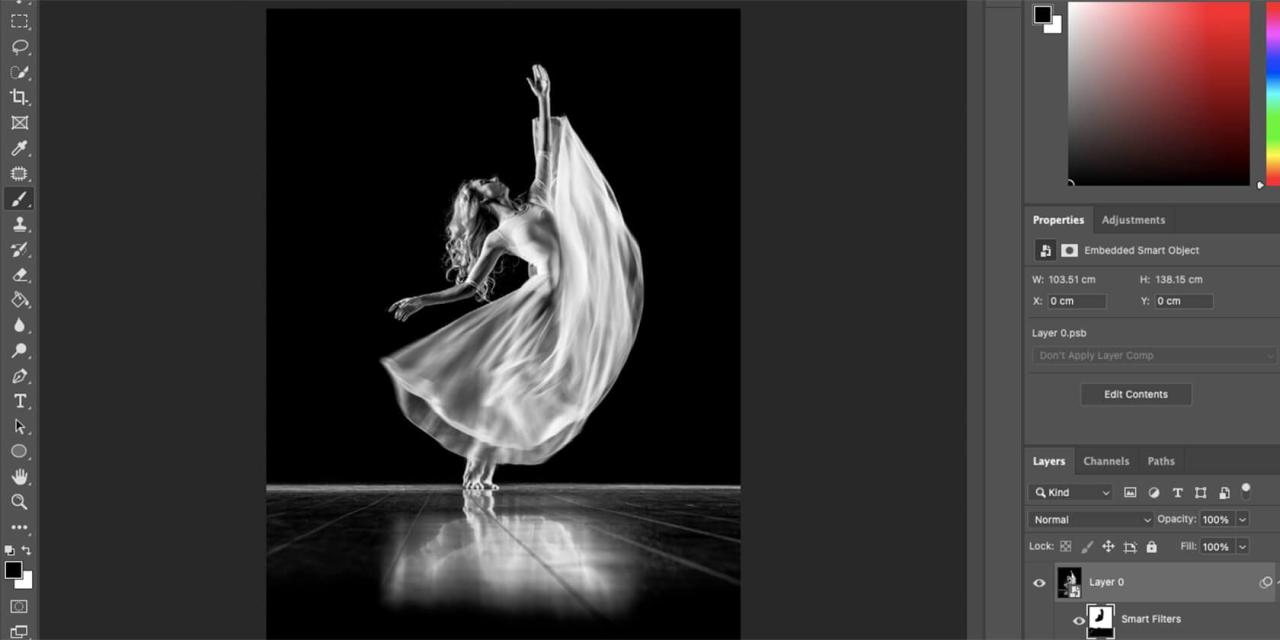
Motion blur is a widely utilized technique in digital editing that simulates the natural streaking or smearing of moving objects within images and videos. This effect mimics how the human eye perceives objects in motion, adding a sense of speed, direction, and dynamism to visual content. By understanding the fundamentals of motion blur, creators can enhance the realism and emotional impact of their work, making static images appear lively and videos more engaging.
In digital media, motion blur serves multiple purposes—from emphasizing rapid movement in action scenes to creating a more cinematic aesthetic. It can be applied intentionally to suggest fast-paced action or to soften transitions between frames, thus reducing harshness and adding a smoother visual flow. Different types of motion blur are employed depending on the desired effect, whether it be natural, directional, or artistic, each contributing uniquely to the overall narrative or visual style.
Types of Motion Blur Effects in Media
The effectiveness of motion blur hinges on selecting the appropriate style to match the scene’s intent. These variations include natural motion blur, radial blur, and directional blur, each offering distinct visual cues and emotional tones.
Natural motion blur replicates how objects appear when captured with a camera during rapid movement. It is influenced by factors such as shutter speed and frame rate, producing realistic streaks that follow the movement’s trajectory. This type is commonly used in photography and cinematic footage to add authenticity and depth.
Radial motion blur creates a spinning or zooming effect, where the blur radiates outward from a central point, often used to convey rapid rotation or intense zoom-ins. This effect is popular in action sequences or to evoke a sense of disorientation.
Directional motion blur emphasizes movement along a specific axis, such as horizontal or vertical. It enhances the perception of speed in a particular direction and is frequently used in sports footage or to dramatize fast-moving objects.
In digital editing software, these effects can be finely tuned by adjusting parameters such as blur length, angle, and opacity. For example, a director might increase the blur length for a high-velocity car chase scene to amplify the sensation of speed, while a subtle directional blur can smooth out rapid camera pans, making transitions appear more seamless.
“Motion blur acts as a visual cue that guides the viewer’s eye along the path of movement, enhancing the storytelling by adding realism and emotional impact.”
Software and Tools for Adding Motion Blur
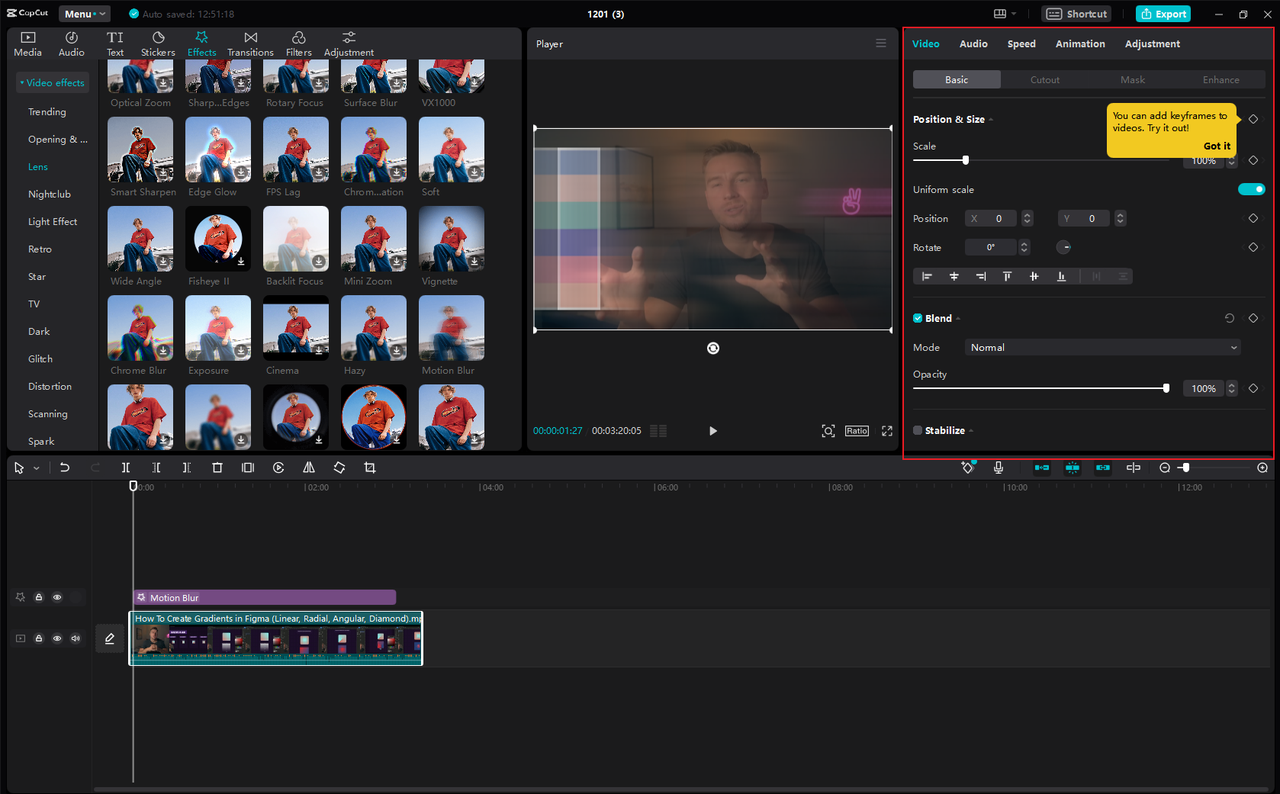
In the realm of digital editing, selecting the appropriate software is crucial for effectively applying motion blur to enhance the sense of movement and dynamism within your projects. Various editing tools offer dedicated features and options to simulate or add motion blur, each catering to different skill levels and project requirements. Understanding the capabilities and navigation of these tools allows creators to achieve professional and visually compelling effects seamlessly.
Below, we explore some of the most popular programs used for adding motion blur, detailing their specific features, how to access their motion blur options, and a comparative overview to assist users in choosing the most suitable software for their needs.
Popular Editing Programs and Their Motion Blur Features
Several editing software applications are renowned for their ability to add motion blur, whether for photo editing, video post-production, or graphic design. These tools vary in complexity, features, and user interface, making them suitable for different workflows and skill levels.
- Adobe Photoshop: A versatile image editing software widely used for static images, Photoshop offers motion blur filters that can be applied to layers or selections. The primary feature is accessed via the Filter menu under Blur > Motion Blur, where users can customize the angle, distance, and shape of the blur effect.
- Adobe After Effects: A powerful video compositing and motion graphics tool, After Effects allows for advanced motion blur application both through built-in options and plugin support. The motion blur can be enabled per layer or globally via the Composition Settings, with controls for shutter angle and phase for realistic motion effects.
- GIMP (GNU Image Manipulation Program): As a free alternative to Photoshop, GIMP provides basic motion blur capabilities. Located under Filters > Blur > Motion Blur, users can specify the blur length and angle. While less sophisticated than Adobe’s tools, GIMP remains a popular choice for budget-conscious creators.
Accessing and Navigating Motion Blur Options
Effectively utilizing motion blur features requires familiarity with the software’s interface and menus. Here is a brief guide on how to locate and configure motion blur in each program:
- Adobe Photoshop:
- Open your image or selection.
- Navigate to the top menu: Filter > Blur > Motion Blur.
- In the dialog box, adjust the Angle to control the direction of the blur and set the Distance to define the intensity.
- Click OK to apply, and use layer masks or blending modes for refinement.
- Adobe After Effects:
- Import your footage or create a composition.
- Select the layer you want to apply motion blur to.
- Enable motion blur for the layer by clicking the ‘Motion Blur’ switch (a three-lined icon) in the timeline panel.
- In the Composition menu, go to Composition > Composition Settings > Advanced.
- Adjust the ‘Shutter Angle’ (e.g., 180° for natural motion blur) and ‘Shutter Phase’ as needed.
- Render the composition to see the motion blur effect in action.
- GIMP:
- Open your image or layer.
- Navigate to Filters > Blur > Motion Blur.
- Specify the Length and Angle of the blur in the dialog box.
- Apply the effect and make further adjustments as necessary.
Comparison Table of Software Features and Suitability
The following table provides a comparative overview of the discussed software, focusing on features, ease of use, and project suitability to assist in selecting the appropriate tool for your specific needs.
| Software | Key Features | Ease of Use | Suitable For |
|---|---|---|---|
| Adobe Photoshop | 2D motion blur filters, customizable angle and distance, layer masks | Moderate; familiar interface for those experienced with photo editing | Static images, graphic design, post-processing |
| Adobe After Effects | Advanced motion blur with global and per-layer controls, real-time preview, integration with motion graphics | Complex; requires understanding of compositing workflows | Video projects, animation, motion graphics |
| GIMP | Basic motion blur filter, adjustable length and angle | Easy; similar to other photo editing tools | Budget-friendly projects, quick edits, static images |
Step-by-Step Methods to Add Motion Blur
Applying motion blur to images and videos enhances the perception of movement, adding a dynamic and realistic quality to your projects. Mastering the techniques for implementing motion blur involves understanding specific procedural steps tailored to both static images and moving footage. This guide offers detailed procedures to help you effectively incorporate motion blur using popular software tools, ensuring professional results in your creative workflows.
Whether working within image editing or video compositing environments, precise execution of these steps ensures the desired visual effect is achieved seamlessly. The methods discussed include layer duplication, filter application, keyframing, and alternative techniques like plugins or manual adjustments, providing versatile options suited for various scenarios and skill levels.
Adding Motion Blur to Static Images in Photoshop
To create a convincing sense of motion in a still photograph within Adobe Photoshop, follow these detailed procedures that leverage layer management and filter application. This approach allows you to control the intensity and direction of the blur precisely, resulting in a natural and professional appearance.
- Duplicate the Image Layer: Begin by opening your image in Photoshop. Duplicate the background layer by right-clicking on it and selecting ‘Duplicate Layer…’ or pressing Ctrl+J (Cmd+J on Mac). This preserves the original and provides a working copy for applying effects.
- Apply Motion Blur Filter: With the duplicated layer selected, navigate to Filter > Blur > Motion Blur. In the dialog box that appears, adjust the Distance slider to control the length of the blur, and set the Angle to match the direction of motion you wish to simulate. For example, a horizontal car movement may require an angle of 0°, while a falling object might need a vertical or diagonal angle.
- Refine the Effect with Masking: To enhance realism, add a layer mask to the blurred layer. Use a soft brush with black paint to hide the blur from areas that should remain sharp, such as the subject’s face or static background elements. This selective masking creates a more dynamic and believable motion effect.
- Adjust Opacity and Blending Modes: Fine-tune the intensity of the motion blur by lowering the layer opacity or experimenting with blending modes like ‘Overlay’ or ‘Soft Light’ to seamlessly integrate the effect with the original image.
- Finalize and Save: Review the composite, make any additional adjustments, and save your work in the desired format, ensuring the motion blur enhances the overall composition without overpowering the image.
Creating Motion Blur in Video Footage Using After Effects
Applying motion blur to video sequences involves dynamic techniques that simulate realistic movement across frames. Adobe After Effects provides robust tools such as keyframes and motion tracking to produce smooth, controlled blurring effects that follow the motion path precisely. The following steps guide you through this process, ensuring your footage gains a professional, cinematic quality.
- Import and Prepare Your Footage: Import your video clip into After Effects and place it on the timeline. Ensure the clip is correctly positioned within your composition for optimal editing.
- Enable Motion Blur for the Layer: Select the layer containing your footage. Activate the ‘Motion Blur’ switch (represented by a three-circle icon) in the timeline panel. This setting is crucial for After Effects to generate the blur during rendering.
- Use the ‘Advanced’ Panel for Customization: Access the Composition > Composition Settings > Advanced menu. Here, you can customize the shutter angle, phase, and samples to control the quality and appearance of the motion blur. Increasing the shutter angle (e.g., to 180°) produces more pronounced blur, mimicking real-world camera exposure.
- Apply Motion Tracking (Optional): For objects with complex movement, employ the motion tracking feature. Track the object’s motion trajectory by selecting Animation > Track Motion. After generating the tracking data, apply it to a null object and use this as a reference for stabilizing or further manipulating the motion path.
- Create a Motion Blur Effect: Add a ‘Directional Blur’ or ‘CC Vector Blur’ effect to the footage. Set the direction to align with the movement and adjust the blur amount for desired intensity. For more precise control, animate the blur parameters using keyframes to match the movement’s velocity and direction throughout the clip.
- Render and Export: Once satisfied, enable the ‘Frame Blending’ option for smoother results, and render your composition. Export the footage with motion blur effects for a polished, cinematic appearance.
Alternative Techniques for Adding Motion Blur
Beyond standard filter and keyframing methods, several alternative techniques can produce unique motion blur effects suited for specific creative needs or technical constraints. These include specialized plugins, manual blurring approaches, and procedural methods.
- Motion Blur Plugins: Plugins such as RE:Vision Effects’ Twixtor or Boris FX’s Sapphire provide advanced motion blur capabilities. These tools often incorporate optical flow algorithms to generate highly realistic blurs that adapt dynamically to complex movements and transformations.
- Manual Frame-by-Frame Blurring: For precise control, especially in static images or specific segments of footage, manually applying Gaussian or motion blurs on selected frames or regions can create tailored effects. This technique involves painting or layering multiple blurred frames to simulate motion trails.
- Procedural and Creative Effects: Using custom scripts or expressions within software like After Effects, artists can generate animated streaks, trails, or glows that mimic motion blur. These methods are particularly useful for abstract or stylized visual effects, such as in motion graphics or artistic compositions.
Utilizing a combination of these techniques and adjusting parameters carefully allows for highly customizable motion blur effects, enhancing both realism and artistic expression in your projects.
Customizing Motion Blur Settings
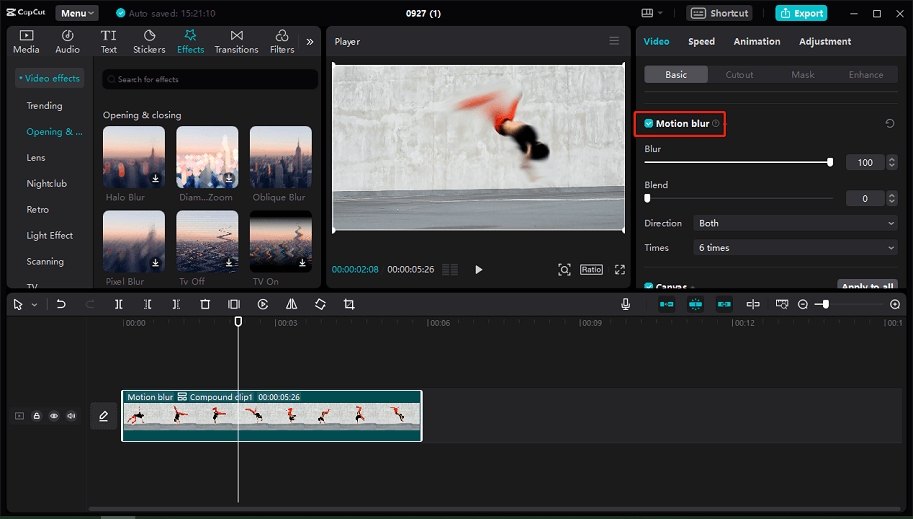
Adjusting motion blur settings is essential for achieving the desired visual effect that complements your footage or design. Proper customization allows you to emphasize motion, convey speed, or create a more subtle, natural appearance depending on the context of your project. Mastery of these settings enhances the overall quality and realism of your motion effects, making your visuals more compelling and aligned with your creative intent.
Understanding how to fine-tune parameters such as angle, distance, and intensity enables precise control over the motion blur effect. This customization is particularly important when differentiating between fast-moving objects that require pronounced blur and slow motions that benefit from subtle adjustments. Tailoring these settings ensures that the motion blur enhances rather than distracts from the core visual narrative.
Adjusting Angle, Distance, and Intensity
When customizing motion blur, three primary parameters influence the final appearance: angle, distance, and intensity. Each parameter plays a vital role in shaping how the blur interacts with the moving object and the overall scene.
Angle determines the direction of the blur, aligning it with the movement’s trajectory. For example, horizontal motions like objects moving side-to-side benefit from a 0° or 180° angle, while diagonal or complex movements may require angles like 45° or 135° for more natural effects.
Distance controls the length of the blur streaks, simulating the perception of motion over distance. Increasing this value elongates the blur, suggesting faster movement; decreasing it results in a subtler effect suitable for slow or slight motions.
Intensity affects the strength or prominence of the blur. Higher intensity values produce more noticeable streaks, ideal for conveying rapid motion or emphasizing dynamic scenes. Lower values create a softer, more understated effect suitable for gentle movements or static backgrounds.
Examples of Settings for Different Motion Speeds
Applying appropriate motion blur settings depends on the speed of the object or scene being animated or filmed. Here are practical examples to guide your adjustments:
- Fast-Moving Objects: Use a higher distance (e.g., 50-100 pixels) combined with an angle aligned with the movement direction. Increase the intensity to around 70-100% to create a vivid sense of rapid motion, such as a racing car or a flying bird.
- Slow Motions: Opt for lower distance settings (e.g., 10-30 pixels) with a subtle angle, and set the intensity between 20-40%. This approach produces gentle blurring that enhances movement without overwhelming the scene, suitable for walking or slow camera pans.
Parameter Options and Their Effects
Note: The precise impact of each setting can vary based on the software used and the specific project context. Experimentation is key to achieving the ideal balance between realism and artistic effect.
| Parameter | Possible Options | Effects | Recommended Use |
|---|---|---|---|
| Angle | 0°, 45°, 90°, 135°, 180° | Controls the direction of blur streaks; aligns with object movement | Horizontal or vertical motion, diagonal effects |
| Distance | 10 px to 150 px | Length of the motion streaks; creates sense of speed | Slow to fast motion; subtle or exaggerated effects |
| Intensity | 0% to 100% | Strength of the blur; how prominent the streaks appear | Natural movement for slow scenes; dramatic for high-speed effects |
Practical Applications and Creative Uses
Motion blur is a powerful visual effect that enhances storytelling by conveying movement, speed, or emotional intensity in various media. When used thoughtfully, it transforms static images and scenes into dynamic narratives that captivate viewers. This section explores the diverse scenarios where motion blur elevates visual storytelling in videos, animations, and photography, along with creative strategies for integrating it with other effects to produce compelling results.
Understanding how to apply motion blur creatively allows artists and content creators to communicate motion more convincingly and evoke specific moods. Whether emphasizing the rapid pace of a racing scene or adding a surreal touch to an abstract artwork, the versatility of motion blur makes it an essential tool in the visual artist’s toolkit. Combining motion blur with effects like depth of field or color grading further enhances the depth, atmosphere, and emotional impact of your projects.
Enhancing Storytelling in Videos, Animations, and Photography
In visual storytelling, motion blur serves as a narrative device that guides the audience’s perception of movement and intensity. For instance, in action-packed sequences such as car chases or sports events, applying motion blur creates a sense of speed and urgency, immersing viewers into the scene. Similarly, in dance or performance videos, motion blur can emphasize the fluidity and grace of movements, making each motion appear more natural and expressive.
In photography, motion blur captures fleeting moments that convey motion and emotion, like the streaks of headlights on a busy street, or the blurred motion of a dancer. These effects evoke a sense of energy, excitement, or tranquility depending on the context, enriching the storytelling aspect of the image. Creative use of motion blur can also dramatize a scene, adding layers of visual interest that hold the viewer’s attention longer.
Combining Motion Blur with Other Effects
Integrating motion blur with other visual effects amplifies its creative potential, allowing for more complex and evocative compositions. Depth of field, for example, can be combined with motion blur to focus the viewer’s attention on specific elements while blurring out background motion, creating a layered sense of depth and movement. Color grading can be applied to enhance the mood; for instance, adding cool tones to a motion-blurred scene can evoke a sense of coldness or detachment, while warm tones may impart energy and warmth.
Additionally, combining motion blur with lighting effects, such as lens flares or glow, can simulate high-speed motion or surreal atmospheres. Using overlays or blending modes can also add texture or abstract qualities to motion-blurred images, fostering experimental visuals. These combinations enable artists to craft unique visual narratives that are both dynamic and emotionally compelling.
Examples of Creative Projects Utilizing Different Motion Blur Techniques
- High-speed racing videos enhanced with directional motion blur to accentuate velocity and adrenaline.
- Animated sequences employing radial motion blur to simulate spinning or explosive movements, creating a sense of chaos or energy.
- Photographs of moving subjects like cyclists or dancers, where subtle motion blur emphasizes grace and fluidity.
- Music videos featuring stylized motion blur effects that synchronize with beats, heightening rhythm and visual impact.
- Abstract digital art combining multiple motion blur layers with color grading to produce surreal, dreamlike images.
- VFX scenes in films where motion blur is integrated with depth of field to focus attention on key characters or objects while implying rapid movement.
- Experimental projects using customized motion blur settings to achieve artistic distortions or cinematic effects that enhance storytelling.
“Creative use of motion blur not only emphasizes movement but also enriches the emotional expression and narrative depth of your visual projects.”
Troubleshooting Common Issues
Effective application of motion blur effects can significantly enhance visual storytelling and dynamic imagery. However, artists often encounter common problems such as over-blurring, unnatural effects, or edge artifacts that compromise the quality of the final image. Addressing these issues requires understanding their causes and implementing specific techniques to achieve a balanced, professional appearance. This section aims to provide practical solutions and best practices to troubleshoot frequent challenges during the motion blur addition process, ensuring high-quality results that maintain image clarity and realism.
When adding motion blur, it is essential to monitor the intensity and direction carefully. Over-blurring can lead to a loss of detail and distract from the focal point, while artifacts and unnatural effects can undermine the image’s credibility. Identifying the root causes of these issues and applying targeted adjustments can greatly improve the overall outcome. Maintaining the integrity of image quality throughout the process involves strategic use of tools, layer management, and post-processing refinements.
The following subsections explore common problems and effective remedies to help artists refine their motion blur effects efficiently.
Fixing Over-blurred or Unnatural Motion Effects
Over-blurring occurs when the motion blur intensity exceeds what is appropriate for the movement depicted, resulting in an overly smeared or unrealistic look. Unnatural effects may also arise if the blur direction is inconsistent with the actual motion within the scene. To correct these issues:
- Reduce the blur distance or strength in your software’s motion blur settings. Use the preview feature extensively to gauge the effect in real-time and find a balanced level.
- Adjust the direction of the blur to align precisely with the motion path. Many tools allow manually setting the angle; use motion guides or reference objects within the scene to guide this adjustment.
- Employ layer masks to selectively apply blur only to specific areas. This prevents the entire image from appearing overly smeared, maintaining key details like facial features or text readability.
- Use the “undo” or history features to revert unhelpful adjustments quickly, especially when experimenting with different blur settings.
Consistent and controlled application of motion blur preserves realism and prevents the effect from overpowering the core subject.
Preventing Motion Blur Artifacts and Edge Issues
Artifacts such as halo effects, jagged edges, or ghosting can detract from the clarity of the image. These issues often stem from improper settings or limitations within the software. To minimize artifacts and edge issues:
- Enable anti-aliasing options within your motion blur tool. This smooths the transition between blurred and sharp areas, reducing harsh edges.
- Refine selection edges meticulously before applying the effect. Use feathering or soft selections to create smoother transitions around the subject edges.
- Adjust the shutter angle or sample rate in your software, if available. Higher sample rates tend to produce cleaner blur effects with fewer artifacts but may increase processing time.
- Perform a post-blur sharpening process selectively on non-blurred areas to restore fine detail without compromising the overall motion effect.
Maintaining Image Quality During the Process
Preserving high image quality while adding motion blur involves careful management of layers, resolution, and processing techniques. To ensure optimal quality:
- Work on a high-resolution copy of your original image. Downscaling after processing can cause pixelation and loss of detail.
- Use non-destructive editing methods, such as adjustment layers and smart filters, to retain original data and facilitate easy modifications.
- Apply motion blur in small increments rather than large, abrupt changes. Incremental adjustments allow for finer control and reduce the risk of quality degradation.
- Regularly compare your blurred version with the original to assess if the effect enhances or diminishes the overall image integrity. Adjust accordingly.
- Save intermediate versions of your work. This practice enables you to revert to previous states if the current adjustments do not meet quality standards.
By implementing these troubleshooting strategies, artists can effectively resolve common issues associated with motion blur application, resulting in cleaner, more realistic, and visually appealing images that meet professional standards.
Summary
Mastering how to add motion blur opens up a wide range of creative possibilities, allowing for more vivid and engaging visuals. Whether used subtly or dramatically, motion blur can transform static images and videos into captivating works of art. Applying the right techniques and adjustments ensures your projects stand out with a sense of movement and realism that resonates with viewers.