Learning how to add logos to video is a valuable skill for establishing brand identity and enhancing visual professionalism. Whether for watermarking, branding, or promotional purposes, incorporating a logo into your videos helps create a consistent and recognizable appearance that resonates with your audience.
This process involves preparing a suitable logo, selecting appropriate editing software, and applying various techniques to overlay, customize, and position the logo seamlessly within your video content. Mastering these steps ensures your videos remain polished and impactful across different platforms and projects.
Overview of Adding Logos to Videos
Integrating logos into videos is a fundamental practice in modern multimedia production, serving multiple strategic purposes for content creators, businesses, and organizations. This process enhances brand recognition, protects intellectual property, and adds a professional touch to visual content. Logos can be seamlessly incorporated into various types of videos, including promotional materials, tutorials, corporate presentations, and social media clips.
The primary benefits of adding logos include establishing brand identity, increasing viewer recall, and providing a layer of watermarking that deters unauthorized use or copying. It also helps in creating a consistent visual style across multiple videos, reinforcing branding efforts and maintaining a cohesive look.
Common Scenarios for Adding Logos
Logos are often inserted into videos in specific contexts to maximize their effectiveness and meet strategic goals. These scenarios include:
- Branding promotional videos to ensure viewers associate the content with the company or product.
- Watermarking videos to protect intellectual property rights and discourage unauthorized sharing or reuse.
- Embedding logos in video tutorials, webinars, or presentations to reinforce brand presence throughout the content.
- Adding logos to event recordings or sponsored content, ensuring sponsor visibility and acknowledgment.
- Customizing video marketing campaigns for social media platforms where consistent branding enhances recognition.
General Process of Adding Logos to Videos
Embedding a logo into a video involves a sequence of systematic steps designed to ensure precision and visual harmony. The process can vary depending on the software used but generally includes the following stages:
- Select and prepare the logo file, ensuring it is in a suitable format (e.g., PNG with transparent background) and resolution.
- Import the video and logo into a video editing software or platform compatible with overlay functionalities.
- Position the logo appropriately within the video frame, typically in a corner or area that does not obstruct critical visual content.
- Adjust the size, opacity, and duration of appearance to match the video’s style and purpose, maintaining visual balance.
- Preview the composite video to ensure the logo appears seamlessly and does not distract from the main content.
- Export the final video, ensuring the settings preserve video quality and the logo’s clarity.
Mastering this process allows content creators to produce polished videos that effectively incorporate branding elements while maintaining viewer engagement.
Preparing the Logo for Video Integration
Prior to adding a logo to a video, it is essential to prepare the graphic properly to ensure clarity, professionalism, and seamless integration. The process involves selecting an appropriate logo, choosing the optimal file format, and optimizing its size and resolution. Proper preparation guarantees that your branding remains sharp and visually appealing across various video outputs, enhancing overall production quality.
Effective logo preparation starts with understanding the importance of clarity, transparency, and scalability. A well-prepared logo not only improves visual consistency but also reduces the risk of technical issues during editing or playback. This section provides detailed guidance on selecting, formatting, and optimizing your logo to achieve the best results in your video projects.
Selecting and Creating a Suitable Logo Image
The first step in preparing a logo for video integration is to select or create a graphic that aligns with your branding standards and project needs. The logo should be clear, simple, and recognizable even at smaller sizes, ensuring it does not lose impact when scaled down or up within the video frame. High-quality vector logos, typically created in design software such as Adobe Illustrator or CorelDRAW, serve as an ideal starting point because they maintain clarity at any size.
For existing logos, consider creating a digital version with attention to detail, ensuring the design elements are sharp and free of pixelation. When designing or editing a logo, focus on maintaining the integrity of brand colors, fonts, and proportions to ensure consistency across all media formats. The choice of a transparent background is especially important for overlay purposes, enabling your logo to blend seamlessly with various video backgrounds.
Preferred File Formats for Video Editing Software
Choosing the right file format is critical for maintaining logo quality during video editing. The most commonly preferred formats include:
- PNG: Supports lossless compression and transparency. Ideal for raster-based logos with complex colors and gradients. Ensures your logo retains sharp edges and clarity when overlaid on videos.
- SVG: A vector format that allows infinite scalability without loss of quality. Suitable for logos that need to be resized frequently or used across multiple projects without degradation.
- EPS and AI: Vector formats compatible with professional editing software, ideal for high-resolution outputs but may require conversion for some video editing tools.
When working with raster images like PNG, ensure the resolution is sufficiently high—generally 300 DPI or more—to prevent pixelation. Vector formats like SVG or AI are preferable for logos that require extensive resizing or detailed scaling, as they preserve crispness and detail regardless of size.
Optimizing Logo Size and Resolution for Clarity
Proper optimization of logo size and resolution is essential to maintain visual clarity and avoid unnecessary file bloat, which can slow down editing workflows. The goal is to balance resolution with file size, ensuring the logo appears sharp without overwhelming project resources.
For raster images, a recommended approach involves creating the logo at a high resolution, typically 1920×1080 pixels or higher, especially if it will be used as a prominent overlay. Scaling down within the video editing software is preferable to enlarging a low-resolution image, as this preserves quality. Additionally, cropping or trimming excess transparent space reduces file size and simplifies placement tasks.
For vector logos, ensure they are saved in a scalable format like SVG and utilize appropriate software settings to export at resolutions suitable for your project’s output specifications. When exporting for video, use the highest fidelity settings available, and consider rendering the logo at the final display size to verify clarity before overlaying it onto your video content.
Maintaining the balance between resolution and file size optimizes editing efficiency while ensuring visual sharpness in the final video.
Choosing Video Editing Software
Selecting the appropriate video editing software is a crucial step in seamlessly adding logos to your videos. The right tool not only simplifies the editing process but also offers the necessary features to ensure your logos are integrated professionally and efficiently. When evaluating options, it’s essential to consider factors like usability, compatibility, features, and cost, aligning them with your specific project requirements and skill level.
Among the myriad of available video editing tools, some stand out due to their popularity, robust features, and user-friendly interfaces. The choice depends on your operating system, budget, and the complexity of your editing tasks. Here, we highlight three leading software options capable of adding logos to videos, along with a comparison of their key features relevant to logo integration and setup procedures.
Popular Video Editing Tools for Adding Logos
- Adobe Premiere Pro: A professional-grade editing software widely used in the industry, offering advanced features for precise logo placement, motion graphics, and transparency control.
- Final Cut Pro: Apple’s flagship editing software designed for Mac users, known for its intuitive interface, efficient processing, and seamless integration with other Apple applications.
- DaVinci Resolve: A comprehensive editing platform that combines professional editing, color correction, and visual effects, with an excellent free version suitable for most logo adding needs.
Comparison Table of Features Relevant to Logo Addition
| Feature | Adobe Premiere Pro | Final Cut Pro | DaVinci Resolve |
|---|---|---|---|
| Ease of Use | Moderate; suited for professionals and advanced users | High; user-friendly for Mac users | Moderate; steeper learning curve but highly capable |
| Logo Import & Format Support | Supports PNG, SVG, PSD, AI | Supports PNG, TIFF, PSD, AI | Supports PNG, TIFF, PSD, AI, SVG |
| Layer & Transparency Handling | Excellent; allows overlay, motion, and transparency effects | Excellent; supports multiple layers and transparency | Excellent; robust layering with keying and blending options |
| Motion & Animation Capabilities | Advanced; keyframing and motion graphics | Advanced; built-in motion templates and keyframes | Advanced; Fusion integration provides extensive motion graphics |
| Cost | Subscription-based (monthly or yearly) | One-time purchase (perpetual license) | Free version available; Studio version requires purchase |
| Platform Compatibility | Windows, macOS, Linux (via Creative Cloud) | macOS | Windows, macOS, Linux |
Installing and Setting Up the Chosen Software
Installing your selected video editing software involves downloading it from the official website or app store and following the setup instructions tailored to your operating system. For Adobe Premiere Pro, visit Adobe’s Creative Cloud platform, sign in or create an account, and select the subscription plan that suits your needs. Download the installer, run it, and follow on-screen prompts to complete the installation.
Final Cut Pro installation is straightforward on Mac devices. Purchase or subscribe through the Mac App Store, then download and install the application directly onto your system. Once installed, open the software and configure your preferences, such as project settings and media storage locations.
DaVinci Resolve can be downloaded for free from the official Blackmagic Design website. Choose the appropriate version compatible with your operating system, run the installer, and follow the instructions to complete the setup. Upon launching, it’s advisable to update to the latest version and familiarize yourself with the workspace, particularly the media and editing panels, to facilitate smooth logo integration into your videos.
Methods to Add Logos to Videos

Adding logos to videos enhances branding, provides professional appearance, and ensures brand consistency across multimedia content. Several methods exist to overlay logos using built-in tools within popular video editing software, allowing for precise placement, resizing, and rotation. Understanding these processes helps users achieve seamless integration of their logos into video projects efficiently and effectively.
Employing built-in tools simplifies the process of overlaying logos, as most modern video editors offer intuitive features such as picture-in-picture, overlay layers, or specific logo insertion options. These functionalities enable users to position logos accurately within the frame, resize them to suit aesthetic preferences, and rotate them to match the video’s visual context. Mastering these techniques ensures that logos do not distract from the content and maintain a professional look throughout the video.
Overlay Logos Using Built-in Tools in Video Editors
Most video editing software provides dedicated options to add logos as overlay elements. This process generally involves importing the logo file, often in PNG or SVG format for transparency, and then positioning it within the video timeline. Once imported, the logo can be resized, moved to specific locations such as corners or center, and rotated to fit the composition. Additionally, users can set the duration during which the logo appears and apply effects like fade-ins or fade-outs for smooth transitions.
The key steps include importing the logo, adding it as a new layer or overlay track, adjusting its position on the preview screen, and applying transformations for resizing or rotation. These modifications are typically accessible through simple drag-and-drop interfaces or property panels within the software, making the process accessible even for beginners.
Step-by-Step Procedures for Different Software
Below is a table illustrating the detailed procedures for overlaying a logo in popular video editing applications, ensuring clarity for users working with different tools:
| Software | Procedure |
|---|---|
| Adobe Premiere Pro |
|
| Final Cut Pro |
|
| DaVinci Resolve |
|
Positioning, Resizing, and Rotating Logos
Precise positioning of logos within the video frame is essential to maintain aesthetic balance and brand visibility. Typically, the software provides on-screen handles or coordinate inputs for exact placement. Common positions include the top-left, top-right, bottom-left, bottom-right corners, or centered on the screen, depending on branding guidelines and content layout.
Resizing ensures that the logo does not overpower or get lost within the video content. Maintaining aspect ratio is vital to avoid distortions; most editors offer lock aspect ratio options to preserve proportions during resizing. Rotation is often used to align logos with the video’s orientation or to add creative flair, achievable through rotation controls or numerical input for precise angles.
Accurate positioning, resizing, and rotation of logos enhance branding consistency and visual harmony within the video, ultimately contributing to a more polished and professional appearance.
Customizing Logo Appearance
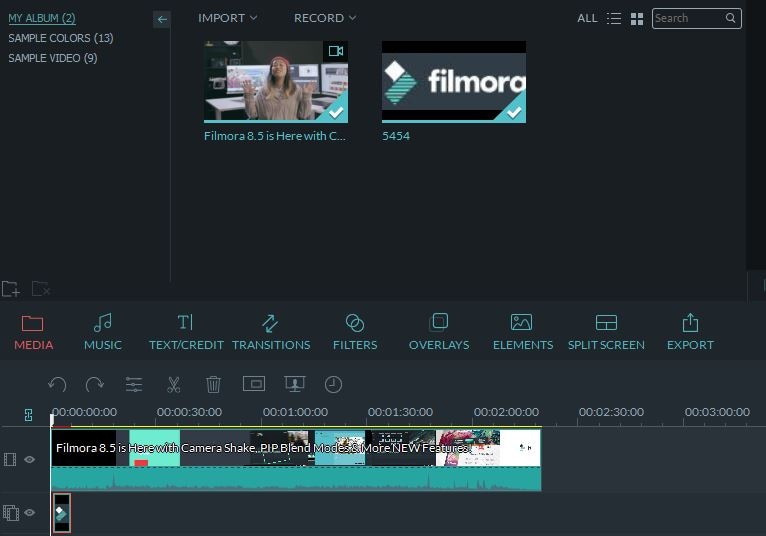
Enhancing the visual integration of your logo within a video involves more than just placing it on the frame. Customization options allow creators to achieve a polished and cohesive look that complements their overall video aesthetic. Adjusting transparency, experimenting with blending modes, and adding animation effects can significantly elevate the professionalism of your branding elements.Proper customization ensures that your logo does not overshadow the main content, maintains visual harmony, and can even engage viewers through dynamic effects.
Whether you aim for a subtle watermark or an eye-catching animated logo, understanding the customization capabilities of your video editing tools is essential for creating compelling visual branding.
Adjusting Transparency, Opacity, and Blending Modes
Modifying the transparency and opacity levels of your logo allows it to blend seamlessly into the video background, preventing it from appearing overly intrusive. Adjustments can be made through sliders or numerical inputs within your editing software, typically found in the logo layer or effects panel.Blending modes determine how the logo interacts visually with the underlying video content. Common modes include:
- Normal: The default mode with no blending effect.
- Overlay: Combines multiply and screen modes for a balanced blend, enhancing contrast.
- Multiply: Darkens the background based on logo colors, suitable for subtle overlays.
- Screen: Brightens the underlying video, ideal for lighter logos.
“Adjusting blending modes can create a sense of depth, making logos appear more integrated and professional.”
These adjustments can be used strategically—such as reducing opacity to make logos more subtle or selecting blending modes to match the overall color grading of the video.
Animating Logos with Effects
Adding animation to logos enhances viewer engagement and emphasizes branding moments. Common effects include fade-in, slide-in, and zoom-in, which can be applied to create smooth transitions or dynamic introductions.The process involves keyframing, where specific properties like position or opacity are set at different points in time to produce movement or transformation. For example:
- Fade-in: Gradually increases the logo’s opacity from transparent to fully visible, creating a smooth entrance.
- Slide-in: Moves the logo from one side of the frame to its designated position, capturing viewers’ attention.
- Zoom-in: Starts from a smaller scale and enlarges to its final size, adding a dramatic effect.
Using keyframes allows for precise control over the timing and speed of these animations, resulting in a professional appearance.
Creating Dynamic Logos with Keyframes and Motion Paths
For more advanced customization, motion paths and keyframes enable the creation of complex, dynamic logo animations. Motion paths define a specific route that the logo follows across the screen, which can be visualized as a line traced within the editing timeline.By setting multiple keyframes along a motion path, you can:
- Simulate logos moving along curved or intricate trajectories.
- Synchronize logo movements with other visual or audio effects.
- Implement multi-stage animations, such as a logo bouncing or rotating into place.
Editing software typically offers a graph editor or motion curve tool, allowing you to adjust speed and easing for natural or stylized effects. Employing these tools helps craft engaging introductions or transitions that leave a lasting impression on viewers.
Placing Logos for Branding and Watermarking
Effective placement of logos within a video is a crucial aspect of branding and watermarking. Proper positioning ensures that the logo enhances brand visibility without disrupting the viewer’s experience. Strategic placement also helps protect intellectual property rights by making it difficult for others to reuse or alter the content without acknowledgment.
When integrating logos into videos, understanding the best locations for placement involves balancing visibility with unobtrusiveness. The goal is to keep the logo prominent enough to serve its purpose while avoiding interference with important visual or textual elements of the video. A thoughtful approach to placement can significantly influence how viewers perceive the branding effort and ensure that the watermark or logo remains effective throughout the video duration.
Strategic Logo Placement and Considerations
Choosing the optimal position for a logo depends on the video’s content, layout, and purpose. Common placements include the corners, center, or overlay positions that span across the video frame. Each position has advantages and potential drawbacks, which should be evaluated based on the specific context.
To maximize branding impact and minimize disruption, consider the following key points:
Ensure the logo does not obstruct vital visual cues, subtitles, or central action, preserving viewer engagement and clarity.
It is also essential to maintain consistency in logo placement across multiple videos to reinforce brand recognition. The size of the logo should be proportionate to the video dimensions; too large may distract viewers, while too small might diminish visibility.
Common Logo Placement Options
| Position | Description | Advantages | Considerations |
|---|---|---|---|
| Top-Left Corner | Placement at the upper-left edge of the video frame. | Consistent and unobtrusive; easy to align with branding elements. | May interfere with subtitles or important top-left visual cues. |
| Top-Right Corner | Placement at the upper-right edge. | Widely used; less likely to interfere with central content. | Could overlap with rigid UI elements or text overlays. |
| Bottom-Left Corner | Placement at the lower-left edge. | Good for branding without distracting from main action. | Potential conflict with subtitles or lower-third graphics. |
| Bottom-Right Corner | Placement at the lower-right edge. | Popular choice; minimizes obstruction of primary content. | May interfere with captions or interactive elements. |
| Center Overlay | Positioned centrally, possibly semi-transparent. | Highly visible; ideal for watermarks or official branding. | Can obstruct the main subject or focal points; must be semi-transparent or animated to reduce distraction. |
| Across the Entire Frame (Overlay) | Transparently spread across the video, often as a semi-transparent band or watermark. | Provides continuous branding and protection. | Requires careful opacity adjustments to avoid obstructing content. |
Ensuring Logos Do Not Obstruct Important Content
To maintain viewer engagement and content clarity, it is vital to position logos in areas that do not interfere with key visual elements, such as faces, text, or critical actions within the scene. This involves analyzing the video’s composition and planning logo placement accordingly. Some best practices include:
- Placing watermarks in less busy areas of the frame, such as corners or corners with minimal activity.
- Using transparency levels to prevent the logo from overpowering the primary content.
- Employing animated or dynamic positioning to move the logo away from vital content during specific scenes.
- Testing different placements during editing to identify the least intrusive position for the specific video context.
By thoughtfully selecting placement strategies and considering content layout, creators can enhance brand visibility while maintaining the overall quality and viewer experience of the video.
Exporting and Saving the Video with Logos
After successfully adding logos to your video, the final step involves exporting and saving the project in a high-quality format suitable for your intended platform or distribution method. Properly exporting your video ensures that the logos remain clear, positioned correctly, and visually appealing across various devices and screen sizes.
Effective exporting involves choosing the right settings to maintain optimal video quality, selecting appropriate formats and resolutions, and verifying the logo’s appearance post-export to ensure consistency and professionalism in your final product.
Optimizing Video Quality During Export
To preserve the visual integrity of your video after adding logos, it is essential to optimize export settings. These settings influence the clarity, file size, and compatibility of the final video. Balancing these factors is crucial to meet your specific needs, whether for online streaming, social media, or archiving.
Key considerations include:
- Resolution: Export in the same resolution as your original footage or higher if you intend to upscale for certain devices. Common resolutions include 1080p (1920×1080) and 4K (3840×2160).
- Bitrate: Adjust the bitrate to control quality and file size. Higher bitrates generally improve clarity but increase file size.
- Codec: Use modern codecs like H.264 or H.265 (HEVC) to ensure efficient compression without significant quality loss.
- Frame Rate: Maintain the original frame rate of your footage to prevent motion artifacts and ensure smooth playback.
Note: Some video editing software allows you to preset these parameters, making it easier to maintain consistency across multiple projects.
Exporting in Various Formats and Resolutions
Depending on the platform or purpose, exporting videos in different formats and resolutions may be necessary. For instance, social media platforms have specific requirements for video uploads, including file size limits and preferred formats.
Common formats include:
| Format | Description | Use Cases |
|---|---|---|
| MP4 (H.264) | Most widely supported format with good compression and quality balance. | Online videos, social media, streaming platforms. |
| MOV | Apple’s QuickTime format, high quality but larger file sizes. | Professional editing, high-quality archiving. |
| AVI | Uncompressed or minimally compressed, resulting in large files. | Editing workflows where quality is prioritized over size. |
| WMV | Microsoft’s format, suitable for Windows environments. | Corporate presentations and internal use. |
Resolutions should match or exceed the source footage to maintain clarity, especially when preparing videos for large screens or high-definition displays.
Verifying Logo Placement and Appearance Post-Export
After exporting your video, it is crucial to review the final product to ensure that logos are correctly placed, appropriately sized, and visually consistent. This step helps identify any issues related to logo positioning, transparency, or quality degradation that may have occurred during the export process.
To verify:
- Play the exported video on various devices, including computers, tablets, and smartphones, to assess logo visibility and placement across different screen sizes.
- Check the logo for clarity, ensuring it is not pixelated or blurry, especially in sections with fast motion or complex backgrounds.
- Ensure the logo remains in the intended position without shifting or overlapping with other visual elements.
- Review the transparency and color fidelity of the logo to confirm it appears consistent with your original design.
“Consistent verification post-export ensures your branding remains professional and impactful, avoiding any unintended visual discrepancies that could diminish your video’s effectiveness.”
Making adjustments to the logo placement or export settings may be necessary if discrepancies are detected, ensuring your final video accurately represents your branding strategy.
Tips for Effective Logo Integration
Integrating logos into videos requires a strategic approach to ensure they enhance branding without distracting viewers. Properly embedded logos reinforce brand identity, improve recognition, and add professionalism to your videos. However, achieving the right balance between visibility and subtlety is essential for maximizing impact and maintaining viewer engagement.A well-executed logo placement involves considering factors such as size, transparency, positioning, and animation.
These elements influence how seamlessly the logo blends into the content while remaining visible enough to serve its purpose. Applying best practices can elevate your video quality and strengthen your brand image across various platforms.
Ensuring Logo Visibility Without Distraction
The primary goal is to make your logo noticeable yet unobtrusive, preserving the viewer’s focus on the main content. Overly prominent or flashing logos can divert attention or annoy viewers, potentially undermining the video’s effectiveness. Conversely, logos that are too subtle may go unnoticed, diminishing branding efforts.To achieve optimal visibility:
- Maintain a balanced size that is clearly visible without dominating the screen.
- Use transparency or semi-opacity to integrate the logo smoothly into the background, especially in dynamic or detailed scenes.
- Position the logo in areas less likely to interfere with key visual elements, such as the lower right corner or top corner, depending on content layout.
- Incorporate subtle animations like fade-ins or slow movements to draw attention gently without causing distraction.
Consider conducting viewer feedback sessions or A/B testing different logo placements and styles to identify what resonates best with your target audience.
Maintaining Consistency Across Multiple Videos
Consistency enhances brand recognition and creates a cohesive viewer experience. Applying uniform logo placement, size, and style across all videos reinforces your brand identity and builds familiarity.Best practices include:
- Creating a standardized template with predefined logo positions and appearance settings to streamline editing processes.
- Using consistent color schemes, transparency levels, and animation styles for logos across various videos.
- Documenting branding guidelines that specify logo dimensions, clear space, and placement rules to ensure uniformity among team members or creators.
- Regularly reviewing your branding assets and video outputs to maintain alignment with evolving branding strategies or visual identities.
Leveraging automation tools within your editing software can also help apply consistent logo styles across multiple projects efficiently.
Troubleshooting Common Logo Integration Issues
Despite careful planning, several technical challenges may arise during logo integration, affecting the final video quality. Addressing these issues promptly ensures a professional presentation and preserves the integrity of your branding.Key issues include:
- Logo Flickering: This often results from inconsistent frame rates or abrupt changes in logo opacity or position. To troubleshoot, ensure that the logo’s animation keyframes are smooth and consistent, and verify that the project frame rate matches the source footage.
- Misalignment: Misplaced logos can occur due to incorrect anchor points or resizing errors. Regularly check the logo’s position parameters and use guides or gridlines in your editing software for precise placement.
- Resolution Problems: Low-resolution logos can appear pixelated when scaled up. Always use high-resolution or vector files to maintain clarity across different screen sizes.
- Unintended Overlay Effects: Overlapping logos with other visual elements may obscure important content. Use masking or layering techniques to control visibility and avoid visual clutter.
Additionally, testing your video on multiple devices and viewing environments can help identify and correct issues related to display discrepancies or compatibility problems.
Advanced Techniques
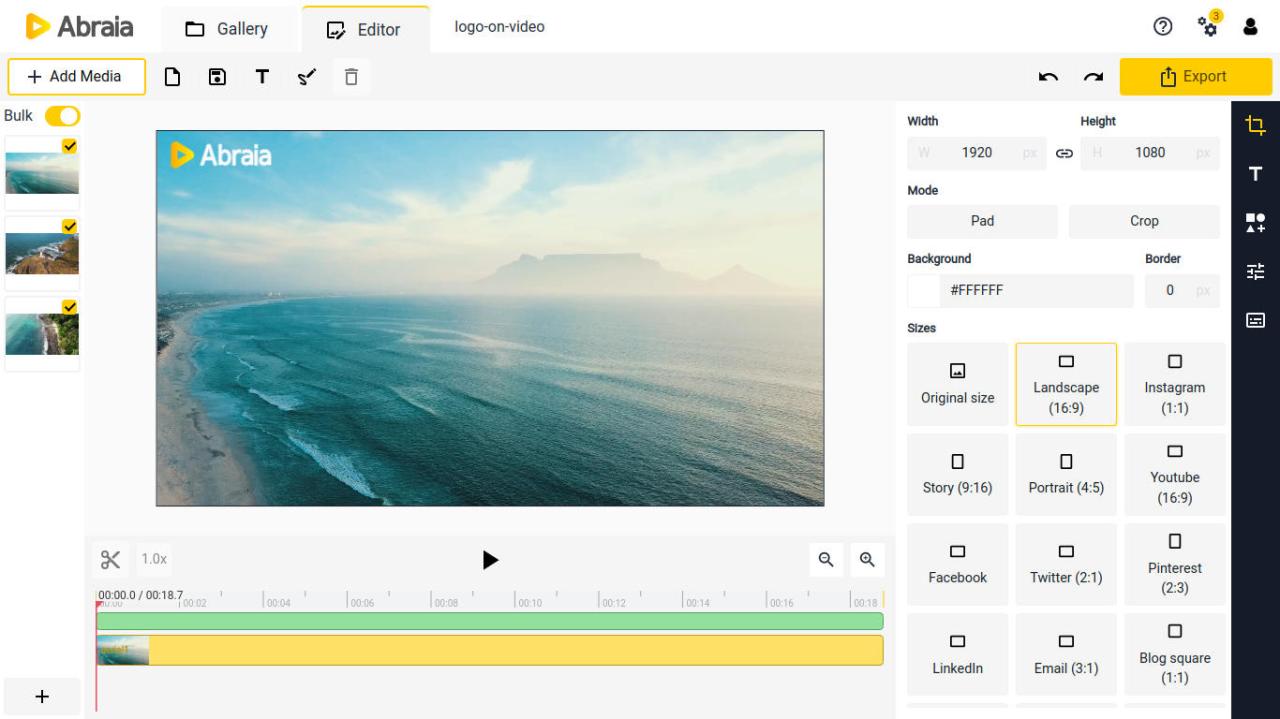
Enhancing logo integration in videos involves sophisticated methods that allow for seamless and dynamic branding experiences. Utilizing techniques such as masks, chroma keying, animated logos, and layering multiple logos can significantly elevate the visual appeal and professionalism of your videos. These approaches are particularly valuable in complex scenes where simple overlay methods fall short, enabling more creative and impactful branding strategies.
Adopting these advanced techniques requires an understanding of specialized tools and meticulous planning to ensure logos are integrated naturally and effectively. Mastering these methods allows content creators and marketers to produce visually engaging videos that communicate brand identity with precision and flair.
Using Masks or Chroma Keying for Complex Scenes
When integrating logos into videos with dynamic or intricate backgrounds, straightforward overlay methods may produce inconsistent results. Masks and chroma keying offer solutions to seamlessly embed logos into such scenes by isolating specific areas or backgrounds for precise placement.
Chroma keying involves filming the logo or scene against a uniform color background—commonly green or blue—and then removing that color in post-production. Masks, on the other hand, are used within editing software to selectively hide or reveal parts of the video, allowing logos to be inserted behind or in front of moving subjects or complex backgrounds with precision.
Steps for applying chroma keying effectively include:
- Filming the logo against a consistent and well-lit chroma key background.
- Importing the footage into editing software that supports chroma key functionality, such as Adobe Premiere Pro or Final Cut Pro.
- Using the chroma key tool to select and remove the background color, refining edges for smooth integration.
- Positioning the logo layer within the scene and adjusting opacity, scale, or motion as needed.
In scenes with moving backgrounds or complex compositions, masking allows for frame-by-frame control to ensure the logo remains correctly positioned and visually integrated. This method is often used in cinematic productions or promotional videos where background replacement elevates the visual storytelling.
Creating Animated or Interactive Logos
Dynamic logos can significantly enhance brand engagement by adding movement or interactivity to static images. Animation introduces motion to logos, making them more eye-catching and memorable, while interactivity enables viewers to engage with logos in real-time, often within digital or multimedia environments.
To create animated logos, designers typically utilize motion graphics software such as Adobe After Effects or Blender. This involves designing keyframes that define movement, transformation, or effects applied to the logo over time. For example, a logo might fade in, rotate, or have elements that animate independently to create a compelling visual sequence.
For interactive logos, especially in digital applications or websites, techniques include:
- Embedding logos within HTML5 or SVG formats that support hover effects or click-triggered animations.
- Using JavaScript or CSS to animate logo components based on user interaction.
- Integrating logos into digital interfaces where they respond to user inputs, such as dragging or clicking, to reveal additional branding elements or information.
Developing these logos demands a thoughtful approach to timing and user experience, ensuring the animations are smooth and do not distract from the main content. Properly animated or interactive logos can reinforce brand identity and foster a deeper connection with viewers.
Layering Multiple Logos for Branding Diversity
In certain scenarios, incorporating multiple logos within a single video can convey partnership, sponsorship, or brand diversity. Layering allows for the presentation of different branding elements simultaneously or in sequence, enriching the video’s narrative and visual richness.
Implementing this technique involves strategic placement and transparency adjustments to prevent visual clutter. For example, a video might feature a primary logo prominently in a corner while smaller sponsor logos appear in a lower third or as watermarks. Layering can also involve animated sequences where multiple logos fade in and out, creating a dynamic branding experience.
Key considerations include:
- Maintaining visual hierarchy to ensure the primary logo remains dominant and recognizable.
- Using transparency and blending modes to integrate logos smoothly into the scene without overpowering the main content.
- Timing the appearance and disappearance of logos to complement the video’s flow and messaging.
Advanced layering techniques often utilize multiple video tracks within editing software, enabling precise control over each logo’s position, size, and timing. This approach effectively communicates diverse brand relationships and enhances overall brand visibility within the video.
Outcome Summary
In summary, knowing how to add logos to video empowers content creators and businesses to reinforce their branding effectively. By following best practices and exploring advanced techniques, you can produce professional-quality videos that leave a lasting impression and maintain brand consistency. Take the time to experiment with different overlays and customization options to achieve optimal results.