Learning how to add 3D text opens up a world of creative possibilities for enhancing digital designs and visual projects. Whether you aim to create eye-catching logos, engaging website headers, or dynamic multimedia content, mastering 3D text can significantly elevate your work.
This guide walks you through the essential steps of preparing your workspace, creating, customizing, and integrating 3D text into various projects, ensuring you develop professional-quality results with ease and confidence.
Introduction to 3D Text in Design Software
3D text has become an essential element in modern digital design, offering a dynamic and visually appealing way to convey messages, branding, and artistic expression. Unlike traditional flat text, 3D text introduces depth, perspective, and realism, enabling designers to craft more engaging and immersive visuals.
This technique is widely employed across various digital platforms, including advertising, motion graphics, video production, and virtual environments. It allows for creative flexibility, making designs stand out and attracting viewer attention more effectively than static, two-dimensional text.
Common Software Options for Creating 3D Text
To produce high-quality 3D text, designers utilize specialized software that offers a range of tools for modeling, rendering, and animating. The choice of software often depends on the project’s complexity, desired effects, and user proficiency. Here are some of the most popular options:
| Software | Description | Key Features |
|---|---|---|
| Adobe After Effects | Primarily used for motion graphics and visual effects, it includes plugins like Element 3D that facilitate 3D text creation within compositions. | Real-time rendering, integration with Adobe Creative Cloud, extensive animation controls. |
| Blender | An open-source 3D modeling suite capable of creating detailed 3D text with advanced modeling and rendering capabilities. | Free to use, comprehensive modeling tools, Cycles rendering engine, animation support. |
| Cinema 4D | A professional 3D modeling, animation, and rendering software popular among motion designers for its user-friendly interface and powerful features. | Intuitive interface, MoGraph toolset, seamless integration with Adobe products. |
| Autodesk Maya | Widely used in film and game development, Maya offers robust tools for complex 3D modeling and texturing, including advanced text effects. | High-quality rendering, scripting capabilities, extensive plugin support. |
| SketchUp | Known for its simplicity and ease of use, suitable for quick 3D text mockups and basic modeling projects. | User-friendly interface, quick modeling process, suitable for beginners. |
Benefits of Incorporating 3D Text in Projects
Integrating 3D text into digital projects enhances visual impact and professionalism, making content more compelling and memorable. The advantages include:
“3D text adds depth, realism, and a sense of dimension that captures the viewer’s attention more effectively than flat text.”
- Increased Visual Appeal: 3D elements create a more engaging experience, especially when combined with lighting, shadows, and textures.
- Enhanced Branding Opportunities: Dynamic 3D text can emphasize brand identity through creative animations and distinctive styles.
- Versatility in Design: It enables the creation of logos, titles, banners, and promotional content that stand out across various media platforms.
- Realistic Effects: Producing effects like metallic finishes, glass reflections, or textured surfaces becomes more feasible with 3D text, adding richness to the overall design.
- Improved Readability and Impact: Properly designed 3D text can improve readability in busy visual compositions while maintaining aesthetic appeal.
Preparing Your Environment for 3D Text Creation
Establishing an optimal workspace is a fundamental step before diving into 3D text modeling. A well-organized and properly configured environment ensures efficiency, precision, and better results. This section guides you through the essential setup procedures in popular design software, highlights considerations for font and style selection, and introduces tools and plugins that can enhance your 3D text effects.
Proper preparation of your working environment not only streamlines your workflow but also opens up creative possibilities that can significantly elevate the visual impact of your 3D text projects. Whether you are using professional 3D modeling applications or advanced graphic design programs, establishing the right setup from the outset is crucial.
Setting Up the Workspace in Popular Design Programs
Different software solutions offer unique features and interfaces tailored for 3D text creation. It is essential to configure your workspace appropriately to access necessary tools, viewports, and panels that facilitate smooth modeling and editing processes. Below are key steps for popular programs:
- Adobe Illustrator with 3D Effects: Enable 3D effects by navigating to the ‘Effect’ menu, then selecting ‘3D and Materials.’ Customize the scene with appropriate lighting, rotation, and extrusion settings. Arrange panels such as ‘Appearance’ and ‘Layers’ for better control over styles and effects.
- Blender: Switch to the ‘Layout’ workspace, ensure the 3D Viewport is active, and set the units and grid preferences to suit your project scale. Enable relevant add-ons like ‘Font’ for text manipulation and ‘Sculpt’ if needed for detailed adjustments.
- Cinema 4D: Use the ‘Content Browser’ to access fonts and models. Set up the ‘Object Manager’ and ‘Attributes Manager’ for quick access to parameters. Customize the viewport display and enable snapping options for precise placement of text objects.
Adjusting workspace layouts and preferences within your chosen software can significantly reduce workflow interruptions, allowing you to focus on creativity and refining your 3D text designs.
Selecting Appropriate Fonts and Styles Before 3D Modeling
The foundation of compelling 3D text starts with choosing the right font and style suited to your project’s theme and purpose. Proper selection influences the final visual impact and ease of modeling. Here are critical considerations:
Consistency and Readability: Use fonts that align with your brand identity or project theme, ensuring the text remains legible even after extrusion and effects are applied.
- Font Type: Sans-serif fonts like Helvetica or Futura lend a modern, clean look, ideal for contemporary designs. Serif fonts such as Times New Roman or Garamond evoke a classic or formal style.
- Weight and Style: Heavier fonts provide more substantial 3D effects, while lighter styles may need additional detailing to avoid appearing fragile or insubstantial.
- Custom and Decorative Fonts: For unique branding or artistic projects, consider using custom fonts or decorative styles that enhance the thematic expression.
Experiment with different font weights and styles within your software’s font library to determine which best complements your desired 3D effect. Remember that some fonts may have complex designs that require simplified versions to maintain clarity in 3D form.
Necessary Tools and Plugins for Enhanced 3D Text Effects
Leveraging specialized tools and plugins can significantly elevate the quality and variety of 3D text effects. These resources extend the capabilities of your base software, making complex effects more accessible and realistic.
- Text Effects Plugins: Plugins like ‘Tessellation’ tools or ‘Live Text’ add-ons in programs like Cinema 4D or Blender enable dynamic deformation, beveling, and material mapping, creating more intricate and realistic text appearances.
- Materials and Textures Libraries: Access to high-quality textures, bump maps, and reflectivity maps allows for detailed surface finishes, such as metallic, glass, or distressed effects.
- Lighting and Rendering Plugins: Advanced lighting plugins, such as HDRI environments, provide realistic shadowing and reflections, vital for high-quality 3D text renders.
- Modeling Enhancements: Add-ons that facilitate procedural modeling, such as array or spline tools, can help create complex or repetitive text patterns efficiently.
Investing in reliable tools and plugins tailored for 3D text work can reduce manual effort, ensure consistency, and unlock creative potential for producing professional-grade results. Regular updates and compatibility checks with your primary software are recommended to maintain a seamless workflow.
Creating Basic 3D Text

Transforming flat text into three-dimensional objects is a fundamental skill in 3D design software, enabling designers to craft visually compelling titles, logos, and signage. This process involves inputting your desired text, converting it into a 3D form, and customizing its depth, extrusion, and bevels to achieve the desired aesthetic. Applying initial materials and colors further enhances the visual appeal, making your 3D text stand out within your project.
By mastering these foundational techniques, users can create versatile and professional-looking 3D text elements suited for a variety of digital and print media. The following steps provide a structured approach to creating, adjusting, and styling basic 3D text within commonly used design software.
Inputting Text and Converting into 3D Objects
Starting with a clean workspace, select the text tool within your design software. Type in your desired text, ensuring the font style and size are appropriate for your project. Once the text is inputted, convert it into a 3D object by applying the software’s extrusion or depth function. This typically involves selecting the text layer and choosing an option such as “Convert to 3D” or “Extrude.”
For instance, in software like Adobe Illustrator with the 3D effects or Blender, you can convert 2D text into 3D meshes through specific commands or modifiers. This conversion transforms flat text into a manipulable 3D object, allowing further adjustments to its geometry and appearance.
Adjusting Depth, Extrusion, and Bevels
Fine-tuning the three-dimensional aspects of your text is crucial for achieving the desired visual impact. Adjust the depth or extrusion parameters to control how thick or protruded your text appears. Increasing the extrusion value results in a more prominent 3D effect, suitable for signage or display models, while lower values maintain a subtler look.
Bevels add a sense of realism and detail to the edges of the text. By applying bevels, you can soften or sharpen the edges, creating effects ranging from smooth rounded corners to sharp, crisp Artikels. Most 3D software offers slider controls or numerical input fields to customize bevel size and shape.
Illustratively, when working in software like Cinema 4D or Maya, you can access parameters such as ‘Extrude Depth’ and ‘Bevel Width’ to precisely control these aspects. Experimenting with different combinations can produce effects like engraved inscriptions or bold, blocky lettering suited for impactful visual statements.
Applying Materials and Colors to 3D Text
Applying initial materials and colors enhances the visual distinction of your 3D text, making it more appealing and realistic. Begin by selecting your 3D text object and choosing a material or shader from your software’s material library. For example, metallic, matte, or glossy finishes can be applied depending on the desired style.
Adjust the material properties such as reflectivity, roughness, and transparency to match your design vision. In addition, applying base colors to the material allows you to easily customize the appearance. For instance, a vibrant red or metallic gold can transform basic text into eye-catching signage or branding elements.
In professional workflows, combining materials with lighting setups further enhances the depth and realism of the 3D text, providing a polished and professional finish suitable for presentations, animations, or print media.
Customizing 3D Text Appearance
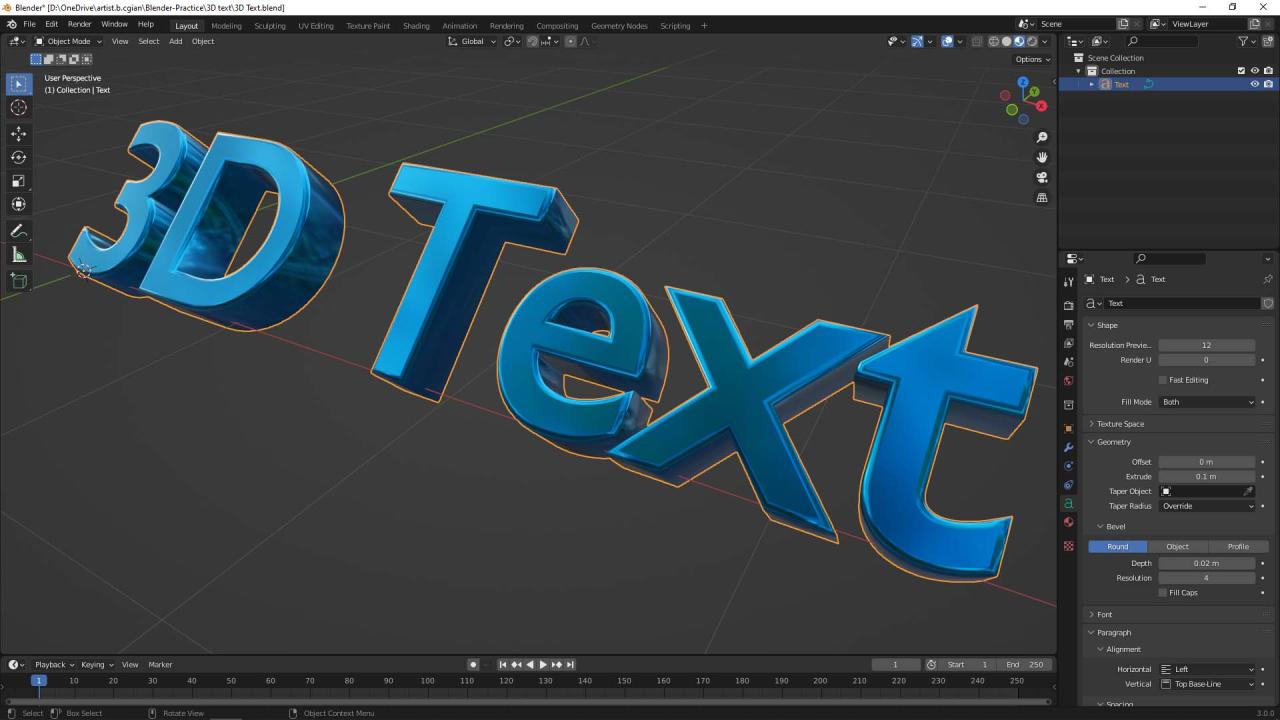
Enhancing the visual appeal of 3D text involves a variety of customization techniques that control how the text interacts with lighting, surfaces, and its overall layout within a design. These adjustments are essential for creating realistic, eye-catching, and professional-looking 3D text elements that align with the intended aesthetic and functional goals of a project.In this section, we explore key methods for modifying the appearance of 3D text, including lighting, shadows, reflections, textures, and transformations.
These techniques empower designers to craft highly customized text that seamlessly integrates with diverse visual environments and layouts, ensuring the final output captures the desired mood, style, and clarity.
Adjusting Lighting, Shadows, and Reflections for Realistic Effects
Lighting plays a critical role in defining the depth and realism of 3D text. Properly configured lighting sources can highlight the contours and surface details, while shadows add depth and spatial context. Reflections contribute a sense of materiality and realism, especially for metallic, glass, or glossy finishes.To achieve convincing effects:
- Position light sources strategically to emphasize the three-dimensional form of the text. For instance, placing a key light at a 45-degree angle creates natural highlights and shadows that enhance depth.
- Adjust the intensity, color, and spread of lights to match the scene’s mood. Warm tones can evoke a cozy feel, while cooler tones impart a modern, sleek appearance.
- Enable shadow casting and fine-tune shadow softness or hardness based on the desired realism. Soft shadows tend to replicate natural light diffusion, whereas hard shadows add crispness.
- Implement reflection settings by adding reflective materials or environment maps, which simulate reflective surfaces. This is especially useful when creating metallic or glass effects, adding authenticity and visual interest.
Blockquote: “Realistic lighting and shadows are vital for transforming flat-looking text into convincing three-dimensional objects with depth and presence.”
Applying Textures and Surface Finishes
Textures and surface finishes significantly influence the tactile and visual qualities of 3D text. They can transform simple geometric forms into intricate and visually appealing elements by adding complexity, detail, and context.Consider these procedures:
- Select appropriate textures that match the intended material—such as wood, metal, plastic, or fabric. Modern design software often provides libraries or allows importing custom textures.
- Map textures onto the text geometry using UV mapping techniques to control how the image wraps around the surface. Precise UV mapping prevents distortions and ensures a seamless appearance.
- Adjust surface properties such as glossiness, roughness, and bump or normal maps to create realistic surface imperfections and tactile effects. For example, a brushed metal texture can include subtle scratches and grain patterns.
- Implement surface finishes like matte, semi-gloss, or high-gloss to influence how light interacts with the material. A high-gloss finish produces sharp reflections, while matte surfaces diffuse light softly.
Blockquote: “Effective texturing elevates 3D text from basic shapes into detailed, material-authentic elements that enhance overall visual storytelling.”
Resizing, Repositioning, and Distorting 3D Text for Specific Layouts
Adjusting the size, position, and shape of 3D text is crucial for integrating it seamlessly into various design compositions and layouts. Precise control over these transformations ensures that the text complements other visual elements and adheres to project specifications.The key procedures include:
- Resizing involves scaling the text uniformly or along specific axes to fit designated spaces. Uniform scaling maintains proportions, while non-uniform scaling can create stretching effects for stylistic purposes.
- Repositioning entails moving the text within the 3D space. This can be accomplished through translation tools, allowing placement relative to other objects or focal points in the scene.
- Distorting or skewing the text shape can be achieved through deformation tools or mesh editing. This technique is useful for creating dynamic or stylized layouts, such as perspective effects or abstract compositions.
- Utilize grid snapping and numerical input for precise adjustments, especially when aligning multiple text elements or achieving exact layout specifications.
- Consider the impact of perspective and camera angle when resizing and repositioning to maintain visual coherence and readability.
Blockquote: “Mastering transformations ensures that 3D text integrates harmoniously within complex scene layouts, maintaining clarity and aesthetic balance.”
Enhancing 3D Text with Effects
Creating visually compelling 3D text often involves applying various effects that add depth, vibrancy, and motion to static designs. These enhancements help the text stand out, convey mood, or communicate a specific style, making them essential tools in modern digital design. By thoughtfully incorporating effects such as glow, shadows, and animated transitions, designers can elevate their 3D text from simple models to dynamic visual elements that capture attention and convey emotion effectively.In this section, we explore techniques to add glow and other visual effects, layer multiple effects for complex visuals, and incorporate animated transitions or rotations that breathe life into static 3D text.
Understanding how to combine these elements allows for a more professional and polished final product that aligns with various creative goals.
Addition of Glow, Shadows, and Other Visual Effects
Visual effects such as glow, shadows, bevels, and color overlays significantly enhance the perception of depth and realism in 3D text. The process begins with selecting the appropriate effect that complements the overall design aesthetic, followed by fine-tuning parameters like intensity, spread, and opacity to achieve the desired impact.Adding a glow effect, for example, can create a luminous aura around the text, making it appear as if it is emitting light.
This is particularly effective for futuristic or tech-themed designs. Shadows can be adjusted to simulate light sources, creating a sense of spatial positioning and depth. Applying multiple effects requires a strategic approach to layering, ensuring that effects do not overwhelm each other but instead work together harmoniously to produce a cohesive look.In digital design software, these effects are typically accessible through layer styles or effect panels, where sliders or input fields allow precise control over their appearance.
For instance, combining a subtle outer glow with inner shadows can give a metallic or glass-like appearance to the text.
Layering Multiple Effects for Complex Visuals
Combining several visual effects enables the creation of intricate and sophisticated 3D text visuals. Layering involves stacking effects such as glows, shadows, textures, and color overlays to develop depth and complexity that mimic real-world materials or imaginative concepts.A common approach is to start with a base 3D extrusion, then add a soft outer glow to enhance brightness and emphasize the edges.
Next, applying inner shadows and bevels introduces a sense of thickness and dimensionality. Texture overlays—such as metallic or matte finishes—can be integrated via overlay layers or blending modes to give the text a specific tactile quality.This process often requires iterative adjustments to effects parameters to avoid visual clutter. Using transparency and opacity control allows effects to blend seamlessly, creating a layered, multi-dimensional appearance.
For example, designers might layer a subtle gradient overlay with a glow effect to simulate a neon sign, resulting in a vibrant, attention-grabbing visual.
Incorporating Animated Transitions and Rotations
Animated effects transform static 3D text into engaging visual presentations by adding motion and dynamic transitions. Incorporating animated rotations or transitions can emphasize key messages, animate logos, or create interactive elements within multimedia projects.To animate 3D text effectively, designers utilize keyframes or motion paths that control rotation, scaling, and position over time. For example, a subtle rotating effect around the Y-axis can give the impression that the text is turning in space, adding depth.
Transition effects, such as fade-ins, slide-ins, or scaling animations, help introduce or remove text smoothly within an interface.Using software capabilities like timeline editors or animation presets, designers can choreograph complex motion sequences. For instance, a logo might start as a flat 2D shape, then rotate into a 3D form with a glow effect intensifying as it completes the transition. Combining these animated effects with layered visual effects results in a compelling, professional presentation that captures viewers’ attention and enhances overall visual storytelling.
Exporting and Integrating 3D Text into Projects
Creating stunning 3D text is only part of the design process. Efficiently exporting your work and seamlessly integrating it into various projects ensures your designs maintain their quality and visual impact across different platforms. Proper export techniques also facilitate easier sharing, rendering, and embedding, making your 3D text adaptable for multimedia presentations, websites, and print media. Understanding the best practices for exporting and integrating 3D text helps you deliver professional results that meet industry standards and project specifications.Exporting high-quality images or models from your 3D design software requires careful attention to detail, including choosing the appropriate formats and resolutions that align with your project’s goals.
The right export settings preserve the visual fidelity and compatibility of your 3D text, whether it’s used in digital environments or printed media. This section will explore effective methods for exporting your 3D text assets and provide practical tips for their integration into various types of projects.
Methods for Exporting High-Quality Images or Models
When preparing your 3D text for use in different contexts, selecting the proper export method is crucial. High-quality images are often necessary for static use, such as in presentations or marketing materials, while models are essential for interactive applications, animations, or further editing.To export high-resolution images:
- Use the rendering engine within your design software to generate the best quality output, adjusting resolution settings to match the project needs, such as 1920×1080 pixels for HD displays or higher for print quality.
- Apply anti-aliasing techniques to smooth edges and reduce visual artifacts, especially when exporting raster images.
- Select image formats that balance quality and file size, such as PNG for lossless quality or TIFF for professional print projects.
For exporting 3D models:
- Choose formats like OBJ, FBX, or STL based on the target application—OBJ and FBX are ideal for multimedia and animation, while STL is common for 3D printing.
- Verify that the scale, texture maps, and materials are correctly preserved during export to ensure consistency when importing into other software.
- Optimize the model by reducing unnecessary polygons without compromising visual quality to facilitate faster rendering and easier manipulation.
Embedding 3D Text into Websites or Multimedia Presentations
Integrating 3D text into digital projects enhances visual appeal and user engagement. Proper embedding techniques ensure that your 3D text appears crisp and functions seamlessly across platforms.For websites:
Export your 3D text as a web-compatible format such as glTF or in a format compatible with WebGL frameworks like Three.js. These formats support rich textures, animations, and interactivity while maintaining manageable file sizes.
- Embed the 3D content within HTML using appropriate viewers or libraries that support WebGL, ensuring compatibility across browsers.
- Optimize assets by compressing textures and simplifying models to improve load times and performance.
- Use responsive design principles to adapt the 3D text to different screen sizes and resolutions, ensuring consistent user experience.
For multimedia presentations:
Rendered images of your 3D text can be inserted directly into slideshows, or animated sequences can be exported as video files for dynamic presentations.
- Export animations as MP4 or MOV files for smooth playback within presentation software like PowerPoint or Keynote.
- Leverage transparent backgrounds in PNG sequences or video formats to overlay 3D text seamlessly over other visual elements.
- Adjust resolution and aspect ratio to match the presentation’s display settings, typically 1920×1080 pixels for full HD screens.
Necessary Formats and Resolutions for Different Platforms
Choosing the correct file formats and resolutions is critical for maintaining quality and functionality in various applications. Different platforms have specific requirements that influence export decisions.For web and online use:
- Formats: glTF, OBJ, or FBX for 3D models; PNG or JPEG for static images.
- Resolutions: at least 1080p (1920×1080 pixels) for high-definition displays, with higher resolutions such as 4K (3840×2160) for large-format screens and banners.
For print media:
- Formats: TIFF or high-resolution PNG for static images; PDF for composite layouts.
- Resolutions: typically 300 DPI or higher, with dimensions matching the final print size to ensure clarity and sharpness.
For video and multimedia:
- Formats: MP4, MOV, or AVI with H.264 or HEVC codecs for efficient compression and quality retention.
- Resolutions: standard HD (1920×1080), 4K (3840×2160), or higher, depending on the delivery platform and display capabilities.
Adhering to these format and resolution guidelines guarantees that your 3D text assets are versatile, high-quality, and ready for professional deployment across all intended platforms, enhancing both visual impact and user experience.
Troubleshooting Common Issues
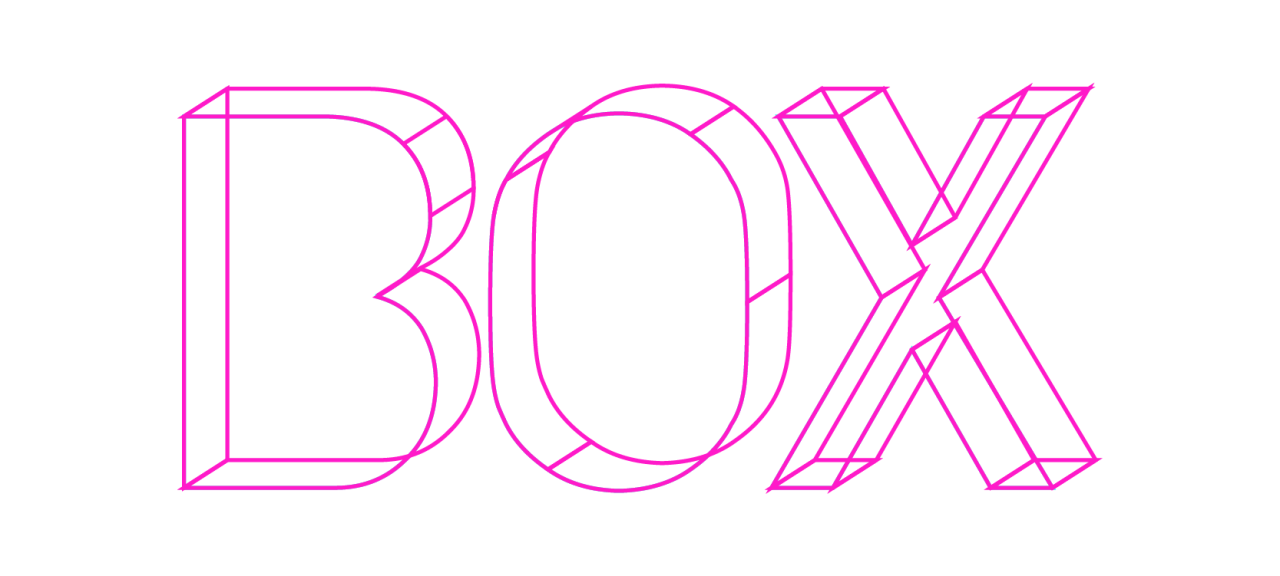
Creating 3D text in design software often involves complex processes that can sometimes lead to unexpected issues. Understanding the common problems encountered during 3D text creation and knowing effective solutions can significantly improve workflow efficiency and final output quality. This section explores frequent challenges such as distorted extrusion, inadequate lighting, and rendering errors, providing clear, step-by-step guidance to resolve these problems.
By adhering to best practices, designers can maintain high-quality results throughout their editing and rendering phases, ensuring professional and visually appealing 3D text assets.
Distorted Extrusion and Geometry Errors
Anomalies in extrusion geometry, such as distorted or uneven shapes, are among the most common problems faced during 3D text modeling. These issues often result from improper input parameters, non-manifold meshes, or incorrect anchor points. Addressing these requires precise adjustments and validation of the mesh integrity.To resolve extrusion distortions:
- Review the original text input for irregular characters or spacing that may cause extrusion errors. Simplify or convert problematic characters into Artikels before extruding.
- Check the geometry for non-manifold edges or overlapping vertices using mesh analysis tools available in most 3D software. Use commands like ‘Clean Up’ or ‘Merge Vertices’ to correct these issues.
- Adjust the extrusion depth and direction parameters gradually while previewing the result, ensuring the extrusion follows the intended shape without distortion.
- Apply ‘Subdivision Surface’ modifiers or smoothing techniques if the extrusion appears jagged or uneven, especially for complex fonts or detailed designs.
Poor Lighting and Shadow Artifacts
Lighting plays a pivotal role in rendering realistic 3D text. Common problems include insufficient lighting, resulting in flat appearances, or overly harsh shadows that obscure details. These issues compromise the visual clarity and professionalism of the final asset.To enhance lighting quality:
- Implement three-point lighting setups—key light, fill light, and backlight—to evenly illuminate the text and create depth.
- Use soft shadows with adjustable softness parameters to avoid harsh edges that can distract from the text details.
- Experiment with different light intensities and colors to match the desired mood or branding standards, ensuring the text remains legible and visually striking.
- Enable ambient occlusion to simulate subtle shadowing in creases and intersections, adding realism and depth to the scene.
Rendering Errors and Artifacts
Rendering errors such as noise, flickering, or incomplete surfaces can detract from the quality of your 3D text. These issues often stem from incorrect render settings, insufficient samples, or incompatible materials.To resolve rendering errors:
- Increase the sampling rate in your renderer settings to reduce noise, particularly in areas with complex lighting or reflections.
- Check the material properties, ensuring textures are properly mapped and that transparency or reflection settings are correctly configured.
- Verify that all surfaces are properly UV unwrapped and that normals are correctly oriented outward, which is essential for accurate light interaction.
- Use render layers or passes to identify specific problematic areas, making targeted adjustments without re-rendering the entire scene.
- Review your render logs for error messages or warnings, then follow recommended solutions such as updating drivers, resetting the render engine, or optimizing scene complexity.
Best Practices for Maintaining Quality During Editing
Consistent quality during the editing process relies on disciplined workflows and regular validation steps. Implementing these practices helps prevent issues from escalating and ensures that the final output meets professional standards.Key best practices include:
- Save incremental versions of your project to revert to earlier states if unexpected issues arise.
- Regularly check geometry, textures, and lighting from multiple angles and perspectives to catch distortions early.
- Utilize viewport shading modes such as wireframe, shaded, and rendered views to identify potential problems before final rendering.
- Perform test renders at lower settings to preview lighting and material effects, adjusting parameters as needed before committing to high-quality outputs.
- Maintain a well-organized scene with clearly labeled layers and objects, simplifying troubleshooting and adjustments during the editing process.
Effective troubleshooting combines an understanding of common issues with systematic, step-by-step solutions, ultimately enabling the creation of professional-grade 3D text assets.
Advanced Techniques for 3D Text
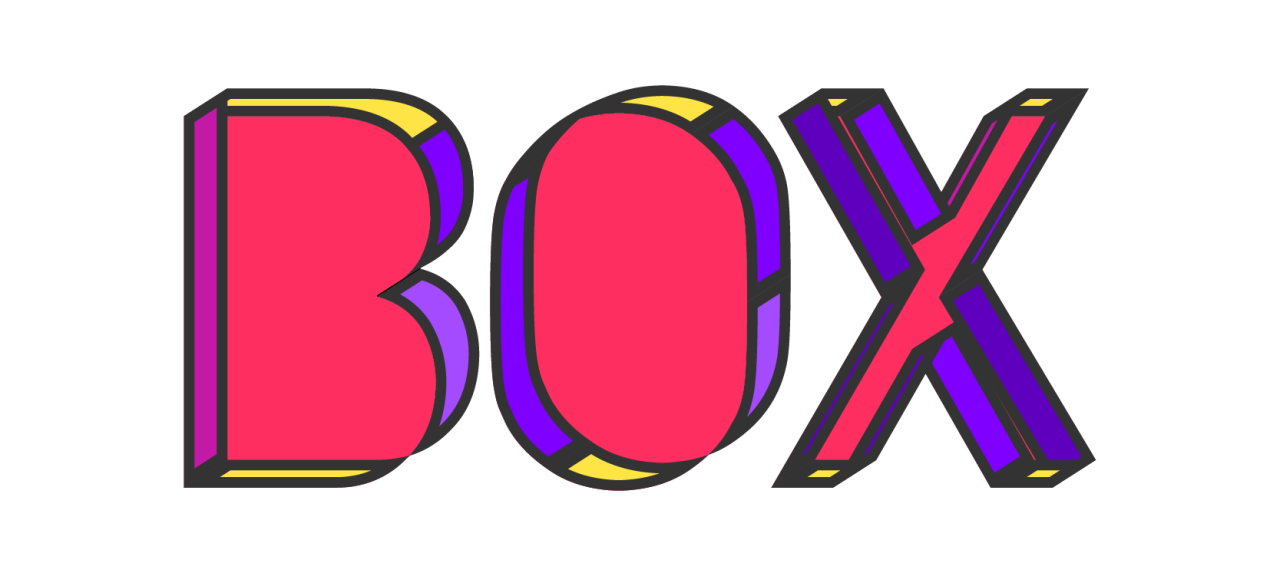
Building upon foundational skills, mastering advanced techniques in 3D text creation allows designers to produce more immersive, dynamic, and visually compelling projects. These techniques encompass integrating 3D text seamlessly with other models or environments, animating text for engaging presentations, and employing scripting or plugins to develop custom effects that stand out. Embracing these methods can significantly elevate the quality and versatility of your 3D design work.
Leveraging these advanced approaches requires a combination of technical proficiency and creative experimentation. By integrating 3D text into complex scenes, animating it for motion graphics, or customizing effects through scripting, designers can craft unique visual narratives that resonate with audiences and meet diverse project requirements.
Integrating 3D Text with Other 3D Models or Environments
Effective integration of 3D text with other models or environments enhances the realism and coherence of a scene. Properly combining these elements involves aligning textures, lighting, and perspective so that the text appears naturally within the context, whether as part of a product showcase, architectural visualization, or cinematic environment.
Techniques for integration include:
- Matching lighting conditions between the text and environmental elements to ensure consistent shadows and highlights.
- Using environmental mapping and reflections to make the text interact dynamically with surrounding surfaces.
- Adjusting camera angles and depth of field to create a seamless visual connection between text and models.
Additionally, utilizing parent-child hierarchies and groupings within the 3D software allows for synchronized movements and transformations, which are vital when integrating complex scenes.
Animation Techniques for Dynamic 3D Text Displays
Animating 3D text transforms static visuals into engaging, attention-grabbing displays. These techniques are essential for creating compelling motion graphics, intros, or interactive presentations. A variety of animation methods can be employed to convey different moods or messages, from subtle rotations to elaborate transformations.
Common animation strategies include:
- Keyframe Animation: Setting specific positions, rotations, or scales at key points in time to create smooth transitions and effects.
- Path Animations: Moving text along custom trajectories to simulate movement through space or to reveal information dynamically.
- Physics-Based Animations: Applying dynamics such as gravity, bounce, or inertia to produce realistic motion effects, often using built-in physics engines.
For example, animating text to appear as if it is being built or assembled, or having it bounce into the scene, can significantly enhance viewer engagement. Combining these techniques with camera movements and lighting effects further amplifies the visual impact.
Creating Custom 3D Text Effects Using Scripting or Plugins
Scripting and plugins offer powerful avenues for producing unique, complex, and highly customizable 3D text effects beyond standard capabilities. These tools enable automation, procedural generation, and integration of advanced effects that would be time-consuming or impossible to achieve manually.
Implementing custom effects involves:
- Scripting Languages: Utilizing scripting languages like Python or JavaScript within 3D software to automate transformations, generate effects, or control animation sequences programmatically. For example, scripting can create text that morphs dynamically based on user input or data streams.
- Plugins and Extensions: Employing third-party plugins designed for specific effects such as liquid metal finishes, fractal distortions, or particle-based embellishments. These plugins often include intuitive interfaces that facilitate complex effects without extensive coding.
For instance, a custom plugin might enable an artist to produce a “glitch” effect on 3D text, simulating digital interference, or create an animated explosion effect where text disintegrates into particles. Carefully scripting these effects ensures seamless integration into larger projects, maintaining both performance and visual quality.
Sample Code and HTML Table for 3D Text Embedding
Embedding 3D text within web pages enhances visual appeal and user engagement by adding depth and dimension to textual content. This section provides a practical example of how to display 3D text using HTML tables combined with CSS styling, facilitating seamless integration into your projects. Understanding this method enables developers to showcase dynamic, eye-catching text effects effectively within their websites or digital interfaces.To embed 3D text within web pages, combining HTML structure with CSS styling is essential.
HTML tables offer a straightforward way to organize multiple text elements systematically, while CSS provides the necessary styling to achieve the 3D appearance. Properly styled, these elements can adapt to different screen sizes, ensuring your design remains consistent and visually appealing across devices.
HTML Table Structure for 3D Text Display
| Column 1 | Column 2 | Column 3 | Column 4 |
|---|---|---|---|
|
3D Text A
|
3D Text B
|
3D Text C
|
3D Text D
|
The CSS styles applied to the `
“Effective embedding of 3D text relies on combining structured HTML elements with sophisticated CSS styling, allowing for versatile and visually compelling designs.”
To ensure the embedded 3D text remains responsive across various devices, employ flexible units like percentages or viewport units for sizing, and use media queries to adjust styles on different screen widths. This approach guarantees that your 3D text elements scale correctly and maintain their visual integrity, providing an optimal viewing experience on desktops, tablets, and smartphones.
Final Thoughts
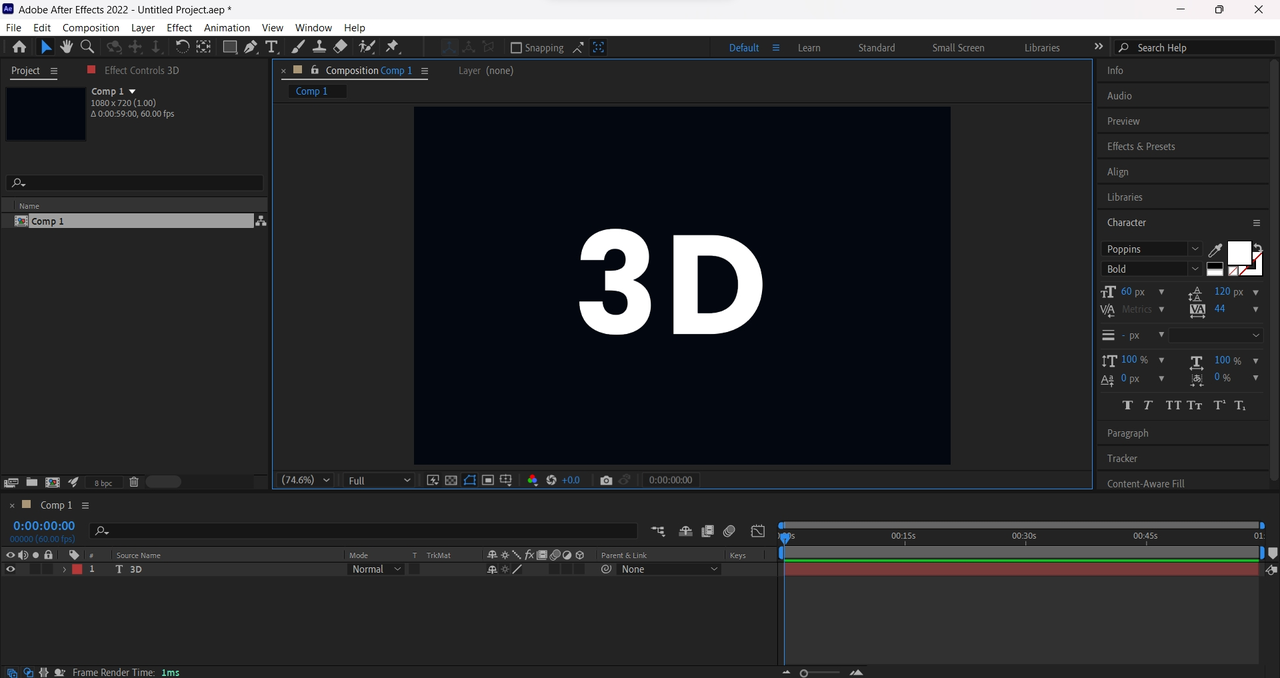
In conclusion, understanding how to add 3D text empowers you to produce visually compelling and impactful designs. By exploring various techniques and tools, you can customize your text to suit any project’s needs, ultimately elevating your digital creations to new heights.