Learning how to add 3D objects opens up a world of creative possibilities in digital environments, enriching projects with depth, interactivity, and realism. Incorporating 3D models can significantly improve visual appeal and user engagement across various platforms, from web pages to virtual scenes.
This process involves preparing, importing, and positioning 3D models effectively, along with applying materials, textures, and lighting to create compelling and immersive experiences. Understanding the workflow and utilizing the right tools ensures seamless integration and optimal performance in your projects.
Introduction to adding 3D objects in digital environments

The integration of 3D objects into digital projects has become a fundamental aspect of modern design, gaming, virtual reality, and simulation environments. Incorporating three-dimensional elements enhances visual realism, improves user engagement, and provides a more immersive experience. As digital environments evolve, understanding how to effectively add and manipulate 3D objects is essential for developers, designers, and content creators alike.
This process involves multiple tools and platforms that facilitate the import, adjustment, and rendering of 3D models. Commonly used software includes Blender, Autodesk Maya, Unity, Unreal Engine, and WebGL-based frameworks. These platforms support various formats and offer specialized features that streamline the integration process, from simple object placement to complex animations and interactions. Mastering the workflow for adding 3D objects typically involves selecting appropriate models, importing them into the environment, positioning and scaling the objects correctly, and applying necessary materials or textures to achieve the desired visual fidelity.
Platforms and tools for adding 3D objects
Choosing the right platform and tools is critical to ensuring a smooth and efficient workflow when integrating 3D objects into digital projects. Each platform offers unique capabilities tailored to specific needs, whether for real-time rendering, game development, or web-based applications.
- Blender: An open-source 3D creation suite that supports modeling, rigging, animation, simulation, rendering, compositing, and motion tracking. Blender is widely used for creating detailed 3D models and exporting them in formats compatible with other engines.
- Autodesk Maya: A professional 3D software extensively used in film and game production for high-quality modeling and animation. Maya offers advanced tools for detailed mesh creation and complex rigging.
- Unity: A versatile game engine that allows easy importing of 3D models and supports real-time rendering, physics simulation, and scripting. Unity is popular for interactive applications and VR experiences.
- Unreal Engine: Known for its photorealistic rendering capabilities, Unreal supports importing a wide range of 3D formats and offers powerful tools for environment creation and animation.
- WebGL frameworks (such as Three.js): Enable embedding interactive 3D content directly into web pages, facilitating lightweight and accessible 3D experiences for users across devices.
Typical workflow for integrating 3D models
The process of adding 3D objects to a project generally follows a well-defined workflow to ensure seamless integration and optimal performance. This workflow encompasses model preparation, importation, positioning, and material application, with each step contributing to the final visual result.
- Model selection or creation: Choose or design a 3D model suited to the project’s requirements, considering factors such as complexity, polygon count, and compatibility.
- Exporting the model: Save the model in a compatible format (e.g., FBX, OBJ, GLTF) that preserves the necessary data for import into the target platform.
- Importing into the environment: Use platform-specific import tools to bring the model into the project space, ensuring correct scaling and orientation.
- Positioning and scaling: Adjust the object’s placement within the scene to align with other elements, using coordinate systems and transformation tools.
- Material and texture application: Enhance visual realism by assigning materials or applying textures, which can include color maps, bump maps, and reflectivity adjustments.
- Final adjustments and optimization: Optimize the model for performance by reducing polygon count if necessary and verifying that it interacts correctly within the environment.
Efficient integration of 3D objects depends on meticulous preparation, compatibility considerations, and precise adjustments throughout each workflow stage.
Preparing 3D objects for integration

Effective integration of 3D objects into digital environments begins with thorough preparation. This process involves sourcing or creating 3D models, optimizing their structure for performance and visual fidelity, and converting them into compatible file formats. Proper preparation ensures that the models function seamlessly within various platforms, maintaining quality while optimizing for efficiency.
By understanding each step involved in preparing 3D objects, developers and artists can streamline workflows, reduce resource consumption, and enhance the overall visual experience. The following sections detail the key processes involved in preparing 3D assets for integration into digital environments.
Sourcing and Creating 3D Objects
Acquiring or creating high-quality 3D models is foundational to successful integration. Models can be sourced from modeling software such as Blender, Maya, or 3ds Max, or obtained from online repositories that offer free or paid assets. When creating models from scratch, attention should be paid to topology, detail, and scale to ensure compatibility with the target environment.
- Modeling Software: Use industry-standard tools to craft detailed 3D models, ensuring clean topology and appropriate level of detail based on the application’s performance constraints.
- Online Repositories: Platforms like Sketchfab, TurboSquid, or CGTrader provide extensive libraries of 3D assets. Ensure models are licensed for your intended use and are available in compatible formats or can be easily converted.
- Custom Design: For unique assets, custom modeling allows control over design elements and optimization from the outset, reducing the need for extensive modifications later.
Optimizing 3D Models for Performance and Visual Quality
Optimization balances visual fidelity with system performance, particularly important for real-time applications such as gaming or virtual reality. Proper optimization reduces polygon count, manages texture sizes, and streamlines materials to ensure smooth rendering without sacrificing essential details.
Optimized models deliver high visual impact while maintaining manageable file sizes and rendering speeds.
Key optimization techniques include:
- Reducing polygon count by simplifying mesh geometry, especially for distant objects or background elements.
- Using Level of Detail (LOD) techniques to display simpler models at greater distances.
- Applying normal maps and bump maps to simulate surface details without increasing geometry complexity.
- Minimizing texture sizes to balance detail and memory usage, often employing compressed formats like JPEG or PNG.
- Eliminating unnecessary vertices, faces, and internal geometry that do not contribute to the visible surface.
Converting 3D Objects into Suitable File Formats
The final step involves converting models into formats compatible with the target platform or engine. Different applications support various formats, each with specific advantages regarding data size, fidelity, and features.
During conversion, attention should be paid to preserving textures, materials, and animations where applicable. This process often involves export settings adjustments to optimize the model for its intended use.
| Format | Suitable Use Cases | Advantages | Considerations |
|---|---|---|---|
| OBJ | Static models, simple exchanges | Widely supported, easy to edit | Does not support animations or advanced materials |
| FBX | Models with animations, complex scenes | Supports animations, lights, and cameras | Proprietary format with larger file sizes |
| GLTF/GLB | Web-based applications, real-time rendering | Compact, optimized for web, supports PBR materials | May require specific exporters for certain software |
Careful selection and configuration of export settings ensure that models retain necessary details and perform optimally in their target environment.
Importing 3D objects into software applications
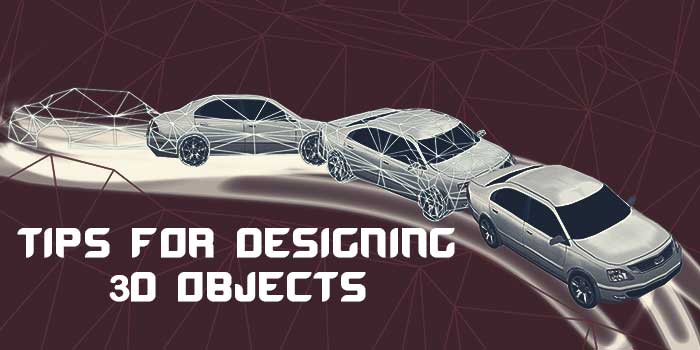
Transferring 3D models into various digital environments is a fundamental step in integrating detailed objects into your project. Whether working within modeling platforms like Blender or game engines such as Unity and Unreal Engine, understanding the import process ensures a smooth workflow and maintains the integrity of your models. Proper importing involves not only the transfer of geometry but also the preservation of materials, textures, and hierarchical structures, which are essential for realistic rendering and interaction.
Each platform has its specific procedures and best practices for importing 3D objects. Familiarity with these methods, along with troubleshooting techniques for common issues, enhances efficiency and helps avoid potential setbacks during project development. This section provides a detailed, step-by-step guide tailored to popular software environments, ensuring that your 3D assets are integrated seamlessly and organized effectively within your project files.
Importing 3D models into Blender
Blender is a versatile open-source 3D creation suite widely used for modeling, animation, and rendering. Importing models into Blender requires selecting the appropriate file format and following specific import steps to preserve model details.
- Open Blender and navigate to the top menu bar.
- Click on File > Import.
- Select the format of your 3D object, commonly OBJ, FBX, or GLTF/GLB. Each format has different advantages; for instance, OBJ is simple for static models, while FBX supports animations.
- Locate the saved model file on your computer and select it.
- Click Import. The model appears within the scene view.
- Adjust the model’s position, scale, and rotation as needed using the transform tools.
To organize imported objects within Blender, use collections to group related assets. Naming conventions and hierarchical structuring facilitate easier scene management. Troubleshooting common issues, such as missing textures or scale discrepancies, involves verifying the export settings from the source software, ensuring texture paths are correct, and applying scale adjustments within Blender’s transform options.
Importing 3D models into Unity
Unity is a powerful game development platform that supports multiple 3D file formats. Proper importing ensures models retain their visual fidelity and are ready for interaction within your scene.
- Launch Unity and open your project.
- Navigate to the Assets panel within the Project window.
- Right-click in the Assets folder, then select Import New Asset.
- Locate your 3D model file—preferably in FBX, OBJ, or other supported formats—and click Import.
- Unity automatically processes the model, displaying it in the Project files.
- Drag the imported asset into the Scene or Hierarchy panel to instantiate it within your environment.
Organizing imported objects involves creating dedicated folders for models, textures, and materials. Assign meaningful names and categorize assets logically. Common issues during import include incorrect scaling, missing textures, or broken animations. To resolve these, double-check the import settings in the Inspector window, ensure the external texture paths are correct, and adjust the scale factor or import options if necessary.
Importing 3D models into Unreal Engine
Unreal Engine offers robust tools for importing detailed 3D assets, supporting formats like FBX and OBJ. Ensuring correct import settings is vital for maintaining model fidelity and functionality.
- Open Unreal Engine and your project.
- In the Content Browser, click the Import button.
- Select your 3D model file from the file explorer.
- The FBX Import Options window appears, allowing you to customize import settings such as geometry, materials, textures, and animations.
- Set the options according to your needs; for static models, disable animation imports. For models with textures, ensure the material import is enabled.
- Click Import. The asset appears in the Content Browser.
- Drag the asset into your scene to add it to your environment.
Effective organization involves creating folders within the Content Browser for different asset types and maintaining consistent naming conventions. Troubleshooting common issues such as missing textures involves verifying material assignments during import, checking for correct file paths, and adjusting import settings to include necessary materials and textures.
Organizing imported objects within project files
Efficient organization of imported 3D objects is crucial for maintaining a manageable workflow, especially in complex projects with numerous assets. Establishing a clear folder hierarchy, naming conventions, and metadata tags helps in quick retrieval and updates.
Most platforms allow creating dedicated directories or collections for different asset types, such as models, textures, and animations. Grouping related objects simplifies scene management and reduces clutter, enabling smoother collaboration across teams. Implementing standardized naming conventions—such as prefixing object names with their category or version number—enhances clarity and version control.
“Consistent organization reduces errors, saves development time, and improves project scalability.”
Regularly updating organizational practices and documenting asset management procedures ensure longevity and consistency across different stages of project development.
Troubleshooting common import issues
Encountering issues during import is common and can often be resolved with systematic troubleshooting. Common problems include missing textures, incorrect scaling, broken animations, or geometry errors.
First, verify that the export settings from the original software match the import requirements of the platform. For example, ensure that textures are embedded or correctly linked, and that scale units are consistent across applications. If textures are missing, check the file paths and re-import textures if necessary. Scaling issues can be addressed by adjusting import or import scale options, aligning units between source and target software.
For geometry errors, such as non-manifold meshes or inverted normals, run mesh cleanup tools available within the platform. Animations that do not play or export correctly may require re-exporting with specific settings enabled or using compatible export formats.
Maintaining an organized asset pipeline, keeping detailed records of export/import settings, and testing models incrementally help identify and resolve issues efficiently, reducing project delays.
Positioning and Transforming 3D Objects in a Scene
Effective positioning and transformation of 3D objects are fundamental skills in creating realistic and precise digital environments. Mastering these techniques allows designers and developers to craft scenes that are visually coherent and accurately represent spatial relationships. Proper manipulation of objects ensures seamless integration within virtual worlds, enhancing both aesthetic appeal and functional accuracy.Transforming 3D objects encompasses moving, rotating, and scaling them to achieve the desired placement and size within a scene.
These transformations can be performed individually or in combination, often using specialized tools within software applications that provide intuitive controls and numerical input options. Correct use of these tools allows for meticulous adjustments, ensuring objects align precisely with other elements and the overall scene layout.Understanding and utilizing the underlying coordinate systems are essential for effective transformation. Most 3D environments operate on either a global coordinate system, which defines the universe’s fixed axes, or a local coordinate system, which pertains to individual objects.
Selecting the appropriate system depends on the specific transformation task and desired outcome.
Moving, Rotating, and Scaling 3D Objects Effectively
Moving, rotating, and scaling are core transformation operations that form the basis of object positioning within a scene. Each operation has dedicated tools that facilitate precise control. When moving objects, use translation handles that allow for axis-specific shifts, or input exact displacement values for accuracy. For rotation, adjust the object around specific axes or use numerical inputs to define precise angles, ensuring objects are correctly oriented in space.
Scaling involves resizing objects proportionally or along specific axes, which can be critical when adjusting objects to fit within certain spatial parameters.To ensure transformations are accurate and consistent, it is advisable to utilize snapping features and grid systems provided by most 3D software. Snapping aligns objects to specific points, such as vertices, edges, or grid intersections, minimizing errors and improving alignment.
Aligning Objects Accurately within the Environment
Precise alignment of objects enhances scene coherence, especially when integrating multiple elements. Techniques such as grid snapping, object snapping, and the use of alignment tools streamline this process. For example, when placing a chair relative to a table, snapping the legs to the floor plane and aligning the backrest with the wall ensures spatial correctness.Using reference objects or guides can also improve alignment accuracy.
These can be auxiliary objects that serve as visual or positional references during adjustments. Additionally, employing numerical entry for position, rotation, and scale values ensures exact placement, particularly when replicating objects or maintaining consistency across scenes.
Transformation Tools and Coordinate Systems
Transformation tools are designed to facilitate moving, rotating, and scaling objects with precision and ease. These tools often include handles, numeric input fields, and snapping options. Familiarity with these tools enhances efficiency and accuracy during scene setup.Most 3D applications utilize two primary coordinate systems:
| Coordinate System | Description | Usage Examples |
|---|---|---|
| Global Coordinate System | Defines positions and orientations relative to the entire scene or world origin. Movements and rotations are based on fixed axes, such as X, Y, and Z. | Placing an object at a fixed distance from the scene origin or aligning multiple objects uniformly across the scene. |
| Local Coordinate System | Defines positions and orientations relative to an individual object. Transformations affect the object’s own axes, which may differ from global axes after rotations. | Rotating a door around its hinge or scaling a character model relative to its body axes. |
“Understanding the difference between global and local coordinate systems ensures precise control over object transformations and scene composition.”
Applying Materials and Textures to 3D Objects
Enhancing 3D objects with appropriate materials and textures significantly elevates their realism and visual appeal within digital environments. This process involves creating or selecting materials that define how surfaces interact with light and then applying textures to add detailed surface features. Proper application of these elements not only improves aesthetic quality but also ensures that objects integrate seamlessly into the scene’s overall visual context, whether for rendering, animation, or interactive experiences.
Understanding the methods for creating, importing, and mapping textures, alongside the comparison of shading techniques, allows 3D artists and developers to achieve desired visual effects efficiently. Whether aiming for photorealism or stylized visuals, mastering material and texture application is essential for producing compelling digital content.
Creating and Assigning Materials for Realism
Materials serve as the foundational layer that defines the physical properties of a 3D object’s surface. The process begins with selecting or designing a material that specifies attributes such as color, reflectivity, roughness, transparency, and subsurface scattering. Most 3D software provides material editors where these properties can be adjusted manually or through procedural generation. For instance, metallic surfaces require high reflectivity and smoothness, while matte surfaces benefit from diffuse and rough settings.
Assigning materials involves selecting the desired material from a library or creating a custom one and then applying it to the object’s surface. This can be achieved through drag-and-drop interfaces or by assigning materials via property panels. Proper material assignment ensures that the object reacts accurately to scene lighting, enhancing overall realism and visual coherence.
“The key to realistic rendering lies in accurately defining how surface materials interact with light.” – 3D Rendering Principles
Importing and Mapping Textures onto 3D Objects
Textures add surface detail by overlaying images onto the 3D geometry, simulating complex surface features such as wood grain, fabric weave, or weathered paint. The process begins with importing texture images, which can include color maps, bump maps, normal maps, roughness maps, and more. Once imported, these textures are mapped onto the object’s surface using UV coordinates that define how the 2D image wraps around the 3D geometry.
Accurate UV mapping is crucial for aligning textures correctly, avoiding distortions or seams. Advanced techniques, such as unwrapping and projection mapping, help in achieving seamless textures. Adjustments to scale, rotation, and placement of textures are often necessary to match the real-world proportions and surface details. Properly textured objects significantly enhance realism, especially when combined with sophisticated shading models.
| Texture Type | Function |
|---|---|
| Diffuse/Albedo Map | Defines the base color without lighting effects |
| Bump Map | Creates the illusion of surface bumps without altering geometry |
| Normal Map | Represents detailed surface orientation for realistic light interaction |
| Roughness Map | Affects the glossiness and reflectivity of the surface |
| Specular Map | Defines the intensity and color of specular highlights |
Comparative Analysis of Shading Techniques
Shading techniques determine how light interacts with materials to produce the final visual appearance of 3D objects. Two prevalent approaches are PBR (Physically Based Rendering) and UV mapping-based shading.
PBR is a modern shading model that simulates real-world material responses to lighting, providing consistent results across different lighting environments. It uses physically accurate parameters such as albedo, metallic, roughness, and ambient occlusion, leading to highly realistic outcomes. PBR workflows facilitate the creation of materials that look convincing under varied lighting conditions and are widely adopted in game engines and rendering pipelines.
UV mapping-based shading, on the other hand, relies on detailed texture maps applied onto geometry through UV coordinates. While it allows for high detail and artistic control, it can be more labor-intensive, requiring careful unwrapping and seam management. This method is often preferred for stylized or specific surface effects where artistic texture detail is paramount.
In practice, combining both techniques allows for optimal results: PBR provides the realistic light interaction framework, while UV mapping ensures precise placement of detailed textures. Choosing the appropriate shading method depends on project goals, desired visual fidelity, and production constraints.
Integrating Interactivity with 3D Objects
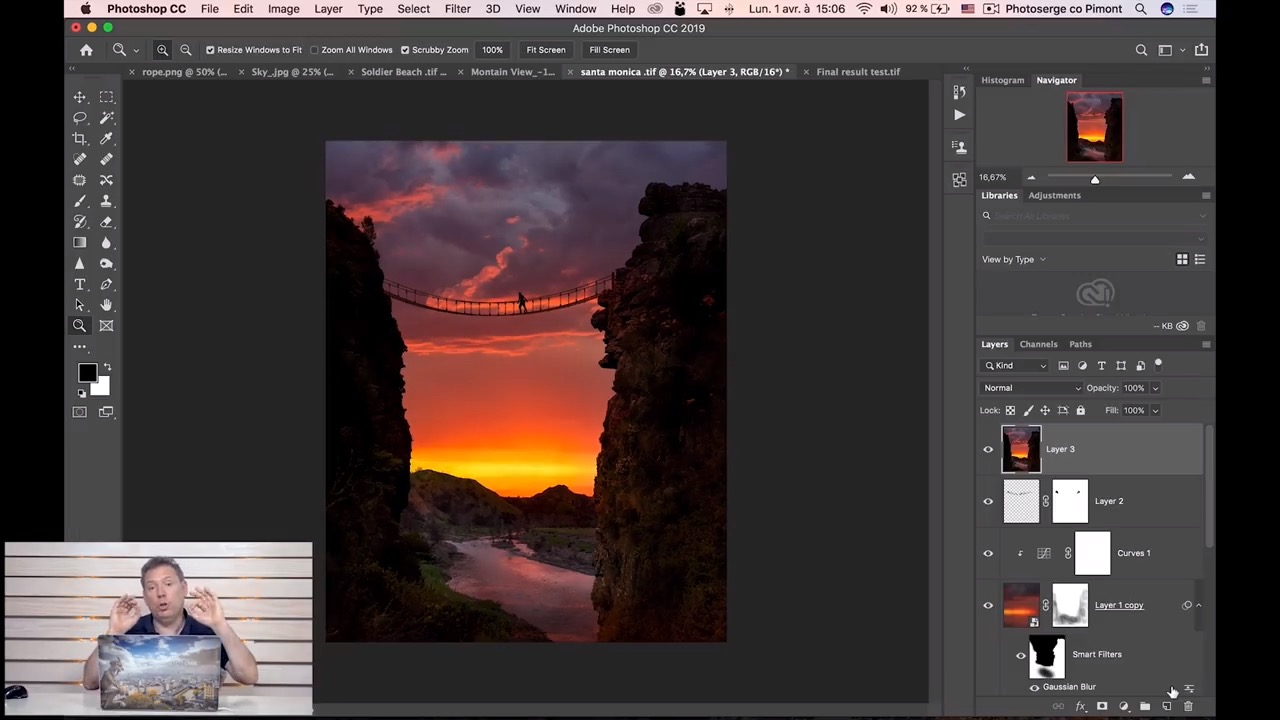
In modern digital environments, static 3D objects serve as foundations for engaging and immersive experiences. Bringing interactivity into these environments enhances user engagement, allowing users to manipulate, control, and respond to 3D objects dynamically. This section explores the essential techniques and practices for scripting behaviors, adding animations, and incorporating user controls to create lively, interactive scenes that respond intuitively to user inputs and environmental triggers.Interactivity transforms passive visualizations into active experiences, making applications such as virtual tours, educational platforms, and gaming environments more compelling.
Implementing these features requires a thorough understanding of scripting languages, animation workflows, and event handling mechanisms that enable seamless communication between user actions and 3D scene responses.
Scripting Behaviors for 3D Objects in Interactive Environments
Scripting behaviors involves writing code that defines how 3D objects react to various interactions within the environment. Common scripting languages include JavaScript for web-based applications (such as those built with Three.js or A-Frame), Python for software like Blender or Maya, and C# within game engines like Unity. These scripts allow developers to specify actions such as moving, rotating, scaling, or triggering visual effects based on user input or system events.The scripting process typically involves attaching event listeners to objects or scene elements.
For example, detecting a mouse click, hover, or drag event can trigger specific behaviors like changing an object’s color, initiating an animation, or opening a detailed view. Proper scripting ensures that interactions feel smooth and intuitive, contributing to a cohesive user experience.
Adding Animations and User Controls
Animations bring 3D objects to life by defining motion paths, transformation sequences, and visual effects that occur over time. They can be created through keyframe animation, procedural animation, or physics-based simulations. Incorporating animations in interactive scenes helps convey information, demonstrate processes, or simply add aesthetic appeal.User controls provide the interface through which users manipulate 3D objects directly. Common control schemes include mouse dragging, touch gestures, keyboard inputs, and virtual controllers.
These controls are integrated with scripting to enable real-time interaction, such as rotating a model with mouse movement, zooming in and out, or toggling visibility.Procedures for adding animations and controls typically involve:
- Defining animation sequences using timeline or keyframe tools.
- Attaching control scripts to objects to listen for user input events.
- Linking input events to animation triggers or transformations.
For example, in a web environment, implementing user controls might involve listening for mouse events:“`javascript// Example: Rotate object on mouse dragcanvas.addEventListener(‘mousedown’, startDrag);canvas.addEventListener(‘mousemove’, whileDrag);canvas.addEventListener(‘mouseup’, endDrag);“`Once an input is detected, scripts update object properties accordingly to animate or transform the object in real-time.
Organizing Examples of Event-Driven Interactions
Event-driven interactions enable 3D objects to respond to user actions or environmental changes immediately, creating an engaging and dynamic experience. These interactions are structured around handling specific events—such as clicks, hovers, or custom triggers—and executing associated behaviors.Below is a table illustrating common event-driven interactions with code snippets for each case:
| Interaction Type | Description | Code Snippet Example |
|---|---|---|
| Object Highlight on Hover | Changes the appearance of an object when the cursor hovers over it, indicating interactivity. |
|
| Object Rotation on Click | Rotates or animates the object upon user clicking it, often used to reveal more details. |
|
| Object Toggle Visibility | Shows or hides an object based on user interaction, useful for revealing additional information or options. |
|
| Drag and Drop | Allows users to reposition objects within the scene through dragging gestures. |
|
Implementing such event-driven interactions requires careful planning of event listeners, state management, and synchronization with animations or other scene updates. Employing libraries like Three.js’s built-in controls or custom scripts enhances flexibility and responsiveness, ensuring that user actions translate into smooth, natural behaviors within the 3D environment.
Exporting and sharing 3D objects
Exporting and sharing 3D objects is a crucial step in the creative pipeline, enabling artists and developers to distribute, display, and collaborate on 3D models across various platforms. Proper export processes preserve essential features such as materials, textures, and animations, ensuring that the integrity of the original design is maintained during transmission. Efficient sharing practices facilitate seamless integration into diverse environments, whether for visualization, gaming, or web deployment, while adherence to best practices guarantees compatibility and optimal performance.
Steps for exporting 3D objects with preserved materials and animations
When exporting 3D objects, it is vital to follow a systematic process that maintains all relevant details such as materials, textures, and animations. The process typically involves the following steps:
- Finalize the model: Ensure that the 3D object is complete, with all modifications, materials, textures, and animations properly applied and tested within the software environment.
- Choose the appropriate export format: Select formats that support the features needed, such as OBJ, FBX, GLTF/GLB, or Collada (DAE). For models with animations and complex materials, formats like FBX or GLTF/GLB are recommended due to their robustness.
- Configure export settings: Enable options to include materials, textures, and animations within the export dialog. Check settings like embedding textures, preserving hierarchy, and including animation data, depending on the format used.
- Optimize the model: Reduce polygon count if necessary, and ensure UV maps and material assignments are correctly configured to prevent issues during import or display.
- Execute export: Save the exported file in a designated folder, verifying that all options for preserving visual fidelity are enabled.
- Validation: Import the exported model into a different viewer or software to verify that materials, textures, and animations are intact and functioning correctly.
Best practices for sharing models across platforms and viewers
Sharing 3D models effectively requires adherence to standards that ensure compatibility, security, and usability across various platforms and viewers. The following best practices facilitate smooth dissemination:
- Use widely supported formats: Prefer formats like GLTF/GLB and FBX, which are broadly compatible with web viewers, game engines, and CAD applications.
- Include all necessary assets: Embed textures and animations within the exported file or maintain a well-structured folder hierarchy to ensure all elements load correctly.
- Optimize for performance: Reduce polygon count and texture sizes where appropriate to enable faster loading times, especially for web applications.
- Maintain version control: Use versioning to track updates to models, facilitating collaboration and rollback if needed.
- Test across platforms: Before sharing, verify the model’s appearance and functionality in multiple viewers or platforms such as Sketchfab, three.js, or Unity to identify potential issues.
Methods for embedding 3D objects into web pages
Embedding 3D models into web pages enhances interactivity and visualization capabilities, making models accessible directly within browsers. The process involves integrating the model with HTML and JavaScript, often utilizing WebGL-based libraries such as three.js. Here are key methods and a sample implementation:
Embedding models requires converting them into web-compatible formats like GLTF/GLB and then loading them using JavaScript libraries that facilitate rendering within a canvas element. This approach allows users to rotate, zoom, and explore models directly on the webpage, creating engaging experiences for viewers.
Example: Embedding a GLTF model using three.js
<div id="container"></div>
<script src="https://cdn.jsdelivr.net/npm/[email protected]/build/three.min.js"></script>
<script src="https://cdn.jsdelivr.net/npm/[email protected]/examples/js/loaders/GLTFLoader.js"></script>
<script>
  // Initialize scene, camera, renderer
  const scene = new THREE.Scene();
  const camera = new THREE.PerspectiveCamera(75, window.innerWidth/window.innerHeight, 0.1, 1000);
  const renderer = new THREE.WebGLRenderer( antialias: true );
  renderer.setSize(window.innerWidth, window.innerHeight);
  document.getElementById('container').appendChild(renderer.domElement);

  // Add lights
  const ambientLight = new THREE.AmbientLight(0xffffff, 0.6);
  scene.add(ambientLight);
  const directionalLight = new THREE.DirectionalLight(0xffffff, 0.8);
  directionalLight.position.set(10, 10, 10);
  scene.add(directionalLight);

  // Load GLTF model
  const loader = new THREE.GLTFLoader();
  loader.load('models/model.gltf', function(gltf)
    scene.add(gltf.scene);
    animate();
  , undefined, function(error)
    console.error(error);
  );

  camera.position.z = 5;

  // Animation loop
  function animate()
    requestAnimationFrame(animate);
    renderer.render(scene, camera);


  // Handle window resize
  window.addEventListener('resize', () =>
    camera.aspect = window.innerWidth/window.innerHeight;
    camera.updateProjectionMatrix();
    renderer.setSize(window.innerWidth, window.innerHeight);
  );
</script>
This example demonstrates embedding a 3D model directly into a webpage, allowing users to interactively view the object with rotation and zoom functionalities. Optimizing the model by reducing complexity and ensuring textures are properly linked enhances performance and visual fidelity in web environments.
Enhancing 3D objects with lighting and environment effects
Effective lighting and environment effects are essential components in creating visually compelling and realistic 3D scenes. These techniques not only illuminate objects but also establish mood, depth, and atmosphere, transforming a simple 3D model into a lively and immersive environment. Mastering the integration of lights, shadows, reflections, and environmental effects enables artists and designers to craft scenes that resonate with realism or artistic stylization, depending on project goals.
Implementing lighting and environment effects involves understanding various light sources, their parameters, and how they interact with materials and scene elements. Proper setup enhances depth perception, accentuates textures, and influences the viewer’s emotional response. This section explores key techniques, strategic considerations, and procedural steps to optimize scene illumination and atmosphere in digital environments.
Adding Lights, Shadows, and Reflections
Lighting plays a pivotal role in defining the visual quality and realism of 3D scenes. Effective use of different light types, shadow techniques, and reflection controls can dramatically alter the scene’s mood and perception.
- Types of Lights: Point lights emit light uniformly in all directions from a single point, ideal for simulating bulbs or candles. Spotlights project a cone of light, useful for highlighting specific areas or objects. Directional lights mimic sunlight, providing parallel rays that illuminate the entire scene uniformly. Area lights produce soft, diffuse illumination, often used to create natural ambient light.
- Shadows: Implementing shadows adds depth and realism. Techniques include shadow mapping, which projects shadows based on scene depth, and ray-traced shadows that simulate accurate light interactions. Adjust shadow softness to balance realism with performance, with softer shadows giving a more natural appearance.
- Reflections: Reflective surfaces can be enhanced through environment mapping, screen space reflections, or ray tracing. These techniques simulate how light bounces off surfaces, adding richness and complexity to materials such as glass, water, or polished metals.
Combining these elements requires careful consideration of scene scale, light placement, and the desired atmospheric effect, whether aiming for a photorealistic or stylized look.
Creating Realistic or Stylized Scene Atmospheres
The atmosphere of a scene significantly influences its storytelling and visual impact. Achieving the desired effect involves selecting appropriate lighting setups, color schemes, and environmental effects that align with artistic intent.
- Realistic Atmospheres: Utilize natural light sources such as sunlight, with proper angle and intensity adjustments to simulate time of day. Incorporate subtle ambient lighting to fill shadows and prevent harsh contrasts. Use physically-based rendering (PBR) materials to accurately depict surface properties and reflections, ensuring that light interacts realistically with materials.
- Stylized Atmospheres: Experiment with exaggerated lighting, vibrant color schemes, and unconventional shadow placements to evoke a specific mood or artistic style. For instance, a scene with high contrast and saturated hues can evoke a fantastical or surreal mood, while minimal lighting may suggest mystery or tension.
- Environmental Effects: Enhance atmosphere with fog, volumetric lights, or color grading. Fog can add depth and mood, while volumetric lighting creates visible light shafts or god rays, emphasizing certain areas or enhancing emotional impact.
Adjusting lighting parameters and environmental effects in harmony allows artists to evoke precise emotional responses and storytelling nuances within their scenes.
Scene Setup Procedures with Lighting Types and Parameters
Organizing scene setup procedures ensures consistent results and efficient workflow. The following table summarizes common lighting types, their typical parameters, and their best application scenarios.
| Lighting Type | Parameters | Application |
|---|---|---|
| Point Light | Position, Intensity, Color, Attenuation (falloff) | General illumination, localized light sources like bulbs |
| Spotlight | Position, Direction, Cone Angle, Penumbra, Intensity, Color | Highlighting specific objects or areas, stage lighting |
| Directional Light | Direction, Intensity, Color, Shadow Settings | Sunlight simulation, outdoor scenes |
| Area Light | Size, Position, Intensity, Color, Softness | Soft shadows, studio-like lighting setups |
| Ambient Light | Color, Intensity | Base fill light, preventing complete darkness in shadowed areas |
Adjusting these parameters appropriately can significantly influence the scene’s mood, realism, and visual appeal. Combining multiple light sources and effects allows for nuanced control over the scene’s atmosphere, enabling the creation of both natural and stylized environments.
Practical examples and case studies
Applying 3D object integration techniques to real-world scenarios provides valuable insights into their effectiveness and adaptability across various industries. By examining detailed workflows within interior design, gaming, and product visualization, professionals can better understand best practices, common challenges, and innovative solutions. These case studies serve as practical guides, illustrating how theoretical concepts translate into tangible outcomes, fostering confidence and proficiency in 3D modeling and scene composition.
Through structured step-by-step tutorials, users can replicate successful processes, adapting them to their specific project requirements. Descriptive scenarios help visualize the application of techniques in diverse contexts, emphasizing the importance of precision, creativity, and technical skills. This approach not only reinforces learning but also inspires new ideas and methodologies for integrating 3D objects effectively in various digital environments.
Interior Design: Developing a Contemporary Living Room Scene
This case study demonstrates the process of embedding 3D furniture and decor objects into an interior space to create a realistic and customizable living room environment. The workflow begins with selecting high-quality 3D models of furniture, such as sofas, tables, and lighting fixtures, from reputable online repositories. These objects are then prepared by ensuring proper scaling, applying suitable materials, and optimizing their geometry for seamless integration.
The steps include importing these models into a 3D scene within the design software, positioning them to establish an engaging layout, and adjusting transformations to achieve natural proportions and spatial relationships. Lighting and environmental effects are added to simulate daylight and ambiance, enhancing realism. Final adjustments involve rendering the scene from various angles, applying virtual textures such as fabric and wood, and exporting the scene for client presentations or virtual walkthroughs.
This method exemplifies how detailed planning and technical execution culminate in compelling interior visualization projects.
Game Development: Creating an Interactive Forest Environment
In game development, embedding 3D objects into interactive environments enhances immersion and gameplay experience. The process starts with acquiring or modeling detailed assets such as trees, rocks, and terrain elements. These objects are then imported into the game engine, where they are positioned to establish a believable and navigable landscape. Developers utilize coordinate systems and transformation tools to place objects accurately, ensuring coherence with the game’s scale and perspective.
Applying materials and textures adds depth and realism, while interactive elements like collision detection and animation bring the environment to life. Lighting setups mimic natural conditions, such as sunlight filtering through trees, thereby creating dynamic shadows and highlights. Developers often test scene interactions through playthroughs, refining object placement and environmental effects to enhance both visual fidelity and player engagement. This case underscores the importance of balancing artistic detail with technical functionality in game scene creation.
Product Visualization: Showcasing a Modern Smartphone
Effective product visualization entails creating compelling 3D representations that highlight key features and aesthetics of a product, such as a modern smartphone. The workflow begins with sourcing or designing an accurate 3D model, incorporating fine details like buttons, screens, and textures. The model undergoes preparation, including clean topology, material assignment, and UV mapping, to ensure realistic rendering outcomes.
Importing the model into visualization software, the next step involves positioning it within a neutral or context-specific environment, such as a retail display or lifestyle scene. Materials and textures—like glass for the screen and matte finishes for the casing—are carefully applied to replicate real-world surfaces. Lighting is then fine-tuned to emphasize the device’s contours, with environment effects such as reflections and ambient occlusion enhancing visual appeal.
The final stage involves rendering high-resolution images or animations for marketing, online catalogs, or client presentations, illustrating how detailed workflows produce persuasive and visually appealing product imagery.
Resources and tools for adding 3D objects
Creating realistic and engaging 3D scenes requires access to reliable resources and versatile tools. Whether you are a beginner or an experienced professional, having the right software, asset libraries, and plugins can significantly streamline your workflow and enhance the quality of your projects. This section Artikels essential resources, guidance on selecting high-quality models and textures, and provides quick-reference links to trusted sources used in the industry.Effective utilization of these resources enables artists and designers to focus more on creativity and scene composition while relying on robust tools and high-caliber assets.
By choosing appropriate models, textures, and plugins, users can optimize project efficiency, reduce manual modeling effort, and achieve visually compelling results.
Essential Software for 3D Object Integration
A variety of software applications serve as powerful platforms for importing, editing, and rendering 3D objects. Selecting the right software depends on the project requirements, compatibility, and personal proficiency.
- Autodesk Maya: Widely used in animation and visual effects, Maya offers comprehensive modeling, rigging, and animation tools suitable for complex scenes and detailed object manipulation.
- Blender: An open-source, free solution renowned for its versatility, Blender supports extensive 3D modeling, texturing, and rendering capabilities, making it ideal for both amateurs and professionals.
- 3ds Max: Known for architectural visualization and game asset creation, 3ds Max provides powerful modeling and animation tools with an intuitive interface.
- Unity and Unreal Engine: These game engines facilitate real-time interaction, physics, and lighting effects, essential for integrating 3D objects into interactive environments.
Plugins and Asset Libraries
Enhancing core software functionalities with plugins and expanding asset libraries accelerates project development and introduces advanced features.
- Sketchfab Plugin: Allows direct import of 3D models from Sketchfab’s vast online library, enabling quick access to diverse assets.
- Quixel Megascans: Offers a comprehensive library of high-quality scanned textures and models, perfect for realistic surface materials and environment assets.
- Substance Painter & Substance Designer: Industry-standard tools for creating and applying detailed textures and materials with procedural workflows.
- Unity Asset Store / Unreal Marketplace: Platforms providing a wide range of free and paid 3D models, textures, shaders, and scripts compatible with respective engines.
Guidance on Selecting Quality Models and Textures
Choosing the right models and textures is pivotal for achieving professional results. Prioritize assets that are optimized for your target platform and designed with high-quality details.
- Assess the polygon count: Higher poly models offer more detail but may impact performance. Balance quality and efficiency according to project needs.
- Verify model topology: Clean, well-structured topology ensures better rigging, animation, and texturing processes.
- Check texture resolution: Opt for high-resolution textures (e.g., 2K, 4K) for close-up views, but consider lower resolutions for background elements to optimize performance.
- Source from reputable libraries: Use trusted repositories like Sketchfab, TurboSquid, or CGTrader to access professionally created assets with clear licensing terms.
- Review asset licensing: Ensure assets are appropriately licensed for your intended use, especially for commercial projects.
Trusted Resources and Asset Libraries
For streamlined access to high-quality 3D models and textures, consider the following reputable sources offering extensive collections suitable for diverse project requirements.
- Sketchfab: Offers a broad spectrum of 3D models, from characters to environment assets, with options for free and paid downloads. The platform facilitates direct in-app previews and licensing clarity.
- TurboSquid: Known for its professional-grade models across various categories, TurboSquid provides detailed assets optimized for different platforms, including game engines and rendering software.
- Cgtrader: A marketplace featuring a variety of 3D models and textures, with flexible licensing options and a community of artists contributing high-quality content.
- Textures.com: Specializes in high-resolution textures, including materials such as wood, metal, fabric, and stone, essential for realistic surface detailing.
- Quixel Megascans: An extensive library of photorealistic scanned assets, which seamlessly integrate with Unreal Engine and other tools, ideal for creating lifelike environments.
Last Point

Mastering how to add 3D objects empowers creators to develop dynamic and visually engaging digital content. By following structured procedures and utilizing appropriate resources, users can achieve professional results that captivate audiences and elevate their projects to new heights.