Understanding how to use masks in editing is essential for achieving precise and professional results in your projects. Masks serve as powerful tools that enable selective adjustments, seamless compositing, and refined image corrections, making your editing workflow more efficient and creative.
This guide offers a comprehensive overview of different mask types, from basic to advanced techniques, including practical steps to create and apply masks in various editing scenarios. Whether you’re working in photo editing, color grading, or video compositing, mastering masks will significantly elevate the quality of your outputs.
Introduction to Masks in Editing
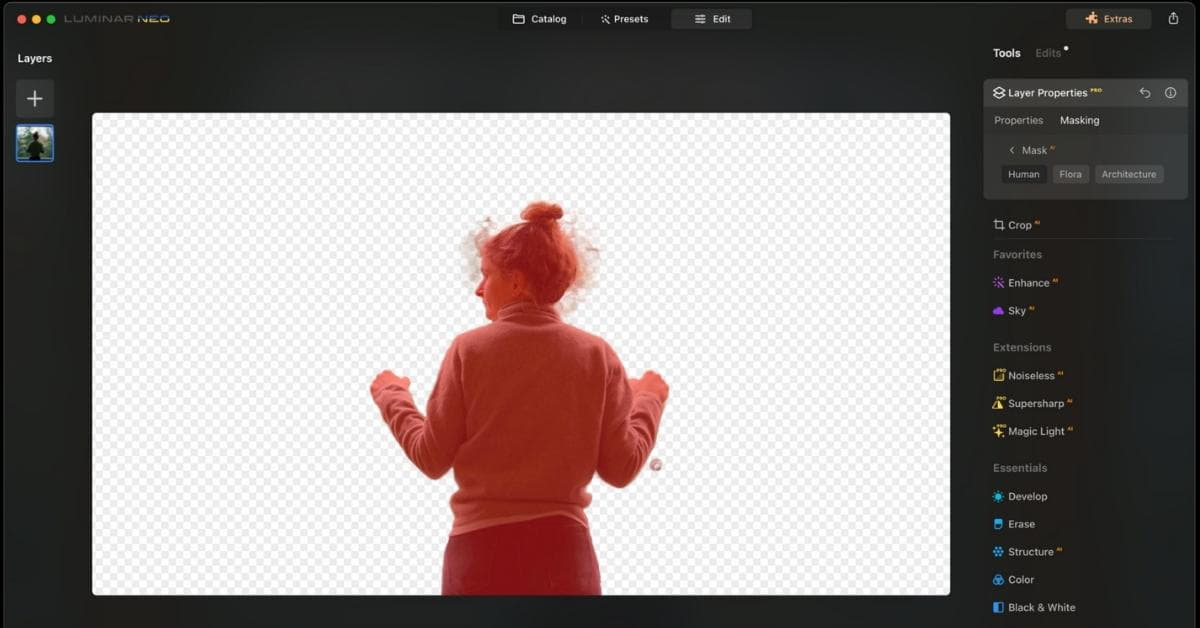
Masks serve as fundamental tools in digital editing workflows, enabling editors to selectively modify, hide, or reveal parts of a visual element without affecting the entire image or video. Their strategic application allows for greater control, precision, and creative flexibility in post-production processes.
The importance of masks lies in their capacity to refine edits, correct specific areas, or isolate subjects from backgrounds. This versatility makes them indispensable in various scenarios such as background replacement, color grading adjustments, retouching, and compositing. By mastering mask techniques, editors can achieve seamless results and elevate the overall quality of their projects.
Types of Masks in Editing Software
Editing software offers a range of mask types, each suited to different tasks and levels of complexity. Understanding these options helps in selecting the most effective approach for specific editing goals.
| Mask Type | Description | Common Use Cases |
|---|---|---|
| Layer Masks | Applied directly to a layer to control its transparency and visibility, allowing non-destructive editing. | Blending images, creating gradual transitions, hiding or revealing parts of a layer without deleting pixels. |
| Clipping Masks | Uses the content of one layer to define the visible area of another, effectively “clipping” content within specific boundaries. | Creating complex shapes from images or patterns, masking adjustments within a shape, or applying effects confined to a particular area. |
| Vector Masks | Utilizes vector shapes created with paths to define precise, scalable boundaries. | Designing sharp, clean edges around objects, detailed selections, or intricate cutouts where precision is critical. |
| Alpha Masks | Employs an alpha channel to control transparency and masking based on the image’s existing transparency data. | Refining edges, creating soft transitions, or applying effects based on transparency levels. |
Common Scenarios Where Masks Enhance Editing Precision
Different editing situations benefit significantly from the strategic use of masks, improving accuracy and enabling complex modifications that would be challenging with basic selection tools alone.
- Background Removal and Replacement: Masks allow precise isolation of subjects, facilitating seamless background changes without halos or artifacts. For example, in portrait photography, fine-tuning masks around hair ensures natural-looking cutouts.
- Selective Color Corrections: Applying adjustments only to specific areas, such as brightening a person’s face without affecting the background, is made possible through masks that target particular regions.
- Retouching and Image Refinement: Masks enable localized retouching, smoothing skin, or eliminating blemishes while preserving surrounding details, providing a natural result.
- Composite Creations: Combining multiple images or elements seamlessly relies heavily on masks to blend layers convincingly, especially when dealing with complex shapes or transparent objects.
- Creative Effects and Transitions: Masks are used to create animated reveals, fades, or other visual effects where parts of the image appear or disappear gradually, adding dynamism to compositions.
Effective use of masks requires understanding their types, functions, and best practices, empowering editors to execute precise and compelling edits in diverse scenarios.
Creating Basic Masks for Editing
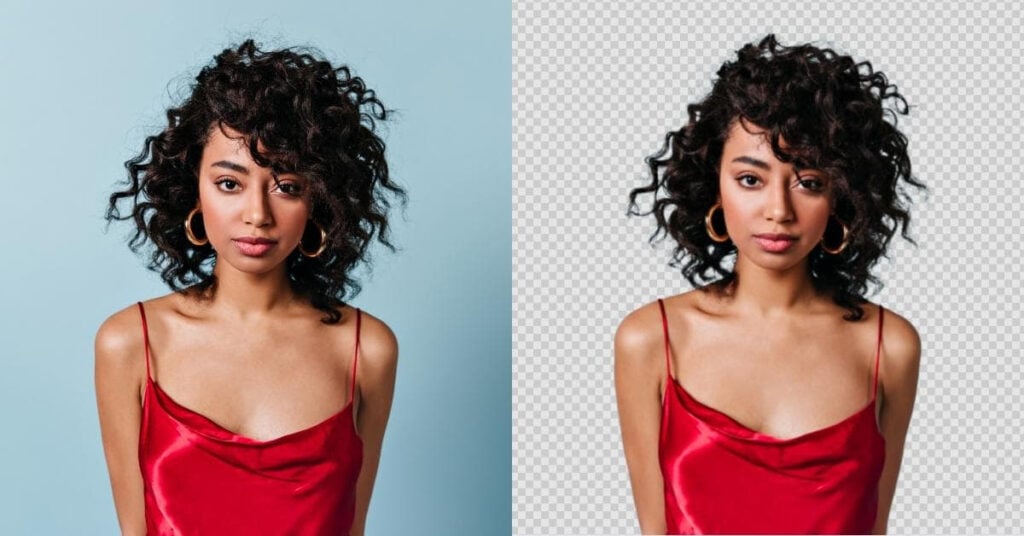
Mastering the creation of simple masks is fundamental to effective editing workflows. Masks enable precise control over specific areas within an image or video, allowing for targeted adjustments such as color correction, blurring, or compositing. Developing basic masks involves understanding various techniques to select regions accurately and efficiently, forming the foundation for more complex editing tasks.
In this section, we will explore step-by-step procedures to craft simple masks, along with an overview of common techniques used to create these masks. Whether utilizing freehand drawing, shape-based selections, or automatic tools, understanding the appropriate method can significantly enhance editing precision and speed.
Step-by-Step Procedures for Creating Simple Masks
- Select the appropriate masking tool: Depending on the editing software, this could be a brush tool, shape tool, or automatic selection feature.
- Identify the area to mask: Visually analyze the image or video to determine the region needing adjustment.
- Refine the selection: Use feathering, smoothing, or edge refinement options to create a seamless transition between masked and unmasked areas.
- Apply the mask: Confirm the selection to generate the mask layer or adjustment layer linked to the selected region.
- Adjust the mask as needed: Modify the mask’s shape or feathering to perfect the selection before applying edits.
By following these steps, users can create effective masks that isolate specific parts of their projects, leading to more controlled and professional editing outcomes.
Techniques for Mask Creation and Their Applications
Various methods exist for creating masks, each suited to different scenarios and levels of precision. Understanding these techniques allows editors to choose the most efficient approach for their specific needs.
- Freehand Masking: Utilizes a brush or pen tool to manually draw or paint the mask onto the desired area. Ideal for complex or irregular shapes requiring detailed custom selection. Commonly used in portrait retouching or intricate object isolation.
- Shape-Based Masking: Employs predefined geometric shapes such as rectangles, ellipses, or polygons. Suitable for straightforward, regular areas like backgrounds, screens, or architectural elements. Frequently used in compositing and background replacement.
- Automatic Selection Masks: Leverages AI-powered or intelligent algorithms to detect and select objects automatically. Efficient for quick selections of subjects like people or objects with clear contrast. Popular in quick edits, such as removing backgrounds in product photography.
Methods for Mask Creation and Their Typical Applications
| Method | Application | Advantages | Limitations |
|---|---|---|---|
| Freehand Masking | Detailed and intricate selections, custom shapes | High precision, flexible | Time-consuming, requires skill |
| Shape-Based Masking | Rectangular or circular objects, architectural elements | Fast, straightforward | Limited to regular shapes, less flexible |
| Automatic Selection Masks | Subjects with high contrast, quick background removal | Rapid, minimal manual effort | May require refinement, less accurate with complex backgrounds |
Choosing the appropriate masking method depends on the complexity of the subject and the desired precision. Combining techniques often yields the best results for versatile editing workflows.
Advanced Masking Techniques
Refining masks using advanced techniques enables editors to achieve precise and seamless effects, elevating the quality of visual compositions. These methods allow for meticulous control over masking edges, complex shape creation, and dynamic modifications, essential for professional-grade editing projects.
Applying these advanced strategies enhances the flexibility and creativity within editing workflows, permitting the combination of multiple masks for intricate effects, and the inversion or adjustment of masks to suit various artistic and corrective needs.
Refining Masks with Feathering, Edge Smoothing, and Expansion
Refinement of masks involves techniques that soften or adjust mask boundaries to ensure natural transitions and prevent harsh edges. Feathering, edge smoothing, and expansion are fundamental to producing polished results, especially when blending layers or creating subtle effects.
Feathering applies a gradual transition to the mask edges, which is crucial when blending two images or creating a vignette effect. Edge smoothing reduces jagged or pixelated borders, ensuring the mask appears seamless. Expansion involves enlarging the mask boundary to encompass more area, useful when correcting for slight misalignments or when preparing for further adjustments.
Note: Proper application of these techniques requires adjusting parameters carefully, as excessive feathering or expansion can lead to loss of detail or unwanted blending effects.
Procedures for refining masks typically include:
- Applying feather controls via sliders to create soft edges; for example, setting feather radius to 10 pixels for a gentle transition.
- Using edge smoothing features to eliminate pixelation at mask boundaries—this is particularly effective when working with low-resolution images.
- Adjusting expansion and contraction controls to fine-tune mask coverage; expanding a mask by a few pixels can help include missed areas.
Combining Multiple Masks for Complex Effects
Creating sophisticated visual effects often necessitates the combination of several masks. This process allows for intricate control over multiple areas within a single composition, enabling complex layering and selective adjustments.
Combining masks can be achieved through various methods such as intersecting, subtracting, or merging masks, each offering specific control over how the masks interact. Proper organization and naming conventions are vital to managing multiple masks effectively, especially in complex projects.
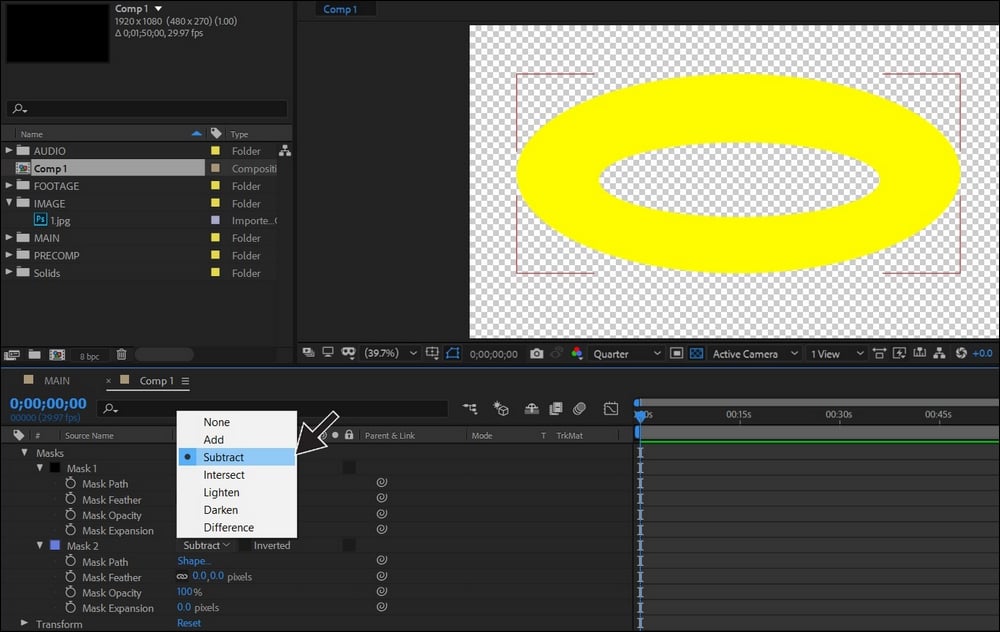
Important: Using mask modes like ‘Add’, ‘Subtract’, and ‘Intersect’ provides flexibility in shaping the combined mask to precisely isolate or blend areas.
Typical procedures include:
- Creating individual masks for different regions or effects.
- Using logical operations or mask modes to combine these masks, for instance, adding a new mask to expand an area or subtracting to exclude unnecessary sections.
- Refining the combined mask via feathering and edge smoothing to maintain natural transitions across complex boundaries.
| Mode | Effect |
|---|---|
| Add | Unites multiple masks into a larger, inclusive mask. |
| Subtract | Removes masked areas from existing masks, creating cutouts or holes. |
| Intersect | Retains only the overlapping regions between masks, useful for precise shape control. |
Inverting and Modifying Masks for Different Editing Goals
Inverting masks is a common technique used to switch the focus from selected areas to their opposites, facilitating background replacements, targeted corrections, or highlighting specific regions.
Modification of masks encompasses adjusting their shape, position, or transparency, allowing for dynamic editing workflows tailored to evolving creative or corrective needs. These modifications can be achieved through simple transformations, such as moving or resizing the mask, or through more advanced pixel-level adjustments.
Tip: Inversion is especially useful when you want to apply effects to everything except the initially masked area, simplifying complex editing tasks and reducing manual mask adjustments.
Methods for inverting and modifying masks include:
- Using the invert option within mask controls to quickly flip the masked and unmasked regions.
- Transforming masks with scale, rotate, or skew tools to fine-tune their shape and placement.
- Adjusting mask opacity or feathering after inversion to blend effects seamlessly with the background or other layers.
Masking in Color Correction and Grading
Masking plays a vital role in refining color correction and grading processes, allowing editors to target specific areas, colors, and tonal ranges within an image or footage. This technique offers immense control, enabling nuanced adjustments that enhance visual storytelling and ensure color consistency across different scenes or elements.
By leveraging masks in color correction, editors can isolate particular colors or brightness levels, apply localized adjustments, and create layered grading effects that add depth and vibrancy. This approach helps in achieving professional-quality results without affecting the entire image, making the editing process more precise and efficient.
Isolating Specific Colors and Tonal Ranges with Masks
Isolating specific colors or tonal ranges is fundamental to targeted color correction. Masks enable editors to select particular hues or brightness levels, allowing adjustments such as hue shifts, saturation modifications, or luminance corrections in isolated regions. This technique is especially useful for enhancing specific objects—like making a shirt’s color pop or reducing unwanted color casts in skin tones.
Using tools like hue/saturation masks, luminance masks, or color keying, editors can define precise parameters. For example, to enhance the blue sky without affecting the foreground, a mask can be created based on the hue range corresponding to blue. Fine-tuning these masks ensures a seamless transition between adjusted and unaltered areas, preventing harsh edges or unnatural transitions.
Applying Localized Adjustments with Masks
Localized adjustments involve applying color corrections to specific parts of an image or footage. Masks facilitate this by acting as a stencil, guiding the correction tools to target only the masked regions. This technique is invaluable for correcting exposure issues in certain areas, adjusting skin tones independently from backgrounds, or emphasizing particular objects to direct viewer focus.
The process typically involves creating a mask around the area requiring correction, then applying adjustments such as curves, hue shifts, or color grading filters within that mask. Feathering the mask edges ensures smooth blending with adjacent regions, enhancing realism and maintaining natural transitions. This method allows for subtle, refined corrections that elevate the overall quality of the image.
Layered Masking for Nuanced Color Grading
Layered masking involves stacking multiple masks with different adjustments to achieve complex and nuanced color grading effects. This technique permits precise control over various elements within a scene, such as separately grading the sky, skin tones, and background foliage to create a harmonious or dramatic visual style.
For instance, an editor might first create a mask for the sky and apply a cool color tone, then overlay a second mask on the foreground to warm up skin tones. Additional layers can be used to adjust contrast, sharpness, or saturation in specific regions, building a multi-dimensional look. Combining masks with different blending modes and opacity settings allows for intricate color grading that enhances mood, depth, and visual coherence.
Layered masking is particularly effective in cinematic color grading workflows, where subtle tonal variations contribute significantly to storytelling. It enables editors to craft a cohesive visual narrative while maintaining full control over individual elements, ensuring that each component complements the overall aesthetic.
Masking with Adjustment Layers and Effects
Masking with adjustment layers and effects enhances the precision and flexibility of editing workflows. By applying masks to adjustment layers, editors can restrict modifications to specific areas within a frame, enabling targeted corrections and creative effects. This technique is particularly valuable when dealing with complex scenes where global adjustments would be ineffective or undesirable, offering a non-destructive method to refine the visual output.
Using masks in conjunction with adjustment layers allows for localized enhancements such as brightening only the subject’s face, adjusting contrast in a specific background region, or fine-tuning color saturation for a particular object. This approach not only improves the overall quality of the edit but also preserves the integrity of untouched areas, maintaining a natural and professional appearance.
Applying Masks to Adjustment Layers and Effects
In practice, masks act as a filter that confines the influence of an adjustment layer or effect to selected parts of the image or video. Editors can create masks using various shapes or freehand drawings, and then refine these masks with feathering, opacity adjustments, or edge smoothing for seamless integration. The ability to control the scope of adjustments provides immense creative control, making masking a fundamental skill in advanced editing workflows.
For example, when employing a brightness adjustment layer, you might only want to brighten the subject’s face without affecting the background. Applying a mask to this layer ensures the effect is limited to the face area, leaving the rest of the scene untouched. Similarly, for effects like hue/saturation adjustments, masks enable color corrections to be confined to specific objects or regions, enhancing the overall visual harmony.
Common Adjustment Layers Benefiting from Masking
Many adjustment layers are particularly effective when combined with masking techniques, especially those related to luminance and color corrections. The following list highlights some of the most frequently used adjustment layers that benefit from masking:
- Brightness/Contrast
- Hue/Saturation
- Color Balance
- Levels
- Curves
- Vibrance
Using masks with these layers allows editors to make precise adjustments that enhance specific areas without affecting the entire image or video frame. This selective approach results in a more polished and professional output, as subtle enhancements contribute to the overall visual storytelling.
Adjustment Layers and Masking Outcomes
Below is an HTML table that summarizes different adjustment layer types, their mask application methods, and the visual outcomes that can be achieved through masking:
| Adjustment Layer Type | Mask Application Method | Visual Outcome |
|---|---|---|
| Brightness/Contrast | Draw or select specific mask shapes; refine with feathering | Brightens or increases contrast only in masked areas, leaving the rest unchanged |
| Hue/Saturation | Use masks to isolate color ranges or regions | Adjusts color intensity or hue in targeted regions, maintaining natural look elsewhere |
| Color Balance | Apply masks to control color shifts in specific zones | Corrects or stylizes color tones in designated areas without affecting the entire image |
| Levels/Curves | Mask selected areas for luminance adjustment | Enhances contrast or brightness selectively, improving local tonal balance |
| Vibrance | Mask regions needing vibrancy boost | Enhances color intensity in chosen parts, preserving natural skin tones or backgrounds |
Masking in Complex Edits and Compositing
Masking plays a crucial role in advanced editing workflows, especially when creating multi-layered compositions or working with moving elements within a scene. It enables editors to selectively reveal or conceal parts of layers, allowing for seamless integration of multiple visual components. Mastering complex masking techniques enhances the ability to craft professional-grade visuals, whether it’s combining different footage or isolating specific objects for detailed manipulation.
In high-end projects such as film post-production, commercials, or visual effects sequences, sophisticated masking becomes indispensable for achieving realistic and compelling results.Effective masking in complex edits involves a nuanced understanding of layering, motion tracking, and blending modes. These techniques ensure that masked elements integrate naturally within the scene, maintaining consistency in lighting, perspective, and movement. When dealing with multiple layers, careful planning and organization of masks are essential to prevent confusion and facilitate adjustments.
Additionally, nuanced edge refinement and feathering are often necessary to blend masked areas seamlessly, avoiding harsh lines or obvious cut-outs. Employing these strategies ensures that the final composition appears cohesive and visually appealing.
Masking in Multi-Layer Compositions
In compositions involving multiple video or image layers, precise masking allows for isolating specific elements or creating complex visual assemblies. This process typically entails:
- Assigning individual masks to each layer to control their visibility and interaction within the composite.
- Using layer hierarchy to determine the stacking order, which influences how masks interact with underlying layers.
- Applying blending modes and opacity adjustments to enhance the integration of masked elements.
Proper organization of masks in multi-layer projects involves naming conventions and grouping masks to streamline editing workflows. When combining elements such as a foreground actor with a detailed background, this meticulous approach ensures clarity and efficiency. Utilizing tools like track matte or alpha matte layers can also facilitate complex masking scenarios, allowing for precise control over how different layers blend together.
Masking Moving Objects in Video Editing
Tracking and masking moving objects require dynamic techniques to maintain accuracy throughout the footage. Static masks tend to become ineffective as objects shift position or scale, necessitating the use of motion tracking or rotoscoping. The key methods include:
- Frame-by-Frame Rotoscoping: Manually drawing and adjusting masks frame by frame for high precision, suitable for scenes with complex motion or detailed objects.
- Motion Tracking Masks: Using tracking data to automatically follow the movement of objects across frames, saving time and reducing manual effort. This approach is effective for objects with predictable motion paths.
- Refining Masks with Keyframes: Combining static masks with keyframes to adapt to changing object positions, shapes, or scale, ensuring masks stay aligned over time.
For example, in a scene where a person moves behind a stationary object, using motion tracking algorithms can isolate the individual’s silhouette accurately across all frames. Rotoscoping becomes essential when tracking fails due to rapid movement, complex backgrounds, or overlapping objects. These methods are often supplemented with feathering and edge refinement to ensure smooth transitions between masked and unmasked areas, avoiding unnatural visual artifacts.
Masking Backgrounds or Foreground Objects for Compositing
Isolating backgrounds or foregrounds is fundamental for compositing, enabling the insertion or removal of specific elements within a scene. The process involves creating precise masks around objects to seamlessly blend them with new backgrounds or layered effects. Important considerations include:
- Careful edge detection and feathering to prevent harsh lines and produce natural transitions.
- Utilizing color keying or luminance masks in conjunction with manual masks for enhanced accuracy, especially with green screens or uniform backgrounds.
- Applying matte choker or similar tools to refine mask edges, ensuring that hair, fur, or semi-transparent elements are accurately isolated.
In practice, masking out a foreground object such as a person against a green screen involves creating an initial mask, refining it with edge tools, and then integrating the masked subject into a different scene. For complex backgrounds, multiple masks may be combined or refined iteratively to achieve a clean separation. When masking backgrounds, it’s also important to consider the scene’s depth and perspective to ensure that shadows and lighting match the new environment.
Techniques like edge feathering, color correction, and matte refinement contribute to achieving a cohesive composite that appears natural and believable.
Tips and Best Practices for Effective Masking
Creating masks that enhance your editing workflow requires precision, attention to detail, and a strategic approach. Well-executed masks can seamlessly blend layers, correct specific areas, and produce professional results, whereas poorly crafted masks may introduce unnatural artifacts or inconsistencies. Implementing best practices ensures your masking efforts are both efficient and visually convincing, whether you’re working on simple adjustments or complex composites.Achieving natural-looking and accurate masks involves understanding the nuances of your footage, the tools at your disposal, and the importance of non-destructive editing.
Careful planning and methodical execution will help you avoid common pitfalls and maximize the potential of masking techniques in your editing projects.
Creating Precise and Natural-Looking Masks
Effective masks replicate natural boundaries and contours, so they blend seamlessly with the underlying footage. To create visually convincing masks:
- Start with high-quality, well-lit footage to reduce the complexity of the masking process. Good contrast and sharpness aid in defining edges clearly.
- Use the appropriate masking tools such as pen tools for sharp, defined edges, and soft brushes or feathered masks for gradual transitions.
- Leverage the refine edge or feathering options to soften mask boundaries where necessary, especially around hair, fur, or similarly complex textures.
- Pay close attention to the natural movement within the footage, ensuring masks follow the subject’s motion accurately, which may involve tracking points or motion tracking features.
- Zoom in closely while creating masks to refine edge precision; small adjustments can significantly improve the mask’s natural appearance.
“Focus on matching the mask edges to natural contours and avoiding overly sharp transitions to prevent the mask from appearing artificial.”
Non-Destructive Masking Techniques
Maintaining the flexibility of your edits is crucial, especially when adjustments are needed later. Non-destructive masking preserves your original footage and allows for iterative modifications without quality loss.
- Utilize adjustment layers or layer masks instead of directly modifying the original footage. This approach allows you to toggle effects and masks on or off.
- Employ smart objects or pre-compositions when available, enabling you to mask within a contained environment that can be easily modified later.
- Make use of mask opacity, feathering, and blending modes to fine-tune how masks interact with underlying layers, allowing for smoother transitions and corrections.
- Save mask progress periodically and consider creating duplicate masks when experimenting with different approaches, so you can compare and revert if necessary.
“Non-destructive workflows safeguard your edits, providing the freedom to adjust masks without compromising the quality or original footage integrity.”
Common Pitfalls and How to Avoid Them
Awareness of common masking challenges helps prevent time-consuming corrections and subpar results. Identifying potential issues early allows you to implement preventive strategies.
- Jagged or pixelated edges: Avoid by increasing mask resolution, using feathering, and working at higher zoom levels for fine details.
- Overly sharp transitions: Incorporate feathering or soft brushes to create gradual boundaries that mimic natural contours.
- Inconsistent masking due to motion: Use motion tracking to maintain mask accuracy across frames, preventing jitter or misalignment.
- Ignoring background complexity: Break down complex backgrounds into simpler segments or use multiple masks for better control.
- Forgetting to check mask visibility: Regularly toggle mask visibility to ensure accuracy without distraction from other layers or effects.
“Consistently reviewing and refining masks throughout the editing process minimizes artifacts and ensures a polished final result.”
Final Wrap-Up
In conclusion, mastering how to use masks in editing unlocks a new level of control and flexibility, allowing you to produce refined and polished results with confidence. Consistent practice and understanding of different mask types and techniques will enhance your editing skills and streamline your creative process.