How to color grade footage is an essential skill for elevating the visual appeal and storytelling impact of your videos. This process involves carefully adjusting colors and tones to evoke specific moods, correct imperfections, and achieve a cinematic look that resonates with viewers. Mastering this technique can transform raw footage into a polished and compelling visual experience.
Understanding the fundamentals of color grading, preparing your footage properly, and utilizing the right tools are crucial steps toward achieving professional results. From basic corrections to advanced creative styles, each stage offers opportunities to enhance the overall quality and emotional depth of your videos, making your content truly stand out.
Understanding the Fundamentals of Color Grading Footage

Color grading plays a vital role in shaping the visual narrative of a video. It transforms raw footage into a polished, aesthetically compelling piece by adjusting colors, contrast, and tones. Mastery of color grading fundamentals enables filmmakers and video editors to evoke specific moods, emphasize storytelling elements, and maintain visual consistency throughout a project. Recognizing its importance allows creators to communicate more effectively with their audience and elevate the overall quality of their work.
Fundamentally, color grading revolves around principles derived from color theory and an understanding of how colors influence perception. It involves manipulating various aspects such as hue, saturation, brightness, and contrast to achieve the desired visual style. Different color grades can evoke distinct emotional responses—warm tones often create a sense of comfort or nostalgia, while cooler shades might evoke calmness or detachment.
Recognizing these effects is essential for aligning the visual tone with the narrative or desired atmosphere.
Basic Principles and Color Theory Relevant to Grading Footage
Effective color grading relies on core principles rooted in color theory, which explains how colors interact and influence viewer perception. These principles serve as guidelines to enhance storytelling through visual cues and mood setting. The following points highlight key concepts:
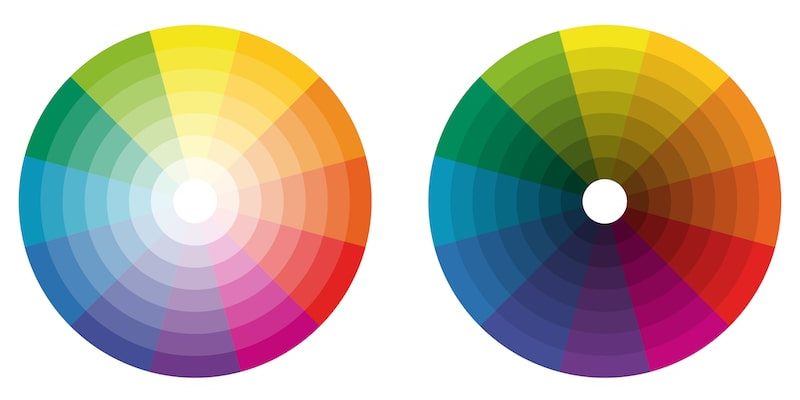
- Color Harmony and Contrast: Utilizing complementary colors (such as blue and orange) can create visual interest and focus, while analogous colors (colors next to each other on the color wheel) generate harmony and calmness.
- Color Temperature: Warm colors (reds, oranges, yellows) tend to evoke warmth, intimacy, or excitement, whereas cool colors (blues, greens) suggest serenity, professionalism, or somber moods. Adjusting temperature during grading adjusts the overall mood.
- Color Balance and Saturation: Proper balance prevents overwhelming the viewer, while strategic saturation highlights key subjects or details. Desaturation can also create a vintage or cinematic effect, emphasizing mood over vibrancy.
- Contrast and Luminosity: Enhancing contrast emphasizes depth and dimension, making images more dynamic. Proper control of luminosity ensures details are retained in shadows and highlights, maintaining visual clarity.
“The deliberate manipulation of color properties allows for emotive storytelling, guiding viewer perception and enhancing narrative depth.”
Colors and Mood: Eliciting Emotions and Atmospheres
Color grading significantly influences the emotional tone of a video by leveraging the psychological associations of various colors. Different color schemes can evoke specific atmospheres, thereby reinforcing the story’s intent and influencing audience response.
Warm color schemes, characterized by reds, oranges, and yellows, often generate feelings of warmth, passion, or urgency. Such tones are frequently used in scenes depicting intimacy, celebration, or tension. Conversely, cool color schemes, dominated by blues and greens, tend to evoke calmness, detachment, or melancholy, making them suitable for reflective or somber scenes.
Applying specific color grades enables creators to craft a desired ambiance. For example, a desaturated, bluish palette can evoke a sense of dystopia or nostalgia, while vibrant, saturated colors might communicate energy and vitality. Understanding how to manipulate these colors allows for nuanced storytelling and emotional resonance.
Preparing Footage for Color Grading
Effective preparation of footage is a crucial step in the color grading workflow, as it ensures that the material is in optimal condition for accurate and creative color adjustments. Proper organization and preliminary corrections help streamline the grading process, reduce errors, and achieve professional results. This stage involves importing footage into editing software, assessing its quality, and making necessary adjustments to establish a solid foundation for subsequent color work.
In this section, we will explore the essential steps for importing and organizing footage, guidelines for evaluating exposure, contrast, and white balance, and a comprehensive checklist to confirm that footage is primed for color correction.
Importing and Organizing Footage in Editing Software
Organizing footage effectively at the start of a project facilitates a smooth workflow and makes it easier to locate and manage clips during the grading process. Proper import procedures also help prevent file mismanagement and ensure that all media is correctly linked to the project.
- Establish a clear folder structure on storage drives, categorizing footage by scenes, takes, or camera angles. For instance, create separate folders for raw footage, sound, and graphics to maintain clarity.
- Use consistent naming conventions for files, such as including scene numbers, take identifiers, and date codes, to simplify tracking and referencing clips during editing and grading.
- Import footage into the editing software using the software’s media management tools. Ensure that original files are preserved by importing as links rather than copying if workspace space is limited.
- Leverage metadata and tags within the software to categorize clips based on quality, shot type, or other relevant criteria, enabling quick filtering and selection later in the process.
- Organize clips into bins or folders within the project panel, grouping similar shots together to facilitate efficient review and adjustments.
Assessing and Correcting Exposure, Contrast, and White Balance
Before applying creative color grading, it’s vital to evaluate the initial quality of footage. Addressing fundamental issues with exposure, contrast, and white balance ensures that the image accurately reflects the scene’s intent and provides a reliable base for further enhancements.
- Evaluate exposure by checking the highlights and shadows, ensuring that no details are lost in overly bright or dark areas. Use waveform scopes or histograms to quantify exposure levels accurately.
- Adjust exposure if necessary, aiming for a balanced histogram that covers the full tonal range without clipping. Minor tweaks can be made within the editing software or in dedicated color grading tools.
- Assess contrast to verify that the image has enough dynamic range to convey depth. Use contrast controls to enhance or soften the tonal differences, but avoid excessive adjustments that may introduce banding or posterization.
- Examine white balance to ensure that whites and neutral tones appear true to life. Use the software’s white balance picker tool or manually adjust temperature and tint sliders to correct color casts.
- Verify color accuracy by inspecting skin tones and key objects within the scene, ensuring they appear natural and consistent across shots.
Consistent adjustments across clips are essential for maintaining visual coherence throughout the project. When necessary, apply primary corrections to bring all footage to a similar baseline before progressing to creative grading.
Footage Quality Checklist for Color Correction
To guarantee that footage is suitable for color grading, adhere to a systematic checklist that covers technical and visual quality aspects. This ensures that no critical issues undermine the grading process or final output.
| Checklist Item | Description |
|---|---|
| File Integrity | Ensure that all media files are complete, uncorrupted, and properly linked within the editing software. |
| Resolution and Frame Rate | Verify that footage matches the project’s resolution and frame rate requirements for consistent playback and grading. |
| Exposure and Dynamic Range | Check for proper exposure, with no clipped highlights or crushed shadows, and sufficient dynamic range for grading flexibility. |
| White Balance and Color Accuracy | Confirm that white balance is correct or easily adjustable and that colors appear natural and consistent across clips. |
| Noise and Artifacts | Identify and document any digital noise, compression artifacts, or other visual distractions to determine if denoising or correction is necessary. |
| Focus and Sharpness | Assess clarity and sharpness, ensuring that footage is in focus and free from unintended motion blur or softness. |
| Consistency | Review footage for consistent lighting and color conditions across scenes to facilitate seamless grading. |
| Coverage and Composition | Ensure that shots provide adequate coverage and framing for the intended narrative and that key elements are correctly positioned. |
“A thorough inspection and correction of initial footage quality lay a reliable foundation for achieving professional-grade color results.”
Tools and Software for Color Grading
![Psicología y uso de los colores [Infografía] - TreceBits](https://akari.web.id/wp-content/uploads/2025/09/colores.jpg "Psicología y uso de los colores [Infografía] - TreceBits")
Choosing the appropriate color grading software is essential for achieving professional-quality results efficiently. Various tools are available, each offering unique features tailored to different workflows, skill levels, and project requirements. Understanding these options allows editors and colorists to select the most suitable program for their specific needs, streamlining the grading process and enhancing creative control.
Leading color grading software options incorporate intuitive interfaces, a comprehensive suite of tools, and customizable workspace setups. These features enable professionals to work with precision, manage complex color adjustments, and optimize their workflow through personalized presets and layouts. A thorough comparison of popular programs reveals their strengths and helps users make informed decisions aligned with their project goals.
Popular Color Grading Software Options and Their Key Features
Several software platforms dominate the industry, each offering distinct capabilities suited for various levels of expertise and project scales. Here are some of the most widely used options:
| Software | Key Features | Target Users |
|---|---|---|
| DaVinci Resolve |
|
Professionals and enthusiasts seeking an all-in-one platform |
| Adobe Premiere Pro with Lumetri Color |
|
Editors familiar with Adobe ecosystem, quick turnaround projects |
| Final Cut Pro X |
|
Mac users focused on post-production efficiency |
| Adobe SpeedGrade (discontinued, but still in use via legacy workflows) |
|
Colorists working within Adobe Premiere workflows |
Interfaces and Tools Within Leading Programs
Each leading color grading software provides a tailored interface designed to facilitate detailed adjustments and creative flexibility. The common elements across these platforms include primary correction controls, color wheels, curves, masks, and nodes or layers for complex color manipulations. These tools allow precise control over color, contrast, exposure, and other vital image attributes.
For instance, DaVinci Resolve’s interface emphasizes the use of nodes, which enable non-destructive, layer-based adjustments. Lumetri Color in Premiere Pro offers a panel with easily accessible sliders and curves, suitable for quick edits or detailed grading. Final Cut Pro X provides a streamlined, user-friendly interface with color wheels and sliders positioned for intuitive access, aligning with its focus on speed and efficiency.
Custom workspace setup is vital for a productive workflow. Most programs support workspace arrangements that include panels for scopes, color wheels, curves, and timeline editing. Saving these configurations as presets allows for quick switching between different stages of the grading process or projects with similar grading requirements.
Setting Up Workspace and Custom Presets for Efficient Grading Workflows
Optimizing your workspace involves arranging the interface to suit your workflow, minimizing distractions, and maximizing access to essential tools. Most software platforms enable users to customize layouts by docking, resizing, or hiding panels. Creating and saving custom workspace presets ensures that every project begins with an optimal environment, reducing setup time and maintaining consistency across projects.
For example, a colorist working on a high-contrast cinematic project might set up scopes, color wheels, curves, and node editors prominently in their workspace. Once saved as a preset, this setup can be recalled instantly for similar projects. Additionally, many programs allow the creation of custom tool presets or LUTs, further streamlining repetitive tasks or applying specific looks swiftly.
Implementing keyboard shortcuts and automated workflows, such as batch processing or template-based grading, complements workspace customization. These practices contribute to a more efficient, consistent, and professional grading process, enabling editors to focus more on creative decisions and less on technical adjustments.
Basic Color Correction Techniques
Mastering fundamental color correction methods is essential for achieving a balanced and visually appealing footage. These techniques serve as the foundation for more advanced grading and help ensure that the colors in your video are natural, consistent, and suitable for the intended mood or style. Proper primary corrections set the stage for detailed adjustments, enhancing the overall quality and coherence of your project.
Implementing effective color correction involves understanding key parameters and systematically adjusting them to correct color imbalances, improve contrast, and refine exposure. This process often requires a step-by-step approach, focusing on individual aspects such as shadows, midtones, and highlights, to create a harmonious visual flow across the entire footage. Consistent practice and familiarity with correction tools will enable you to produce professional-looking results efficiently.
Adjusting Primary Color Correction Parameters
Primary color correction involves manipulating core parameters that influence the overall image. These adjustments are crucial for correcting exposure issues, color imbalances, and tonal inconsistencies. The primary parameters typically include lift, gamma, gain, temperature, tint, and saturation. Properly balancing these controls can dramatically improve the visual appeal of your footage.
Adjustments are made methodically, starting with exposure-related controls such as lift and gain to set the overall brightness. Then, color balancing is addressed by tweaking temperature and tint to eliminate color casts. Finally, saturation is fine-tuned to enhance or tone down color vibrancy without oversaturation. Each step should be checked against the footage to ensure naturalness and consistency across the shot.
Step-by-Step Procedures for Color Balancing
Achieving a well-balanced image involves a structured process that guides you through fine-tuning shadows, midtones, and highlights. This ensures each tonal range contributes to a cohesive and visually pleasing image. The following steps Artikel a typical workflow:
- Set Exposure: Begin by adjusting the lift (shadows), gamma (midtones), and gain (highlights) to achieve proper overall brightness without clipping details in shadows or highlights. Use waveform monitors to verify levels stay within broadcast-safe ranges.
- Balance Shadows and Highlights: Fine-tune lift and gain controls to remove unwanted color casts or color shifts in the darkest and brightest parts of the image. This step prevents color bleeding and ensures contrast remains natural.
- Refine Midtones: Adjust gamma to correct midrange colors and luminance, ensuring skin tones and neutral objects appear natural. Pay particular attention to the consistency of skin tones in footage involving people.
- Adjust Temperature and Tint: Use these controls to correct any color cast introduced by shooting conditions. For example, a bluish tint might indicate cold lighting, which can be warmed up by increasing the temperature.
- Finalize with Saturation: Increase or decrease the overall saturation to enhance the vibrancy of colors or achieve a more subdued look, depending on the desired style. Use visual cues and scopes to prevent oversaturation.
Common Correction Tools and Their Functions
Understanding the functions of correction tools is vital for efficient and precise color correction. The tools available vary across editing platforms but generally serve similar purposes to address specific aspects of the image. The table below summarizes the most common tools and their primary functions:
| Tool | Function |
|---|---|
| Lift (Shadows) | Adjusts the darkest areas of the image, controlling how deep the shadows appear and correcting color casts in the blacks. |
| Gamma (Midtones) | Modifies mid-range luminance and color balance, affecting skin tones and overall tonal balance. |
| Gain (Highlights) | Controls the brightest parts of the image, preventing blown-out highlights and balancing bright areas. |
| Temperature | Shifts the overall color temperature toward warm (yellow/orange) or cool (blue) tones to match lighting conditions or achieve stylistic effects. |
| Tint | Adjusts the green-magenta axis to correct color imbalances that cannot be fixed solely with temperature adjustments. |
| Saturation | Increases or decreases the intensity of all colors in the image to create vibrancy or a muted look. |
Effective primary color correction requires a balanced approach, ensuring that each parameter is adjusted in harmony to produce a natural and pleasing image.
Creative Color Grading Styles and Effects
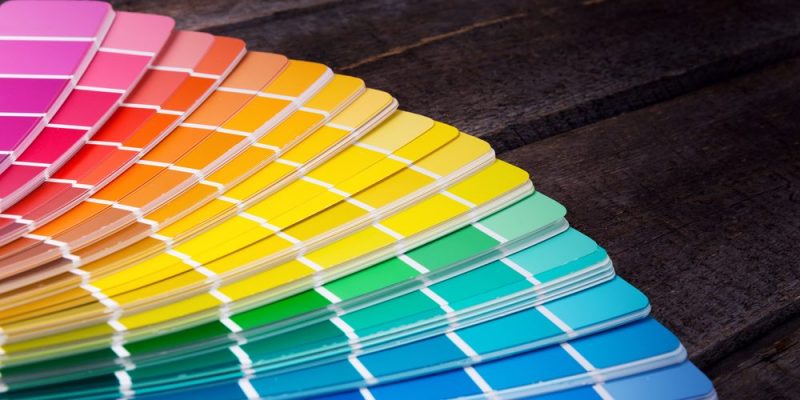
Color grading offers filmmakers and videographers the opportunity to craft distinctive visual narratives by applying various stylistic effects and moods to footage. Moving beyond basic corrections, creative grading enables the transformation of raw footage into visual stories that evoke specific emotions or retro aesthetics. Mastering these techniques allows creators to produce cinematic, vintage, or contemporary looks that resonate with audiences and elevate storytelling.Achieving diverse visual styles involves a combination of technical adjustments and artistic intuition.
This process includes manipulating color palettes, contrast, saturation, and luminance to align with the desired mood or genre. Additionally, secondary color adjustments allow for pinpoint control over specific areas or subjects within a scene, helping to emphasize or de-emphasize particular elements. Using grading presets as starting points offers efficiency, while customization ensures each project maintains a unique visual identity.
Cinematic, Vintage, and Modern Looks
Creating cinematic, vintage, or modern aesthetics requires understanding the fundamental characteristics of each style and applying targeted adjustments accordingly:
- Cinematic Look: Emphasizes rich contrast, deep shadows, and a balanced color palette that mimics traditional film stock. Achieved through enhancing highlights, lifting shadows, and applying subtle color grading to evoke emotional depth.
- Vintage Style: Incorporates warm tones, faded colors, and reduced contrast to simulate the appearance of aged film or photographs. Techniques include applying a slight sepia or teal tint, reducing saturation, and adding grain or noise for authenticity.
- Modern Aesthetic: Focuses on vibrant colors, high contrast, and clarity. This look often involves boosting saturation, sharpening details, and applying a clean, polished color palette that aligns with contemporary digital cinema trends.
Applying these effects involves specific adjustments in hue, saturation, and luminance (HSL), as well as creative use of lookup tables (LUTs), which serve as ready-made color grades that can be tailored further to fit individual project needs.
Secondary Color Adjustments for Specific Areas or Subjects
Fine-tuning particular regions within footage allows for dramatic storytelling and visual emphasis. Secondary color adjustments are crucial for isolating and enhancing specific colors or areas, such as skin tones, backgrounds, or objects within a scene:
- Start with a secondary color selection tool to isolate a target color or luminance range.
- Refine the selection using masks, qualifiers, or hue/saturation controls to target precise areas.
- Adjust hue, saturation, and luminance within the selected region to enhance or mute colors, create contrast, or correct color imbalances.
- Implement tracking to ensure consistent adjustments across moving subjects or dynamic scenes.
This technique is especially effective in scenarios such as selectively brightening a character’s face for emotional emphasis or desaturating the background to draw attention to the main subject.
Grading Presets and Customization for Unique Styles
Utilizing grading presets streamlines the creative process by providing a baseline aesthetic that can be customized to produce distinctive styles:
- Choose a preset that closely aligns with the desired look, such as a filmic, desaturated, or vibrant preset.
- Adjust key parameters like contrast, saturation, and color balance to personalize the preset, ensuring it complements the footage’s mood and narrative.
- Modify curves to fine-tune tonal ranges, enhancing shadows or highlights for desired depth or separation.
- Incorporate additional effects, such as grain, vignetting, or color overlays, to further customize the style and create a cohesive aesthetic.
For example, starting with a popular vintage preset and then adjusting the hue sliders to introduce teal and orange tones, or increasing contrast for a more dramatic cinematic effect, allows for both efficiency and creative flexibility. Such customization ensures that each project maintains a unique visual signature tailored to its storytelling intent.
Using LUTs and Presets in Color Grading
Look-Up Tables (LUTs) and presets are powerful tools that streamline the color grading process, enabling filmmakers and editors to achieve consistent and stylized looks efficiently. They serve as shortcuts for applying complex color transformations and can significantly enhance workflow productivity. Understanding how to effectively utilize LUTs and presets can elevate the visual storytelling of any project.
LUTs function as mappings of input colors to output colors, allowing users to quickly apply color grades or stylized looks to footage. Presets, on the other hand, often encompass a combination of LUTs, adjustments, and settings tailored to specific aesthetics or genres. Proper application and customization of these tools can help achieve professional-grade results with ease.
Applying LUTs to Footage
The process of applying LUTs to footage involves selecting or importing a LUT file into your editing or color grading software and then affixing it to your footage layer or node. This method transforms the colors and luminance values based on the predefined mapping, instantly changing the overall look.
Most professional editing tools such as DaVinci Resolve, Adobe Premiere Pro, and Final Cut Pro X provide dedicated LUTs panels or effects. Applying a LUT generally follows these steps:
- Import the LUT file, which can be in formats like .cube, .3dl, or .look.
- Select the clip or timeline segment to be graded.
- Insert the LUT effect or node into your color correction workflow.
- Choose the desired LUT from your library or imported options.
- Adjust the intensity or mix level to fine-tune the effect’s strength.
“Applying a LUT is akin to applying a filter that instantly imparts a particular mood or style, saving time and ensuring consistency across shots.”
Creating Custom LUTs and Integrating Them into Projects
For projects that require a unique or branded aesthetic, creating custom LUTs offers a tailored approach to color grading. This process involves capturing specific color adjustments from your grading software and saving them as a reusable LUT file, which can then be integrated seamlessly into future projects.
To create custom LUTs:
- Begin with a properly color-corrected reference grade that embodies your desired look.
- In your software, export the color adjustments as a LUT file, typically through the software’s export or save LUT feature.
- Name and organize your custom LUTs systematically for easy access.
- Import the custom LUT into your editing workflow, applying it to footage as needed.
Integrating custom LUTs ensures consistent application of your signature style across multiple projects, enhancing brand identity and visual coherence. It also allows for quick experimentation with different looks by switching between various preset LUTs during the editing process.
Comparison of Different LUT Styles and Their Effects
Different styles of LUTs can dramatically alter the appearance and mood of footage, ranging from natural and neutral to highly stylized or cinematic. Understanding these differences helps in selecting the appropriate LUT for each project.
Some common types of LUT styles include:
| Type of LUT | Description | |
|---|---|---|
| Technical LUTs | Designed for converting camera log footage to Rec.709 or other standard color spaces, ensuring accurate exposure and color. | Applying a Sony S-Log or Canon C-Log LUT to prepare footage for grading. |
| Creative LUTs | Offer stylized looks that influence mood, contrast, and color palette, often used for artistic purposes. | Emulating film stock, creating vintage or cinematic styles. |
| Film Emulation LUTs | Simulate the color response and grain of traditional film stocks, adding a nostalgic or textured aesthetic. | Achieving a classic film look for narrative films or commercials. |
| Stylized or Artistic LUTs | Deliver bold, unconventional color schemes that can be used for music videos, commercials, or experimental projects. | Creating vibrant, surreal, or moody atmospheres. |
Each style impacts footage differently, with technical LUTs focusing on accurate color space transformation, while creative LUTs mold the visual tone and mood. Selecting the appropriate LUT style relies on the project’s objectives, narrative context, and desired emotional impact.
Advanced Techniques for Color Grading
Building upon foundational color correction skills, advanced techniques in color grading enable filmmakers and editors to achieve highly precise, cohesive, and visually compelling footage. These methods involve sophisticated control over color elements, allowing for nuanced adjustments and creative effects that elevate the storytelling process. Mastering these techniques requires a deeper understanding of masking, tracking, and complex workflow organization to maintain consistency and enhance visual storytelling.
Implementing advanced color grading strategies enhances the overall quality and professionalism of your projects. These practices enable you to craft a distinct visual style, seamlessly match disparate shots, and efficiently manage intricate grading layers, thereby ensuring a polished final product that resonates with viewers.
Creating Color Masks and Tracking for Precise Adjustments
Color masks and tracking are essential for isolating specific areas within footage to apply targeted color adjustments without affecting the entire scene. This precision is vital when dealing with complex compositions or when certain elements require unique color treatments, such as skin tones, backgrounds, or specific objects.
Effective use of masks involves defining areas based on color, luminance, or shape, which can then be refined for accuracy. Tracking these masks across multiple frames ensures that adjustments remain consistent despite camera movement or subject motion. This process typically involves the following steps:
- Creating Masks: Use tools within your grading software to generate masks by selecting color ranges or manually drawing around objects. For example, isolating a person’s face for subtle skin tone correction.
- Refining Masks: Adjust feathering, expansion, and contraction to ensure smooth edges and accurate coverage, avoiding harsh transitions or spillover into unwanted areas.
- Applying Tracking: Utilize automatic tracking features to follow the mask’s movement across the sequence. Confirm and manually adjust keyframes for complex motion or when automatic tracking encounters challenges.
Pro tip: When tracking masks, pay close attention to variations in lighting and movement speed, as these can influence tracking accuracy. It’s often beneficial to track in smaller segments or keyframe adjustments where needed.
Matching Shots and Maintaining Consistency Across Sequences
Consistency across scenes and shots is crucial for a seamless visual narrative. Achieving this involves meticulous adjustment and comparison of color grades, luminance, contrast, and saturation levels throughout the project. Techniques and workflows designed for shot matching help in maintaining a uniform aesthetic, particularly in projects with multiple shooting days or different camera setups.
The process includes:
- Analyzing Reference Shots: Select a well-graded clip as a benchmark for the desired look and use it as a reference point for other shots.
- Matching Color Balance and Exposure: Use scopes such as vectorscopes and waveforms to compare color balance, luminance, and contrast levels. Adjust lift, gamma, gain, or primary wheels accordingly.
- Using Secondary Corrections: Fine-tune specific colors or areas within shots to match the reference, utilizing hue/saturation curves or color wheels.
- Applying Adjustment Layers: Organize adjustments into layers that can be toggled or tweaked for consistency across multiple shots or sequences.
Consistency is often achieved through iterative comparison and subtle adjustments, emphasizing the importance of viewing footage on calibrated monitors and in controlled lighting environments.
Organizing Complex Grading Workflows with Multiple Adjustment Layers
Complex grading workflows often involve layered adjustments to achieve a desired look without compromising image integrity. Proper organization of these layers ensures flexibility, efficiency, and non-destructive editing, facilitating easier revisions and versioning.
Key practices include:
- Layer Structuring: Segment adjustments into logically organized layers such as primary correction, secondary isolation, creative LUT application, and finishing touches. Naming each layer clearly improves workflow clarity.
- Using Adjustment Groups: In software that supports grouping, combine related layers to toggle entire sections on or off, enabling quick comparisons and iterative refinements.
- Applying Node-Based Workflows: Many advanced grading tools like DaVinci Resolve utilize node-based systems, allowing for a non-linear, modular approach. Each node can represent a specific correction or effect, which can be interconnected or isolated for troubleshooting.
- Maintaining Flexibility: Preserve original footage and avoid irreversible changes by working with adjustment clips, nodes, or layers that can be easily modified or bypassed.
Organized workflows reduce the risk of introducing errors, streamline collaboration, and enable creative experimentation without jeopardizing previous work.
Exporting and Finalizing Graded Footage
After completing the color grading process, ensuring that your footage is exported correctly is crucial for preserving the work’s visual integrity and preparing it for various delivery platforms. Proper exporting not only maintains color fidelity but also optimizes the footage for playback across different devices and media formats. This stage involves selecting appropriate settings, understanding how to preserve color accuracy, and tailoring your output for specific distribution channels.
Efficient exporting practices help in delivering high-quality visuals that meet technical specifications and aesthetic expectations. Whether preparing for online streaming, broadcast, or physical media, mastering the export process ensures your graded footage looks professional and consistent across all viewing environments.
Rendering Graded Footage with Optimal Settings
Rendering is the final step where your project is processed into a finished video file. To achieve the best results, choosing optimal export settings tailored to your project’s requirements is essential. The key parameters include resolution, bitrate, codec, color space, and file format. Proper configuration guarantees that the footage retains its intended look while remaining compatible with the delivery platform.
For high-quality projects, rendering in a lossless or high-bitrate format such as Apple ProRes or Avid DNxHR is recommended, especially if further editing or high-fidelity playback is needed. For online platforms like YouTube or Vimeo, H.264 or H.265 codecs are preferred due to their balance between quality and compression efficiency.
Tips for Maintaining Color Fidelity During Export
Color fidelity preservation during export is vital to ensure that the graded footage appears consistent with your creative intent. Several best practices can help maintain accurate colors:
- Use a color-managed workflow, ensuring that your editing and export software are calibrated and configured to handle color spaces correctly.
- Export in a color space suitable for your delivery platform, such as Rec. 709 for HD television or Rec. 2020 for HDR content.
- Choose high bit-depth formats (such as 10-bit or higher) to prevent banding and preserve subtle color gradations.
- Disable any unnecessary compression or processing options that could alter colors or introduce artifacts.
- Verify export settings by previewing the footage on calibrated monitors or devices similar to the target platform.
“Consistently verify color settings and monitor calibration to prevent color shifts during and after export.”
Preparing Footage for Different Delivery Formats and Platforms
Different platforms and delivery formats demand specific technical specifications to ensure optimal playback and visual quality. Recognizing these requirements allows you to adapt your exported files accordingly, maintaining consistency and professionalism.
For instance, streaming services like YouTube and Vimeo typically accept MP4 files encoded with H.264 or H.265 codecs, with a maximum resolution of 4K and specific aspect ratios. Broadcast standards may require MXF containers with broadcast-safe color gamuts, such as Rec. 709, and specific audio configurations. Physical media like Blu-ray discs demand MPEG-2 or AVC encoding with high bitrate settings to preserve detail and color accuracy.
Adapting your footage involves selecting the appropriate resolution, aspect ratio, codec, and color space that aligns with the target platform. It also includes considering target device display characteristics, such as HDR support for 4K HDR streaming or SDR for standard displays. Preparing your footage in this manner ensures it meets technical standards and looks exceptional regardless of where it is viewed.
Last Recap
In conclusion, learning how to color grade footage empowers creators to craft visually stunning and emotionally engaging videos. By applying proper techniques and exploring various styles and tools, you can bring your vision to life with vibrant colors and mood-enhancing effects that captivate your audience from start to finish.