Discovering how to add virtual backgrounds can significantly enhance your video call experience by providing privacy, professionalism, and creative expression. Whether attending a meeting, hosting a webinar, or connecting with friends, virtual backgrounds offer a versatile way to personalize your environment.
This guide walks you through the essential steps for enabling and customizing virtual backgrounds across various platforms, details system requirements, and shares tips for optimal usage and troubleshooting to ensure smooth and secure virtual meetings.
Overview of Virtual Backgrounds
Virtual backgrounds have become an essential feature for enhancing privacy and professionalism during video conferencing. They enable users to replace their physical environment with digital images or videos, creating a more engaging and distraction-free presentation space. This technology has gained popularity across various platforms, offering users a way to personalize their visual setting while maintaining a polished appearance.
Virtual backgrounds serve multiple purposes, including concealing cluttered or inappropriate surroundings, reinforcing branding for corporate meetings, and adding a creative element to casual conversations. Supported extensively across leading video conferencing platforms, virtual backgrounds vary in their capabilities, ease of use, and customization options. Understanding the functionalities and differences of these options helps users select the most suitable solution for their needs.
Platforms Supporting Virtual Backgrounds and Their Features
Many popular video conferencing platforms support virtual backgrounds, each offering unique features to enhance user experience. The following overview highlights some of the most widely used services:
| Platform | Support for Virtual Backgrounds | Key Features |
|---|---|---|
| Zoom | Yes |
|
| Microsoft Teams | Yes |
|
| Google Meet | Yes |
|
| Skype | Yes |
|
| Cisco Webex | Yes |
|
While these platforms support virtual backgrounds, distinctions exist in terms of setup complexity, background quality, and additional features such as automatic background detection or green screen support. For instance, Zoom provides highly customizable backgrounds with optional green screen use for better segmentation, whereas Google Meet emphasizes simplicity with predefined options. Users should consider their specific requirements, such as the need for high-quality visuals or ease of use, when choosing a platform for virtual backgrounds.
System Requirements and Compatibility
To ensure a smooth virtual background experience during your video calls, it is essential to understand the specific system requirements and compatibility considerations. Adequate hardware, supported operating systems, and up-to-date software components play a crucial role in delivering seamless performance and high-quality visuals.
This section provides detailed information on the necessary hardware specifications, supported operating system versions, and the essential software updates or plugins required for optimal virtual background functionality across various devices and platforms.
Hardware Specifications Needed for Effective Virtual Background Use
Implementing virtual backgrounds effectively depends heavily on the hardware capabilities of your device. The primary components influencing performance include the processor, graphics card, RAM, and camera quality. Devices with higher processing power and dedicated graphics processing units (GPUs) typically achieve better results, especially when using advanced background effects or high-resolution videos.
Consider the following hardware benchmarks for optimal virtual background performance:
- Processor (CPU): A recent multi-core processor, such as Intel Core i5 or AMD Ryzen 5 series and above, ensures smooth processing of video streams and background rendering.
- Graphics Card (GPU): Dedicated GPUs like NVIDIA GeForce GTX/RTX series or AMD Radeon equivalents significantly enhance background effects, especially in high-definition settings.
- Memory (RAM): At least 8 GB of RAM is recommended, with 16 GB or more being preferable for multitasking or high-quality video processing.
- Camera: A high-definition webcam (minimum 720p resolution) improves the clarity of the video input, making background replacement more accurate and natural.
Supported Operating Systems and Versions
Compatibility across different operating systems is vital for a broad user base. Most virtual background features are supported on major platforms, but specific versions may introduce limitations or require updates for optimal operation. Compatibility details help users identify whether their current systems support the software without additional upgrades.
Below is an overview of common supported operating systems:
| Operating System | Supported Versions | Notes |
|---|---|---|
| Windows | Windows 10 (version 1903 or later), Windows 11 | Ensure the latest Windows updates are installed for compatibility and security. |
| macOS | macOS Mojave (10.14) or later | Older versions may lack support for some virtual background features; updating is recommended. |
| Linux | Supported on certain distributions such as Ubuntu 20.04 and later, Fedora 33 and later | Compatibility may vary depending on driver support; consult specific software requirements. |
| Mobile Devices | Android 8.0 (Oreo) and later, iOS 13 and later | Hardware acceleration and camera compatibility influence feature performance. |
Keeping your operating system updated ensures access to the latest security patches, bug fixes, and feature improvements, which are vital for virtual background performance and stability.
Necessary Software Updates or Plugins for Seamless Operation
Software updates and plugins are essential to facilitate the latest virtual background features, improve performance, and fix known bugs. Outdated software may lead to compatibility issues, degraded video quality, or crashes during use.
Key considerations include:
- Updating your video conferencing application to the latest version ensures access to recent virtual background functionalities and optimization improvements.
- Installing any required plugins or drivers, especially graphics drivers, enhances hardware acceleration support, enabling better background rendering.
- Enabling hardware acceleration settings within the operating system or application settings can significantly improve performance, particularly on devices with integrated graphics.
- Verifying and installing necessary media codecs ensures smooth video playback and processing, which is crucial for high-quality virtual backgrounds.
Some platforms may require additional components such as virtual camera drivers or third-party plugins to enable background features effectively. Regularly checking for updates from your device manufacturer, application vendor, and graphics card provider helps maintain optimal compatibility and performance.
Always review the official documentation of your video conferencing platform for specific update requirements and recommended hardware/software configurations to achieve the best virtual background experience.
Step-by-step Guide to Adding Virtual Backgrounds
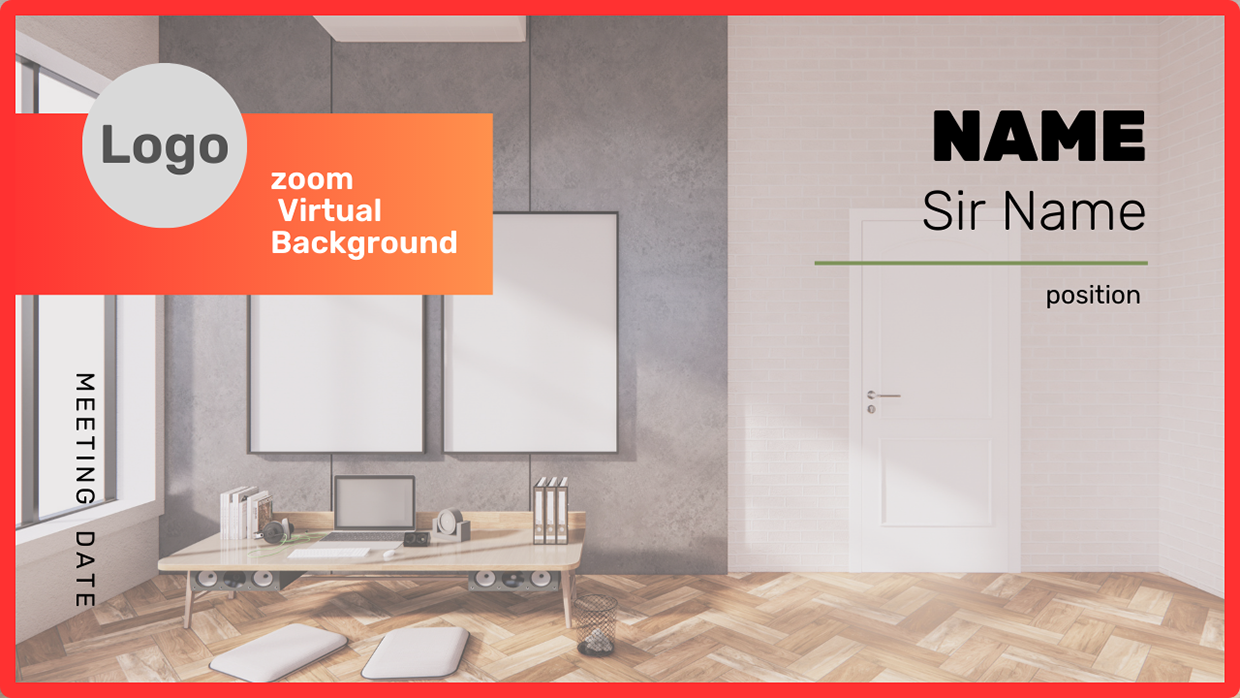
Implementing virtual backgrounds enhances the professionalism and aesthetics of your video calls, creating a more engaging and distraction-free environment. Each platform offers a slightly different process, but the core steps remain similar across popular services. Following this guide will help you seamlessly add virtual backgrounds to your video conferencing sessions.
Understanding the specific procedures and menu navigation paths for each platform ensures a smooth experience. Below, you’ll find detailed instructions for enabling virtual backgrounds on Zoom, Microsoft Teams, and Google Meet, along with a summarized comparison table highlighting the key settings and steps required.
Enabling Virtual Backgrounds in Zoom
Zoom provides a straightforward process for adding virtual backgrounds, which can be accessed through the settings menu. Before you begin, ensure your device meets the system requirements for virtual backgrounds, particularly regarding hardware acceleration and graphics support.
- Launch the Zoom application and sign in to your account.
- Click on your profile picture in the top right corner and select Settings.
- Navigate to the Background & Filters tab on the left sidebar.
- Within this section, select the Virtual Background tab.
- Check the box labeled I’m using a green screen if applicable, and choose from the default backgrounds or upload your own by clicking the + icon.
- Once selected, your virtual background will be displayed during meetings, provided your system supports it.
Note: For best results, ensure your webcam is focused on your face and that you have a solid-colored background or green screen for optimal segmentation.
Enabling Virtual Backgrounds in Microsoft Teams
Microsoft Teams allows users to customize their backgrounds before or during meetings, offering a variety of preset images or the option to upload custom backgrounds. The process involves navigating through the settings menu within the meeting interface or the app settings.
- Open Microsoft Teams and join a scheduled meeting or start a new one.
- Before entering the meeting, click on the Background effects icon (usually represented by a person with a background). This can be accessed via the device control bar or from the pre-join screen.
- In the background settings panel, browse through the available images or click Add new to upload a custom image from your device.
- Select the desired virtual background and click Apply to activate it during the meeting.
Note: For optimal performance, ensure your device’s graphics capabilities meet the minimum requirements specified by Microsoft.
Enabling Virtual Backgrounds in Google Meet
Google Meet allows users to change or blur their backgrounds to maintain privacy or reduce distractions. The feature can be accessed from the meeting controls menu, with options to select from preset backgrounds or upload custom images.
- Join a Google Meet session via your preferred browser or app.
- Click on the More options icon (three vertical dots) in the bottom right corner of the meeting window.
- Select Apply visual effects from the dropdown menu.
- In the side panel, choose from available backgrounds such as a blurred background, preset images, or click Upload background to add your custom image.
- Click Apply to activate the selected background during your session.
Note: Ensure your browser or app version supports virtual backgrounds for the feature to be available and functional.
Summary of Platform, Steps, and Required Settings
| Platform | Steps | Required Settings |
|---|---|---|
| Zoom |
|
|
| Microsoft Teams |
|
|
| Google Meet |
|
|
Using Custom Virtual Backgrounds
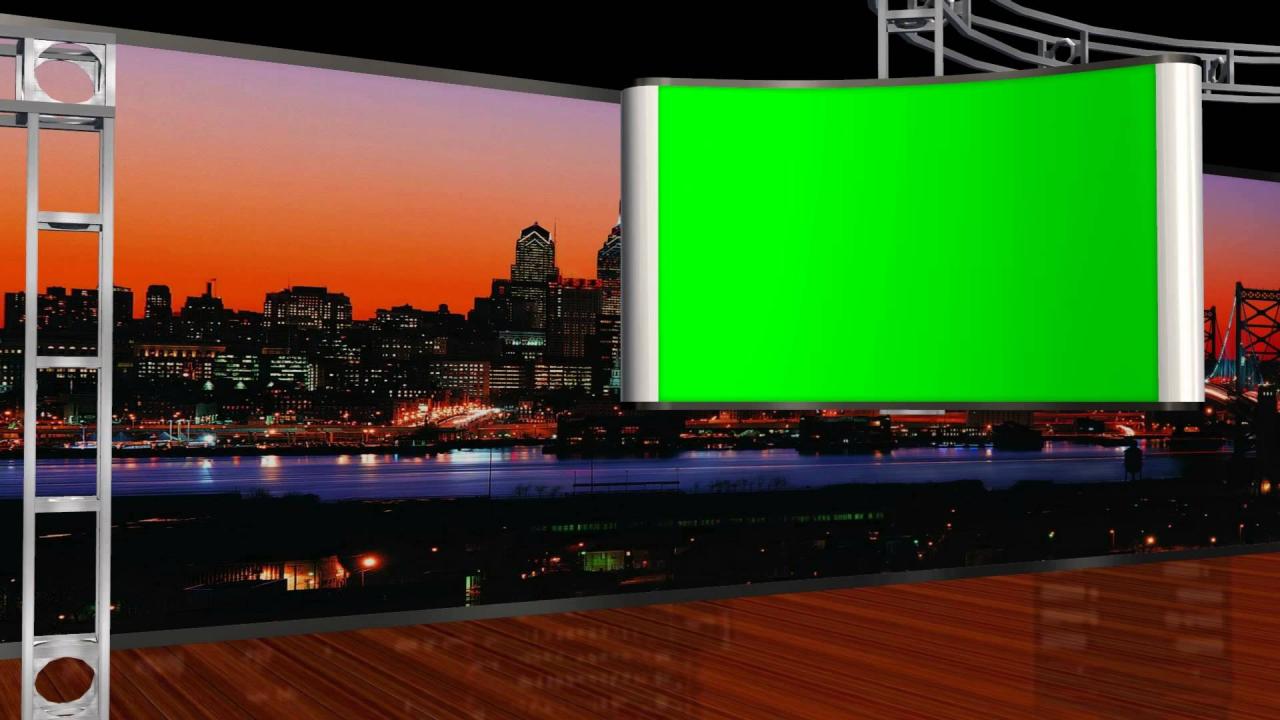
Enhancing your virtual meetings with personalized backgrounds allows for greater creativity, branding, and privacy. Custom virtual backgrounds enable users to showcase specific images or videos that reflect their personality or professional environment, making interactions more engaging and personalized. This section provides a comprehensive guide to uploading, selecting, and best practices for using custom backgrounds effectively.
Incorporating your own images or videos as virtual backgrounds involves a straightforward process but requires attention to certain technical specifications to ensure seamless performance. By following the recommended guidelines, users can avoid common issues such as poor image quality, distracting visuals, or compatibility problems.
Methods to Upload and Set Custom Images or Videos as Backgrounds
To personalize your virtual background, most platforms provide options to upload your own media files directly within the settings or background customization menu. Generally, the process involves navigating to the virtual background section, selecting the upload option, and choosing the desired file from your device. Once uploaded, you can select your custom background from the available options and apply it immediately.
Some platforms also allow you to set different custom backgrounds for specific meetings or sessions, offering flexibility in your virtual environment. In addition, video backgrounds can add a dynamic element, but they typically require higher system performance and compatibility.
Ensure that the media files are stored in accessible locations on your device to facilitate quick uploading and switching between backgrounds during meetings.
Best Practices for Selecting High-Quality, Non-Distracting Backgrounds
Choosing the right background is crucial for maintaining a professional appearance and minimizing distractions during meetings. High-quality images and videos help create a polished look and prevent visual artifacts that can arise from low-resolution files. When selecting or creating custom backgrounds, keep in mind the importance of clarity, simplicity, and relevance to the meeting context.
Avoid backgrounds that are overly busy, brightly colored, or contain personal or sensitive information that might be inappropriate or distracting to other participants. Opt for backgrounds that subtly complement your on-camera presence without overshadowing it. Consistency in style and tone with your professional environment enhances the overall impression.
“A well-chosen virtual background should support your message and not divert attention away from you.”
Guidelines for Image/Video Dimensions, File Formats, and Size Limits
To ensure optimal performance and compatibility, adhering to technical specifications for custom backgrounds is essential. Different platforms have specific requirements, but the following guidelines are generally applicable across most virtual meeting applications:
| Parameter | Recommendation |
|---|---|
| Image Dimensions | 1920 x 1080 pixels (Full HD) for high-quality backgrounds; 1280 x 720 pixels for standard quality |
| Video Dimensions | Same as images, with a minimum of 1280 x 720 pixels, 30 fps for smooth playback |
| File Formats | Images: JPEG, PNG; Videos: MP4, MOV |
| File Size Limits | Typically up to 5 MB for images and 100 MB for videos; check platform-specific limits |
Using the recommended dimensions ensures your background displays correctly without stretching or pixelation. Maintaining appropriate file sizes helps reduce load times and prevents lag during meetings. For videos, compress files without significantly compromising quality to stay within size limits while providing a smooth visual experience.
Adhering to these technical specifications enhances the overall user experience, ensuring your custom backgrounds look professional and perform reliably across various devices and platforms.
Troubleshooting Common Issues
Even with proper setup and configuration, users may encounter issues when using virtual backgrounds during video calls. Understanding common problems and their solutions can significantly improve the overall experience, ensuring a seamless and professional appearance in virtual meetings. This section provides detailed guidance on identifying and resolving frequent virtual background issues to optimize performance and visual quality.
Most problems stem from hardware limitations, software settings, or environmental factors. Addressing these areas systematically can often resolve issues such as flickering, blurriness, or background artifacts, resulting in a clearer and more stable virtual background display.
Background Flickering
Background flickering is a prevalent issue where the virtual background appears to continuously change or flicker during the video call. This problem can be caused by inadequate lighting, low processing power, or conflicting software settings.
- Improve Lighting Conditions: Ensure the environment is well-lit with uniform lighting. Avoid strong backlight or uneven lighting, which can cause the virtual background to struggle in distinguishing your silhouette from the background. Using soft, diffused lighting from multiple sources can enhance stability.
- Update Graphics Drivers and Software: Outdated graphics drivers or video conferencing software can impair virtual background rendering. Check for the latest updates from your GPU manufacturer and ensure your conferencing app is current.
- Adjust Video Settings: Lower the video resolution or frame rate within the application settings. High resolution or frame rate demands can cause flickering on systems with limited processing capabilities.
- Enable Hardware Acceleration: Verify that hardware acceleration is enabled in your video conferencing software. This feature offloads processing to your GPU, improving virtual background stability.
Note: If flickering persists after implementing these steps, testing the virtual background on another device can help determine whether the issue is hardware-related or software-specific.
Blurriness or Poor Background Segmentation
Blurriness or poorly defined virtual backgrounds occur when the software cannot accurately separate the foreground from the background, leading to distorted or fuzzy visuals. This typically results from insufficient lighting or incompatible hardware.
- Ensure Proper Lighting and Contrast: Good lighting increases the contrast between your subject and the background. Use a solid, contrasting background color if possible, such as green or blue, to enhance segmentation accuracy.
- Adjust Virtual Background Settings: Many applications allow you to adjust the similarity threshold or background segmentation sensitivity. Increasing the sensitivity can improve the clarity of the virtual background, especially on lower-spec devices.
- Verify Hardware Compatibility: Ensure your device meets the recommended specifications for virtual backgrounds. Devices with integrated webcams or low processing power may have difficulty rendering clear backgrounds.
- Update Software and Drivers: Keep your video conferencing app, webcam drivers, and graphics drivers up-to-date to benefit from the latest improvements in background segmentation technology.
Important: Using a physical green screen can significantly enhance background segmentation, especially when dealing with complex backgrounds or poor lighting conditions.
Performance Optimization Tips
Optimizing system and software settings can prevent or resolve many virtual background issues, resulting in smoother performance and better visual quality.
| Adjustment | Recommendation |
|---|---|
| System Resources | Close unnecessary applications to free up CPU and RAM, which helps in rendering backgrounds more smoothly. |
| Video Resolution | Lower the video resolution in settings to reduce processing load, especially on older or less powerful devices. |
| Background Selection | Choose simpler or solid color backgrounds when possible, as they require less processing power for segmentation. |
| Lighting | Ensure consistent and sufficient lighting to aid in accurate background detection, reducing visual artifacts. |
| Update Software | Regularly update your conferencing app, graphics drivers, and webcam firmware to leverage performance improvements and bug fixes. |
Enhancing Virtual Background Experience

Creating a seamless and professional virtual background experience involves more than just selecting the right image or video. Proper lighting, camera positioning, clothing choices, and customization features all contribute significantly to the overall quality. By paying attention to these aspects, users can ensure their virtual backgrounds appear natural, vibrant, and distraction-free, thereby improving engagement and communication during video calls.Achieving an optimal virtual background setup requires attention to lighting, camera placement, and personal presentation.
These elements work together to prevent common issues such as shadows, flickering, or blending irregularities, which can detract from the professional appearance of your virtual environment. Additionally, leveraging background customization options allows users to tailor their virtual space further, adding visual interest or ensuring privacy.
Proper Lighting and Camera Positioning
Effective lighting is a cornerstone of a high-quality virtual background experience. Natural light is ideal, as it provides even illumination and enhances skin tones, reducing shadows that can interfere with background detection. When natural light is unavailable, use soft white LED lights positioned in front of you, ideally at eye level, to illuminate your face evenly. Avoid strong backlighting or placing lights behind you, which can cast shadows or cause silhouettes, making it harder for the software to distinguish between you and the background.Camera positioning also plays a vital role in achieving a clear and well-defined virtual background.
Position the camera at eye level to capture your face and upper body directly, and maintain a consistent distance—generally between two to four feet from the camera—so that your face remains centered and proportionate. Using a high-resolution camera improves clarity and reduces pixelation, which enhances the virtual background’s stability. Keeping a steady camera or using a tripod helps prevent motion blur or jitter that can disrupt the background display.
Selecting Appropriate Clothing
Clothing choices significantly impact how well the virtual background integrates with your appearance. Solid, neutral-colored clothing, such as white, gray, or blue, minimizes visual distractions and prevents blending issues, especially when using green screen technology or background effects. Avoid wearing clothing with intricate patterns, bright colors, or reflective materials, as these can cause visual artifacts or interfere with the virtual background detection.It is advisable to wear clothing that contrasts with the background image or video.
For example, if your virtual background is predominantly dark, opt for lighter clothing to create clear separation. This contrast helps the virtual background software distinguish between your subject and the background, resulting in a more natural and polished look. Consistency in clothing style and color across sessions also contributes to a professional appearance.
Background Customization Options
Enhancing your virtual background experience can be achieved by utilizing various customization features offered by most platforms. These options allow users to personalize their virtual environment, making it more engaging or suited to their specific needs. Popular customization options include background blur effects, animated backgrounds, and the ability to upload custom images or videos.Background blur effects are useful for maintaining privacy or minimizing background distractions while keeping the focus on the speaker.
This feature softens the background, creating a depth-of-field effect similar to professional photography, and can be activated with a simple toggle. Animated backgrounds add dynamic visual interest, making virtual meetings more lively; these can include calming landscapes, cityscapes, or branded visuals, depending on the context.Beyond default options, many platforms enable users to upload custom virtual backgrounds, including personal photos, branded images, or themed videos.
Users should ensure these backgrounds are high-resolution, appropriately cropped, and free from clutter to avoid pixelation or visual noise. Adjusting background settings, such as transparency or intensity, can further refine the visual integration, resulting in a more immersive and aesthetically pleasing virtual environment.
Summary

Incorporating virtual backgrounds into your video calls can elevate your online presence, making interactions more engaging and professional. By understanding the setup process, customization options, and best practices, you can effortlessly create a polished virtual environment that suits your needs and enhances your communication experience.