Mastering the use of an action camera opens up a world of possibilities for capturing dynamic and immersive footage. Whether you are an outdoor enthusiast, a travel lover, or a creative content creator, understanding how to operate and optimize your action camera can significantly enhance the quality of your recordings. This guide offers comprehensive insights into the essential features, setup procedures, shooting techniques, and innovative applications to help you make the most of your device.
From unboxing and initial setup to advanced filming tips and troubleshooting, each step is designed to ensure you can confidently use your action camera in various environments and scenarios. Emphasizing proper handling, creative mounting options, and effective editing, this overview aims to equip you with the knowledge needed to produce professional-looking videos and photos that captivate your audience.
Understanding Action Cameras
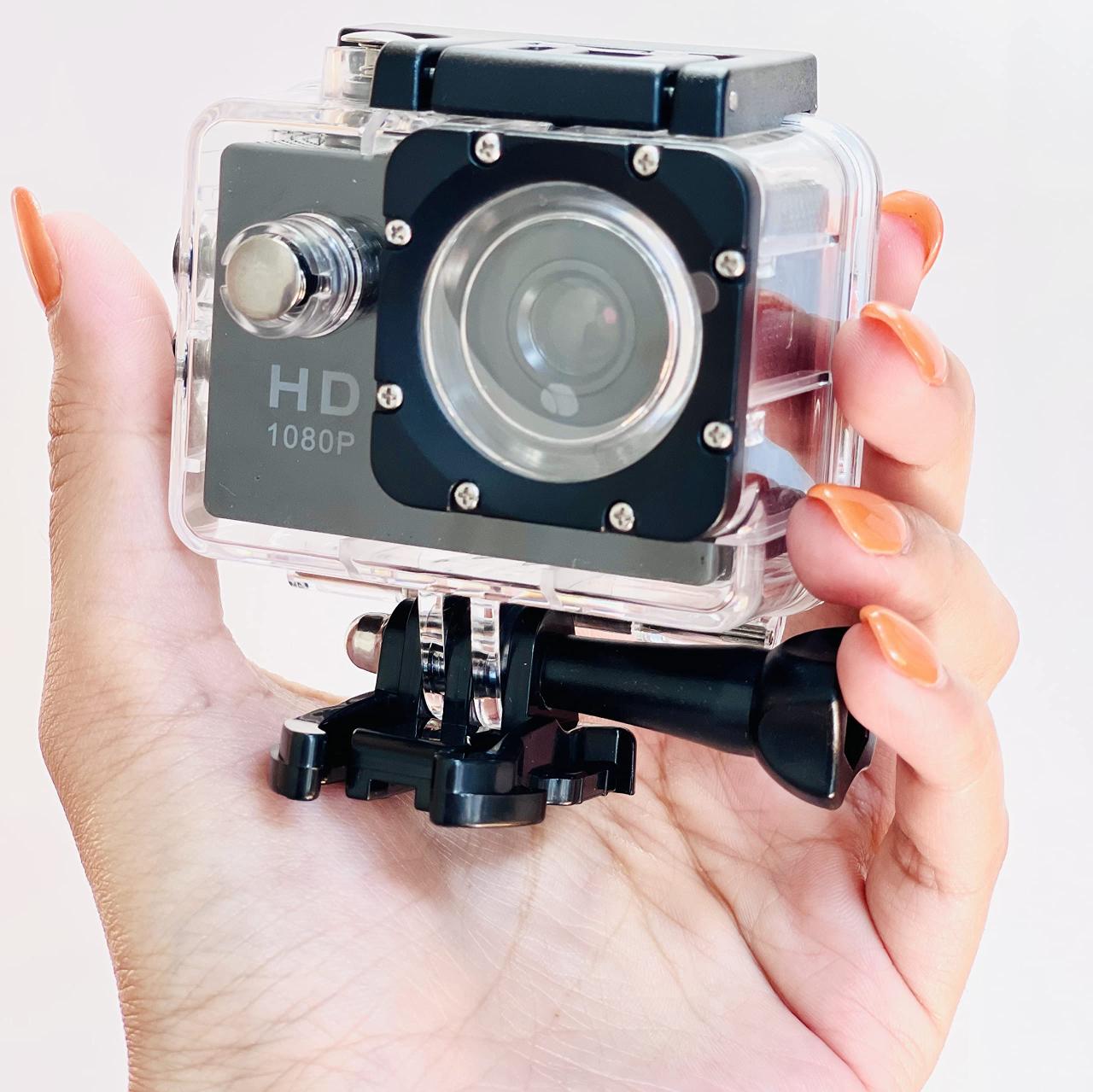
Action cameras are compact, rugged devices designed to capture high-quality video and photos in dynamic environments. Their popularity has surged among outdoor enthusiasts, athletes, and content creators who seek durability and versatility in their recording equipment. To maximize the potential of an action camera, it is essential to understand its core features, the variety of available models, and the accessories that enhance its functionality.
These devices are engineered to withstand extreme conditions such as water, dust, shocks, and vibrations, making them ideal for activities like surfing, mountain biking, skiing, and drone footage. Their user-friendly interfaces and innovative mounting options enable users to record from unique perspectives, providing immersive visual experiences. The following sections elaborate on the essential features, prominent brands, and typical accessories associated with action cameras.
Core Features and Functionalities
Action cameras are distinguished by their specialized features that prioritize durability, portability, and high performance in challenging environments. These features include:
- High-Resolution Video and Photos: Most action cameras support 4K video recording at 30 fps or higher, ensuring crisp, detailed footage. Photo capabilities often include wide-angle shots with resolutions up to 20 MP.
- Water and Shock Resistance: Built-in waterproof housings or sealed bodies allow filming underwater or in wet conditions without additional equipment. Shockproof design enables capturing during high-impact activities.
- Wide-Angle Lenses: Typical lenses offer 170° or wider fields of view, providing an immersive perspective that captures more of the surroundings.
- Image Stabilization: Advanced stabilization technologies, like electronic image stabilization (EIS), reduce shakiness, resulting in smooth footage even during vigorous movements.
- Connectivity Options: Wi-Fi, Bluetooth, and GPS functionalities facilitate easy sharing, remote control via smartphones, and location tagging.
- Battery Life and Storage: Compact batteries support several hours of recording, while expandable microSD card slots enable ample storage for extended shoots.
Common Brands and Models with Distinctive Attributes
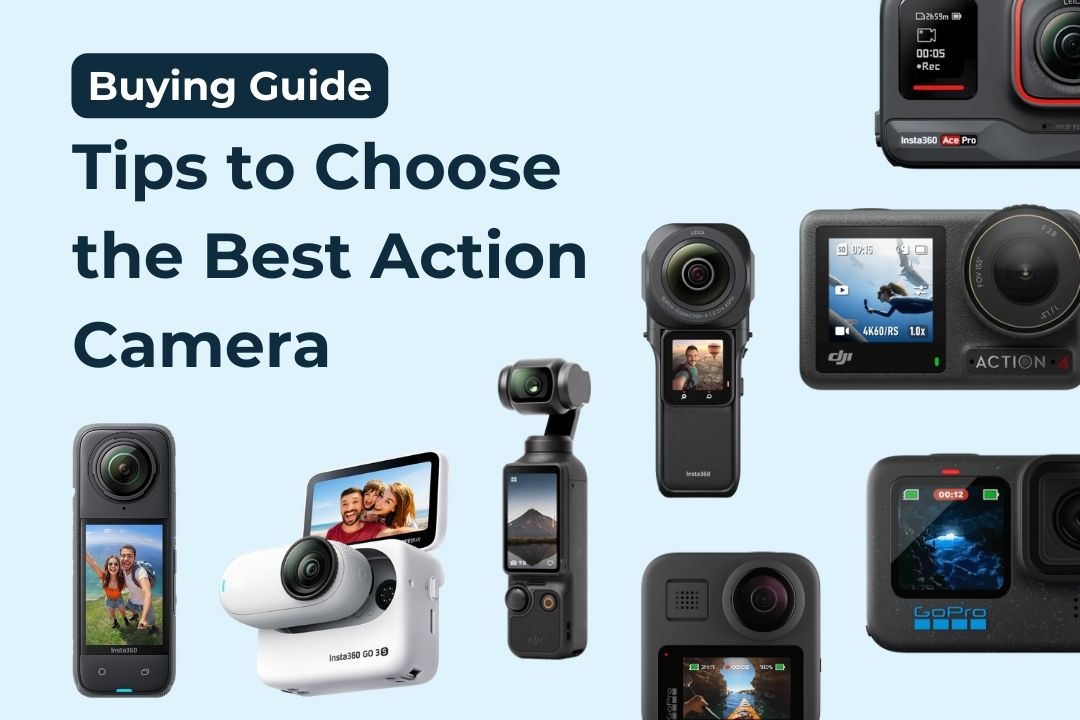
The market offers a diverse range of action cameras, each excelling in particular areas. Recognizing their unique features can assist users in selecting the most suitable device:
- GoPro: Renowned for durability and high-quality footage, models like Hero11 Black offer 5.3K resolution, HyperSmooth stabilization, and a robust ecosystem of accessories.
- DJI Osmo Action: Known for dual screens and RockSteady stabilization technology, providing excellent footage stability and user-friendly operation.
- Sony RX0 II: Compact with a 1-inch sensor for superior image quality, ideal for professional content creators seeking high-resolution footage in a small form factor.
- Akaso EK7000: An affordable option providing 4K recording capabilities and waterproof housing, suitable for beginners and casual users.
Typical Accessories Associated with Action Cameras
Accessories significantly expand the functionality and versatility of action cameras, allowing users to tailor their filming setups to specific activities or environments. Common accessories include:
- Mounts and Adapters: Helmet mounts, chest harnesses, handlebar mounts, and suction cup mounts enable stable and hands-free recording during diverse activities.
- Waterproof Cases: Additional protective housings extend waterproof capabilities beyond the built-in limits, facilitating underwater filming at greater depths.
- Extra Batteries and Power Banks: Spare batteries and portable chargers ensure extended recording sessions without interruption.
- Remote Controls and Remote Apps: Enable remote operation of the camera, framing shots, or starting/stopping recordings from a distance.
- Lens Filters and Lens Protectors: Enhance image quality by reducing glare or protecting the lens from scratches and debris.
Setting Up Your Action Camera
Properly setting up your action camera is essential to ensure optimal performance, durability, and ease of use during your outdoor adventures or recording sessions. This process involves unboxing your device, installing necessary components, and securely mounting it on various surfaces or gear to capture stable footage in diverse environments.
Following a systematic setup ensures that your camera functions correctly from the start, minimizes the risk of damage, and allows you to focus on capturing high-quality footage without interruptions or technical issues.
Unboxing and Initial Setup
Careful unboxing and initial configuration lay the foundation for a seamless experience with your action camera. It is important to identify all included components and familiarize yourself with the device’s features and controls.
- Remove the camera and accessories from the packaging, ensuring that all items listed in the user manual are present, such as mounting brackets, batteries, and cords.
- Inspect the camera for any physical damage or defects that may have occurred during transit.
- Read the user manual thoroughly to understand the specific functions, button layout, and safety instructions for your model.
Inserting Batteries and Memory Cards
Ensuring your camera has power and sufficient storage capacity is crucial for uninterrupted recording sessions. Proper insertion of batteries and memory cards enhances device longevity and reliability.
- Battery Installation: Open the battery compartment, usually located on the side or bottom of the camera. Align the battery contacts with the corresponding terminals inside the compartment, following the orientation indicated by markings or symbols. Gently press the battery into place until it clicks or fits snugly.
- Memory Card Insertion: Locate the memory card slot, typically labeled and protected by a small cover or flap. Insert the microSD card with the metal contacts facing down and the label facing outward, ensuring it clicks into place securely. Use high-quality, class 10 microSD cards with sufficient capacity (at least 64GB recommended for high-resolution recording).
- Verify that both components are properly seated and closed before powering on the device.
“Using a high-quality, reputable microSD card ensures reliable recording and reduces the risk of data loss or corruption.”
Mounting the Camera on Various Surfaces or Gear
Securing your action camera on different surfaces or gear is vital for capturing stable footage, especially in dynamic environments such as sports, travel, or outdoor adventures. The choice of mount and attachment method depends on the activity and the surface to which the camera will be affixed.
Most action cameras come with a variety of mounting options, including adhesive mounts, clip mounts, and adjustable straps. Ensuring a secure mount prevents vibrations, accidental falls, or dislodgement during use.
- Choosing the Appropriate Mount: Select a mount compatible with your activity. For helmet use, consider curved adhesive mounts; for handlebars or bike frames, use specialized clamps; for chest mounts, utilize harness straps.
- Preparing the Surface: Clean the mounting surface thoroughly with alcohol wipes or a damp cloth to remove dirt, dust, and oils, ensuring optimal adhesion.
- Attaching the Mount: Follow the manufacturer’s instructions to attach the mount securely. For adhesive mounts, press firmly and hold for several seconds. For clamp or strap mounts, tighten to ensure stability but avoid over-tightening which may damage the surface or the mount.
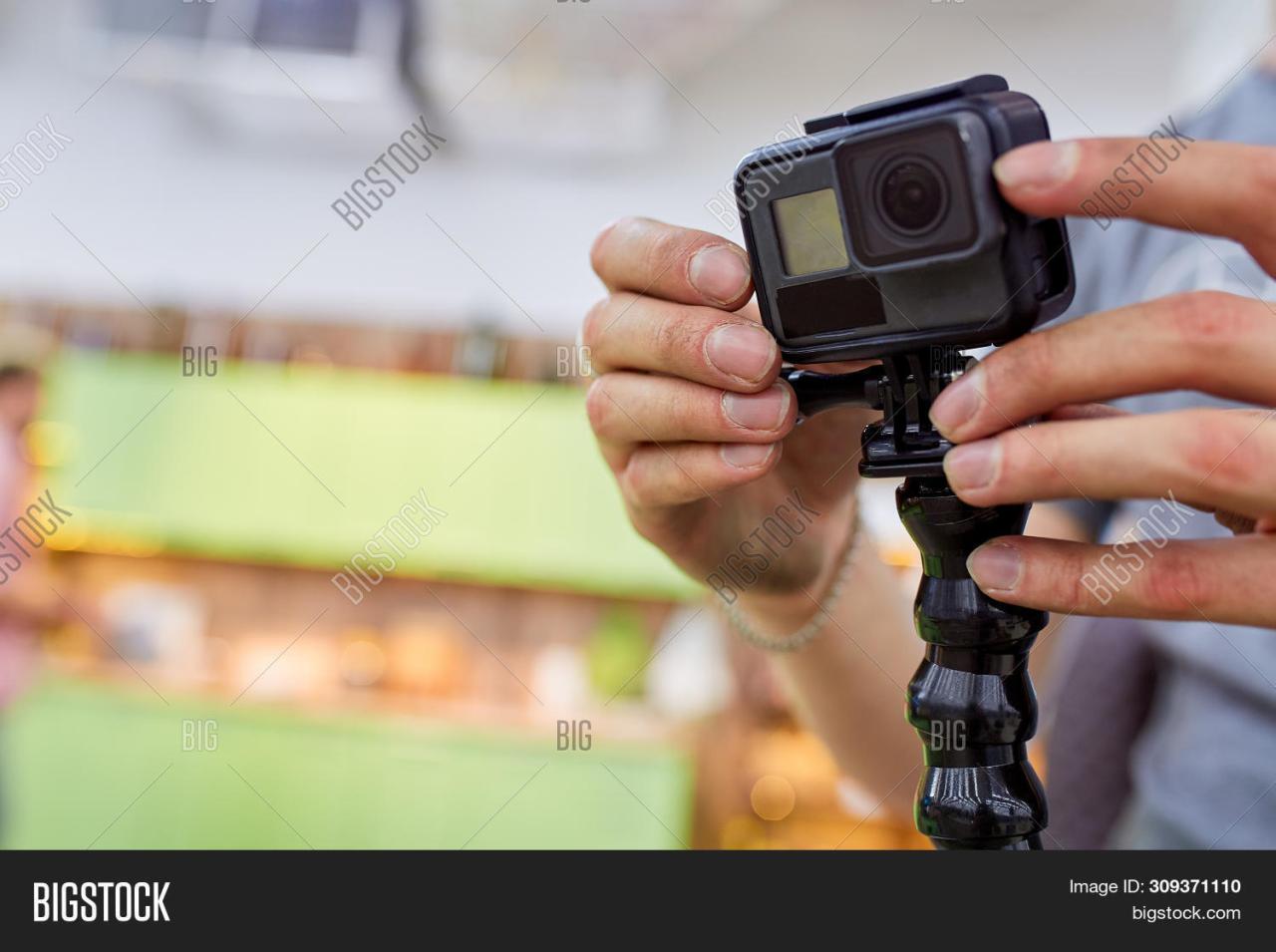
- Securing the Camera: Attach the camera to the mount using the provided screw or locking mechanism. Double-check that the camera is firmly secured and positioned at the desired angle.
- Test the setup by gently shaking or moving to verify stability before engaging in active recording.
Basic Operation and Controls
Understanding the fundamental operation and controls of an action camera is essential for capturing high-quality footage and photos. Mastering how to power your device on and off, navigate through menus, and switch between different shooting modes ensures you can adapt swiftly to dynamic situations during your activities. This section provides a detailed overview of these core functionalities, enabling you to operate your action camera confidently and efficiently.
Effective control over your camera’s basic operations allows for seamless recording sessions, whether you’re engaging in extreme sports, travel adventures, or casual outdoor photography. Familiarity with the controls minimizes disruptions and helps you focus on capturing the perfect shot or video without fumbling with settings during critical moments.
Power On/Off
Turning your action camera on and off correctly is the first step in ensuring proper functionality and conserving battery life. Most action cameras feature a dedicated power button, typically positioned on the side or top of the device. Press and hold this button for a few seconds to power the camera on. When powering off, repeat the process—press and hold until the device shuts down.
Some models may also offer a quick toggle feature for rapid power cycling, especially useful in time-sensitive scenarios.
Menu Navigation and Setting Adjustments
Efficient navigation through the camera’s menu system allows you to customize settings for optimal performance. The menu structure often includes options for resolution, frame rate, exposure, and other preferences. To facilitate this process, here is a clear table summarizing typical controls and available settings:
| Control | Function | Navigation Method |
|---|---|---|
| Mode Button | Switches between shooting modes (photo, video, time-lapse, burst) | Press repeatedly to cycle through modes; hold during power on for setup menu access |
| Navigation Buttons (Up/Down/Left/Right) | Navigate through menu options and adjust settings | Press to move through menus; confirm selections with an OK or Set button |
| Settings Button | Access quick settings or submenus | Press to open specific setting categories, such as resolution or Wi-Fi |
| Power Button | Turn camera on/off | Press and hold to power on or off |
Note: Some models integrate a touch screen for menu navigation, allowing direct tap and swipe controls, which simplifies the adjustment process significantly.
Switching Between Shooting Modes
Switching modes efficiently enables you to adapt to different shooting scenarios, capturing diverse content types with ease. Action cameras are equipped with multiple modes, each optimized for specific recording needs. The process is usually straightforward and can often be achieved through dedicated buttons or via the menu system, depending on the device.
For example, transitioning from video recording to capturing still photos involves pressing the mode button until the photo icon appears on the display. Similarly, selecting time-lapse mode typically involves navigating through the menu system or holding down a designated button until the mode cycles. Burst mode allows rapid shooting of multiple photos in quick succession, ideal for action sequences or fast-moving subjects.
It is recommended to familiarize yourself with your specific camera’s user manual to understand the exact button sequences and menu options. Practicing mode switching before your activity ensures quick adjustments during live shooting, preventing missed moments. Modern action cameras may also offer customizable modes, allowing you to assign preferred settings for rapid access, ensuring your gear is always ready to capture your adventures optimally.
Shooting Techniques and Tips
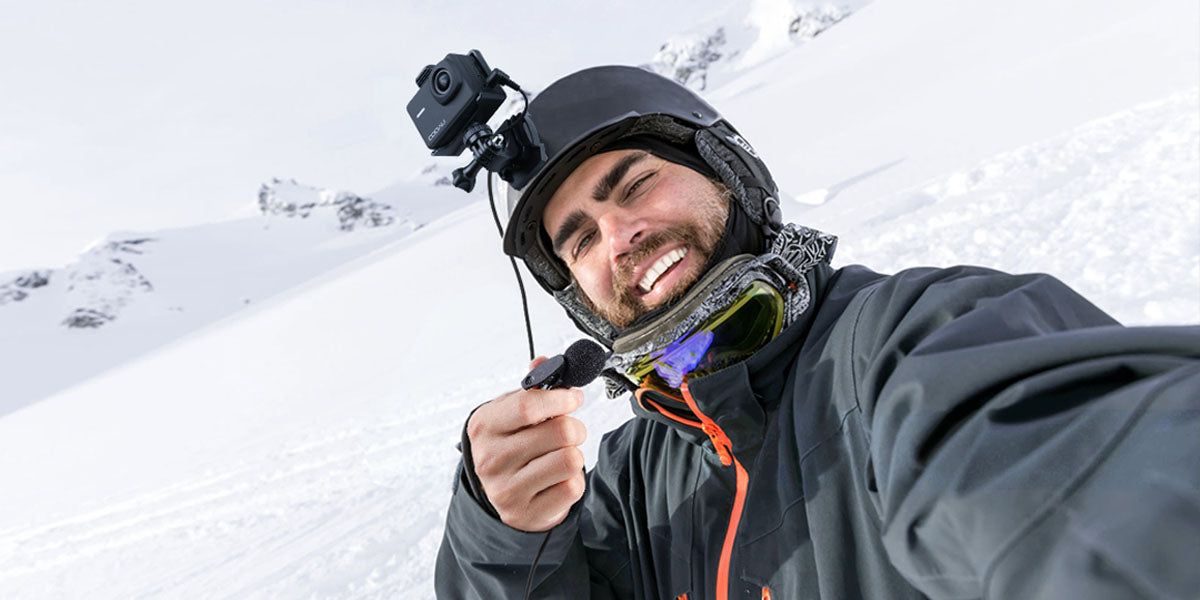
Capturing dynamic and stable footage with an action camera is essential for producing professional-looking videos that truly showcase your adventures. Employing effective shooting techniques not only enhances the visual quality but also ensures your recordings are engaging and immersive. This section provides practical advice on utilizing built-in stabilization features, framing your shots effectively, and adapting to various lighting and weather conditions to achieve optimal recording results.To maximize the potential of your action camera, understanding how to implement these techniques is crucial.
Whether you’re recording fast-paced sports, scenic landscapes, or underwater scenes, applying proper methods will significantly improve your footage’s clarity, stability, and overall appeal.
Using Built-in Stabilization Features
Stabilization technology has become a cornerstone of modern action cameras, allowing users to capture smooth footage even during vigorous movements. Most devices incorporate electronic (EIS) or gyroscopic stabilization that reduces camera shake, resulting in more professional-looking videos. To make the most of these features:
- Activate stabilization settings before recording to ensure continuous correction during filming.
- Maintain steady hand movements and avoid abrupt jerks to complement the camera’s stabilization capabilities.
- Combine stabilization with proper mounting accessories, such as gimbals or chest mounts, for enhanced stability during intense activities.
While built-in stabilization significantly reduces unwanted motion, it’s important to keep the camera as steady as possible during the initial setup. For example, mountain bikers often use gimbals alongside the camera’s stabilization to achieve ultra-smooth footage over uneven terrains.
Framing and Composition in Action Shots
Effective framing and composition are vital for creating compelling action footage that guides viewers’ attention and enhances storytelling. Consider the following best practices:
Position the subject off-center using the rule of thirds to create balanced compositions that feel natural and engaging. For instance, when capturing a surfer riding a wave, placing the surfer slightly to the side allows space for the wave to “move into” the frame, creating a sense of motion.
Use dynamic angles and perspectives to add excitement and variety to your footage. Low-angle shots can emphasize height or speed, while high-angle views provide context for the environment.
Maintain clear lines of sight by ensuring there are no obstructions between the camera and the subject. Adjust the camera’s orientation to keep moving subjects within the frame, especially during rapid movements.
Pre-plan your shots by visualizing the trajectory of fast-moving objects or subjects. Practice panning and tilting smoothly during recording to avoid jitteriness and to follow the action seamlessly.
Lighting and Weather Considerations for Optimal Recording Conditions
Environmental factors heavily influence the quality of action footage. Understanding how lighting and weather conditions affect recordings enables you to adapt accordingly:
- Bright, overcast days typically provide diffuse lighting that minimizes harsh shadows and highlights, resulting in balanced exposures. Avoid shooting during midday when the sun is directly overhead, as this can cause overexposure or lens flare.
- For underwater scenes or low-light environments, utilize the camera’s low-light mode or manual settings if available. Consider adding external lighting sources or filters to enhance visibility.
- In adverse weather conditions such as rain or snow, protect your camera with waterproof housings. Be mindful that wet or snowy conditions can create glare and reduce contrast; using polarizing filters can help mitigate these effects.
- Plan your shoots around weather forecasts to avoid extreme conditions like storms or heavy fog that can obscure details and reduce image clarity.
Properly adjusting camera settings—such as ISO, shutter speed, and white balance—according to lighting scenarios ensures your footage maintains clarity and color accuracy, regardless of environmental challenges. For example, capturing a mountain biking trail in early morning light requires setting a higher ISO and adjusting white balance to prevent dull or overly warm tones caused by sunrise hues.
Recording and Storage Management
Efficient management of recording operations and storage is essential to ensure your action camera functions smoothly and your footage remains safe. Properly starting, pausing, and stopping recordings helps prevent data corruption and ensures you capture high-quality videos. Additionally, organizing and transferring files effectively preserves your content and optimizes storage space for future recordings.
This section offers guidance on the best practices for handling recordings, managing storage capacity, and transferring footage to other devices such as computers or external drives. Clear understanding of file formats and their suitability for editing further enhances your workflow, whether for casual sharing or professional production.
Starting, Pausing, and Stopping Recordings
Proper control over your camera’s recording process ensures the integrity and quality of your footage. Always operate your action camera following a systematic approach to avoid data loss or file corruption.
- Starting a Recording: Press the designated record button once to initiate recording. Confirm that the camera indicates recording mode through visual cues such as a red LED or on-screen icon. Ensure stable mounting and that the camera’s battery and storage are sufficient for the intended recording duration.
- Pausing a Recording: If your camera supports pause functionality, use the dedicated pause button during recording to temporarily halt capture. Pausing is useful for taking breaks without creating multiple files, thereby simplifying editing later.
- Stopping a Recording: To conclude recording, press the record button again or the stop button. Wait for the camera to finalize the file and save it properly before powering off or starting a new recording session. This step prevents incomplete or corrupted files that may compromise your footage.
Managing Storage Space and Transferring Files
Effective storage management ensures your action camera remains operational during extended shoots and prevents unexpected interruptions due to full memory cards.
To optimize storage, regularly review your footage and delete unnecessary files, especially after transferring important content to other devices. Using high-capacity SD cards compatible with your camera model allows longer recording sessions, particularly in high-definition formats.
- Monitoring Storage: Most action cameras display remaining storage space on the preview screen or via their mobile app. Keep an eye on the available capacity to avoid sudden stops during recording sessions.
- Transferring Files: Connect your camera or SD card to a computer using a card reader for faster transfer speeds. Alternatively, use the camera’s Wi-Fi or Bluetooth features to upload files to a smartphone or cloud service. Organize files into folders based on date, event, or location for easy retrieval.
- Backing Up Data: Maintain backups on external drives or cloud storage platforms such as Google Drive, Dropbox, or dedicated media servers. This prevents data loss in case of hardware failure or accidental deletion.
Comparison of Common Video File Formats and Their Suitability for Editing
Understanding the differences among video file formats helps in selecting the best option for your editing workflow and final output quality. Below is a comparison of popular formats used in action cameras:
| Format | Common Uses | Advantages | Disadvantages |
|---|---|---|---|
| MP4 (MPEG-4 Part 14) | Most action cameras default to MP4 for recording; suitable for web sharing and editing. | Wide compatibility, good balance between quality and file size, supported by most editing software. | Compression may reduce quality slightly; some editing programs may require specific codecs. |
| MOV | Used in professional editing and high-quality recordings, especially in Apple ecosystems. | Maintains high quality, suitable for post-production workflows. | Generally larger file sizes, less compatibility with non-Apple platforms. |
| AVI | Older standard, used in some professional cameras and editing contexts. | Less compression, preserving maximum quality. | Large file sizes, less efficient for storage and streaming. |
| HEVC (H.265) | Modern format for 4K and high-efficiency compression. | Reduces file size significantly while maintaining quality, ideal for 4K footage. | Requires compatible hardware and software for editing, higher processing power needed. |
Choosing the appropriate format depends on your editing needs and the platforms where you intend to share or archive your footage. MP4 remains the most versatile for general use, while MOV or HEVC are preferable for professional editing or high-resolution content.
Maintenance and Troubleshooting
Effective maintenance and troubleshooting are essential to ensure the longevity and optimal performance of your action camera. Regular care helps prevent common issues and extends the lifespan of your device, while troubleshooting skills enable quick resolution of problems that may arise during use.Proper maintenance involves routine cleaning and careful handling of the camera and its accessories. Troubleshooting allows users to identify and resolve technical issues efficiently, minimizing downtime and ensuring continuous recording capabilities.
Additionally, keeping your firmware up-to-date enhances device functionality, improves stability, and introduces new features that enhance your shooting experience.
Cleaning Procedures for Lens and Housing
Maintaining the cleanliness of your action camera’s lens and housing is vital for capturing clear, high-quality footage. Dirt, dust, fingerprints, and water spots can significantly degrade image quality and impair recording, especially in extreme environments. A systematic cleaning routine helps preserve clarity and prevents damage.To clean the lens and housing effectively:
- Power off the camera and remove the battery if possible to prevent accidental activation during cleaning.
- Use a soft, lint-free microfiber cloth to gently wipe the lens surface, avoiding abrasive materials that could scratch the glass. For stubborn smudges, slightly dampen the cloth with lens cleaning solution or distilled water, and wipe gently.
- Clean the housing with a soft cloth or a microfiber cloth dampened with water. Focus on areas exposed to dirt or water splashes. For waterproof housings, ensure all seals are free of debris and toiletries or soap residues.
- Dry all components thoroughly with a dry microfiber cloth to prevent water spots or corrosion. For water-sensitive parts, allow them to air dry in a dust-free environment.
- Inspect seals, gaskets, and waterproof buttons to ensure they are intact and free from debris that might compromise water resistance.
Regular cleaning not only maintains image quality but also helps identify potential damage or wear that may require repairs.
Common Issues and Troubleshooting Techniques
Understanding how to diagnose and resolve typical problems enhances user confidence and minimizes interruptions during filming sessions. Common issues range from recording errors to connectivity problems, each with specific troubleshooting steps.When facing recording errors:
- Check available storage space and delete unnecessary files or transfer them to an external device.
- Ensure the memory card is compatible, properly inserted, and not corrupted. Use recommended card types and formats.
- Verify that the battery is charged sufficiently, as low power can cause recording failures.
- Review file format settings to ensure compatibility with playback devices or editing software.
Connectivity issues, such as difficulty connecting to Wi-Fi or remote controls:
- Restart both the camera and the remote device or smartphone to refresh connections.
- Reset network settings if connection problems persist, then re-pair the devices following the manufacturer’s instructions.
- Update firmware to ensure the latest compatibility features are installed, reducing connectivity glitches.
For persistent problems, consult the user manual or contact customer support. Often, issues may be related to outdated firmware, which can be resolved through software updates.
Firmware Update Procedures and Benefits
Firmware updates are integral to maintaining your action camera’s performance, security, and feature set. Manufacturers frequently release updates to address bugs, enhance stability, and introduce new functionalities.To perform a firmware update:
- Ensure your camera is sufficiently charged or connected to a power source to prevent interruptions during the process.
- Download the latest firmware file from the official manufacturer’s website or app, ensuring it corresponds to your specific camera model.
- Transfer the firmware file to the camera via a microSD card, USB connection, or wireless transfer, following the device-specific instructions.
- Access the firmware update menu through the camera’s settings interface, then select the update file and initiate the process.
- Allow the update to complete without disconnecting or turning off the device, as interruption can cause software corruption.
Benefits of updating firmware include:
- Improved stability and performance
- Enhanced compatibility with accessories and devices
- New shooting modes and features
- Resolution of security vulnerabilities and bugs
Regularly checking for firmware updates ensures your action camera operates at peak efficiency, providing a better overall user experience and safeguarding your data.
Final Review
Engaging with your action camera through proper setup, operation, and creative usage can transform ordinary recordings into extraordinary visual stories. By applying the techniques and tips discussed, you will be well-prepared to capture breathtaking moments, troubleshoot effectively, and share your content with confidence. Embrace the versatility of your device to unlock new horizons in your multimedia projects and adventures.