Learning how to split video in editor is a fundamental skill that enhances your editing capabilities, allowing for precise modifications and creative control over your footage. Whether you’re aiming to remove unwanted sections, create highlights, or organize scenes more effectively, understanding the process is essential for producing professional-quality videos.
This guide provides a comprehensive overview of various editing software options, techniques for accurate splitting, and tips for managing your clips efficiently. By mastering these methods, you can streamline your workflow and achieve polished results in your video projects.
Introduction to splitting videos in editing software
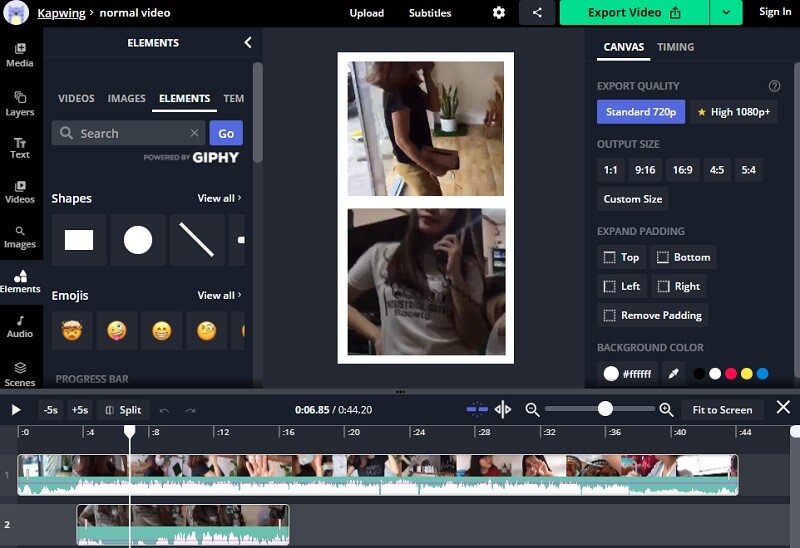
Video editing is a fundamental aspect of producing polished and engaging multimedia content. Among the myriad techniques employed by editors, splitting videos stands out as a crucial step that facilitates precise control over footage, enabling seamless editing workflows. This process involves dividing a single video clip into multiple segments, which can then be individually manipulated, rearranged, or removed, helping creators craft their desired narrative or visual effect.Splitting videos serves a variety of purposes across different editing scenarios.
For instance, during the editing of a filmmaking project, editors may need to isolate specific scenes to apply targeted effects or corrections. Content creators working on vlogs or tutorials often split segments to insert transitions or overlay text effectively. Additionally, splitting is vital for trimming unwanted portions, correcting mistakes, or synchronizing video segments with audio tracks. Modern video editors, ranging from simple mobile apps to professional-grade software, support this feature, ensuring that users at all skill levels can perform splitting operations efficiently.
Popular tools like Adobe Premiere Pro, Final Cut Pro, DaVinci Resolve, and user-friendly options such as iMovie and Shotcut provide intuitive interfaces for splitting videos, catering to diverse editing needs and expertise.Understanding the importance of this technique equips editors with the ability to streamline their workflow, enhance their creative options, and produce more cohesive and professional-looking videos.
Preparing Your Video for Splitting
Efficiently preparing your video before splitting ensures a smooth editing process and optimal output quality. Proper preparation involves importing your footage correctly, organizing clips systematically, and ensuring compatibility with your editing software’s supported formats and resolutions. Taking these foundational steps can save significant time and prevent technical issues during editing.
In this stage, attention to detail in organizing your media assets and understanding format requirements plays a crucial role in achieving seamless editing workflows. Proper preparation sets the groundwork for precise and effective video splitting, resulting in professional-looking final products.
Importing Videos into Editing Platforms
Accurate importing of video files into your chosen editing software is essential to maintain quality and streamline your workflow. Different platforms have specific methods for importing media, which should be followed carefully to avoid complications.
- Adobe Premiere Pro: Use the Media Browser panel to navigate to your video files, or drag and drop directly into the Project panel. Supported formats include MP4, MOV, AVI, and others, with recommended resolutions up to 4K for high-quality editing.
- Final Cut Pro: Import videos through the File > Import > Media option, allowing you to access videos stored locally or on external drives. Compatibility includes formats like MOV and MP4, with optimized media options available for large files.
- DaVinci Resolve: The Media page provides an easy way to import clips via the Media Storage panel. Ensure your files are in compatible formats such as MXF, MP4, or QuickTime for smooth editing.
Whichever platform you use, ensure that your media files are stored in accessible folders and avoid moving or renaming files after importing, as this can break links within the project.
Organizing Video Clips Before Splitting
Organizing your media files prior to splitting enhances efficiency and clarity during editing. Well-organized clips help you locate specific segments quickly and facilitate precise editing processes.
- Label your clips descriptively, including details like scene number, shot type, or content summary, to easily identify segments during editing.
- Create dedicated folders or bins within your project to categorize footage by scenes, takes, or camera angles.
- Use consistent naming conventions that reflect the content or sequence, such as “Scene01_Intro” or “Interview_Take3.”
- Review and pre-trim clips if necessary, removing unwanted sections at the outset to simplify the splitting process later.
“Organized media reduces editing time and minimizes errors, leading to a more streamlined workflow.”
Considerations for Video Format and Resolution Compatibility
Ensuring your video files are compatible with your editing software’s specifications is vital for smooth processing and high-quality output. Compatibility issues can lead to playback problems, extended rendering times, or errors during splitting.
| Common Video Formats | Compatibility Notes |
|---|---|
| MP4 (H.264 codec) | Widely supported across most editing platforms; ideal for high-quality but compressed files. |
| MOV (QuickTime) | Preferred for Apple-based software; supports high-quality video and audio. |
| AVI | Less compressed; offers high quality but larger file sizes; compatibility varies. |
| MXF | Common in professional workflows; supports high-resolution footage but may require specific codecs. |
Resolution considerations include matching your project settings, such as 1080p for HD or 4K for ultra HD projects, to ensure clarity and avoid unnecessary scaling or quality loss.
Choosing the correct format and resolution at the outset prevents technical difficulties and preserves the integrity of your footage throughout editing.
Splitting Videos in Popular Editing Software
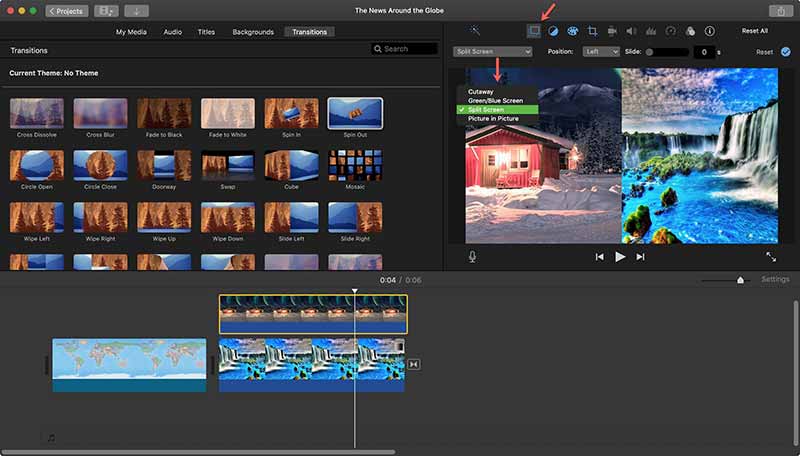
Splitting videos accurately within editing software is essential for effective video editing and seamless final productions. Different editing platforms offer unique tools and workflows to perform this task, allowing editors to choose methods that best suit their project needs and personal preferences. Whether you’re working with professional-grade software or more accessible options, understanding the specific procedures to split clips is fundamental to maintaining a smooth editing process.
This section provides detailed instructions on how to identify split points, access the splitting tools, and utilize shortcuts across some of the most widely used video editing programs, including Adobe Premiere Pro, Final Cut Pro, and DaVinci Resolve. Mastering these techniques ensures efficiency and precision in your editing workflow.
Splitting Videos in Adobe Premiere Pro
Adobe Premiere Pro is a versatile editing platform favored by many professional editors. The process of splitting a video involves selecting the exact point where the clip is to be divided and then executing the cut using built-in tools or shortcut keys.
- Navigate to the Timeline panel where your video clip resides. Play the video or drag the playhead to the desired split point.
- To precisely position the split, zoom into the timeline for better control over frame accuracy.
- Use the Razor Tool, accessible via the toolbar or by pressing the shortcut C. Click directly on the clip at the playhead position to create a split.
- Alternatively, position the playhead where you want to split, then press the Ctrl + K (Windows) or Cmd + K (Mac) hotkeys to cut at the current playhead location.
- For quick splitting, set timeline markers at key points using M, then use shortcut commands to split at these markers if necessary.
Splitting Videos in Final Cut Pro
Final Cut Pro offers intuitive options for splitting clips, allowing editors to effortlessly divide scenes for editing, effects, or rearrangement.
- Place the playhead at the desired split point on the timeline. Use the timeline ruler for precise positioning.
- Choose the Blade Tool from the toolbar or press the shortcut B.
- Click on the clip at the position of the playhead to perform the split. The clip is now divided into two separate segments.
- Alternatively, select the clip, then press Command + B to cut at the playhead position without switching tools.
- Markers can also be added via M. Using the Blade Tool or shortcut, split clips at these markers for organized editing.
Splitting Videos in DaVinci Resolve
DaVinci Resolve combines professional editing features with a user-friendly interface. The splitting process involves selecting the cut point and activating the appropriate tool for precise editing.
- Position the playhead at the desired frame on the timeline.
- Activate the Razor Blade Tool by clicking its icon or pressing B.
- Click on the clip at the playhead to split it into two parts. For more precision, zoom into the timeline.
- Use hotkeys like Ctrl + \ (Windows) or Command + \ (Mac) to perform a split at the current playhead position.
- Markers can be added using M. Use these markers as guides for splitting with hotkeys or the Razor tool for accuracy.
Comparative Table of Video Splitting Procedures
| Feature / Software | Adobe Premiere Pro | Final Cut Pro | DaVinci Resolve |
|---|---|---|---|
| Accessing Split Tool | Razor Tool or shortcut C | Blade Tool or shortcut B | Razor Blade Tool or shortcut B |
| Splitting at Playhead | Ctrl + K (Windows) / Cmd + K (Mac) | Command + B | Ctrl + \\ (Windows) / Command + \\ (Mac) |
| Using Markers for Split Points | Markers M, then split via shortcut | Markers M, then split via shortcut | Markers M, then split via shortcut |
| Zooming for Precision | Yes, via timeline zoom slider | Yes, via timeline zoom controls | Yes, via timeline zoom slider |
Understanding the specific steps and shortcuts in each editing platform allows for a streamlined workflow, making video splitting precise and efficient regardless of the software used.
Techniques for Precise Splitting
Splitting a video at exact frames or specific timestamps is essential for professional editing, ensuring seamless transitions, accurate synchronization, and polished final output. Achieving precision in splitting not only improves the visual quality but also streamlines the editing workflow, especially when working with complex projects or multimedia content that demands meticulous timing. Utilizing advanced techniques for exact cuts enhances the overall quality of your edit, minimizing errors and ensuring that your division points align perfectly with visual or audio cues.
This section explores effective methods and tools to help editors make pinpoint accurate splits, empowering them to produce high-quality videos with confidence.
Methods for Splitting at Exact Frames or Timestamps
To split videos with high precision, it’s crucial to understand and leverage the specific functionalities of your editing software. Most professional editors provide features that allow you to specify exact frames or timestamps for cuts, which is vital for tasks such as aligning clips to beats, synchronizing dialogue, or isolating particular moments.
Using Numeric Input for Timestamps
Many editing programs offer input fields where you can manually enter the precise start and end times for your cut. For example, entering “00:02:15.500” will position the playhead exactly at two minutes, fifteen seconds, and five hundred milliseconds.
Frame-by-Frame Navigation
Advanced editors support frame stepping, allowing you to move precisely from one frame to another via keyboard shortcuts or arrow keys. This method is useful when you need to identify the exact frame for splitting, particularly in fast-paced scenes or sequences with rapid visual changes.
Markers and In/Out Points
Placing markers at specific locations on your timeline provides visual reference points. You can then use these markers to perform splits or exports, ensuring accuracy according to predefined cues.
Using Rulers and Timecode Displays
Many software tools display a timecode or frame count directly on the timeline or in the viewer, helping you locate precise moments for splitting.
Tips for Zooming into Timeline for Accuracy
A crucial aspect of achieving precise cuts is controlling your view of the timeline. Zooming in allows for finer control over editing points, reducing the margin of error during placement and splitting.
Maximize Timeline Zoom
Most editors offer zoom controls—either via a slider or shortcut keys—that allow you to magnify the timeline. Zooming in to see individual frames provides a detailed view, making it easier to identify exact points for splitting.
Use Keyboard Shortcuts
Familiarize yourself with shortcuts for zooming in and out, which accelerates the editing process. For example, pressing ‘+’ to zoom in or ‘-’ to zoom out can help rapidly adjust your view.
Adjust Your Workspace Layout
Position your timeline to maximize visibility, ensuring that the section you’re working on is centrally displayed and easily accessible for fine adjustments.
Enable Grid or Frame Guides
Some software offers grid lines or frame guides that overlay the timeline, aiding in aligning cuts precisely with specific frames or markers.
Using Snapping Features and Guides for Clean Cuts
Snapping features and guides are invaluable tools in achieving clean, professional-looking cuts. They help align the playhead or cut points precisely with specific frames, markers, or timeline elements without requiring meticulous manual placement.
Activate Snapping
Enable snapping features within your editing software, which automatically aligns your cursor or cut point to nearby frames, markers, or grid lines. This ensures cuts happen exactly at intended positions.
Use Visual Guides
Set up guides or reference lines on the timeline to mark important points, such as scene transitions, cue points, or audio peaks. When you move your playhead or split tool near these guides, snapping will lock the position precisely.
Leverage Magnetic Timeline Features
Some editors, like Final Cut Pro, have magnetic timeline features that automatically adjust clips to align with adjacent clips or markers, aiding in precise editing.
Combine Snapping with Keyboard Shortcuts
Use snapping alongside keyboard commands for rapid and accurate placement, reducing the risk of misalignment or accidental cuts.
Splitting at Specific Points Based on Audio Cues or Visual Markers
Identifying specific points in your video based on audio cues or visual markers can greatly enhance the accuracy of your splits, especially when working with content like interviews, music videos, or tutorials where timing is critical.
Listening for Audio Cues
Play your video and observe audio waveforms displayed on the timeline. Sharp peaks or distinct sound cues, such as a beat drop or a spoken , serve as visual indicators for splitting points.
Using Audio Waveforms for Precision
Zoom into the waveform view to clearly see the amplitude changes. Place your playhead at the peak or specific point in the waveform corresponding to the cue, then perform your split.
Visual Markers and Annotations
Use visual markers or annotations on the timeline to indicate key moments. These can be added manually or imported from external cue lists.
Frame-by-Frame Alignment with Cues
For critical points, step through frames around the cue until you isolate the exact frame, then execute the split. This is particularly useful in syncing audio and video or isolating specific visual moments.
Automatic Detection Features
Some advanced editing software includes features that detect scene changes or audio peaks automatically, providing suggested cut points for user confirmation.
Managing Split Video Clips
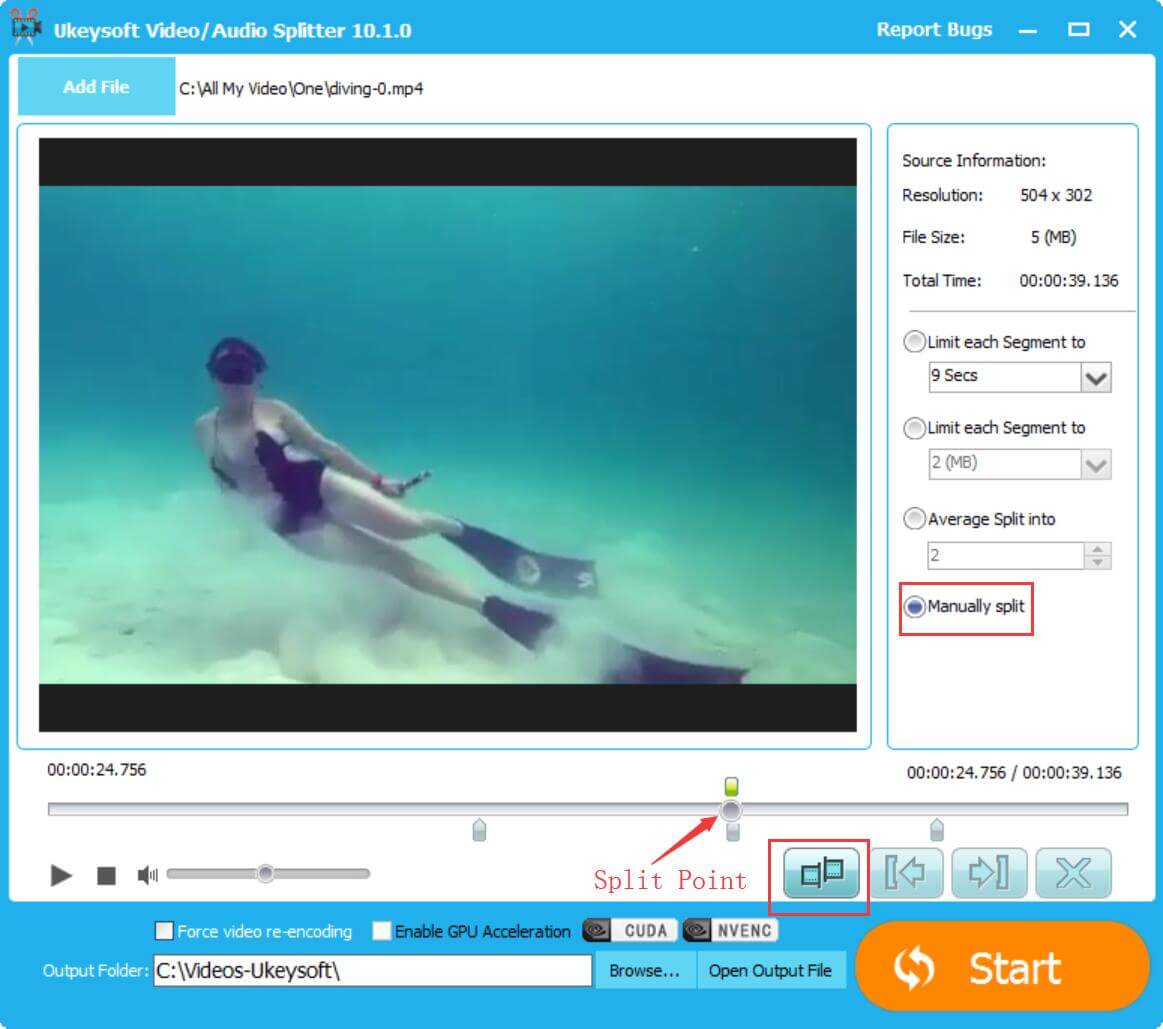
Effectively managing split video clips is crucial for maintaining an organized workflow and ensuring a smooth editing process. Once a video has been divided into segments, editors need to have clear strategies for moving, deleting, and rearranging these clips to achieve their desired outcome. Proper management not only enhances efficiency but also helps prevent confusion, especially in projects with multiple segments and complex timelines.Handling split clips involves understanding how to manipulate individual segments without disrupting the overall sequence.
Techniques such as selecting specific clips, adjusting their positions on the timeline, or deleting unnecessary segments are fundamental skills. Additionally, the ability to seamlessly merge clips after splitting allows editors to refine their footage, create transitions, or eliminate unwanted gaps. Exporting individual segments or the entire project at different stages helps in reviewing progress and sharing drafts.Organizing split clips with consistent naming conventions and structured project folders contributes significantly to workflow productivity.
Proper naming makes it easier to locate specific segments during editing and post-production, especially when working with larger projects or collaborating with others. Keeping a well-structured folder hierarchy, with clear labels for each clip, minimizes errors and accelerates the editing process.
Moving, Deleting, and Rearranging Split Segments
Once video segments are split, the ability to move, delete, or rearrange clips on the timeline provides flexibility to craft the narrative flow effectively.
- Moving clips: Select a segment and drag it along the timeline to a new position. This allows precise placement relative to other segments, enabling smooth scene transitions or restructuring the story.
- Deleting segments: Highlight unwanted clips and delete them to clean up the timeline. Most editing software allows for quick removal with a delete key or context menu options, helping eliminate errors or unwanted footage.
- Rearranging clips: Combine moving and snapping features to rearrange multiple segments efficiently. Use the ripple delete function to remove gaps created during rearrangement, maintaining a continuous timeline.
Proper management ensures that the sequence remains logical and visually appealing, enhancing the storytelling quality of the final product.
Merging Clips After Splitting
Merging clips post-splitting is essential when refining edits or creating continuous scenes from multiple segments.
- Overlay or join clips: Most editing software offers options to join adjacent clips, either by simply dragging them together or using specific merge commands. This is useful for combining parts of the same scene or removing minor gaps.
- Using transition effects: Incorporate transitions like fades or wipes between clips for a seamless visual flow when merging scenes.
- Creating nested sequences: For complex merging, nested sequences allow combining multiple clips into a single, manageable unit that can be moved or edited as one.
These techniques facilitate a polished, professional appearance, especially when working with multiple takes or split scenes.
Exporting Individual Segments or the Entire Video
After managing and refining clips, exporting options are vital for review, sharing, or final delivery.
- Exporting individual segments: Save specific clips as separate files for use in other projects, trailers, or promotional content. This approach is efficient for isolating key moments or highlights.
- Exporting full project: Render the entire timeline to produce the final video. Ensure all clips are correctly positioned, color corrected, and sound balanced before final export.
- Batch exporting: Some software enables exporting multiple clips or segments simultaneously, saving time when multiple outputs are needed.
Consider format, resolution, and file naming conventions during export to streamline post-production and distribution workflows.
Organizing Split Clips in Project Folders
Maintaining an organized folder structure for split clips is a best practice that simplifies project management.
- Name files descriptively: Use clear, descriptive names for each segment, such as “Scene3_FirstPart” or “Interview_A,” to facilitate quick identification.
- Create dedicated folders: Segment clips by scenes, scenes, or types (e.g., audio, b-roll) within your main project folder. This prevents clutter and allows easy access during editing.
- Maintain version control: Save incremental versions with timestamps or version numbers, especially during iterative editing phases, to safeguard against data loss and track progress.
- Leverage metadata: Utilize metadata tagging features in your file system or editing software to add s or notes for each clip, enhancing searchability.
A well-organized workspace significantly accelerates editing tasks, reduces errors, and simplifies collaboration with team members or clients.
Troubleshooting Common Issues with Splitting Videos
Splitting videos in editing software can sometimes present challenges that impede the editing process or compromise the final output. Recognizing and resolving these common issues ensures a smoother workflow and higher-quality results. This section addresses typical problems faced during video splitting, along with practical solutions to overcome them and optimize your editing experience.Effective video editing relies on accurate and clean splits; however, issues such as incomplete cuts, unwanted artifacts, or misaligned segments can occur due to various technical or user-related factors.
Understanding these problems and their remedies is essential for maintaining professional standards and efficiency in your editing projects.
Common Problems in Video Splitting and Their Solutions
Video splitting issues often stem from software limitations, user errors, or hardware constraints. Identifying these problems early allows for prompt troubleshooting, preventing delays and ensuring the integrity of your edited footage.
Some of the most frequently encountered challenges include incomplete or uneven cuts, visual artifacts, misaligned clips, and performance-related slowdowns. Recognizing these issues and applying targeted solutions can significantly enhance your editing workflow and the quality of your final video.
Incomplete Cuts and Artifacts
Incomplete cuts or visual artifacts are prevalent problems that can manifest as leftover frames, flickering, or unwanted visual glitches at the split points. These issues often arise from improper cutting techniques, incompatible formats, or insufficient processing power.
To mitigate incomplete cuts and artifacts, consider the following solutions:
- Ensure you are using the correct slicing tools, such as the razor or cut tool, and applying them precisely at the intended frame or timestamp.
- Render or preview the split segments to verify the quality before exporting, which can help identify artifacts early.
- Update your editing software to the latest version, as updates often include bug fixes related to splitting and rendering issues.
- Check the project and clip settings to confirm compatibility; converting your footage to a standard format (e.g., MP4, MOV) can improve stability.
- Increase your system’s allocated memory or close background applications to enhance processing capability during editing tasks.
Misaligned or Uneven Splits
Misalignment occurs when the split point is slightly off from the intended frame, leading to jumps or abrupt transitions in the video. Uneven splits can disrupt the flow and may require re-editing or correction.
To address misaligned or uneven splits, employ these techniques:
- Utilize frame-by-frame navigation to precisely position the playhead at the exact frame where the split should occur, often by zooming in on the timeline for greater accuracy.
- Activate snapping features within the editing software to align clips accurately to the timeline or other reference points.
- Set clear in and out points for your cuts, ensuring they are aligned with key frames or visual cues in the footage.
- Use overlay previews or split markers to verify the accuracy of your cuts before finalizing them.
- For complex edits, consider applying transition effects or trimming to smooth out any misalignments post-split.
Recovering or Undoing Mistakes in Splits
Mistakes during splitting are common, but most editing software provides options to undo or recover previous states, preventing permanent loss of footage.
Some effective methods include:
- Utilize the undo function, typically accessible via the shortcut Ctrl+Z (Windows) or Cmd+Z (Mac), immediately after an incorrect split.
- Work with project versions or save incremental backups before making major cuts, enabling restoration if needed.
- In case of accidental deletion or erroneous splits, check the media cache or temporary folders for recoverable files.
- Apply the ‘history’ panel or log to revert to earlier editing states if your software supports such features.
- If the split is misplaced but the clip remains intact, consider trimming or moving the segment rather than re-splitting.
Optimizing Performance During Splitting Tasks
Splitting large or high-resolution videos can strain system resources, leading to slowdowns or crashes. Optimizing your environment and workflow enhances efficiency and reduces technical hiccups.
Key suggestions include:
- Reduce the playback resolution temporarily to speed up navigation and cutting accuracy.
- Disable unnecessary effects or background processes that consume CPU or RAM during intense editing tasks.
- Use proxy files—lower-resolution copies of your footage—for editing and switch back to the original high-resolution files for final rendering.
- Ensure your storage device has sufficient free space and is defragmented if using traditional HDDs, to facilitate faster data access.
- Update your hardware drivers, especially graphics card drivers, to ensure compatibility and optimal performance with your editing software.
Maintaining a stable editing environment and employing precise techniques can significantly reduce issues during video splitting, leading to cleaner cuts and a more efficient workflow.
Closing Summary
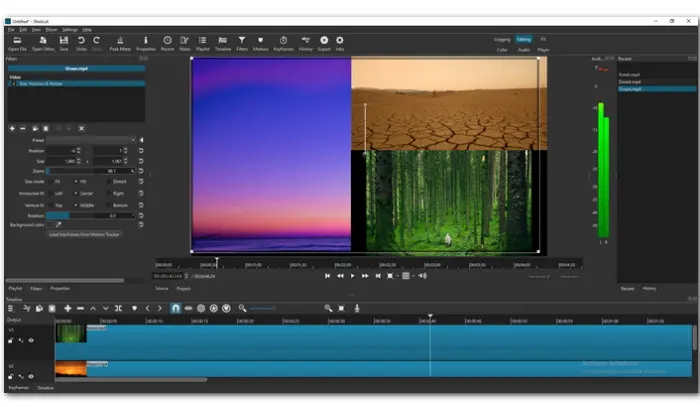
In conclusion, mastering how to split video in editor empowers you to refine your footage with precision and ease. Whether using advanced automation tools or simple manual cuts, applying these techniques will significantly improve your editing efficiency and final output quality. With practice, you’ll become adept at creating seamless and engaging videos that meet your creative goals.