Mastering how to mix video audio is essential for creating polished and professional-quality videos. This process involves carefully balancing visual elements with clear, well-synchronized sound to deliver an engaging viewing experience.
In this guide, we explore fundamental principles, preparation methods, basic and advanced techniques, troubleshooting tips, and finalization steps to ensure your audio complements your video seamlessly, elevating the overall production quality.
Fundamentals of Video and Audio Mixing

Mastering the fundamentals of video and audio mixing is essential for producing professional-quality multimedia content. Achieving seamless synchronization between video and audio tracks ensures that viewers experience a coherent and engaging narrative. Understanding core principles such as timing, balance, and clarity helps creators craft polished productions that effectively communicate their intended message.
Effective mixing involves aligning audio and video elements in a way that complements each other without distraction. It requires technical precision and artistic judgment to enhance the overall quality of the final output, whether in film, television, or online content. Familiarity with key concepts like audio levels, panning, and equalization allows editors to manipulate sound to match visual cues, emphasizing important moments while maintaining auditory harmony.
Synchronization of Video and Audio Tracks
Synchronization is the foundation of cohesive video and audio integration. Proper alignment ensures that speech, sound effects, and background music correspond accurately with visual actions. This process typically involves using waveform analysis to match audio peaks with visual cues, such as lip movements or object movements. Editors often zoom into timeline views to fine-tune timing, ensuring that sound effects and dialogue are perfectly timed with visual events.
“Perfect synchronization prevents viewers from noticing any dissonance, maintaining immersion and realism.”
In professional workflows, tools such as timecode and marker systems facilitate precise synchronization. For instance, in editing software like Adobe Premiere Pro or Final Cut Pro, editors can set markers at key points in both tracks and align them to achieve seamless playback. This process is crucial for narrations, interviews, and music videos where timing plays a pivotal role.
Differences Between Audio Levels, Panning, and Equalization
Adjusting audio levels, panning, and equalization forms the core of balancing and shaping sound within a video project. Each aspect serves a unique purpose in creating a clear and immersive audio experience.
Audio levels refer to the volume of different sound sources. Proper level management ensures that dialogue is intelligible, background music is not overpowering, and sound effects are appropriately emphasized. Volume faders and normalization techniques are used to maintain consistent levels throughout the timeline.
Panning distributes audio signals between the left and right stereo channels, creating a sense of space and directionality. For instance, placing a character’s voice slightly to the right can mimic real-world listening experiences or direct viewer focus within a scene.
Equalization (EQ) adjusts the frequency response of audio signals. It allows editors to enhance or diminish specific frequency ranges to improve clarity or remove undesired sounds. For example, reducing low-frequency rumble or boosting mid-range vocals enhances overall sound quality and intelligibility.
| Aspect | Function | Application Examples |
|---|---|---|
| Audio Levels | Controls volume balance | Balancing dialogue with background music; normalizing loudness |
| Panning | Creates spatial placement | Simulating directional sound in scenes; stereo imaging |
| Equalization | Adjusts frequency content | Removing hiss; emphasizing vocals; reducing bass rumbles |
Workflow for Combining Video and Audio in Editing Software
The process of integrating audio with video in editing software involves several systematic steps. A typical workflow ensures that both media types work harmoniously to produce a professional result. The initial stage involves importing and organizing media assets within the project bin or timeline.
Next, editors synchronize audio tracks with video clips, often utilizing waveform matching or timecode. This step is critical for dialogue-heavy content, ensuring lip movements align with spoken words. Once synchronized, editors adjust individual audio levels and apply panning and equalization to optimize sound quality.
Throughout editing, audio and video are often processed in parallel, with real-time playback allowing for precise adjustments. Exporting the final sequence involves rendering the project with all audio-visual elements correctly mixed, maintaining synchronization and audio clarity. Software like Adobe Premiere Pro, DaVinci Resolve, and Final Cut Pro provides tools and interfaces designed explicitly for efficient audio-visual integration, including audio meters, keyframe controls, and timeline markers to facilitate meticulous editing.
Preparing Your Video and Audio Files
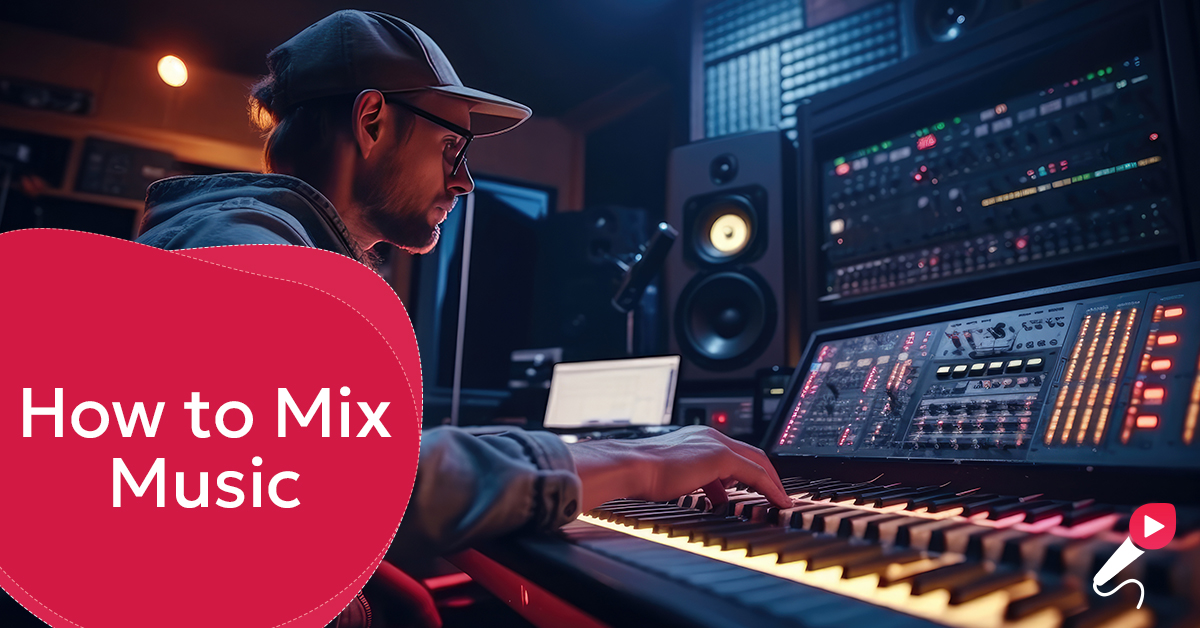
Efficient preparation of your media assets is a fundamental step in achieving a seamless and professional video and audio mix. Proper organization, format compatibility, and audio quality optimization facilitate smoother editing workflows and enhance the overall quality of your final project. By establishing systematic procedures for managing your files, you can significantly reduce errors and save valuable time during the editing process.Effective preparation involves meticulous organization and labeling of all media assets prior to editing.
This allows for quick identification and access to specific clips, ensuring that your workflow remains streamlined. Additionally, selecting appropriate export formats for both video and audio files ensures compatibility with your editing software, avoiding technical issues that may arise from incompatible formats. Lastly, cleaning and optimizing audio files before mixing enhances clarity, reduces noise, and improves the overall auditory experience, which is essential for producing high-quality video content.
Organizing and Labeling Media Assets
A structured approach to organizing media assets enhances efficiency and minimizes the risk of errors during editing. Clear labeling conventions and organized folders make it easier to locate specific files when needed.
- Implement consistent naming conventions that include relevant details such as date, scene number, take, and content description. For example, “2024_04_26_Scene3_Take2” provides clear information at a glance.
- Create dedicated folders for different media types, such as “Video Clips,” “Audio Files,” “Graphics,” and “Exports,” to segregate assets logically.
- Use subfolders to categorize assets further, such as separating raw footage from edited clips, or isolated audio tracks from mixed ones.
- Employ media management software or project management tools to keep track of assets, especially for larger projects involving multiple collaborators.
Exporting Audio and Video Files for Compatibility
Ensuring that media files are exported in formats compatible with your editing software is vital for a smooth workflow. Different editing programs have preferred formats and codecs, which can impact editing performance and quality.
When preparing files for import, consider the following best practices:
- Use widely supported formats such as MP4 with H.264 codec for video, which offers a good balance between quality and file size, and is compatible with most editing platforms.
- For raw or archival footage, employ lossless formats like MOV with Apple ProRes or DNxHD, especially if further editing or color grading is anticipated.
- Export audio in uncompressed formats such as WAV or AIFF to preserve original quality, ensuring ample headroom for mixing and effects processing.
- Avoid using heavily compressed formats like MP3 for original audio tracks, as they can introduce artifacts that are difficult to correct later.
- Maintain consistent frame rates and resolutions across all exported files to prevent synchronization issues during editing.
Proper format selection reduces technical difficulties, ensuring that files are easily accessible and maintain quality throughout the editing process.
Cleaning and Optimizing Audio Files
Before beginning the mixing process, audio files should be cleaned and optimized to deliver clear and professional sound. This step involves removing unwanted noise, balancing levels, and applying initial equalization to prepare the audio for further processing.
- Start with noise reduction techniques to eliminate background hum, hiss, or ambient noise that can obscure speech or important audio cues.
- Normalize audio levels to ensure consistent volume across different clips, avoiding sudden jumps that can distract viewers.
- Apply equalization (EQ) to enhance clarity—boosting high frequencies to improve intelligibility, or reducing low-end rumble and muddiness.
- Use compression subtly to control dynamic range, making quiet sounds more audible and preventing clipping of loud sounds.
- Remove any clicks, pops, or other unwanted artifacts using specialized cleaning tools, ensuring a smooth listening experience.
Investing time in audio cleaning and optimization not only improves the immediate quality of your project but also simplifies the mixing phase, reducing the need for extensive adjustments later on. Accurate, clean audio forms the foundation of a compelling and professional final product.
Basic Audio Mixing Techniques
Achieving a balanced and professional sound across multiple audio tracks is fundamental to producing high-quality video content. Mastering basic audio mixing techniques ensures clarity, consistency, and a pleasing auditory experience for viewers. These techniques include balancing levels, applying fades and automation, and using equalization effectively. Proper implementation of these skills enhances both voice intelligibility and background sound harmony, elevating the overall production quality.
In this section, we will explore essential procedures that form the foundation of effective audio mixing. Focus will be placed on practical step-by-step methods for balancing audio levels, integrating transitions through fades and crossfades, utilizing volume automation for dynamic control, and applying equalization to clarify vocals and refine ambient sounds. Mastery of these techniques enables audio engineers and content creators to craft immersive and professional audio landscapes for their videos.
Balancing Audio Levels Across Multiple Tracks
Achieving a harmonious mix begins with proper level balancing. This process ensures that each audio element—voice, background music, sound effects—can be heard clearly without overpowering or being overshadowed by other tracks. Proper balance not only improves intelligibility but also sets the stage for advanced processing.
- Identify Primary Audio Elements: Determine which track contains the main content, such as dialogue or narration, and set its level as a reference point, typically around -6 dB to -3 dB.
- Initial Level Adjustment: Gradually increase or decrease the volume of secondary tracks, like background music or sound effects, to complement the primary audio without distracting from it.
- Use Visual Meters: Monitor the audio meters regularly to ensure none of the tracks peak into the red zone, preventing distortion.
- Iterative Fine-Tuning: Continuously listen and adjust levels during playback to achieve a natural, balanced sound where all elements are audible and cohesive.
Applying Fades, Crossfades, and Volume Automation
Smooth transitions between audio clips and precise volume control are vital for maintaining listener engagement and ensuring seamless audio flow. Fades, crossfades, and automation allow for dynamic adjustments, creating a professional polish in the final mix.
Key procedures include:
- Fades: Gradually increase or decrease the volume at the beginning or end of an audio clip. Use fades to eliminate abrupt starts or cuts, providing a gentle introduction or conclusion to sound elements.
- Crossfades: Overlap two audio clips with concurrent fades—decreasing the volume of the first clip while increasing the second—to create a seamless transition. Critical when switching scenes or changing background music.
- Volume Automation: Use automation lanes to precisely control volume levels over time, allowing for dynamic emphasis or de-emphasis of specific audio segments. For example, lowering background music during dialogue or accentuating key sounds during critical moments.
Automation curves can be manipulated to create nuanced changes, such as a slow fade-in of ambient background as dialogue begins or a gradual decrease in music volume during a voiceover for emphasis.
Using Equalization to Enhance Voice Clarity and Background Sounds
Equalization (EQ) is a powerful tool for shaping the tonal quality of audio tracks. Proper EQ application can clarify speech, reduce unwanted background noise, and enhance the overall soundscape by emphasizing or attenuating specific frequency ranges.
Best practices include:
- Identify the Frequency Range of Voice: Typically, human speech ranges from 85 Hz to 255 Hz with important intelligibility components between 1 kHz and 4 kHz. Use a narrow band EQ to boost these frequencies slightly, improving clarity.
- Reduce Low-End Rumble and Background Noise: Apply a high-pass filter to cut frequencies below 80 Hz, which often contain unwanted rumble or hum, especially in recordings with poor acoustics.
- Manage Background Sounds: Use EQ to attenuate frequencies where background noise is dominant, such as hums around 60 Hz or hiss in higher frequencies, ensuring they do not compete with the primary audio.
- Enhance Ambient and Surrounding Sounds: Slightly boosting mid or high frequencies can bring out subtle background effects, creating a richer auditory environment without overpowering speech.
Effective EQ application results in clearer voice tracks and a more balanced background sound, contributing significantly to a professional and immersive listening experience.
Synchronization of Video and Audio
Achieving precise synchronization of audio with video footage is a critical step in producing professional-quality multimedia content. Proper alignment ensures that dialogue, sound effects, and music match the visual cues, enhancing viewer engagement and maintaining the integrity of the narrative. This process involves both technical methods and creative judgment, often utilizing software tools to streamline the workflow.
Effective synchronization hinges on understanding the available techniques, such as using timecode references and visual cues, as well as mastering manual alignment methods. The integration of these approaches allows editors to achieve seamless audio-video matching, accommodating various recording scenarios and editing environments.
Methods for Syncing Audio with Video Clips
Synchronizing audio with video involves a combination of precise technical procedures and visual analysis. The choice of method depends on the nature of the project, the recording equipment used, and the desired accuracy. The two primary techniques are based on timecode synchronization and visual cue matching, each offering distinct advantages for different editing contexts.
- Using Timecode: Timecode is a digital timestamp embedded within both audio and video recordings, providing an exact reference point for synchronization. When both media files contain accurate timecode metadata, software can automatically align them by matching these timestamps, greatly reducing manual effort and increasing precision. This method is common in professional film and broadcast environments where multi-camera shoots and external audio recorders are employed.
- Visual Cues: When timecode is unavailable or unreliable, editors rely on visual cues such as lip movements, actor gestures, or specific visual events to synchronize audio and video manually. This approach requires careful analysis of the video frames and corresponding audio waveforms to identify matching points, such as a clap, a door slam, or a distinct visual action synchronized with a sound cue.
Manual Lining Up of Audio Waveforms with Video Frames
Manual synchronization involves analyzing and aligning the audio waveform with the visual frame sequence. This process demands attention to detail and patience, especially when working with raw footage and separate audio recordings. By visually inspecting the waveform and corresponding video frames, editors can achieve a high level of accuracy, ensuring that the audio aligns perfectly with the visual action.
The typical steps include importing both media files into editing software, displaying the audio waveform alongside the video timeline, and locating prominent peaks or distinctive sounds—such as a clap or a loud noise—that correspond to specific visual moments. Once identified, these points are used as anchors to slide and fine-tune the audio track until it matches the video frames precisely.
Tip: Using a visual cue like a hand clap at the start of a shoot provides a clear and easy-to-identify marker in both the waveform and video frames, simplifying the synchronization process.
Tools Within Editing Software for Precise Synchronization
Modern editing software offers a suite of tools designed to facilitate accurate synchronization of audio and video tracks. These tools enhance efficiency and reduce manual effort, especially in complex projects with multiple clips and sources.
| Tool | Description | Application |
|---|---|---|
| Waveform Display | Visual representation of audio signals, allowing precise identification of peaks and troughs for alignment. | Manual synchronization by matching waveform peaks with visual cues. |
| Multi-Camera Synchronization | Automatically aligns multiple video clips based on matching audio or visual markers across sources. | Multicam editing workflows in software like Adobe Premiere Pro or Final Cut Pro. |
| Timecode Matching | Utilizes embedded metadata to automatically synchronize media files with matching timecodes. | Post-production workflows involving external recorders or multi-camera setups. |
| Synchronize Clips Feature | Automatic alignment function that detects audio peaks and aligns clips accordingly. | Reduces manual effort in syncing separate audio and video recordings. |
By leveraging these tools, editors can ensure precise alignment, which is essential for maintaining the coherence and professionalism of the final output. Proper synchronization not only improves the viewing experience but also simplifies subsequent editing tasks, such as cutting and mixing, by providing a unified and accurately aligned media timeline.
Advanced Audio Effects and Processing
Enhancing audio quality in video projects involves the strategic application of various effects and processing techniques. Mastering noise reduction, reverb, and compression allows content creators to produce clearer, more immersive soundscapes. Additionally, integrating surround sound or spatial audio effects can significantly elevate the viewer’s experience by providing a sense of depth and realism. Properly exporting mixed audio in the correct formats and settings ensures the final product maintains high quality across diverse playback systems.
Noise Reduction, Reverb, and Compression
These fundamental audio processing techniques are essential for refining soundtracks and eliminating unwanted artifacts. Noise reduction helps remove background hiss, hum, or environmental noises that can distract the audience. Reverb adds a sense of space and depth, making dialogue or ambient sounds more natural and immersive. Compression balances audio levels, ensuring loud sounds are controlled and softer sounds are audible, preventing audio from clipping or becoming inaudible.
The effective implementation of these effects involves meticulous adjustments:
- Noise Reduction: Use spectral editing tools or noise gates to identify and attenuate unwanted noise frequencies. For example, reducing hum at 60Hz in recordings captured in electrical environments.
- Reverb: Apply reverb sparingly to avoid muddying the mix. Small-room or plate reverb settings are suitable for dialogue, while larger hall reverbs work well for musical or cinematic scenes.
- Compression: Configure attack and release times to control how quickly the compressor responds to dynamic changes. Use ratio and threshold settings to prevent audio from peaking or becoming uneven.
“Properly tuned noise reduction, reverb, and compression settings can significantly enhance clarity, depth, and overall audio professionalism.”
Surround Sound and Spatial Audio Effects
Incorporating surround sound and spatial audio effects can transform a standard video into an immersive experience, especially for films, virtual reality, or interactive media. These techniques create a three-dimensional sound environment, allowing the audience to perceive sound sources as coming from specific directions and distances.
Key considerations include:
- Implementation of Surround Sound: Utilize multi-channel audio setups such as 5.1 or 7.1 systems. Distribute audio tracks strategically across channels, assigning dialogue, ambient sounds, and effects to specific speakers for spatial accuracy.
- Spatial Audio Processing: Use specialized plugins and software that support binaural or ambisonic formats. These tools help simulate a 3D sound field, especially effective in VR content or 3D cinematic productions.
- Mixing Techniques: Balance sound sources to preserve clarity while enhancing spatial cues. Employ panning automation and reverb to position sounds within the virtual space convincingly.
Applying these effects requires attention to the playback environment, ensuring that the mixed audio translates accurately across various systems, from home theaters to headphones.
Export Formats and Settings for High-Quality Video Production
Exporting your mixed audio with appropriate formats and settings is crucial for preserving audio integrity and compatibility with video platforms. High-quality audio exports support professional workflows and ensure the final video meets industry standards.
Considerations for exporting include:
| Format | Common Use | Advantages |
|---|---|---|
| WAV (Waveform Audio File Format) | Master files, archival, professional editing | Uncompressed, maximum audio quality, widely supported |
| AIFF (Audio Interchange File Format) | Professional audio editing and post-production | Uncompressed, high fidelity, compatible with major DAWs |
| FLAC (Free Lossless Audio Codec) | Distribution, archiving | Lossless compression, smaller file size, preserves original quality |
| AAC (Advanced Audio Codec) | Streaming, online video, consumer devices | Compressed, high quality at lower bitrates, widely supported |
Settings to prioritize include:
- Sample Rate: Typically 48kHz or higher for video production to match standard video frame rates.
- Bit Depth: Use 24-bit for professional quality, ensuring sufficient dynamic range.
- Bitrate: For compressed formats like AAC, optimize bitrate (e.g., 256 kbps or higher) to balance quality and file size.
Implementing meticulous export settings guarantees that the audio maintains its clarity, depth, and fidelity throughout the post-production and distribution process.
Troubleshooting Common Mixing Issues
During the process of video and audio mixing, various technical challenges can arise that compromise the overall quality and viewer experience. Identifying and resolving these issues promptly is essential to producing polished and professional content. Understanding common problems such as audio lag, echo, imbalance, and synchronization errors enables mixers to maintain clarity and coherence in their productions.
This section provides an overview of typical mixing issues, methods to diagnose their root causes, and practical solutions to correct them. Addressing these challenges effectively ensures a seamless audio-visual experience for the audience and preserves the integrity of the final product.
Audio Lag and Latency
Audio lag, or latency, occurs when sound does not synchronize properly with the corresponding video, resulting in a distracting delay that hampers viewer engagement. This issue often arises from processing delays within the digital audio workstation (DAW) or mismatched buffer settings.
To identify and fix audio lag, consider the following approaches:
- Use the audio latency monitoring feature within your editing software to measure delay times.
- Adjust buffer size settings in your audio interface or software preferences; reducing buffer size can decrease latency but may strain your CPU.
- Ensure that the audio driver is up-to-date and compatible with your system to prevent unnecessary delays.
- Test the synchronization by playing a reference audio or using visual cues like a clap or a visual marker synced with a sound effect.
Optimal buffer settings balance system performance and latency, typically between 128 and 256 samples for real-time mixing scenarios.
After adjustments, preview the final output to verify that audio and video are aligned accurately, making further tuning as necessary.
Echo and Reverberation Issues
Echo or unwanted reverberation often occurs when audio signals are fed back into the mixing environment multiple times or when multiple microphones pick up the same sound sources. These issues can diminish clarity, especially in voice recordings or dialogue-heavy videos.
The following techniques help eliminate echo:
- Identify and isolate the source of feedback by muting or disabling suspicious tracks and listening for the problem’s persistence.
- Apply a noise gate to suppress low-level ambient sounds and prevent echoes from amplifying.
- Use directional microphones and proper placement to minimize phase cancellation and reverb pickup.
- Utilize acoustic treatment in the recording environment, such as foam panels, to reduce sound reflections.
- In post-production, apply de-reverb plugins or audio effects designed to diminish reverberation artifacts.
Imbalance Between Audio Tracks
Imbalanced audio, where certain tracks are disproportionately loud or quiet, can distract viewers and reduce overall professionalism. This issue often results from inconsistent input levels or improper mixing practices.
To address imbalance problems:
- Utilize level meters to monitor the volume of each track during mixing, aiming for a balanced overall sound.
- Apply gain adjustments or volume automation to ensure consistent loudness throughout the project.
- Employ equalization (EQ) to carve space for each track, reducing masking effects and enhancing clarity.
- Implement compression to stabilize dynamic ranges, preventing sudden volume spikes or drops that contribute to imbalance.
Maintaining a consistent loudness level across all tracks enhances the cohesiveness of the final mix and improves the viewer’s experience.
Phase Issues Between Audio Tracks
Phase problems occur when two or more audio signals are out of alignment, causing parts of the sound to cancel each other out or produce a hollow, thin effect. These issues are common when combining multiple microphones or stereo tracks recorded with poor positioning.
Methods to identify and correct phase issues include:
- Listening critically for a thin or comb-filtered sound that indicates phase cancellation.
- Using phase correlation meters within your audio editing software to visualize the phase relationship between tracks.
- Flipping the polarity of one track to see if it enhances clarity and fullness; this is typically done through a phase or polarity switch in the mixer controls.
- Applying phase correction tools or time delay adjustments to align tracks precisely, especially in multi-microphone recordings.
- When recording, ensuring microphones are placed consistently and with proper spacing to prevent phase misalignment from the outset.
Proper phase alignment is critical for achieving a full, natural sound, especially in stereo and surround sound productions.
Synchronization Errors in Video and Audio
Synchronization errors, where audio and video are misaligned, can disrupt the viewer’s immersion and reduce the perceived quality of the production. These issues often stem from frame rate mismatches, variable processing delays, or incorrect editing techniques.
Strategies for fixing synchronization errors include:
- Using waveform analysis to visually compare audio peaks with visual cues, such as lip movements or actions, to detect lag or lead.
- Applying time-shift adjustments within your editing software to realign audio tracks with corresponding video frames.
- Converting video and audio files to consistent formats and frame rates before editing to prevent subtle timing discrepancies.
- Utilizing synchronization tools or markers—such as claps or visual cues during recording—to facilitate precise alignment during post-production.
- Implementing frame-accurate editing techniques and maintaining a high refresh rate for playback to ensure smooth synchronization throughout.
Accurate synchronization enhances storytelling and ensures that visual cues are complemented by corresponding audio cues, vital for maintaining viewer engagement.
Finalizing and Exporting the Mixed Video
After completing the editing and mixing process, the final step involves rendering and exporting the video to produce a polished, shareable product. This phase ensures that all audio and video elements are properly synchronized, encoded correctly, and optimized for the intended platform or use. Proper finalization not only preserves the quality of your work but also guarantees that viewers experience the content as intended, with clear visuals and balanced audio.
Executing a thorough review before exporting is crucial, as it allows you to detect any lingering issues such as audio inconsistencies, synchronization problems, or visual glitches. Ensuring the final version meets your quality standards minimizes the need for re-exports and saves valuable time. The following guidelines provide a structured approach to successfully finalize and export your video project.
Previewing the Complete Video and Detecting Audio Inconsistencies
Previewing the entire video project is an essential step in the finalization process. During this review, it is important to scrutinize both audio and visual elements comprehensively. Listening for audio inconsistencies such as volume imbalances, abrupt cuts, unwanted background noise, or misaligned sound effects helps identify issues that may have been overlooked during editing. Similarly, watching for visual errors or synchronization mismatches ensures a seamless viewing experience.
Effective previewing involves using high-quality playback settings, preferably on the same device or platform where the final video will be viewed. This approach helps simulate real-world conditions and provides a more accurate assessment of the final product. Taking notes during this review allows for targeted adjustments before the final export, guaranteeing the highest quality output.
Steps for Rendering and Exporting Videos with Embedded Synchronized Audio
Rendering and exporting are critical steps that transform your edited project into a final, playable video file. It involves consolidating all sequences, effects, and audio tracks into a single, coherent file. Proper execution of this process ensures that synchronization is maintained, and the quality is preserved throughout the transfer from editing software to the final format.
The typical workflow includes:
- Finalizing all edits and confirming that the timeline is complete.
- Choosing the appropriate export settings within your editing software, such as resolution, frame rate, and bit depth.
- Ensuring that embedded audio tracks are selected for export, with all effects and adjustments properly applied.
- Specifying the output location and filename for easy identification post-export.
- Initiating the rendering process and monitoring progress to catch any errors early.
Once rendering is complete, review the exported file by playing it fully to verify that the audio remains synchronized and that the visual quality meets expectations. If discrepancies are detected, adjustments should be made, and the export process repeated to achieve optimal results.
Guidelines for Choosing File Formats and Compression Settings
Selecting suitable file formats and compression settings is vital to balance quality, file size, and compatibility with your intended distribution channels. Different platforms and use cases demand specific configurations to ensure your video performs well across devices and audiences.
When choosing export settings, consider the following:
- File Formats: Common formats include MP4 (H.264 codec), MOV, and AVI. MP4 with H.264 offers broad compatibility, excellent compression, and high-quality output, making it the preferred choice for most online platforms.
- Compression Settings: Adjust bitrate according to desired quality levels. A higher bitrate preserves detail but results in larger files, while a lower bitrate reduces size but may sacrifice quality.
- Resolution and Frame Rate: Match these parameters to your source footage or the target platform’s specifications to avoid unnecessary scaling or frame drops.
- Audio Settings: Use AAC or Dolby Digital codecs with appropriate bitrate (e.g., 192 kbps or higher) for clear and balanced sound.
“Choosing the right combination of format and compression settings ensures your video is both high-quality and optimized for its delivery method.”
For example, a promotional video intended for social media might use a lower bitrate and a smaller resolution (such as 720p) to facilitate quick uploads and downloads. Conversely, a professional film project might require 4K resolution with minimal compression to preserve visual fidelity for cinema screening or high-definition streaming.
Final Thoughts
By applying these comprehensive strategies for mixing video and audio, you can significantly enhance your video projects, ensuring clarity, synchronization, and a captivating audio-visual experience for your audience. Consistent practice and attention to detail will help you master the art of audio mixing in video production.