Learning how to use keyframes in video is essential for creating smooth, professional animations and dynamic effects that enhance your projects. Mastering keyframing allows you to control motion, transitions, and effects precisely, giving your videos a polished and engaging appearance.
Understanding the process involves exploring how to set up keyframes within editing software, animate various elements, manage their timing, and troubleshoot common issues. This knowledge empowers you to craft complex animations with confidence and finesse.
Introduction to Keyframes in Video Editing
Keyframes are fundamental components in the realm of video editing and animation, serving as pivotal markers that define specific points in a timeline where particular properties or effects are set. They facilitate dynamic changes over time, allowing editors to craft smooth transitions, animated effects, and intricate motion sequences within their videos. Understanding how to effectively utilize keyframes enhances the creative control an editor has over their projects, transforming static footage into engaging visual narratives.
In essence, keyframes act as anchors for parameters such as position, scale, opacity, rotation, and other effect attributes. When an editor sets multiple keyframes at different points on the timeline, the software interpolates the values between these points, creating seamless transitions and animated movements. This process is central to achieving professional-looking results in various editing tasks, from simple fade-ins to complex character animations.
Most modern editing software provides intuitive interfaces and dedicated tools for inserting and managing keyframes, making the process accessible even for beginners while offering advanced options for seasoned professionals.
Concept and Function of Keyframes
At its core, a keyframe represents a specific state of a video property at a designated moment. When multiple keyframes are employed, they form a timeline of changes, enabling the creation of animated effects or transitions. For example, setting a keyframe for the position of a graphic at the start and another at the end of a clip allows the software to generate motion between these points, resulting in a smooth movement across the screen.
This interpolation between keyframes is governed by algorithms that determine how properties change over time, which can be linear for uniform motion or easing for more natural acceleration and deceleration effects. Effectively managing keyframes demands a good understanding of timing, spacing, and the desired visual outcome, empowering editors to produce professional-quality animations and transitions.
Tools and Interface for Keyframing in Popular Software
Most professional video editing applications incorporate dedicated interfaces for keyframing, designed to streamline the process and improve precision. These interfaces typically include timeline panels, property-specific controls, and visual indicators that mark where keyframes are positioned. For instance, in Adobe Premiere Pro, keyframes are represented as diamond-shaped icons within the Effect Controls panel, which can be easily added, moved, or deleted.
Similarly, Final Cut Pro offers a keyframe editor with a user-friendly graphical interface that allows direct manipulation of keyframe positions along the clip timeline.
Common tools and features across leading software include:
- Timeline scrubbing: To precisely position keyframes at specific moments.
- Keyframe assistants: Automated tools that help in easing or smoothing animations.
- Graph editors: Visual displays of parameter changes over time, providing detailed control over motion curves.
- Parameter toggles: Enable or disable keyframing for specific properties, such as opacity or position.
These tools aim to make keyframing an intuitive and efficient process, allowing editors to focus on creative aspects rather than technical complexities. Mastery of these interfaces is essential for producing polished, professional animations within a video project.
Setting Up Keyframes in Video Editing Software

Implementing keyframes effectively requires a clear understanding of how to set them up within your chosen video editing software. This process involves selecting specific parameters, establishing initial and final points for animations, and precisely navigating the timeline to ensure smooth transitions. Mastering these steps allows creators to craft dynamic, professional-looking animations and effects that enhance storytelling and visual engagement.
Proper setup of keyframes is fundamental for achieving seamless motion graphics, color adjustments, and other animated effects. By following systematic steps tailored to your editing platform, you can ensure accurate placement and timing of your keyframes, resulting in fluid and polished videos. The subsequent guide provides a detailed overview of selecting parameters, creating initial and ending keyframes, and navigating the timeline with precision across popular editing tools.
Step-by-Step Process for Selecting Parameters and Creating Keyframes
Understanding how to select the right parameters and create initial and ending keyframes is crucial for effective animation. The process involves the following steps:
| Software | Steps | Tips |
|---|---|---|
| Adobe Premiere Pro |
|
|
| Final Cut Pro |
|
|
| DaVinci Resolve |
|
|
Organizing Timeline Navigation and Applying Keyframes at Precise Points
Efficient navigation of the timeline and accurate placement of keyframes are essential for creating smooth animations. Proper organization involves understanding how to pinpoint exact frames and utilize timeline controls effectively:
- Utilize zoom and scroll features to focus on specific timeline segments, ensuring precise keyframe placement.
- Employ markers or guides to identify critical points within the timeline where keyframes should be set.
- Leverage keyboard shortcuts to move between frames quickly, improving workflow speed.
- Use snapping options to align keyframes accurately with specific frames or other keyframes, avoiding unintended timing shifts.
Applying keyframes at the correct points maximizes the realism and professionalism of animated effects. This disciplined approach reduces errors and enhances the overall quality of the final video project.
Techniques for Using Keyframes to Animate Video Elements
Mastering the use of keyframes allows video editors to create dynamic and engaging animations that enhance visual storytelling. By manipulating core properties such as position, scale, rotation, and opacity over time, editors can produce smooth transitions, emphasize particular elements, and add a professional polish to their projects. Understanding how to effectively animate these properties using keyframes is essential for producing polished and impactful videos.
Implementing various techniques for animating video elements involves precise control over keyframe placement and interpolation methods. These techniques enable the creation of natural motion, seamless transitions, and complex effects. By combining different approaches and fine-tuning parameters like easing and synchronization, editors can craft animations that feel organic and align perfectly with the overall narrative or visual style.
Animating Position, Scale, Rotation, and Opacity with Keyframes
Animating fundamental properties such as position, scale, rotation, and opacity requires a systematic approach within video editing software. Typically, this process involves setting initial keyframes at specific points in the timeline to define the starting state of an element. Subsequently, additional keyframes are placed at desired points to Artikel the endpoint or intermediate states. The software then interpolates the changes between these keyframes to produce smooth motion.
For example, to animate movement across the frame, you would set a starting position keyframe at the beginning of the timeline and an ending position keyframe further along. The software calculates intermediate positions, creating a smooth transition. Similarly, scaling can be used to make an element grow or shrink, rotation for spins or tilts, and opacity for fade-ins or fade-outs.
Adjusting the timing and spacing of these keyframes impacts the speed and nature of the animation, allowing for precise control over visual effects.
Implementing these animations effectively enhances storytelling by guiding viewers’ focus, emphasizing key moments, or creating stylistic effects that support the overall aesthetic of the video.
Easing In and Out for Natural Motion
Applying easing functions to keyframes is vital for producing realistic and visually appealing animations. Easing controls how the motion accelerates or decelerates between keyframes, preventing robotic or abrupt movements. Common easing techniques include ease-in, ease-out, and ease-in-out, which respectively slow down the start, end, or both parts of the transition.
Most video editing software provides built-in easing options that can be applied directly to keyframes. For instance, applying ease-in at the beginning of an animation can simulate acceleration, such as a bouncing ball gaining speed before hitting the ground. Conversely, ease-out at the end of an animation creates a gentle slowdown, making movements feel more natural and less mechanical.
Adjusting easing curves further refines motion dynamics, allowing for custom acceleration patterns that match real-world physics or stylistic preferences. Proper use of easing enhances viewer immersion and ensures that animated elements feel integrated and believable within the scene.
Synchronizing Multiple Keyframes for Complex Animations
Creating intricate animations often involves coordinating multiple properties and keyframes to work in harmony. Synchronization ensures that movements, scaling, rotations, and opacity changes occur in a cohesive and visually compelling manner. Effective techniques include overlapping keyframes to produce layered effects, timing adjustments to maintain rhythm, and the use of automation curves to control the progression of each property.
Some common practices for complex animation synchronization include:
- Layered Timing: Stagger keyframes across properties to create sequences such as an element fading in while moving and rotating simultaneously, adding depth and dynamism.
- Using Automation Curves: Fine-tune the interpolation curves for each property to achieve smooth, natural transitions and avoid abrupt shifts.
- Keyframe Grouping: Organize related keyframes in clusters to maintain consistency and facilitate adjustments across multiple properties at once.
- Transition Overlap: Carefully align keyframes so that different animations complement each other, such as scaling up while fading in, to produce cohesive effects.
These techniques enable the creation of sophisticated animations, such as animated infographics, motion graphics, or cinematic effects, by precisely controlling how each element behaves over time. Synchronization not only enhances visual appeal but also ensures the narrative flow remains engaging and seamless.
Managing and Fine-Tuning Keyframes
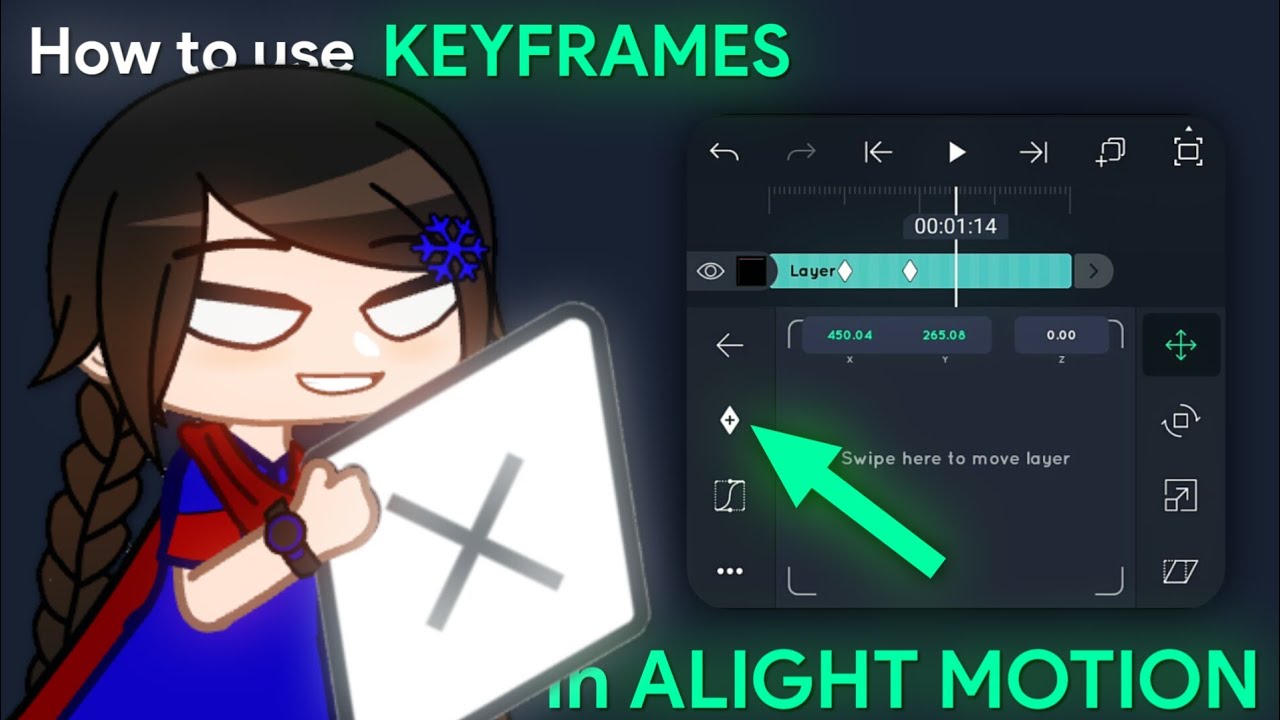
![[Beginner friendly] How to use KEYFRAMES | Tutorial - YouTube](https://akari.web.id/wp-content/uploads/2025/09/maxresdefault-8.jpg "[Beginner friendly] How to use KEYFRAMES | Tutorial - YouTube")
Effective management and precise fine-tuning of keyframes are essential for achieving smooth and professional video animations. Mastering these techniques allows editors to refine motion sequences, improve timing, and create more natural transitions between animated elements. Proper handling of keyframes ensures that the animated effects align perfectly with the intended visual narrative, ultimately enhancing the overall quality of the project.Adjusting keyframes involves not only selecting and repositioning them but also manipulating their properties to control the motion dynamics accurately.
By understanding how to move, delete, and modify keyframes effectively, editors can optimize the animation flow, address timing issues, and produce polished results that meet specific creative goals.
Selecting, Moving, and Deleting Keyframes
Selecting the correct keyframes is the foundation for effective fine-tuning. Most editing software provides intuitive tools such as click-and-drag selection or marquee selection to isolate specific keyframes for editing. Once selected, keyframes can be moved along the timeline to modify their timing, ensuring that the animation responds precisely as desired. Deleting unnecessary or misplaced keyframes streamlines the animation, prevents unwanted motion artifacts, and simplifies further adjustments.When moving keyframes, it is advisable to do so incrementally, observing the resulting motion to avoid abrupt changes that could disrupt the visual flow.
Some software allows snapping to specific points or guides, which helps maintain consistent timing and alignment across multiple keyframes. Proper deletion and management eliminate redundancies, reduce clutter, and make the editing process more efficient.
Adjusting Timing and Interpolation Methods
Fine-tuning requires careful adjustment of the timing between keyframes and selecting the appropriate interpolation methods. Timing adjustments involve shifting keyframes along the timeline to synchronize motion with audio cues, scene transitions, or other visual elements. For example, speeding up or slowing down a movement can be achieved by closer or more spaced keyframes, respectively.Interpolation methods determine how the software transitions between keyframes and significantly influence the motion’s feel.
Common options include Linear, Bezier, and Ease-in/Ease-out, each producing distinct effects. Linear interpolation results in constant speed motion, while Bezier curves enable smooth acceleration and deceleration, creating more natural movements. Adjusting these methods allows for refined control over the pacing and fluidity of animations.
“Interpolation methods define the mathematical function used to calculate the intermediate frames between keyframes, directly affecting the motion’s rhythm and style.”
Refining Motion Curves with Graph Editors
Graph editors are powerful tools that allow precise control over the motion curves of keyframes, providing visual feedback for how parameters change over time. Using a graph editor, editors can manipulate the velocity, acceleration, and easing of animated elements by adjusting the shape of the motion curves.Visual cues such as steep slopes indicate rapid changes in motion, while gentle curves suggest smooth, gradual transitions.
Refining these curves helps eliminate abrupt or jerky movements, resulting in more natural animations. For example, easing in at a slow slope at the start of a movement followed by easing out at the end ensures a seamless transition from rest to motion and vice versa.Below is a simplified table illustrating common interpolation types, their typical parameters, and visual cues:
| Interpolation Type | Parameters | Visual Cues |
|---|---|---|
| Linear | Constant rate | Straight line between keyframes |
| Bezier | Handles for adjusting curve shape | Smooth curved slope, allows easing |
| Ease-in | Slow start, accelerates | Curve starts shallow, then steepens |
| Ease-out | Decelerates towards end | Curve steep at start, then flattens |
| Ease-in-out | Slow start and end, faster in the middle | S-shaped curve for smooth acceleration and deceleration |
Refining motion curves using these parameters enhances the realism and appeal of animated elements, providing control over the subtleties of movement that can make animations more engaging and professional-looking.
Applying Effects with Keyframes

Leveraging keyframes to animate effects in video editing enables creators to produce dynamic and visually engaging content. By precisely controlling how effects evolve over time, editors can craft seamless transitions, subtle enhancements, or dramatic transformations that elevate the overall quality of the video. This section explores how to animate effects such as color correction, blurs, and transitions, as well as strategies for layering multiple effects and maintaining organized keyframes for complex effect stacks.
Understanding the application of effects with keyframes is crucial for achieving professional-grade animations. Thoughtful layering and management of keyframes allow for intricate visual storytelling, enhancing viewer engagement and cinematic appeal. The following guidelines and best practices will help you effectively incorporate animated effects into your projects.
Animating Effects Such as Color Correction, Blurs, and Transitions
Animating effects using keyframes involves setting specific parameter values at designated points in the timeline, allowing the software to interpolate these changes smoothly. This process transforms static effects into dynamic elements that evolve naturally, adding depth and interest to your video.
When working with effects like color correction, blurs, or transitions, it is essential to identify the parameters that influence their appearance. For example, in color correction, parameters such as hue, saturation, and luminance can be animated to gradually shift the mood or focus of a scene. Similarly, for blurs, you can animate the intensity or radius to create focus pulls or motion effects.
Transitions can also be animated by adjusting their duration, opacity, or edge softness to produce seamless scene changes.
Layering Multiple Animated Effects
In complex video projects, combining several animated effects can significantly enhance visual storytelling. Effective layering involves stacking multiple effects so they interact harmoniously, creating richer and more nuanced visuals. Proper management of these layers ensures that each effect contributes to the overall narrative without causing confusion or visual clutter.
To layer multiple animated effects effectively, consider the following strategies:
- Start by establishing a clear hierarchy of effects; place primary effects at the base level, and add secondary effects on top.
- Use different timeline tracks for each effect to maintain clarity and facilitate independent adjustments.
- Adjust timing and easing for each effect’s keyframes to ensure smooth transitions and prevent abrupt changes.
- Utilize opacity and blending modes to control how effects interact visually, especially when combining color grading and overlays.
Organizing Keyframes for Complex Effect Stacks
Managing numerous keyframes across multiple effects can become challenging, especially in complex projects with layered animations. Proper organization and best practices are vital to maintain control and facilitate future edits.
Consider the following approaches for effective keyframe management:
- Label Keyframes: Use descriptive labels or comments within your software to identify keyframes related to specific effects or stages of the animation.
- Use Color Coding: Assign different colors to keyframes for various effects to quickly distinguish between them during editing.
- Maintain Consistent Spacing: Distribute keyframes evenly where possible to ensure predictable interpolations and easier adjustments.
- Consolidate Effect Parameters: Group related parameters within effect layers so that adjustments are centralized, reducing clutter.
- Utilize Nested Sequences or Pre-sets: For recurring effect stacks, create pre-configured sequences or presets that can be reused and easily modified, reducing setup time and errors.
By following these practices, editors can streamline their workflow, reduce errors, and ensure that complex effect stacks remain manageable and adaptable throughout the editing process.
Advanced Keyframe Techniques
Building upon foundational keyframe skills, advanced techniques enable video editors to create more dynamic, complex, and polished animations. Mastering these methods allows for greater control over motion and effects, making animations more engaging and professional-looking.
Implementing sophisticated keyframe strategies involves understanding nested keyframes, motion paths, oscillations, bouncing effects, and automation through expressions or scripts. These techniques open a wide array of possibilities for customizing animations, streamlining repetitive tasks, and adding nuanced motion details that elevate the overall quality of your video projects.
Nested Keyframes and Motion Paths
Nested keyframes involve embedding a series of keyframes within other keyframes or hierarchical structures, allowing for multi-layered animations. This approach provides greater flexibility and control over complex movements, such as animating an object along a custom-defined trajectory or combining multiple animation parameters simultaneously.
Motion paths are visual representations of an object’s trajectory across the timeline. They enable precise control over movement, allowing editors to craft intricate paths that follow specific curves, shapes, or custom designs. By manipulating motion paths, you can simulate naturalistic motions such as following a curved track or mimicking organic movements.
“Nested keyframes allow for layered animation control, while motion paths facilitate precise trajectory design, resulting in more natural and detailed motion effects.”
Creating Oscillations, Bouncing, or Bouncing Effects
Reusable and lively animations like oscillations and bouncing effects can be achieved efficiently through keyframes. These effects are particularly useful for emphasizing UI elements, adding energy to animations, or simulating physical behaviors such as bouncing balls or shock absorption.
To create such effects, use techniques such as adjusting keyframe interpolation to be oscillatory or applying easing functions that mimic acceleration and deceleration. For bouncing effects, set keyframes that increase and decrease in amplitude, coupled with easing to simulate gravity and rebound. The timing and spacing of keyframes critically influence the realism of these effects.
For example, a bouncing ball can be animated by setting the initial high position, then decreasing the bounce height with each subsequent keyframe, and applying an easing function to smooth the transitions, mimicking real-world physics. Combining multiple keyframes with varied timing creates a convincing bounce animation.
Automating Repetitive Animations with Expressions or Scripts
Automation techniques significantly streamline repetitive tasks, saving time and ensuring consistency across animations. Using expressions or scripting languages embedded within editing software allows for dynamic, rule-based motion that can adapt to changes without manual keyframe adjustments.
Common applications include:
- Looping animations: Creating seamless oscillations, rotations, or scaling effects that repeat indefinitely or for a specified number of cycles.
- Dynamic parameter control: Linking properties such as position, opacity, or scale to time-based functions, enabling automated variations that respond to external inputs or parameters.
- Procedural animation: Generating complex movement patterns like spirals, waves, or random jitter using mathematical functions and algorithms.
- Randomization: Adding natural variability to animations, such as simulating hand-held camera shake or flickering lights, through scripting that introduces controlled randomness.
For example, a simple expression in After Effects might involve using a sine wave function to create a bouncing or oscillating motion, which can be easily reused and adjusted by changing parameters within the script. Such automation enables highly customizable and flexible animations, especially useful for projects requiring iterative or parametric adjustments.
Summary

In summary, mastering how to use keyframes in video opens the door to limitless creative possibilities. Whether adjusting motion paths, applying effects, or refining animations, proper keyframing techniques ensure your videos are smooth, compelling, and visually captivating. Continued practice and exploration will significantly enhance your editing skills.