Learning how to remove green screen backgrounds is essential for creating professional-quality videos and visual content. This process allows creators to seamlessly replace or edit backgrounds, opening up endless creative possibilities for movies, presentations, and digital projects.
By understanding the fundamental principles of chroma keying technology and utilizing the right tools and techniques, users can achieve clean, precise results even in challenging scenarios. Proper preparation and troubleshooting are also vital to mastering green screen removal with efficiency and finesse.
Overview of Removing Green Screen Backgrounds
Green screen removal is a fundamental technique in modern video production and photography that allows creators to seamlessly integrate different backgrounds into their scenes. This process has revolutionized visual storytelling by enabling the creation of imaginative environments, virtual sets, and professional-looking compositions without the need for physical location changes. Understanding the core principles behind green screen removal is essential for producing high-quality visual content that appears natural and cohesive.
At the heart of green screen removal lies the technology of chroma keying, a method used to isolate and extract a specific color—typically bright green or blue—from a video or image. This technique involves carefully selecting the chroma color and replacing it with another background or visual element, thus creating the illusion that subjects are situated in different environments. Its versatility makes it a preferred choice across various industries, including filmmaking, television broadcasting, commercial advertising, and virtual event production.
Concept of Green Screen Removal and Its Significance
Green screen removal involves capturing footage against a uniformly colored background that can be easily distinguished from the subject. This enables editors to replace the solid color with any desired backdrop, ranging from natural landscapes to digital graphics. The significance of this technique extends beyond visual enhancement; it allows for cost-effective production by eliminating the need for location shoots or elaborate sets, and it provides creative flexibility to craft scenes impossible to film in real life.
Chroma Keying Technology and Its Basic Principles
Chroma keying is a color-based compositing technique that leverages color separation algorithms to identify and remove the specified chroma color from the footage. The key principle involves selecting the green or blue color range that forms the background. The software then processes each frame to detect this color and makes it transparent, enabling the overlay of alternative backgrounds. The effectiveness of chroma keying depends on various factors, including lighting, the uniformity of the background color, and the subject’s distance from the backdrop.
Fundamental Formula for Chroma Keying: Transparency Mask = 1 – (|Color Subtract| / Threshold) This formula represents how software calculates the transparency level of each pixel based on its color similarity to the target chroma key color, within a specified threshold.
Common Scenarios and Projects Utilizing Green Screen Removal
Green screen removal finds extensive application across multiple domains, each benefiting from the ability to composite images and videos convincingly. For example, in film production, actors perform in front of green screens, and backgrounds are added during post-production to simulate exotic locations or fantastical worlds. News broadcasting often employs chroma key technology to display weather maps or studio graphics behind anchors.
Additionally, online content creators and virtual influencers use green screens to generate dynamic backgrounds, enhancing viewer engagement and content professionalism.
- Film and Television Production: Creating immersive worlds and special effects.
- Live Broadcasts: Displaying weather forecasts, virtual sets, or interactive graphics.
- Commercial Advertising: Showcasing products in diverse environments without physical setup.
- Educational Content: Enhancing instructional videos with relevant visual aids and backgrounds.
- Online Streaming and Gaming: Providing personalized and engaging visual setups for audiences.
Tools and Software for Removing Green Screen

Removing green screen backgrounds effectively requires the right combination of software and hardware. Multiple tools are available in the market, ranging from professional-grade applications to free alternatives suitable for beginners. Selecting the appropriate software depends on your specific needs, budget, and the hardware capabilities of your editing setup. This section provides an overview of popular green screen removal tools, compares their features, and discusses hardware considerations for optimal performance.
Popular Green Screen Removal Software Options
The landscape of green screen editing tools includes industry-standard programs used by professionals, as well as accessible free options for hobbyists and new content creators. Below is a list of widely used tools with key features supporting green screen removal:
- Adobe Premiere Pro: An industry-leading video editing software offering advanced chroma key tools, multi-camera editing, and detailed color correction features. It supports high-resolution formats and integrates seamlessly with Adobe Creative Cloud.
- DaVinci Resolve: A powerful, free software known for its professional-grade color grading and editing capabilities. Its Fusion module provides robust chroma keying features suitable for complex green screen projects.
- Final Cut Pro: Apple’s professional video editing suite optimized for Mac users. It offers intuitive green screen effects, real-time RT editing, and advanced masking tools for precise background removal.
- HitFilm Express: A free editing tool that combines VFX and editing features, including a comprehensive chroma key plugin. Suitable for users looking for a budget-friendly yet effective green screen solution.
Hardware and Software Requirements for Effective Green Screen Editing
Achieving seamless green screen removal not only depends on the software but also on your computer’s hardware specifications. The complexity of editing tasks influences hardware needs, especially when working with high-resolution footage or multiple layers.
For optimal performance, consider the following hardware components:
- Processor (CPU): A multi-core processor (Intel i7 or AMD Ryzen 7 and above) ensures faster rendering and real-time playback.
- Graphics Card (GPU): A dedicated GPU, such as NVIDIA GeForce RTX series or AMD Radeon RX series, accelerates rendering processes, particularly in software like DaVinci Resolve which leverages GPU power extensively.
- Memory (RAM): At least 16 GB of RAM for standard projects; 32 GB or more recommended for 4K footage or complex editing workflows.
- Storage: Fast SSD storage reduces load times and improves workflow efficiency, especially when handling large video files.
On the software side, it’s important to ensure your operating system is compatible with the chosen program, and that the software version supports your hardware specifications. Regular updates and driver optimizations can significantly enhance stability and performance during green screen edits.
Feature, Price, and User-Friendliness Comparison
To aid in selecting the right tool, a comparative overview of popular green screen removal software is provided in the table below:
| Software | Features | Price | User-Friendliness |
|---|---|---|---|
| Adobe Premiere Pro | Advanced chroma key, multi-camera editing, integration with Adobe tools, high-resolution support | $20.99/month (Subscription) | High; suitable for professionals and experienced editors |
| DaVinci Resolve | Color grading, Fusion VFX, comprehensive chroma keying, multi-format support | Free; Studio version available for $295 | Moderate to high; steep learning curve but highly versatile |
| Final Cut Pro | Real-time editing, intuitive masking, seamless Mac integration, advanced chroma key | $299.99 (one-time purchase) | High; optimized for Mac users, user-friendly interface |
| HitFilm Express | VFX compositing, chroma key, special effects, beginner-friendly features | Free; optional paid add-ons | High; ideal for beginners and hobbyists |
For professional work requiring intricate editing and high output quality, Adobe Premiere Pro or Final Cut Pro are preferred. For cost-effective yet powerful options, DaVinci Resolve and HitFilm Express serve as excellent choices, especially for learners and small-scale projects.
Preparing Your Footage for Green Screen Removal

Achieving professional-quality results in green screen editing begins long before you open your editing software. Properly preparing your footage during the filming process is crucial to facilitate seamless background removal. Attention to detail during shooting ensures that the post-production process is efficient, minimizes errors, and enhances the overall visual quality of your final project.When filming green screen footage, the primary considerations include optimal lighting, a high-quality background, and precise subject positioning.
These elements work together to create footage that is easier to key out, resulting in cleaner edges and fewer artifacts. Implementing best practices from the outset saves valuable editing time and improves the clarity of the composite image.
Filming Green Screen Footage with Proper Lighting
Lighting is the foundation of successful green screen removal. Even, consistent lighting across the entire backdrop and subject ensures that the chroma key process can distinguish between the background and subject accurately. Uneven lighting causes shadows, hotspots, or variations in color intensity, which complicate the keying process.To achieve balanced lighting:
- Use soft, diffuse light sources such as softboxes or LED panels to minimize harsh shadows and glare.
- Position lights at 45-degree angles relative to the green screen to evenly illuminate the background.
- Maintain consistent color temperature across all lighting equipment to prevent color shifts.
- Ensure the subject is well-lit with separate lighting to avoid spill onto the green screen, which can lead to color contamination.
The goal is to create a uniformly lit background with no shadows or bright spots, which greatly simplifies the keying process.
Maintaining Background Quality and Color Uniformity
The green screen material itself must be of high quality—smooth, wrinkle-free, and evenly colored—to facilitate clean removal. Wrinkles, folds, or inconsistent fabric tension create shadows and variations in the green hue, making it difficult for software to distinguish between the background and foreground.Best practices include:
- Using professional-grade chroma key fabric or painted walls with matte, non-reflective finishes.
- Applying a consistent coat of green paint or fabric dye to achieve uniform coloration.
- Smoothing out wrinkles and securing the material tightly to avoid creases or sagging.
- Ensuring the background is free from dust, dirt, or stains that could interfere with color consistency.
Regularly inspecting the setup during filming helps maintain a high-quality background that will yield cleaner keying results.
Subject Positioning and Distance from the Background
Proper subject placement is vital to prevent green spill and shadows, which can hinder keying. The subject should be positioned at an adequate distance from the green screen—generally at least 3 to 6 feet—to avoid light reflections and spill onto the subject.Key points include:
- Keeping the subject at least 3 feet away from the green screen to reduce color spill and shadows.
- Using markers or guides to ensure consistent distance and positioning for multiple takes.
- Orienting the subject to face the camera directly, with minimal movement during shooting, to maintain consistent framing.
- Ensuring loose clothing or accessories do not match or blend with the green background, which can complicate keying.
This strategic positioning enhances the separation between the subject and background, simplifying the removal process.
Additional Tips for Optimal Footage Recording
High contrast and evenly lit footage significantly ease the chroma key process. Record in the highest resolution possible, with proper exposure settings to prevent underexposure or overexposure. Use a neutral color backdrop that remains consistent throughout the shoot for maximum effectiveness.Furthermore:
“Record at a minimum of 1080p resolution with a shutter speed that matches your frame rate to avoid motion blur.”
Examples from professional videographers show that meticulous attention to these details results in footage that is cleaner and more manageable during editing. Regularly reviewing footage on a large screen during filming allows immediate detection of potential issues, reducing post-production revisions.By adhering to these procedures, you lay a solid groundwork for achieving high-quality green screen removal and composite visuals that meet professional standards.
Step-by-Step Guide to Removing Green Screen
Successfully removing a green screen background requires a methodical approach within your editing software. This section provides a clear, organized procedure to help you achieve professional results, from importing your footage to refining the final composite. Attention to detail during each step ensures a clean, natural-looking background removal that enhances your overall project quality.
Following this structured guide will help streamline your workflow, minimize errors, and produce visually appealing results suitable for a variety of creative applications such as video production, virtual backgrounds, or special effects.
Importing Footage into Editing Software
The foundational step in green screen removal involves importing your raw footage into your chosen editing environment. Proper import settings, file organization, and format compatibility are essential for smooth processing and optimal results.
- Organize your footage in clearly labeled folders to facilitate easy access and version control, especially when working with multiple takes or sources.
- Ensure your video files are in a compatible format supported by your editing software, such as MOV, MP4, or your specific software’s preferred codec.
- Use high-resolution footage whenever possible, as higher resolution improves keying accuracy and detail preservation during the chroma key process.
- Import your footage through the software’s media browser or import panel, avoiding drag-and-drop if your platform recommends a dedicated import process for better metadata handling.
Applying Chroma Key Effects Step-by-Step
Effective application of chroma key effects is critical to isolating your subject from the green background. Follow these detailed steps to ensure a precise keying process:
- Select your footage on the timeline and locate the chroma key or keying effect within your software’s effects panel.
- Drag the chroma key effect onto your footage layer, then access its control panel or effect settings.
- Use the eyedropper tool to sample the green color in your footage, establishing the key color that will be removed.
- Adjust the similarity or tolerance sliders to fine-tune the range of green hues that are keyed out, ensuring minimal spill or residual green edges.
- Modify the edge feather or softening parameters to create a more natural transition between the subject and the transparent background.
Refining Edges, Removing Spill, and Cleaning Up Backgrounds
Post-keying cleanup is essential for achieving a professional, seamless composite. This involves refining edges, eliminating color spill, and cleaning any remaining artifacts or unwanted background elements.
| Technique | Description | Application Details |
|---|---|---|
| Matte Cleanup | Removes fine fringe or halo artifacts around the subject’s edges that often occur during keying. | Use matte cleanup tools or matte finesse controls to refine the matte, adjusting parameters such as choke, shrink, or expand for precise edges. |
| Garbage Masks | Allows manual masking of unwanted areas or spill regions to improve overall key quality. | Create masks around problematic regions and feather edges to seamlessly blend with the background or replace with clean transparency. |
| Color Correction | Adjusts the remaining color spill and enhances the subject’s appearance to match the new background. | Apply hue/saturation, color curves, or selective color correction to neutralize spill and match lighting conditions. |
“Refining edges and removing spill are critical steps that often determine the difference between amateurish and professional chroma key composites.”
Creating Transparent Backgrounds
To ensure your subject is fully isolated, and the background is transparent, specific settings within the software must be configured appropriately.
Many editing platforms allow you to export footage with an alpha channel, preserving transparency. Depending on the software, this may involve:
| Method | Description | Implementation Details |
|---|---|---|
| Export with Alpha Channel | Saves the transparency information during export. | Choose file formats like MOV or PNG sequences that support alpha channels; enable alpha export options in the export settings. |
| Use of Matte or Alpha Matting | Refines transparency for cleaner backgrounds. | Apply matte generation tools or alpha matting algorithms to optimize the transparency layer, especially in complex scenes. |
Ensuring proper transparency is crucial for overlaying your subject onto different backgrounds or integrating with visual effects seamlessly.
Advanced Techniques for Green Screen Removal
Mastering green screen removal involves more than just basic keying. Advanced techniques enable filmmakers and content creators to achieve seamless composites, even in complex scenarios involving multiple layers, dynamic backgrounds, or integration with 3D elements. These methods elevate the realism of final productions and provide creative flexibility that surpasses standard chroma keying.
Applying these sophisticated techniques requires a thorough understanding of compositing workflows, the ability to manipulate various visual effects, and familiarity with industry-standard software. They are essential for professional-grade productions, where the goal is to create immersive visual experiences that convincingly blend multiple visual elements into a cohesive scene.
Multi-Layer Compositing and Multiple Green Screen Backgrounds
Handling scenes with multiple green screen backgrounds or foreground elements involves meticulous planning and precise execution. Multi-layer compositing allows for the integration of several green screen shots within a single scene, enabling complex visual storytelling such as inserting a character into a fantastical environment or layering different background scenarios.
Effective management of multiple layers entails:
- Organizing footage into distinct layers within compositing software, such as Adobe After Effects or Nuke, to facilitate individual adjustments.
- Applying granular keying techniques to each layer to ensure clean separation, especially when backgrounds vary significantly in color or lighting.
- Synchronizing lighting and perspective across layers to maintain spatial coherence, which is vital when combining multiple backgrounds or elements.
Adding multiple green screen backgrounds can also be achieved through the use of nested compositions, where each background or element is keyed separately and then combined. This approach allows for dynamic scene changes or the creation of complex environments with layered depth, providing filmmakers with extensive creative control.
Applying Filters and Effects to Enhance Realism
Post-processing effects and filters play a crucial role in refining green screen composites. They help mitigate common issues such as color spill, uneven lighting, or edge fringing, improving the overall believability of the scene.
Some key methods include:
- Utilizing color correction tools to match the foreground and background tones for a seamless blend.
- Applying spill suppression filters to reduce green cast contamination on subject edges, which is particularly important when using highly saturated green screens.
- Adding subtle blurs or glow effects to soften edges and simulate depth of field, blending foreground elements naturally into the background.
“The judicious use of filters can significantly elevate the realism of green screen composites, making them indistinguishable from real-world footage.”
Integrating Green Screen Footage with 3D Elements and Motion Graphics
Combining green screen footage with 3D models or motion graphics extends creative possibilities, enabling the creation of immersive visual environments and dynamic scenes. This integration involves precise alignment, lighting matching, and compositing techniques that ensure the 3D content melds seamlessly with live-action footage.
Key procedural steps include:
- Rendering 3D elements with proper alpha channels and ensuring consistent lighting conditions to match real-world footage.
- Using camera tracking tools within compositing software to align motion graphics with live-action camera movements accurately.
- Applying shadow and reflection effects to 3D objects to enhance depth and realism, making them appear as part of the original scene.
For example, adding a 3D explosion behind a character or integrating animated text into a live scene involves carefully matching perspective and lighting, as well as employing advanced rendering techniques like ray tracing for realistic shadows and reflections. These integrated elements can dramatically increase the visual impact of a production, providing a professional and polished appearance that captivates viewers.
Tips for High-Quality Green Screen Productions
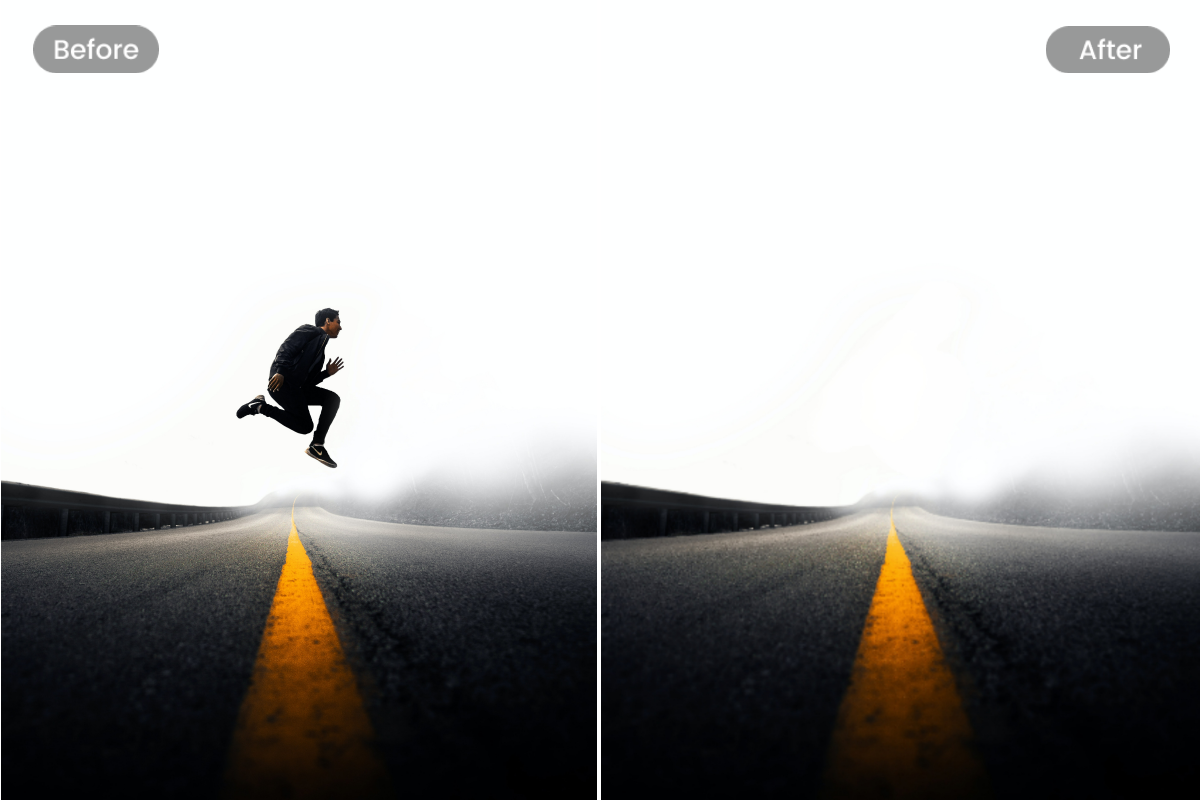
Creating professional-grade green screen videos requires meticulous planning and execution. Achieving a seamless, high-quality result involves careful attention to lighting, background selection, and camera settings. Implementing best practices in these areas ensures your green screen footage will be clean, clear, and easy to composite, saving time in post-production and enhancing the overall visual appeal of your project.Proper green screen production combines technical precision with creative vision.
When executed correctly, it transforms simple backgrounds into dynamic, immersive environments that captivate viewers. Whether producing content for film, television, or online media, adopting these tips will elevate your green screen projects to a professional standard.
Lighting Setups for Green Screen Shooting
Effective lighting is the cornerstone of high-quality green screen footage. Uniform illumination across the green backdrop prevents shadows, hotspots, and color variations that can complicate the chroma keying process. To achieve this:
- Use multiple soft lights positioned evenly on either side of the green screen to ensure consistent lighting coverage.
- Employ diffusers or softboxes to diffuse light evenly, reducing harsh shadows and reflections.
- Keep the green screen well-lit without overexposing it, maintaining a proper brightness level that contrasts sharply with the subject.
- Avoid spilling green light onto the subject by positioning the lights carefully, and consider using flags or barn doors to direct the light precisely.
Proper lighting setup minimizes post-production adjustments and creates a cleaner key, especially in scenes with complex backgrounds.
Background Fabric Selection and Setup
Choosing the right fabric and setup for the green screen background is essential for achieving a smooth, wrinkle-free surface. The ideal material is a wrinkle-resistant, matte green fabric that minimizes reflections:
- Opt for muslin or specialized green screen fabric designed for chroma keying, ensuring a consistent matte finish.
- Stretch the fabric tightly over a frame or support to eliminate wrinkles and creases, which can cast shadows or cause uneven coloring.
- Ensure the green background is evenly lit, with no shadows or uneven patches, to facilitate easier removal during editing.
- Maintain a safe distance between the subject and the backdrop—at least 3 to 5 feet—to prevent green spill onto the subject and reduce shadows.
A well-selected and properly set up fabric background forms a pristine surface for digital compositing.
Camera Settings for Green Screen Filming
Optimizing camera settings is crucial for capturing footage suitable for chroma keying. Consistent and accurate camera parameters help maintain color fidelity and focus:
- Set the camera to a high resolution (at least 1080p or higher) to retain fine details and textures in the footage.
- Use manual focus to prevent focus shifts during recording that can lead to blurriness or inconsistent sharpness.
- Adjust the white balance manually to ensure color accuracy, especially for the green tone of the background.
- Use a narrow aperture (higher f-stop, e.g., f/8 or f/11) to increase the depth of field, keeping both subject and background in sharp focus.
- Maintain a steady camera position with a tripod or stabilizer to avoid motion artifacts that complicate keying.
Applying these camera settings results in clearer footage that simplifies the keying process and improves overall video quality.
Green Screen Production Checklist
Achieving professional results involves systematic preparation and execution. The following checklist ensures all critical aspects are addressed:
| Preparation | Execution | Post-Production |
|---|---|---|
| Choose a wrinkle-free green fabric and set up on a sturdy support | Ensure even lighting across the entire green screen | Use appropriate chroma key software and fine-tune the key settings |
| Set the subject at least 3-5 feet away from the backdrop | Use manual camera settings for consistent exposure and focus | Refine edges and remove green spill during compositing |
| Test shot for lighting consistency and background uniformity | Monitor for shadows and reflections during filming | Adjust color correction and matte refinement as necessary |
| Record in a quiet, controlled environment to avoid noise and disturbances | Check footage for motion stability and focus accuracy | Finalize the composite with color grading to match the background seamlessly |
Effective Examples of Green Screen Setups
Real-world green screen setups demonstrate the importance of detailed planning and execution:
A professional video production studio uses a large, seamless muslin green backdrop stretched tightly over a frame, illuminated by two softbox lights positioned on either side at 45-degree angles. The subject is placed approximately four feet from the background, with dedicated lighting to illuminate the subject separately. The camera is set to manual mode with white balance adjusted to a fixed green tone, and a tripod ensures stability. This setup results in a clean, evenly lit background with minimal green spill, making keying straightforward and producing a highly realistic composite.
In a smaller home studio, a matte green fabric is draped over a wall, with portable LED lights providing even lighting. The subject wears neutral clothing to avoid green spill and maintains distance from the background. The camera uses manual focus and fixed white balance. Despite space constraints, careful lighting and setup produce footage suitable for high-quality green screen effects, demonstrating that professional results are achievable with attention to detail.
End of Discussion
Mastering how to remove green screen empowers content creators to elevate their visual storytelling, providing a polished and engaging viewer experience. With the right knowledge and tools, anyone can produce stunning composite videos that captivate audiences and bring imaginative ideas to life.